Most Windows games run on Snapdragon X laptops, either as native Arm64 builds or as x64 and x86 games translated by the Prism emulator, but games that need anti-cheat or other kernel drivers without Arm64 versions do not start.
This guide covers what runs well, why some games refuse to run, how to turn on Auto Super Resolution, the settings that help, and what to try when a game crashes.
Can Snapdragon X laptops run games?
Windows 11, version 24H2 and later ships the Prism emulator, which Microsoft tunes specifically for Snapdragon processors. It runs x86 and x64 games without any extra install.
The hard limit is drivers. Emulation covers user-mode code only, so any kernel-mode component, including many anti-cheat systems, must be built for Arm64.
Buy or keep a Snapdragon X laptop for single-player PC games, older titles, indie games and cloud gaming, and check each competitive online game with its publisher before you rely on it. Microsoft states that games relying on anti-cheat drivers not made for Arm-based PCs might not work, while ordinary DirectX games run through Prism or natively.
What runs well
Compatibility depends on how a game is built. Use the game's architecture and dependencies to predict the result.
| Game type | How it runs on Snapdragon X | What to expect |
|---|---|---|
| Native Arm64 game | Runs directly on the CPU | Best performance and battery life |
| x64 game on Windows 11 24H2 or later | Translated by Prism | Works in most cases; some CPU overhead |
| x86 (32-bit) game | Translated by Prism through WOW64 | Works; newer CPU features hidden by default |
| Game that needs AVX or AVX2 | Supported by Prism on Windows 11 24H2 and newer | Launch checks for these features now pass |
| Cloud games on xbox.com/play | Streamed in Microsoft Edge or Google Chrome 85+ | Hardware does not matter; network quality does |
| Game with kernel anti-cheat | Only if the anti-cheat driver is Arm64 | Often refuses to launch |
Prism caches translated code per module, so a game usually starts faster on its second launch than on its first.
Why some games refuse to run
When a game fails outright on a Snapdragon X PC, one of these blockers is almost always the cause.
| Blocker | Why it stops the game | What you can do |
|---|---|---|
| Anti-cheat driver not built for Arm | Emulation cannot run kernel-mode drivers | Check with the publisher for Arm support |
| Other kernel-mode drivers a game installs | Same kernel-mode limit as anti-cheat | Look for an Arm64 version from the developer |
| Peripheral without an Arm64 driver | Hardware works only with built-in or Arm64 drivers | Use a controller supported by Windows' built-in drivers |
| Windows 10 on Arm | Emulates x86 apps only, not x64 | Upgrade to Windows 11 for x64 emulation and Prism |
| Third-party security software in the game bundle | Some antivirus tools cannot be installed on Arm | Rely on Windows Security unless the vendor offers an Arm build |
Which way to play each game on a Snapdragon X laptop
| Your game | Best route | Why |
|---|---|---|
| Has an Arm64 build | Install and play it locally | No translation overhead |
| Single-player x64 DirectX 10+ game | Play locally under Prism, with Auto SR | Auto SR upscales from a lower render resolution |
| DirectX 9, Vulkan or OpenGL game | Play locally under Prism without Auto SR | Auto SR does not support these runtimes |
| Online game with anti-cheat that blocks Arm | Stream it from xbox.com/play if it is offered there | Cloud play skips local drivers entirely |
| Game crashes under emulation | Adjust its emulation settings | Stricter settings trade speed for compatibility |
Auto Super Resolution
Automatic Super Resolution (Auto SR) uses the NPU and integrated GPU to upscale a game rendered at a lower resolution. It needs a Snapdragon X or X2 Copilot+ PC, Windows 11 24H2 or later, a 1080p or higher display, and a DirectX 10 or later game.
On Snapdragon PCs, Microsoft recommends a game resolution closest to 1280 x 800. x86-only games, 10-bit formats, DirectX 9, Vulkan and OpenGL are not supported.
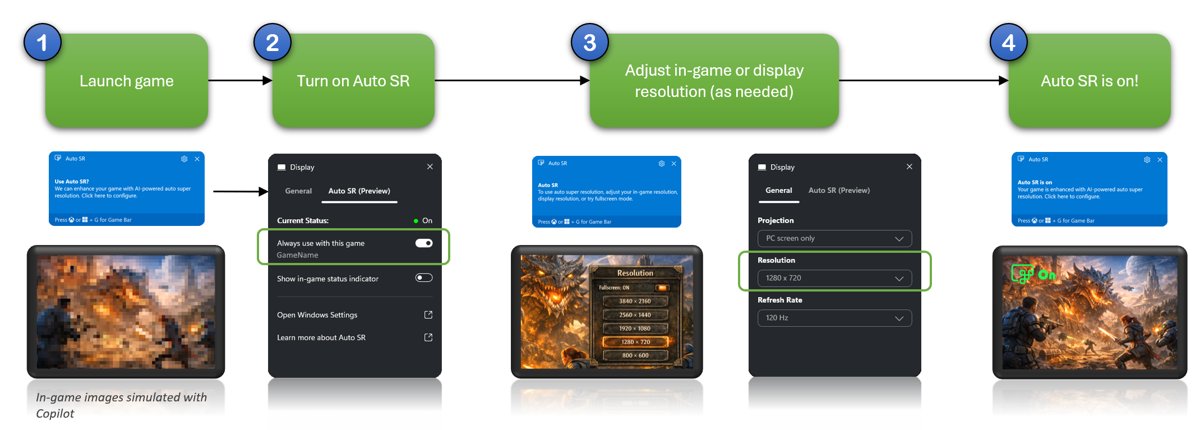
- Select Start > Settings > Windows Update and install every update, including graphics and NPU drivers.
- Launch the game.
- Press Win + G and go to Widgets Menu > Display > Auto SR.
- Turn on Always use with this game and Show in-game status indicator.
- In the game's own settings, choose a supported resolution and set the display mode to Fullscreen or Exclusive Fullscreen.
- Look for the Auto SR status indicator in the corner of the game window.
The setting sticks, so Auto SR turns on automatically next time as long as the resolution and display mode stay supported.
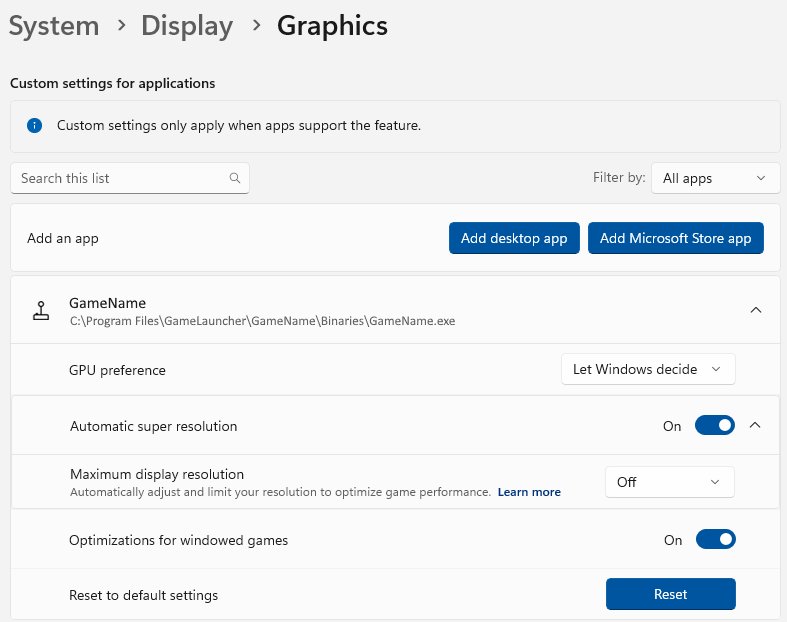
Auto SR settings in Windows 11 without Game Bar
| Goal | Path | Setting |
|---|---|---|
| Turn Auto SR on for one game | Start > Settings > System > Display > Graphics > Custom settings for applications | Select the game, set Automatic super resolution to On |
| Turn Auto SR on for all supported games | Start > Settings > System > Display > Graphics | Under Default settings, turn Automatic super resolution On |
| Launch a game at an Auto SR resolution | Start > Settings > System > Display > Graphics > Custom settings for applications | Choose a resolution under Maximum display resolution setting |
| Exclude a few games | Same per-game page | Default on, then turn the game's toggle Off |
The maximum resolution option suits games that only offer borderless windowed mode, because Windows switches the display back when the game exits.
Change Prism emulation settings for a game that crashes
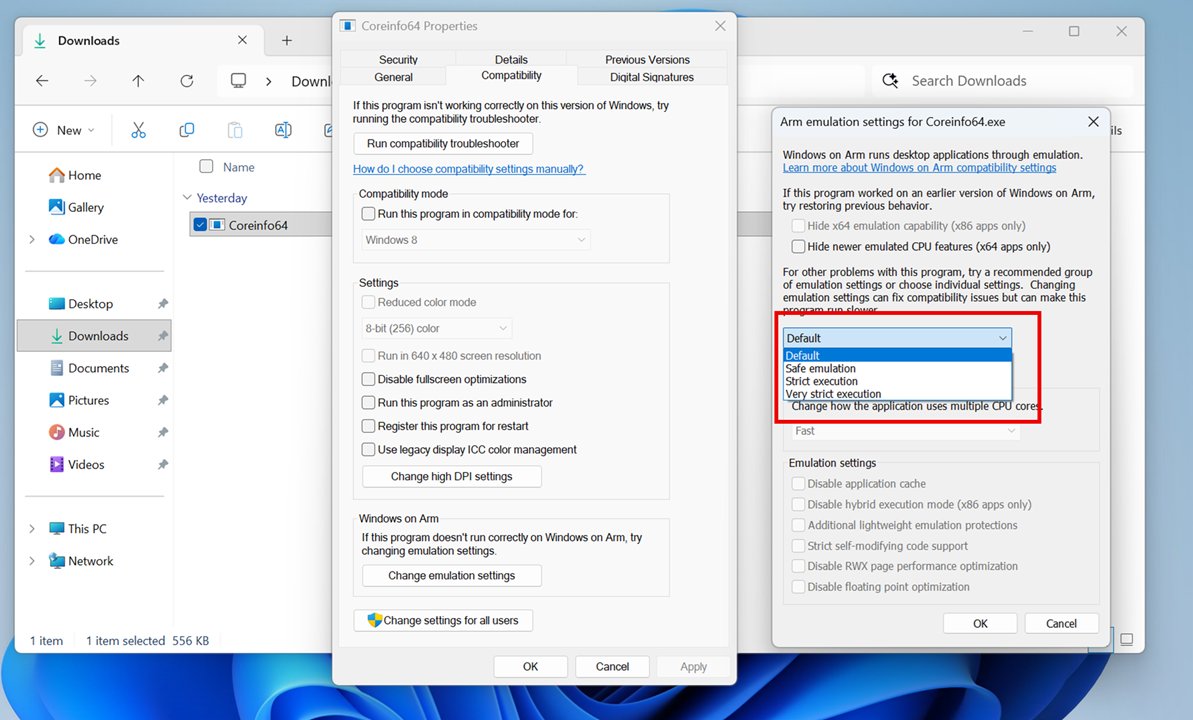
Prism's default mode balances speed and compatibility. Changing it can fix a crash, but Microsoft warns that it can also stop a game from launching, so change one step at a time.
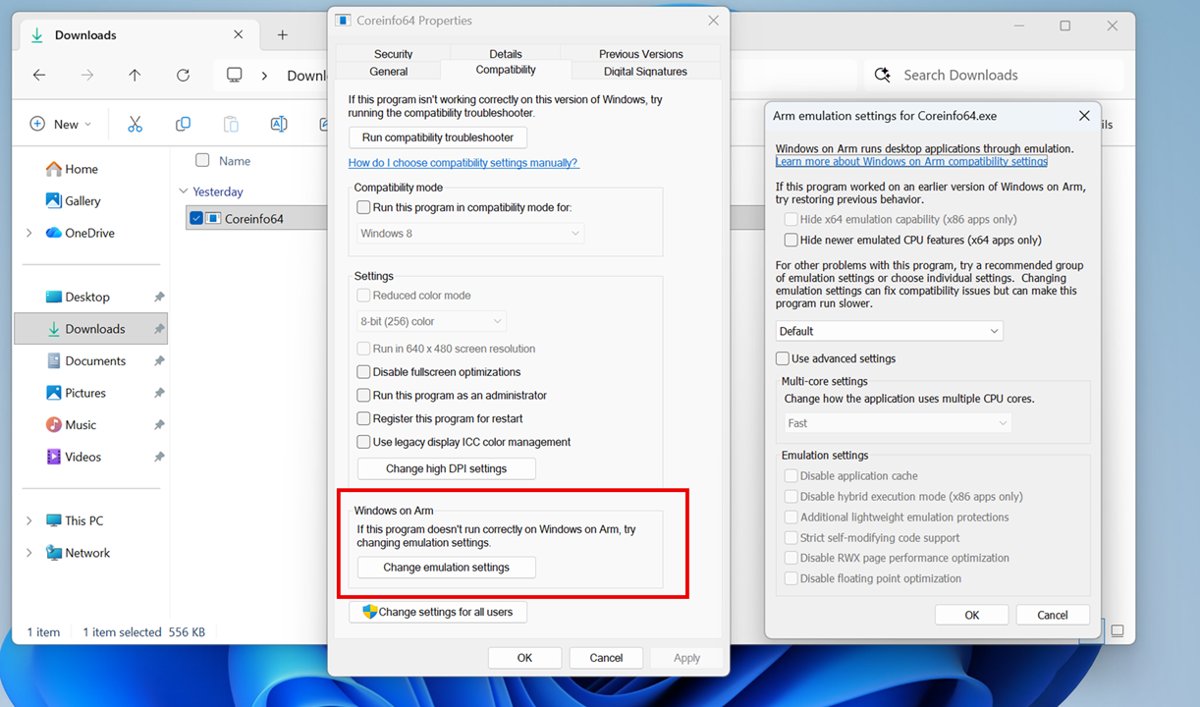
- Right-click the game's .exe file and select Properties.
- Open the Compatibility tab and find the Windows on Arm section.
- Select Change emulation settings.
- Move from Default to Safe, then try the game.
- If it still crashes, try Strict, then Very strict.
- For a game that worked on an older Windows build, try Hide newer emulated CPU features.
- Return to Default if none of the changes helps.
Under Use advanced settings, Force single-core operation is a last resort for multithreading crashes, at a large speed cost.
Play Xbox cloud games on a Snapdragon X laptop
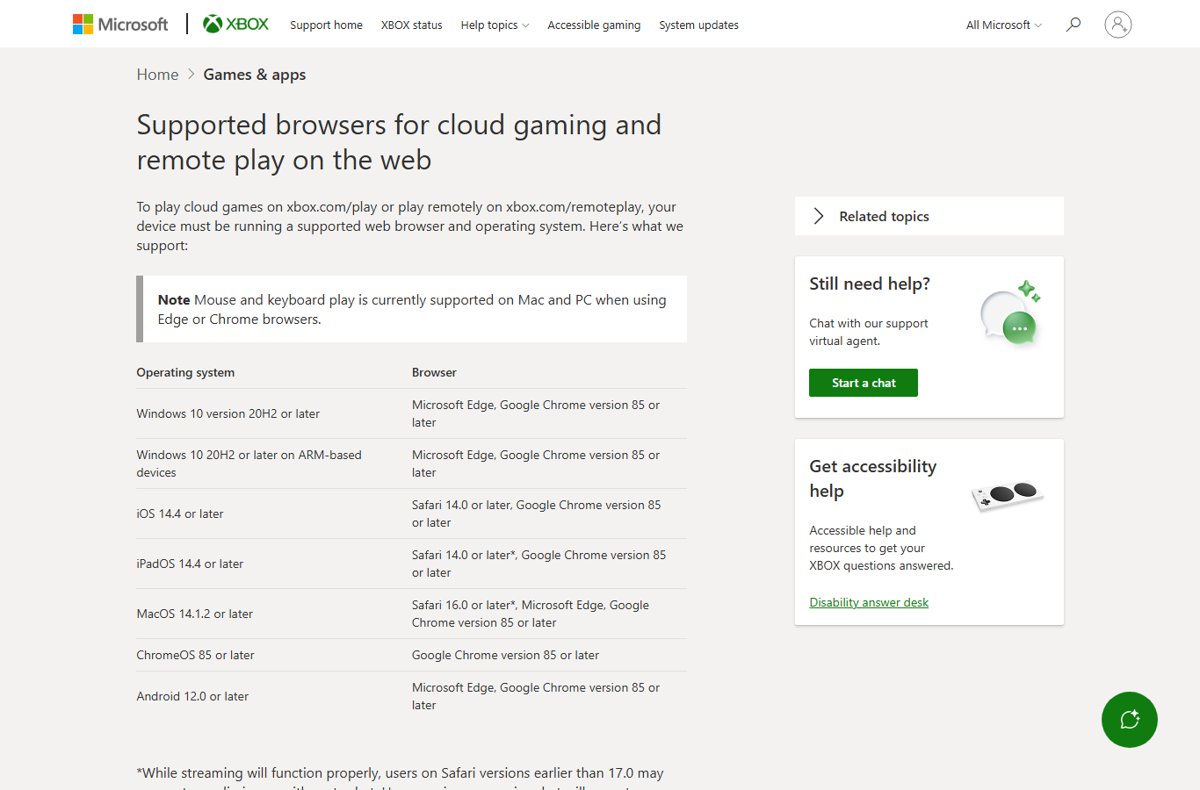
Xbox cloud gaming supports Windows on Arm devices in Microsoft Edge and Google Chrome version 85 or later. Mouse and keyboard play works in both browsers on PC.
- Open Microsoft Edge or Google Chrome.
- Go to xbox.com/play.
- Sign in with the Microsoft account that holds your Xbox subscription.
- Connect a controller, or use mouse and keyboard where the game supports it.
- Pick a game from the cloud library and start it.
Practical tips
| Tip | How | Why it helps on Snapdragon X |
|---|---|---|
| Keep Game Mode on | Settings > Gaming > Game Mode | Stops driver installs and restart prompts during play |
| Update Windows and drivers | Settings > Windows Update > Check for updates | Graphics, NPU and Auto SR packages arrive this way |
| Check requirements first | Read the system requirements on the game's Store page | Avoids buying a game that needs an x64 driver |
| Prefer Arm64 builds | Pick the Arm64 download when a launcher offers one | Native code skips translation |
| Lower render resolution | Set about 1280 x 800 in the game | Lets Auto SR upscale and frees GPU headroom |
| Launch twice before judging | Close the game after the first start and reopen it | Prism's code cache speeds up later launches |
Fix games that will not run on Snapdragon X
Game shows an anti-cheat or driver error and closes
The anti-cheat or DRM driver has no Arm64 version, and emulation cannot run kernel drivers.
- Check the publisher's support pages for Windows on Arm or Snapdragon support.
- Update the game and Windows, since an Arm64 driver can arrive in a later update.
- Stream the game from xbox.com/play if it is offered there.
Game crashes on launch or shows graphical glitches
An emulation optimization or an old graphics driver conflicts with the game.
- Install all updates from Settings > Windows Update.
- Open the game's .exe Properties > Compatibility > Change emulation settings.
- Try Safe, then Strict, testing the game after each change.
Auto SR stays off in a supported game
The game runs at an unsupported resolution or display mode.
- Open Xbox Game Bar with Win + G and check the Auto SR tab status.
- Set the game to about 1280 x 800 in Fullscreen or Exclusive Fullscreen.
- Restart the game if the status reads Off, Action Required.
Controller or gaming peripheral does nothing
The device depends on a driver that is not built into Windows and has no Arm64 version.
- Check whether the manufacturer offers an Arm64 driver.
- Try a controller that works with Windows' built-in drivers.
- Avoid companion utilities that install their own kernel drivers.
The trend line
Gaming on Snapdragon X is now practical for most single-player and older PC games, and anti-cheat support remains the factor to check before buying. Prism in Windows 11 24H2 added x64 emulation gains and AVX/AVX2 support, Auto SR now covers Snapdragon X and X2 PCs, and Microsoft reports more native Arm64 apps than ever, but kernel drivers still need publishers to ship Arm64 builds.
Snapdragon X gaming FAQ
What is Snapdragon Windows?
It is Windows 11 running on a PC with a Qualcomm Snapdragon Arm processor instead of an Intel or AMD x64 chip. Native Arm64 apps run directly, and other Windows apps run through the built-in Prism emulator.
Can Snapdragon laptops run games?
Yes. Snapdragon X laptops run native Arm64 games and most x86 and x64 games through Prism emulation on Windows 11 24H2 or later. Games whose anti-cheat drivers are not built for Arm might not start.
Is Snapdragon good for gaming?
It suits casual, single-player, older and cloud-streamed games, helped by Auto Super Resolution on Copilot+ PCs. Competitive online games are less reliable, because their anti-cheat drivers must support Arm.
Are Snapdragon laptops good?
Microsoft positions Windows Arm-based PCs for long battery life, instant-on and built-in cellular options on many models. They run most Windows apps, with limits on some drivers, antivirus tools and anti-cheat games.
Is a Snapdragon processor good for a laptop?
Yes for battery life and everyday work. Many top apps, including Microsoft 365, Chrome, Zoom and Spotify, have native Arm64 versions, and the rest mostly run through emulation.
Is a Snapdragon processor good for older games?
Usually yes. Prism runs 32-bit x86 games through the WOW64 layer, and emulation settings can restore older emulator behaviour. DirectX 9 games run, but Auto SR does not upscale them.
Does Auto SR work on every Snapdragon laptop?
No. Auto SR needs a Copilot+ PC with a Snapdragon X or X2 series processor and Hexagon NPU, Windows 11 24H2 or later, a 1080p or higher display and a DirectX 10 or later game.