GameInput Redist Service is the background service that the Microsoft GameInput redistributable installs on Windows 11 so games can read controllers, keyboards and mice through the GameInput API.
This guide explains what the service and gameinputredistservice.exe do, how to check and manage the service, when it is safe to remove, and how to fix crashes and controller problems linked to it.
What is the GameInput Redist Service?
GameInput is Microsoft's input API for PC and Xbox games, and the redistributable is the package that puts its latest runtime on a PC.
Microsoft tells PC game developers to ship the GameInput redistributable inside their game installers, so the service usually arrives with a game rather than with Windows itself.
Leave GameInput Redist Service installed and running if you play PC games with a controller; it is a legitimate Microsoft component, not malware. The GameInput service arbitrates access to input devices, filters and synchronizes input, and delivers platform and device-support updates that games built on GameInput depend on.
Removing it does not speed up Windows in any measurable way, and a game that needs it can fail to detect your controller or reinstall the package on its next launch.
Introduction to GameInput Redist Service on Windows 11
Several names point at the same Microsoft input stack. This table sorts out which piece is which and where each one comes from.
Understanding the Microsoft GameInput service is easier once you know which name refers to the API, the runtime and the service.
| Name you see | What it is | Where it comes from |
|---|---|---|
| GameInput API | The programming interface games call to read keyboards, mice, gamepads and other controllers | Microsoft Game Development Kit, the Windows SDK (v.0) and the Microsoft.GameInput NuGet package |
| GameInput runtime | The code on your PC that does the actual input work for every API version | The GameInput redistributable |
| GameInput Redist Service / gameinputredistservice.exe | The background service the redistributable registers and configures | Installed together with the runtime |
| GameInputRedist.msi | The installer package developers bundle with PC games | The redist folder of the Microsoft.GameInput NuGet package |
| Microsoft.GameInput (winget) | The same redistributable, offered through Windows Package Manager | winget install Microsoft.GameInput |
GameInput supports Windows 10 version 19H1 (May 2019 Update) and later, and Windows 11.
How GameInput Redist Service functions
Microsoft describes the GameInput service as the part that sits between your hardware and every game that uses GameInput.
| Task | What it means for you |
|---|---|
| Arbitrates access to input devices | Several games and apps can use the same controller without fighting over it |
| Mediates between GameInput client instances | Each running game gets its input through one shared, managed path |
| Handles input filtering and synchronization | Readings from keyboards, mice and gamepads share a common time base |
| Delivers platform updates and device driver improvements | Newer controllers and fixes reach older games without a game patch |
| Provides compatibility and abstraction layers | Games written for older GameInput versions keep working on newer runtimes |
The core components and dependencies are simple: the game links against the GameInput library, and the library talks to the runtime and service that the redistributable installed.
Why GameInput Redist Service is essential for gamers
Input devices matter more in modern gaming than ever, and Windows has accumulated several input APIs over the years: XInput, DirectInput, Raw Input, HID and WinRT.
GameInput is Microsoft's functional superset of all of them, which explains why new games and engines are moving to it.
| Benefit | Detail from Microsoft's documentation |
|---|---|
| One input model for every device | Keyboards, mice, gamepads and other controllers are exposed through a single, consistent interface |
| Better controller compatibility | The runtime adds support for newly released hardware as Windows updates it |
| Features older APIs lacked | Impulse triggers on Xbox controllers, haptics, sensors and force feedback |
| Low latency | Built directly on Windows hardware interfaces, with nearly all functions lock-free |
| Next-generation engine support | Unreal Engine 5.4 and later ship GameInput plug-ins for Win64, WinGDK and Xbox |
| Backward compatibility | New runtimes support every API version from v.0 onward, so older titles keep working |
Identifying the GameInput Redist Service status
Check the service in the Services console first. It shows whether the service exists, whether it is running and how it starts.
- Select Start, type Services, and press Enter.
- Select the Name column header to sort the list alphabetically.
- Find the entries whose names begin with GameInput.
- Read the Status column to see whether the service is running.
- Read the Startup Type column to see whether it starts automatically or on demand.
- Double-click the entry to open its properties and confirm the description and path to the executable.
To watch the service while you play, open Task Manager with Ctrl + Shift + Esc, select Services in the left pane, and look for the same GameInput entries. You can also export a list of running services to compare before and after a game installs.
Check GameInput Redist Service status with PowerShell
PowerShell gives the same answer in one line, and it works when you only need the status.
Get-Service -DisplayName "*GameInput*"Get-Service lists Windows services, and the -DisplayName parameter accepts wildcards, so this returns every service whose display name contains GameInput.
You should see: A table with Status, Name and DisplayName columns lists the GameInput services. No output means the GameInput runtime is not installed on this PC.
Managing GameInput Redist Service settings
The installer configures the service the way the runtime expects, so the default startup type is the right one for almost everyone.
Change it only to test a problem, and put it back afterwards. The same Services console steps apply to any other Windows service you manage.
- Open Services from the Start menu.
- Double-click the GameInput service you want to manage.
- Note the current Startup type before you change anything.
- Choose a different Startup type only if you are testing a fault.
- Select Apply, then OK.
- Restart the PC and test your controller in a game.
If a game stops detecting your controller after a change, set the startup type back to the value you noted and restart.
To disable the GameInput services as a short-term workaround while a crash is being fixed, set Startup type to Disabled for each GameInput entry, select Stop, and restart. Games that use GameInput lose controller input until you set the services back.
Reinstall or update the GameInput redistributable
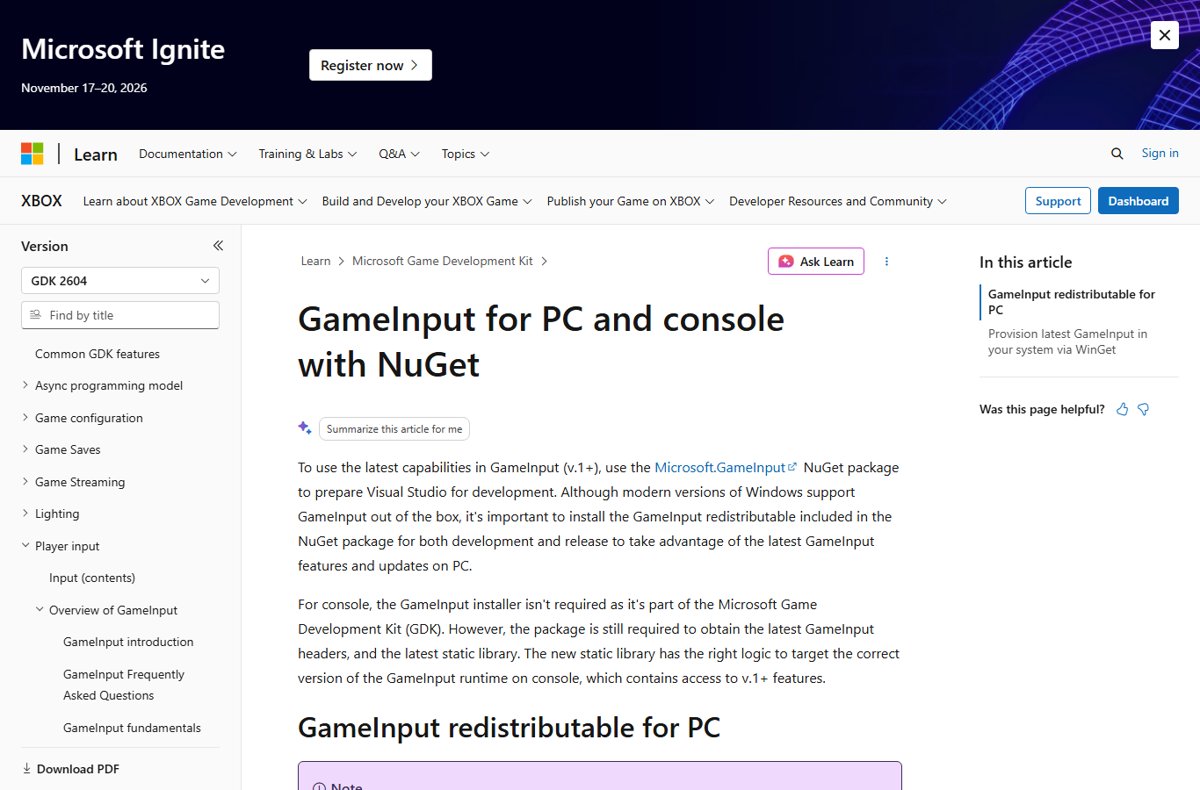
Reinstalling the redistributable is the cleanest fix when the service is missing, damaged or out of date. Microsoft publishes it through Windows Package Manager, and the package is the same one included in the Microsoft.GameInput NuGet package.
winget install Microsoft.GameInputRun it from an elevated Command Prompt or Terminal (right-click and choose Run as administrator). winget installs the latest GameInput redistributable, which registers the runtime and configures the service.
You should see: winget reports that the package installed successfully, and the GameInput services appear again in Services and in Get-Service.
The redistributable checks that it never downgrades GameInput, so running it on a PC with a newer version already installed does no harm.
Uninstall and reinstall Microsoft GameInput
A clean uninstall followed by a fresh install replaces every GameInput file and re-registers the service. Use it when a plain reinstall over the top does not stop the crashes.
- Close every game and controller tool that is running.
- Select Start > Settings > Apps > Installed apps.
- Find the GameInput entry, select More > Uninstall, and confirm.
- Alternatively, open an elevated Terminal and run winget uninstall –id Microsoft.GameInput.
- Restart the computer.
- Run winget install Microsoft.GameInput from an elevated Terminal, or launch the game that installed it so its installer adds the redistributable again.
- Restart once more and test your controller.
Uninstalling through Settings or winget removes the package the supported way, so there is no need to delete the Microsoft GameInput folder by hand. If a game needs GameInput and you leave it uninstalled, that game can lose controller input or reinstall the package on its next launch.
Run DISM and SFC to fix corrupt system files
If GameInput keeps crashing after a reinstall, damaged Windows system files can be the cause. Microsoft says to run DISM before System File Checker, because DISM provides the files SFC uses for repairs.
- Type cmd in the Search box, right-click Command Prompt, and select Run as administrator.
- Run DISM.exe /Online /Cleanup-image /Restorehealth and wait; it can take several minutes.
- Run sfc /scannow and keep the window open until verification reaches 100%.
- Read the result: Windows Resource Protection did not find any integrity violations means no system files are damaged.
- If SFC reports it found corrupt files and successfully repaired them, restart the PC and test the game.
- If SFC says it could not perform the requested operation, run the scan again in safe mode.
How to confirm GameInput is working after a fix
- Run Get-Service -DisplayName "*GameInput*" in PowerShell and confirm the service is listed.
- Open Settings > Apps > Installed apps and confirm a GameInput entry is present.
- Connect your controller and open the game that had the problem.
- Press buttons and move the sticks in the game's controller settings screen to confirm every input registers.
Common issues and troubleshooting GameInput Redist Service
When GameInput starts to act up, the cause is usually a damaged or outdated runtime, a pending Windows update, or another input tool holding the controller. Start with the symptom you see.
Symptoms of a failing GameInput service include gameinputredistservice.exe crashes, a service stuck on Stopping, and controllers a game no longer detects. The top ways to fix these GameInput service errors are below, from a quick stop and restart of the service to a full reinstall.
gameinputredistservice.exe crash or the service stops unexpectedly
A damaged or outdated GameInput runtime, or a pending Windows update.
- Open Services, right-click the GameInput service and select Restart.
- Close the game completely and start it again once the service is running.
- Open an elevated Terminal and run winget install Microsoft.GameInput to install the latest redistributable.
- Open Settings > Windows Update and select Check for Windows updates, then install what is offered.
- Restart the PC and test the game again.
Controller detection failures
The service is not running, the controller driver is outdated, or the game expects a newer GameInput runtime.
- Confirm the GameInput service is listed and running in Services.
- Unplug the controller, restart the PC, and plug it back in.
- Open Settings > Windows Update > Advanced options > Optional updates and install any driver updates for the controller.
- Reinstall the redistributable with winget install Microsoft.GameInput.
Input lag and responsiveness problems
Outdated device drivers or a GameInput runtime that predates fixes for your hardware.
- Install all updates from Settings > Windows Update.
- Install optional driver updates listed under Advanced options > Optional updates.
- Check the controller or mouse maker's website for a newer driver or firmware.
- Update the GameInput redistributable with winget and restart.
Conflicts with other input software
Another tool that remaps or emulates controllers is grabbing the device before the game sees it.
- Close controller remapping or overlay tools and test the game again.
- If the controller works with the tool closed, change that tool's settings or exclude the game in it.
- Restart the GameInput service from Services after closing the tool.
GameInput Redist Service stuck on Stopping
A game or input tool is still using the service, or the GameInput runtime is damaged.
- Close every game and controller tool, then check Services again.
- Restart the computer to clear the stuck service.
- Uninstall and reinstall GameInput with winget if it sticks on Stopping again.
- Run DISM and SFC if the problem returns after a clean reinstall.
Optimizing GameInput for peak gaming performance
GameInput has no settings page of its own. Performance comes from keeping the runtime, Windows and your device drivers current.
- Select Start > Settings > Windows Update and select Check for Windows updates.
- Select Download & install for anything offered, and restart if prompted.
- Open Windows Update > Advanced options and turn on Receive updates for other Microsoft products.
- Under Additional options, select Optional updates and install driver updates for your input devices.
- Run winget install Microsoft.GameInput from an elevated Terminal to get the newest runtime.
- Restart the PC even if no update asked for it.
Games also install their own runtimes, such as the Visual C++ Redistributable and the Steam common redistributables, so keep those shared packages current as well.
Security implications and best practices
The genuine GameInput service is signed Microsoft software. Malware sometimes copies the names of real services, so verify the service's authenticity if anything looks wrong.
| Check | How to do it | What a problem looks like |
|---|---|---|
| Service description and path | Open the service's properties in Services and read Path to executable | An executable in a temporary, downloads or user profile folder |
| Installed package | Open Settings > Apps > Installed apps and look for GameInput | A service with no matching installed package |
| Malware scan | Open Windows Security > Virus & threat protection > Scan options and run a Full scan | Windows Security reports a threat |
| Updates | Keep Windows and drivers updated through Windows Update | Months without updates leave known bugs unpatched |
Get the redistributable only from a game's own installer or from winget. Never download a standalone gameinputredistservice.exe from a third-party site.
Frequently asked questions about GameInput Redist Service
Is GameInput Redist Service a background process?
Yes. It runs as a Windows service in the background so it can arbitrate access to input devices for every game that uses GameInput. It has no window of its own, and you manage it from the Services console or Task Manager's Services page.
Can I uninstall GameInput Redist Service?
You can remove the GameInput package from Settings > Apps > Installed apps, but games that rely on it can lose controller input. A game that bundles the redistributable can also reinstall it the next time it runs or updates, so removal rarely lasts.
Does GameInput Redist Service consume many resources?
No. Microsoft built GameInput directly on Windows hardware interfaces for the lowest possible input latency and resource usage, and nearly all of its functions are lock-free. Disabling it frees no meaningful memory or CPU on a typical gaming PC.
Is gameinputredistservice.exe a virus?
The genuine file is part of Microsoft's GameInput redistributable and is safe. Check its path in the service's properties and run a Full scan in Windows Security if the file sits in an unusual folder or the service has no matching installed package.
Why does gameinputredistservice.exe crash?
Crashes usually come from a damaged or outdated GameInput runtime. Restart the service in Services, reinstall the redistributable with winget install Microsoft.GameInput from an elevated Terminal, install pending Windows updates, and restart the PC.
What installed GameInput on my PC?
A game, most often. Microsoft tells PC game developers to include the GameInput redistributable in their installers. Developers and users can also install it directly with winget install Microsoft.GameInput.
Does GameInput work on Windows 10?
Yes. GameInput supports Windows 10 version 19H1 (the May 2019 Update) and later, as well as Windows 11. The same API also runs on Xbox consoles through the Microsoft Game Development Kit.
Is GameInput the same as XInput?
No. XInput is an older Xbox controller API. GameInput is a functional superset of XInput, DirectInput, Raw Input, HID and WinRT input, and adds features XInput lacks, such as impulse triggers on Xbox controllers.
Bottom line: should you keep GameInput Redist Service?
Keep GameInput Redist Service installed with its default startup type, and reinstall it with winget when it crashes or controllers stop working. It is Microsoft's input runtime for modern PC games, uses almost no resources, and removing it only breaks controller support in the games that brought it.