GameInput Host Service is the background service of Microsoft GameInput, the input runtime that games use to read controllers, keyboards and mice, and it runs because a game or app on your PC installed that runtime.
This guide explains what the service does, why it starts with Windows, whether you can remove it, and how to reinstall or update it when it stops working.
Check what installed GameInput Host Service on your PC
The service is a legitimate Microsoft component, not malware, as long as it belongs to the Microsoft GameInput runtime. Confirm that in under a minute.
- Press Windows + R, type
services.mscand press Enter. - Find the GameInput entry in the list and double-click it.
- Read the Path to executable on the General tab; it should point to a Microsoft GameInput folder.
- Open Settings > Apps > Installed apps and search for GameInput to see the runtime that owns the service.
- Leave it running if you play PC games with a controller.
What exactly is the GameInput Host Service?
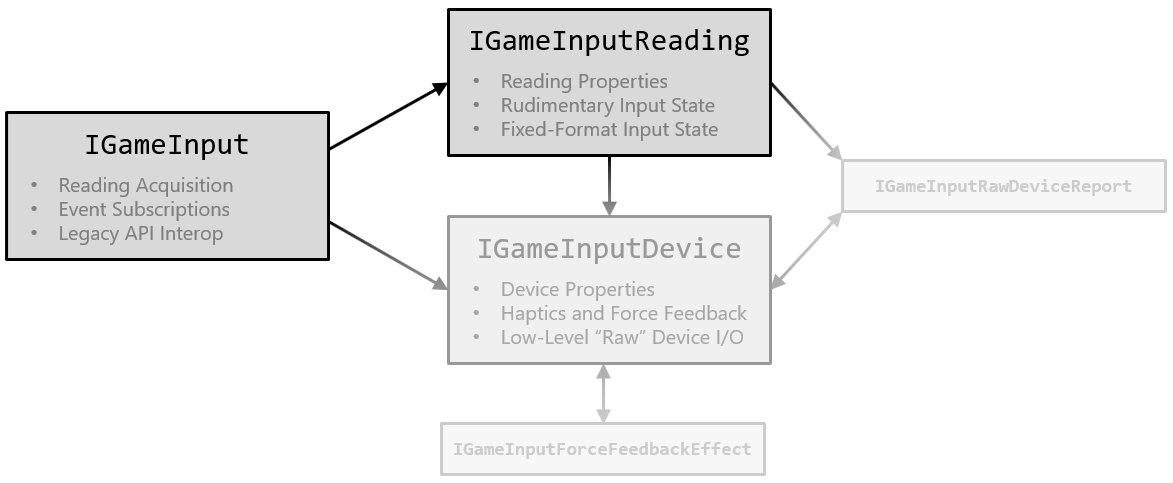
GameInput is Microsoft's input API for games on Windows and Xbox. It exposes keyboards, mice, gamepads and other game controllers through one model, and it is a superset of the older XInput, DirectInput, Raw Input, HID and WinRT input APIs.
The service is the part that runs outside any single game. Microsoft describes its job as arbitrating access to input devices on the system.
| What the GameInput service does | What that means for you |
|---|---|
| Arbitrates access to input devices | Several games or apps can share one controller without fighting over it |
| Mediates access between GameInput client instances | Each running game talks to the service instead of grabbing the device directly |
| Handles input filtering and synchronization | Input from every device lands on one common timeline |
| Delivers platform updates and device driver improvements | Older games gain support for newly released controllers without a patch |
| Supports haptics, sensors and force feedback | Rumble and trigger feedback work through the same runtime |
What is GameInputSvc.exe and what does it do?
GameInputSvc.exe is the program file behind the GameInput Service entry in Services. Task Manager and Windows error reports show this file name, so a crash log that names gameinputsvc.exe points at the GameInput runtime.
| Detail | GameInputSvc.exe |
|---|---|
| Name in Services | GameInput Service |
| Usual locations | C:\Windows\System32 or a folder inside C:\Program Files (x86)\Microsoft GameInput |
| Publisher | Microsoft, as part of the Microsoft GameInput runtime |
| What GameInputSvc.exe does | Arbitrates access to controllers, keyboards and mice, filters and synchronizes input, and mediates between games that use GameInput |
| Why it runs with no game open | It is a Windows service, so it waits in the background for the next game |
| Does it come back after removal? | Yes. Games or Gaming Services can reinstall or reconfigure it |
When GameInputSvc.exe may be a malware copy
Genuine copies of the file live in Microsoft folders. A file with the same name anywhere else deserves a closer look.
- Press Ctrl + Shift + Esc to open Task Manager and select Details.
- Right-click
gameinputsvc.exeand select Open file location. - Confirm the folder is
C:\Windows\System32or sits insideC:\Program Files (x86)\Microsoft GameInput. - If the file is anywhere else, open Windows Security > Virus & threat protection > Scan options.
- Select Microsoft Defender Antivirus (offline scan) and select Scan now; save open files first, because the PC restarts.
- After the restart, open Windows Security > Protection history to read the results.
Why does GameInput Host Service run on Windows when no game is open?
A Windows service starts with the PC so it is ready the moment a game asks for input. GameInput keeps a short input history, so a game can look back at the last half second of readings, which only works if the service is already listening.
| Question | Answer |
|---|---|
| Who installs it? | PC games and apps that use GameInput ship its installer; on Xbox the runtime is built in |
| Which Windows versions? | Windows 10 version 19H1 (May 2019 Update) or later, and Windows 11 |
| Why it keeps running | It shares devices between games and keeps the input stream ready |
| Is it Microsoft software? | Yes. The runtime is published by Microsoft as Microsoft.GameInput |
| Which app gets the input? | On PC, input goes to the app in focus by default |
Understanding service hosts in Windows and where GameInput fits
Many Windows services run inside a shared Service Host process, svchost.exe, which loads services from DLL files. Since Windows 10 version 1703, PCs with more than 3.5 GB of RAM run most services in their own svchost instance, so one failing service does not take others down.
That is why Task Manager shows a long list of Service Host entries, and why GameInput appears as its own line you can identify by name.
| Term | Meaning |
|---|---|
| Service Host (svchost.exe) | A shell process that loads one or more services |
| Host group | Services with matching security needs that share one svchost instance |
| Split services | Each service in its own instance on PCs with more than 3.5 GB of RAM |
| Why split | Reliability, isolation, and per-service CPU, memory and I/O reporting in Task Manager |
Is GameInput service needed, or can you remove it?
Keep the GameInput service if you play PC games, and remove it only if no installed game needs it. Games built on GameInput fail to find their input runtime when it is missing, and Microsoft's own fix for that error is to install GameInput again. On a PC with no games, removing it changes nothing you will notice.
Stopping the service from Services is temporary; the next game that uses it may start it again. Uninstalling the runtime is the only clean removal.
Avoid deleting gameinputsvc.exe from System32 by hand, and skip registry cleaners or DLL download sites that promise to fix it. Disabling the service is only a stopgap, because games or Gaming Services can reinstall or reconfigure GameInput later.
GameInputSvc.exe quick decision: keep, restart, reinstall or remove
| Your situation | Do this | Why |
|---|---|---|
| You play PC games and nothing is wrong | Leave GameInputSvc.exe running | Games that use GameInput read input through it |
| The service stopped once | Restart GameInput Service in services.msc |
A restart clears a one-off stop |
| It crashes repeatedly, or a game can't find GameInput | Uninstall Microsoft GameInput, restart, then run winget install Microsoft.GameInput |
A clean install registers the runtime and configures the service again |
| Two GameInput services or two copies of the file appear | Uninstall the old Microsoft GameInput package from Installed apps | Leftover duplicate copies are a known crash trigger |
| The file sits outside the Microsoft folders | Run a Microsoft Defender offline scan | Genuine copies live in System32 or Program Files (x86)\Microsoft GameInput |
| No games are installed | Leave it, or uninstall it from Installed apps | Nothing outside games uses it |
How to install or reinstall GameInput service with winget
Microsoft publishes the GameInput runtime as the Microsoft.GameInput package. Installing it again re-registers the runtime and configures the service. Open Command Prompt as administrator first.
winget install Microsoft.GameInputInstalls the latest GameInput runtime from the Windows Package Manager. To reinstall over a broken copy, run winget uninstall Microsoft.GameInput first, restart, then run the install command again.
You should see: winget reports the package installed successfully, and the GameInput entry appears again in Services with Status set to Running after the next restart.
How to update GameInput service to the latest version
- Open Command Prompt as administrator.
- Run
winget upgradeon its own to see whether Microsoft.GameInput has a newer version listed. - Run
winget upgrade --id Microsoft.GameInputto install the update. - Restart the PC so the updated service loads.
- Open Settings > Windows Update and install pending updates, which keep the rest of the input stack current.
Uninstall GameInput from Windows 11
Remove the runtime only if no installed game uses it. A game that needs it may reinstall it the next time it runs its setup.
- Open Settings > Apps > Installed apps.
- Search for GameInput.
- Select the three-dot menu next to it and select Uninstall, then confirm.
- Or run
winget uninstall Microsoft.GameInputin an elevated Command Prompt. - Restart the PC and confirm the GameInput entry is gone from Services.
Why does GameInputSvc.exe crash or use high CPU and memory?
GameInputSvc.exe is often where a crash shows up rather than where it starts. The real fault frequently sits in a graphics, chipset or controller driver, or in BIOS/UEFI firmware, and surfaces while GameInput reconfigures itself or polls input heavily during play.
| Symptom of a failing service | Likely cause | Where to look |
|---|---|---|
Event Viewer names gameinputsvc.exe as the faulting application |
The GameInput process stopped, often triggered by a driver fault or damaged system files | Event Viewer > Windows Logs > Application |
| "Microsoft GameInput reconfigured successfully" appears next to a crash or unexpected shutdown | A game or Gaming Services reconfigured GameInput while a driver fault surfaced | Search reliability in Start and open View reliability history |
| Two GameInput services, or copies of the file in two folders | An older package left in Program Files (x86) next to the System32 copy | services.msc and File Explorer |
| High CPU or memory in Task Manager while a game runs | Heavy input polling, an outdated runtime or a controller driver fault | Task Manager > Processes |
| The controller stops responding in every game | The service is stopped or set to Disabled | services.msc |
Top ways to fix Microsoft GameInput service errors
Work down the list in least-destructive order and test a game after each fix. The first three take a minute and change nothing permanent; the rest repair or replace the runtime.
Change one thing at a time so you can isolate which fix worked. If a crash follows one controller, unplug the other game devices first and update that device's driver before you touch GameInput itself.
- Close the game and start it again. If the error returns, restart the computer so GameInput loads fresh.
- Stop and restart the GameInput service: open
services.msc, right-click GameInput Service, select Stop, then Start. - Configure the GameInput service: double-click it, make sure Startup type is not Disabled, and select Apply.
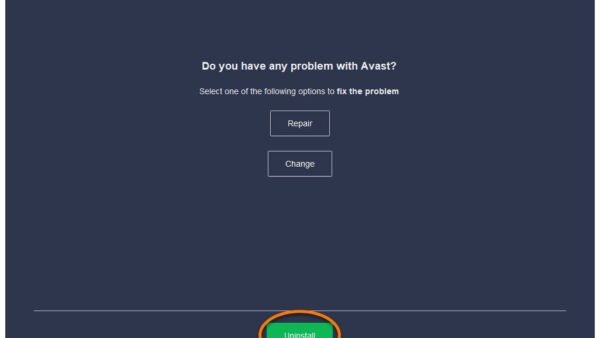
- Uninstall Microsoft GameInput from Settings > Apps > Installed apps, then restart.
- Rename or delete the leftover GameInput folder: if
C:\Program Files (x86)\Microsoft GameInputis still there after the uninstall, rename it to Microsoft GameInput.old or delete it. Leave the System32 copy alone. - Run
winget install Microsoft.GameInputfrom an elevated Command Prompt to put one current copy back. - Fix corrupt system files: run
DISM.exe /Online /Cleanup-Image /RestoreHealth, thensfc /scannow. - Install Windows updates in Settings > Windows Update, then current graphics and chipset drivers from the PC or chip maker.
If crashes return after a game update, a game or Gaming Services has added GameInput again. Repeat steps 4 to 6 so only one current copy remains.
To prevent a recurrence, keep Windows, graphics, chipset and controller drivers current, and check View reliability history after the next few game sessions to confirm no new GameInput errors appear.
How to troubleshoot GameInput problems
"The GameInput service terminated unexpectedly"
The service process stopped on its own.
- Open
services.msc, right-click the GameInput entry and select Restart. - If it keeps stopping, run
winget upgrade --id Microsoft.GameInput. - If the error returns after a restart, uninstall the runtime, restart, and run
winget install Microsoft.GameInput.
GameInput host service stopped working and a controller does nothing in games
The service is stopped or disabled, so games cannot read the device.
- In
services.msc, double-click the GameInput entry and check Startup type is not Disabled. - Select Start under Service status, then OK.
- Unplug and reconnect the controller, then relaunch the game.
A game says it can't find GameInput
The runtime is missing, or the game needs a newer version than the one installed.
- Run
winget install Microsoft.GameInputfrom an elevated Command Prompt. - Confirm the PC runs Windows 10 version 19H1 or later, or Windows 11, in Settings > System > About.
- Reinstall or repair the game so its own installer adds the version it needs.
Windows GameInput service error after a Windows update
System files the service depends on may be damaged.
- Open Command Prompt as administrator and run
DISM.exe /Online /Cleanup-Image /RestoreHealth. - Run
sfc /scannowand wait for it to finish. - Restart, then reinstall GameInput with winget if the error persists.
GameInputSvc.exe high CPU or a memory leak
An outdated or duplicate GameInput runtime, or a controller driver fault that keeps the service busy.
- Open Task Manager > Details and confirm only one
gameinputsvc.exeis listed. - Open
services.msc, right-click GameInput Service and select Restart. - Run
winget upgrade --id Microsoft.GameInputfrom an elevated Command Prompt, then restart the PC. - Unplug controllers and other game devices one at a time while watching CPU and memory in Task Manager.
- Update the driver for the device that drives the load from its maker's website.
Other measures to stabilize the system when GameInput keeps failing
If the service still fails after a clean reinstall, the cause usually sits outside GameInput. Work through these in order.
| What you notice | Do this | Why |
|---|---|---|
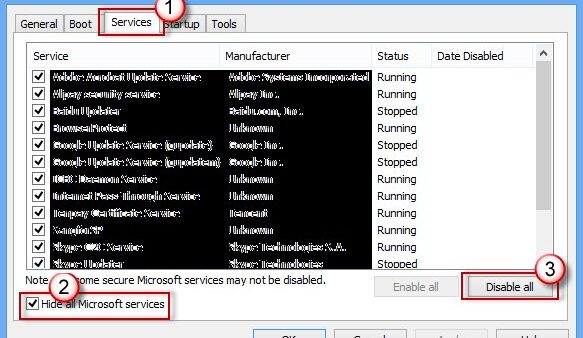
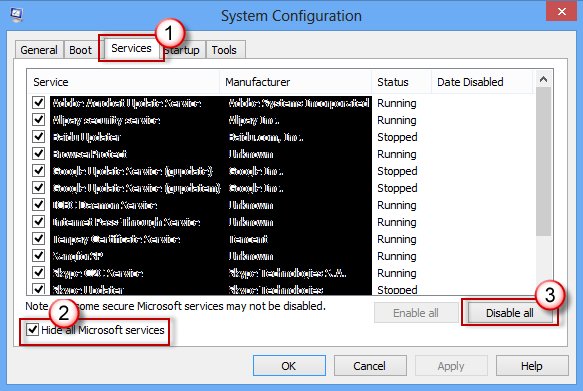
| Crashes started after new software | Perform a clean boot from System Configuration (msconfig) |
Starts Windows with Microsoft services only, so a conflicting app shows itself |
| Other services also crash | Run DISM /RestoreHealth and sfc /scannow |
Repairs damaged system files the whole stack relies on |
| Windows is several months behind | Install every update in Settings > Windows Update | GameInput gets platform and device fixes through Windows updates |
| Only one controller misbehaves | Try it on another USB port or cable, and update its driver from the maker | Separates a device fault from a service fault |
| Nothing helps | Run the built-in troubleshooters in Settings > System > Troubleshoot | Checks hardware and device settings for known faults |
Check that GameInput Host Service is working
- Open
services.mscand confirm the GameInput entry shows Running. - Open Task Manager > Services and confirm the GameInput service has a process ID.
- Launch a game that supports controllers and confirm buttons, sticks and rumble respond.
- Open Event Viewer > Windows Logs > System and confirm no new GameInput termination errors appear.
GameInput Host Service FAQ
What is GameInput Host Service?
GameInput Host Service is the background service of Microsoft GameInput, the input runtime PC games use for controllers, keyboards and mice. It arbitrates access to input devices so several games and apps can share them, and it starts with Windows.
What is Microsoft GameInput service?
It is the service side of Microsoft's GameInput API. It handles input filtering and synchronization, mediates device access between games, and delivers platform and device driver improvements, so older games keep working with new controllers.
Is GameInput service needed?
It is needed if you play PC games that use GameInput, because they cannot read input without it. On a PC with no such games, you can uninstall it without any visible effect.
How do I install GameInput service?
Open Command Prompt as administrator and run winget install Microsoft.GameInput. The installer registers the runtime and configures the service. GameInput needs Windows 10 version 19H1 or later, or Windows 11.
How do I reinstall GameInput service?
Run winget uninstall Microsoft.GameInput in an elevated Command Prompt, restart the PC, then run winget install Microsoft.GameInput. Reinstalling the game that needs it also puts the runtime back.
How do I update GameInput service?
Run winget upgrade –id Microsoft.GameInput from an elevated Command Prompt, then restart. Installing current Windows updates keeps the rest of the input stack up to date too.
Why does GameInput service run when I am not gaming?
It is a Windows service, so it starts with the PC and waits for a game to request input. That keeps device sharing and the short input history ready the moment a game starts.
Is GameInput Host Service a virus?
No, the genuine service belongs to Microsoft's GameInput runtime. Check its Path to executable in Services; if it points somewhere other than a Microsoft GameInput folder, run a full Microsoft Defender scan.
What is gameinputsvc.exe?
Gameinputsvc.exe is the program file of the GameInput Service, part of Microsoft's GameInput runtime for controllers and game input. Genuine copies sit in C:\Windows\System32 or C:\Program Files (x86)\Microsoft GameInput.
Bottom line: should you leave GameInput Host Service running?
Leave it running on any PC used for games, and reinstall it with winget instead of disabling it when it errors. It is Microsoft's shared input layer for controllers and game input, so disabling it breaks games that rely on it, while a reinstall fixes nearly every failure.