AvLaunch.exe is the startup launcher that Avast, AVG and Norton 360 antivirus use to start their protection and app window when you sign in, and you remove it by uninstalling the antivirus that put it there.
This guide shows how to confirm which product owns your copy, how to stop it starting with Windows, how to uninstall each product cleanly, and what to do if a copy sits somewhere it should not.
The fastest way to remove AvLaunch.exe
AvLaunch.exe is not a standalone app, so there is nothing called AvLaunch to uninstall. Remove the antivirus it belongs to and the launcher goes with it.
- Right-click Start and select Task Manager.
- Open the Startup apps tab, right-click the AvLaunch entry and select Open file location.
- Note the product folder the file sits in: Avast, AVG or Norton.
- Right-click Start, select Apps and Features, and find that product in the Apps list.
- Select the three-dot menu next to it, choose Uninstall, and confirm Uninstall again.
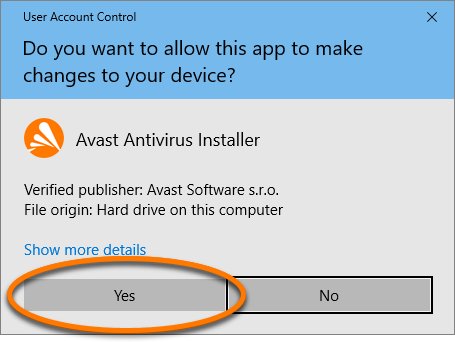
- Select Yes at the User Account Control prompt, finish the product's own uninstall window, and restart the PC.
After a restart, Microsoft Defender Antivirus turns on automatically if no other security product is installed, so the PC is not left unprotected.
What is AvLaunch.exe and which antivirus installs it?
The folder that holds the file tells you which product owns it. The same launcher name appears in all three products, so the name alone does not identify the vendor.
| Question | Answer |
|---|---|
| What it does | Starts the antivirus app and its tray icon when you sign in to Windows |
| Products that use it | Avast antivirus (Free Antivirus, Premium Security, Avast One), AVG AntiVirus and Norton 360 |
| How it appears in Windows | An AvLaunch or AvLaunch component entry under Startup apps in Task Manager and Settings > Apps > Startup |
| Where a genuine copy lives | Inside the antivirus product's own folder under Program Files |
| Is it needed? | Only while that antivirus is installed and you want it to start with Windows |
| Safe to delete by hand? | No. Deleting the file breaks the antivirus; uninstall the product instead |
Symptoms of AvLaunch.exe and how to check the file is genuine
Most people notice AvLaunch.exe as a startup entry they do not recognise, an antivirus window that opens at sign-in, or a second security icon in the tray after installing free software. Check the file before you remove anything.
- Open Task Manager and select the Startup apps tab.
- Read the Publisher column next to the AvLaunch entry.
- Right-click the entry and select Open file location to see its folder.
- Right-click the file in File Explorer, select Properties, and open the Digital Signatures tab to see who signed it.
- If the folder is not an Avast, AVG or Norton program folder, or there is no signature, treat the file as suspicious and go to the troubleshooting section.
Which AvLaunch.exe removal method to use
| Your situation | Use this | Why |
|---|---|---|
| You want to keep the antivirus but stop it opening at sign-in | Turn the startup entry off | Removes the launcher from startup without uninstalling protection |
| You do not want the antivirus at all | Uninstall from Apps and Features | Removes the product and every file linked with it |
| The normal uninstall fails or says setup is already running | The vendor's uninstall tool in Safe Mode | Runs while the antivirus's self-protection is not loaded |
| The antivirus arrived recently with other software | System Restore to a point before that install | Rolls back programs installed after the restore point |
| The file is unsigned or outside a vendor folder | Microsoft Defender full or offline scan | A look-alike file name needs a malware scan, not an uninstaller |
| Nothing else works | Reset this PC with Keep my files | Reinstalls Windows and removes all apps |
When should you disable the AvLaunch component at startup?
Disabling the AvLaunch component only stops it from starting at sign-in. The antivirus stays installed, so consider which row matches your case before you change anything.
| Your case | Disable AvLaunch? | What to do |
|---|---|---|
| The antivirus window or tray icon opens at every sign-in and you do not want it | Yes | Turn the startup entry off and keep the product installed |
| Task Manager shows High impact for the entry and sign-in feels slow | Yes | High impact means more than 1 second of CPU time or more than 3 MB of disk use at startup |
| Two antivirus products are installed with real-time protection | No | Uninstall one of them; two real-time products together can slow the PC and cause errors |
| Avast, AVG or Norton is the only antivirus you rely on | No | Leave it enabled so the app and its alerts start with Windows |
| The file sits outside an Avast, AVG or Norton folder | No | Disabling hides the problem; run a Microsoft Defender full scan instead |
Delete AvLaunch.exe from Windows startup without uninstalling
Turning the entry off stops the launcher at sign-in. Expect the antivirus app window and tray icon to stop opening on their own.
- Select Start > Settings > Apps > Startup.
- Find the AvLaunch entry or the antivirus name in the list.
- Set its toggle to Off.
- Or right-click Start, select Task Manager, open Startup apps, select the entry and select Disable.
- Restart the PC to confirm the window no longer opens at sign-in.
If the toggle switches itself back on, the antivirus's self-protection is restoring it. Change the startup option inside the antivirus app, or uninstall it.
Windows Security and firewall checks before you remove AvLaunch.exe
Uninstalling Avast, AVG or Norton removes its protection. Check what Windows Security reports before and after, so the PC is never left without an active antivirus or firewall.
- Search for Windows Security in the Start menu and open it.
- Select Virus & threat protection and note which antivirus is listed as the active provider.
- Select Firewall & network protection and note the status shown for Domain network, Private network and Public network.
- Uninstall the antivirus and restart the PC.
- Return to Virus & threat protection and confirm Microsoft Defender Antivirus is now active.
- Open each network profile under Firewall & network protection and set Microsoft Defender Firewall to On if it shows Off.
- If apps lose network access after the removal, select Restore firewalls to default on the same page.
On a PC managed by a work or school, policy settings may block firewall changes; ask the administrator instead.
How to remove AvLaunch.exe from your PC by uninstalling Avast
This removes Avast Free Antivirus and the files linked with it, including the launcher.
- Right-click Start and select Apps and Features.
- Keep Apps selected, select the three-dot menu next to Avast Free Antivirus, and select Uninstall twice.
- Select Yes at the User Account Control prompt.
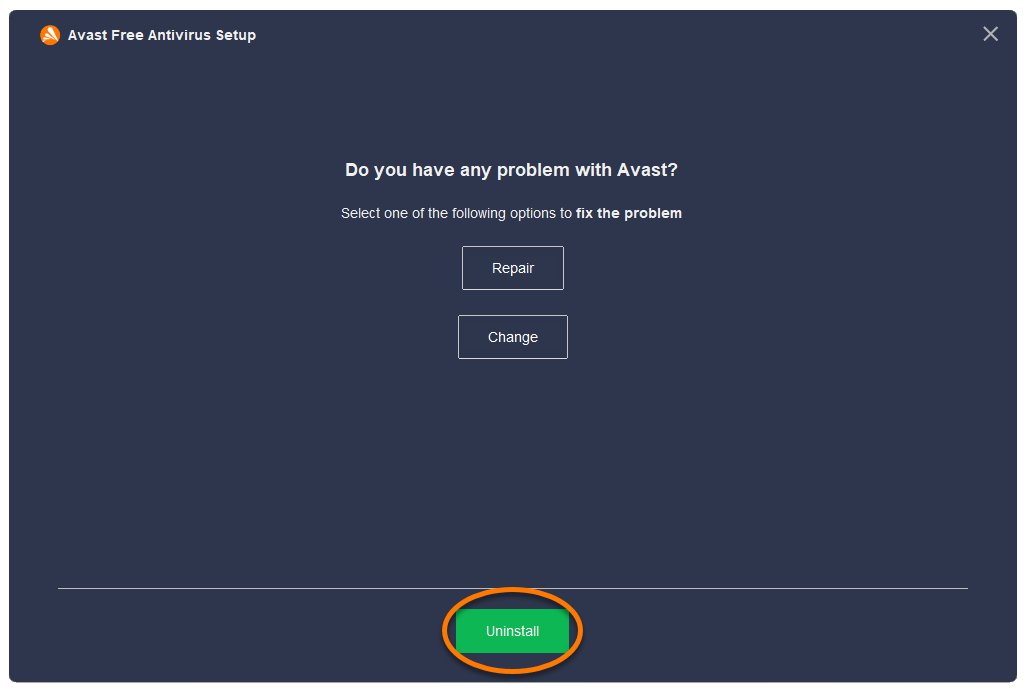
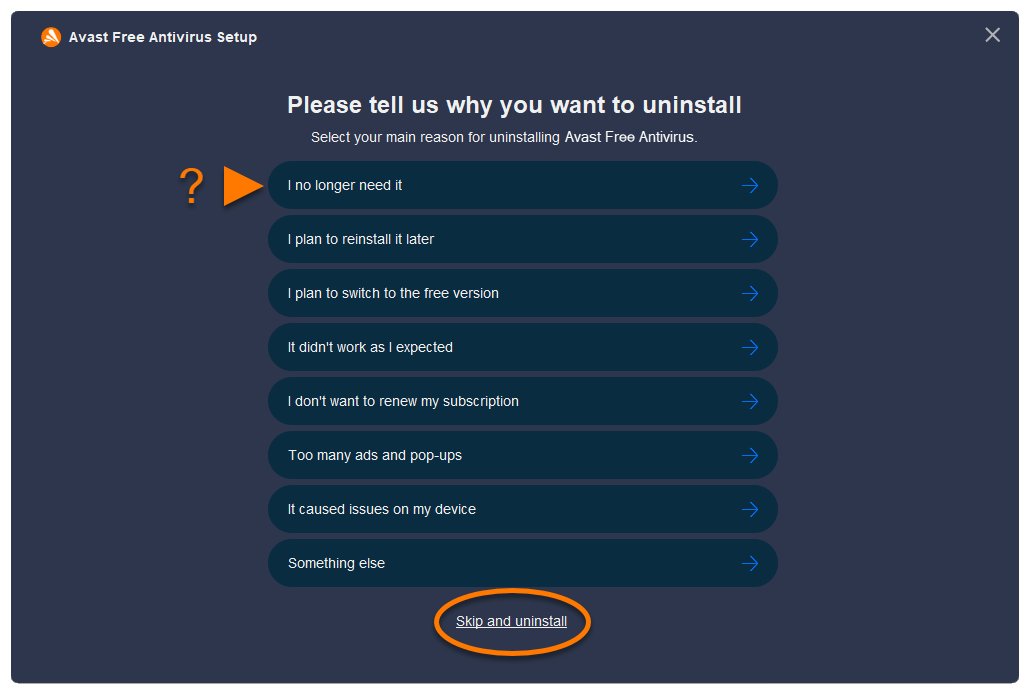
- In the Avast Free Antivirus Setup window, select Uninstall, then complete or skip the survey.
- Select Yes to confirm, wait for the removal, then select Restart computer.
The same route removes Avast Premium Security and Avast One; pick that name in the list instead.
Remove AvLaunch.exe by uninstalling AVG AntiVirus
- Right-click Start and select Apps and Features.
- Keep Apps selected, select the three-dot menu next to AVG AntiVirus FREE, and select Uninstall twice.
- Select Yes at the User Account Control prompt.
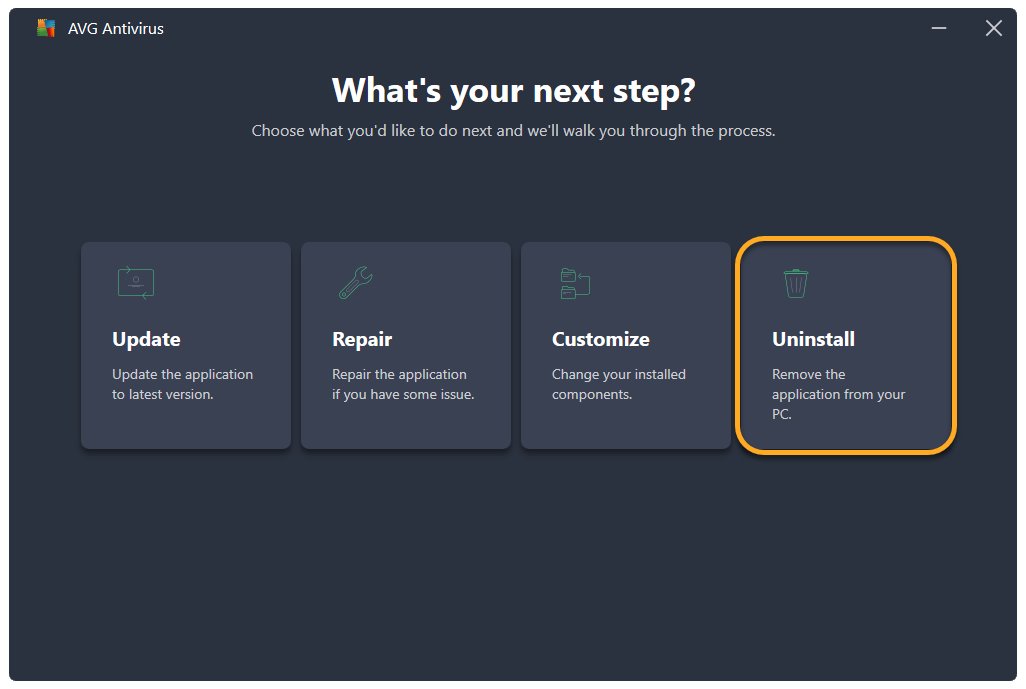
- When the AVG AntiVirus Setup window appears, select Uninstall, then complete the survey or select Skip and uninstall.
- Select Uninstall to confirm and wait for the removal.
- Select Restart now to finish.
Remove AvLaunch.exe by uninstalling Norton 360
Close Norton first. Uninstalling does not cancel a paid subscription; cancel that separately in your Norton account.
- Press Windows + R to open the Run box.
- Type
appwiz.cpland press Enter. - Select Norton 360 in the list, then select Remove or Uninstall.
- Select Yes to confirm, then select Next.
- When the uninstall finishes, close all programs and restart the PC.
Remove files linked with AvLaunch.exe using the vendor uninstall tool in Safe Mode
Use the vendor tool when the normal uninstall fails, stops with a setup is already running message, or leaves the AvLaunch entry behind. Download it only from the vendor's own support site.
| Product | Tool | How it runs |
|---|---|---|
| Avast | Avast Uninstall Tool (avastclear.exe) |
Right-click it, select Run as administrator, select Reboot on the Reboot to safe mode tile, then select Remove on the Remove only tile, Uninstall, and Restart computer |
| AVG | AVG Uninstall Tool | Run it as administrator; it deletes all AVG AntiVirus files while Windows runs in Safe Mode |
| Norton | Norton 360 Remover | Double-click it, select Remove, confirm Uninstall, then Restart Now; use its Safe Mode option if it shows errors |
The Norton 360 Remover does not remove Norton Private Browser, which has its own uninstall entry.
Use System Restore to remove AvLaunch.exe installed with other software
If the antivirus appeared after you installed something else, a restore point from before that install removes it. System Restore reverts programs, system files and registry settings but leaves personal files alone.
- Press Windows + R, type
rstrui.exeand press Enter. - Select Next in the Restore system files and settings window.
- Pick a restore point dated before the antivirus arrived; check Show more restore points if you need older ones.
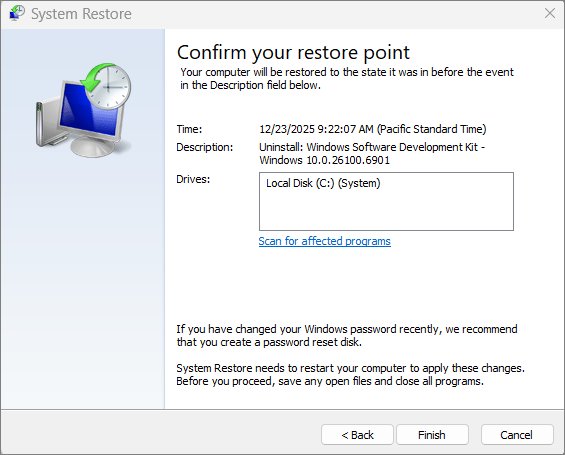
- Select Scan for affected programs to confirm the antivirus is on the list to be removed.
- Select Next, then Finish, and let Windows restart.
Check that AvLaunch.exe is gone
- Open Task Manager > Startup apps and confirm no AvLaunch entry remains.
- Open Settings > Apps > Installed apps and confirm the antivirus is no longer listed.
- Open Windows Security > Virus & threat protection and confirm Microsoft Defender Antivirus is the active provider.
- Restart once more and confirm no antivirus window or tray icon opens at sign-in.
AvLaunch.exe removal problems and fixes
AvLaunch.exe is not in an Avast, AVG or Norton folder
Malware sometimes copies a trusted file name to hide.
- Open Windows Security > Virus & threat protection > Scan options.
- Select Full scan and then Scan now.
- If threats keep returning, run Microsoft Defender Antivirus (offline scan) from the same page.
The uninstall fails or says setup is already running
The antivirus's self-protection or a stuck installer blocks removal in normal mode.
- Restart the PC and try the uninstall once more.
- Run the vendor uninstall tool, which restarts into Safe Mode to remove the files.
- Restart when the tool finishes.
AvLaunch keeps coming back after you disable or remove it
The antivirus is still installed and restores its own startup entry, or a leftover entry points at deleted files.
- Open Settings > Apps > Installed apps and check whether Avast, AVG or Norton is still listed; uninstall it if it is.
- If the product is gone but the AvLaunch entry remains, run that vendor's uninstall tool to clear the leftover files.
- If Settings > Apps > Startup shows We couldn't find this app, select the icon next to the toggle to see the file path or registry location the leftover entry points to.
- If the file returns from a folder outside a vendor program folder, run Microsoft Defender Antivirus (offline scan).
You need Safe Mode but the tool will not start it
Some PCs need Safe Mode started from the recovery environment.
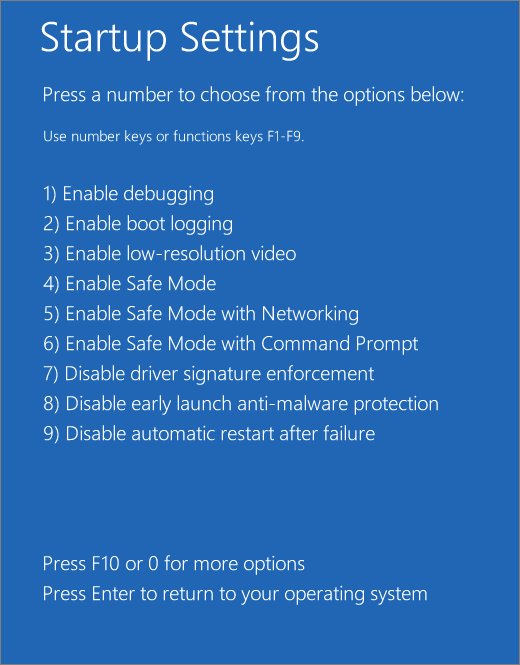
- Open Settings > System > Recovery and select Restart now next to Advanced startup.
- Select Troubleshoot > Advanced options > Startup Settings > Restart.
- Press 4 or F4 for Safe Mode, then run the vendor tool.
The antivirus app or tray icon stopped working after you disabled AvLaunch
The launcher is what opens the app at sign-in.
- Turn the startup entry back on in Settings > Apps > Startup.
- If the app is still broken, use the vendor tool's Reinstall option.
- Or uninstall it and reinstall Avast Free Antivirus fresh from the vendor.
Nothing removes the antivirus
Damaged install files survive every uninstaller.
- Back up your files.
- Open Settings > System > Recovery and select Reset PC.
- Choose Keep my files; it reinstalls Windows and removes all apps, so reinstall the ones you need afterwards.
AvLaunch.exe FAQ
What is AvLaunch.exe?
AvLaunch.exe is the startup launcher used by Avast, AVG and Norton 360 antivirus. It opens the antivirus app and tray icon when you sign in. It is part of the antivirus, not a separate program, and leaves when that antivirus is uninstalled.
Is AvLaunch a virus?
A copy inside an Avast, AVG or Norton program folder, signed by that vendor, is a normal antivirus file. A copy anywhere else, or one with no digital signature, should be scanned with Microsoft Defender because malware can borrow trusted file names.
Is AvLaunch.exe part of Norton?
It can be. Norton 360 uses an AvLaunch component, and Avast and AVG use the same launcher name. Open the file location from Task Manager; a Norton folder means it belongs to Norton 360.
How do I stop the AvLaunch process?
Turn it off in Settings > Apps > Startup, or select it on the Startup apps tab in Task Manager and select Disable. To stop it for good, uninstall the antivirus that installed it.
Is AvLaunch consuming a lot of disk space?
The launcher itself is a single small file. Disk space and disk activity come from the antivirus as a whole, including its scans and definition updates, so uninstall or reconfigure the antivirus if storage is the concern.
Is AvLaunch consuming high CPU usage?
High CPU at sign-in usually comes from the antivirus starting a scan or update, not from the launcher. Wait a few minutes after sign-in; if usage stays high, change the startup scan options in the antivirus or uninstall it.
Will removing AvLaunch.exe leave my PC unprotected?
No. When no other security product is installed, Microsoft Defender Antivirus turns on automatically. Do not run two real-time antivirus products together, because that can slow the PC and cause update errors.
Bottom line: keep AvLaunch.exe or remove it?
Keep AvLaunch.exe if you chose that antivirus; uninstall the product if you did not. The launcher only exists to start Avast, AVG or Norton, so deleting it by hand just breaks the app. Removing the product removes the launcher cleanly, and Microsoft Defender takes over protection on its own.