To disable Sticky Keys on Windows 11, press Windows key + U, select Keyboard, and turn off the Sticky keys switch.
This guide covers Windows 11 and Windows 10, the Shift-five-times shortcut that turns it back on, the Control Panel route, and what to check when Sticky Keys keeps returning.
The fastest way to disable Sticky Keys on Windows 11
Windows key + U opens Accessibility settings directly, so there is no need to browse through the Settings app.
- Press Windows key + U to open Accessibility settings.
- Select Keyboard in the list of accessibility options.
- Turn off the Sticky keys switch.
- Close Settings. The change applies immediately, with no restart.
You can also get there from Start > Settings > Accessibility > Keyboard. Sticky Keys sits in the same group as Filter keys and Toggle keys.
Which method should you use?
| Your situation | Use this | Why |
|---|---|---|
| Windows 11, and you want Sticky Keys off | Settings > Accessibility > Keyboard | The switch on this page is the main control for the feature |
| Windows 10 | Settings > Ease of Access > Keyboard | Windows 10 names the section Ease of Access instead of Accessibility |
| Sticky Keys just switched on and you want it off right now | Press Shift five times | Microsoft documents this shortcut as turning Sticky Keys on or off |
| The Sticky Keys prompt appears while gaming or typing | Turn off the Sticky Keys keyboard shortcut | Turning off the feature alone leaves the Shift shortcut able to switch it back on |
| You prefer a panel over the Settings app | Quick Settings Accessibility flyout | Sticky keys is one of its default switches |
| You use the classic Control Panel | Ease of Access Center > Make the keyboard easier to use | The older dialog holds the same Sticky Keys settings |
How to disable Sticky Keys on Windows 10
Windows 10 keeps the keyboard accessibility settings under Ease of Access rather than Accessibility. Windows key + U opens that section on Windows 10 too.
- Select Start > Settings.
- Select Ease of Access.
- Select Keyboard in the left pane.
- Scroll to the Sticky Keys heading.
- Turn off the toggle under Sticky Keys.
Microsoft's Surface support page places these switches in the Interaction section of the Keyboard page on both Windows 10 and Windows 11. Scroll down if you do not see them at first.
Turn Sticky Keys off with the Shift key or Quick Settings
Both routes toggle the feature without opening the Settings app. Use them when Sticky Keys has just switched on by accident.
- Press the Shift key five times in a row. Microsoft lists this as the shortcut that turns Sticky Keys on or off on Windows 11 and Windows 10.
- If you prefer the mouse, press Windows key + A to open Quick Settings.
- Select the Accessibility button in Quick Settings.
- Turn off the Sticky keys switch in the flyout.
The Shift shortcut only works while the Sticky Keys keyboard shortcut is enabled. If you have already turned that shortcut off, use Settings or the flyout instead.
How to turn off the Sticky Keys keyboard shortcut so the prompt stops
Turning off the Sticky keys switch does not stop the Shift shortcut. Microsoft's developer documentation describes the shortcut as a separate setting that lets a user turn Sticky Keys on and off by pressing Shift five times.
Switch that shortcut off as well if you press Shift repeatedly in games or while selecting text.
- Press Windows key + U and select Keyboard (on Windows 10, select Ease of Access > Keyboard).
- On Windows 11, select the Sticky keys entry itself, not only its switch, to show its extra options.
- Find the keyboard shortcut option for Sticky Keys and turn it off (on Windows 10, clear the shortcut option under the Sticky Keys heading).
- Leave the Sticky keys switch off.
- Press Shift five times to confirm that no prompt appears.
The same page holds shortcut options for Filter keys and Toggle keys. Turn those off too if their shortcuts trigger by accident.
How to disable Sticky Keys from Control Panel or the Run box
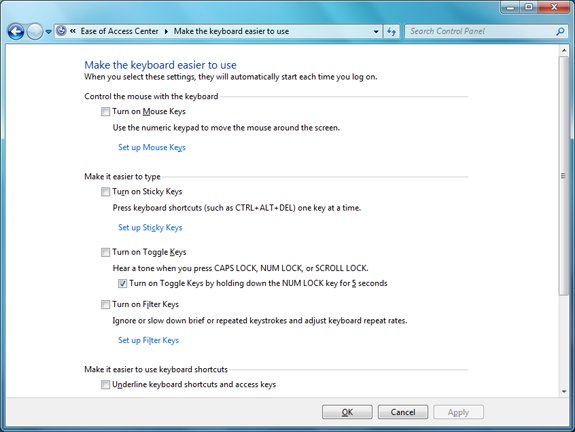
The classic Ease of Access Center has a page named Make the keyboard easier to use. Microsoft's Control Panel reference lists a command that opens it directly.
Microsoft's reference table lists that page for Windows Vista through Windows 8.1. If it does not open on your PC, use the Settings command further down instead.
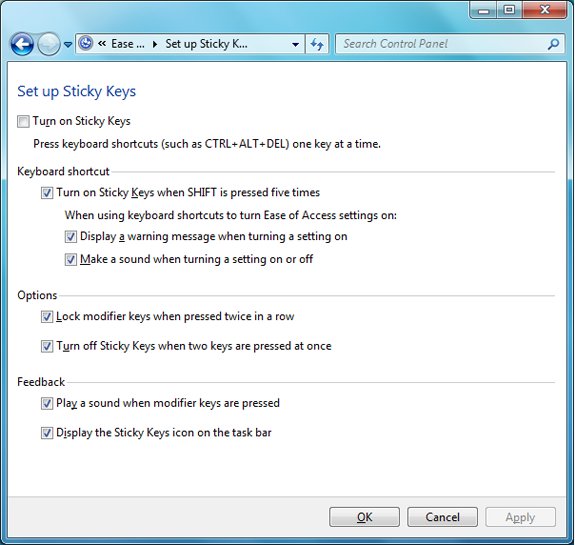
control /name Microsoft.EaseOfAccessCenter /page pageKeyboardEasierToUsePress Windows key + R, paste the command and press Enter. /name picks the Ease of Access Center item and /page jumps to Make the keyboard easier to use. Clear the Sticky Keys option there, open the Sticky Keys setup link, clear the shortcut option for pressing Shift five times, and save. To reach the Settings page instead, run ms-settings:easeofaccess-keyboard from the same Run box.
You should see: The Make the keyboard easier to use page opens, or with the second command, the Keyboard page in Accessibility (Windows 11) or Ease of Access (Windows 10) settings.
How to check Sticky Keys is really off
- Open Notepad, press Shift once, release it, and then type a. A lowercase a means Shift no longer latches.
- Hold Shift and press a together. An uppercase A confirms normal key combinations still work.
- Press Shift five times in a row. If you turned off the shortcut, no Sticky Keys prompt appears and nothing changes.
- Press Windows key + U, select Keyboard, and confirm the Sticky keys switch still shows Off.
With Sticky Keys on, one press of Shift, Ctrl or Alt latches that key until the next key, so the first test would produce an uppercase letter. That difference is the quickest proof.
What Sticky Keys is and why it turns on
Sticky Keys lets you press a key combination such as Ctrl + S one key at a time. Pressing a modifier once latches it until the next key; pressing it twice locks it until a third press.
It usually turns on by accident because pressing Shift five times is a built-in shortcut. Two related features have their own shortcuts, which explains other odd keyboard behaviour.
| Feature | What it does | Shortcut that toggles it | Where to switch it off |
|---|---|---|---|
| Sticky Keys | Lets you press shortcuts that use several keys one key at a time | Press Shift five times | Accessibility (or Ease of Access) > Keyboard > Sticky keys |
| Filter Keys | Sets the keyboard to ignore brief or repeated keystrokes | Hold right Shift for eight seconds | Accessibility (or Ease of Access) > Keyboard > Filter keys |
| Toggle Keys | Plays a sound when you press Caps Lock, Num Lock or Scroll Lock | Hold Num Lock for five seconds | Accessibility (or Ease of Access) > Keyboard > Toggle keys |
How to turn Sticky Keys back on
- Press Windows key + U.
- Select Keyboard (on Windows 10, Ease of Access > Keyboard).
- Turn on the Sticky keys switch.
- Turn the Sticky Keys keyboard shortcut back on if you want Shift pressed five times to toggle it again.
Fix Sticky Keys when it keeps turning back on
Sticky Keys keeps turning back on after you disable it
The Shift-five-times shortcut is still enabled, so repeated Shift presses in games or text selection switch the feature on again.
- Press Windows key + U and select Keyboard.
- Select the Sticky keys entry to show its options.
- Turn off the Sticky Keys keyboard shortcut option.
- Confirm the Sticky keys switch is off, then test with five presses of Shift.
The Sticky Keys prompt still appears when you press Shift
The prompt belongs to the shortcut, not to the feature, so it survives turning the main switch off.
- Open Settings > Accessibility > Keyboard (Windows 10: Ease of Access > Keyboard).
- Turn off the keyboard shortcut option for Sticky Keys.
- If you use the Control Panel instead, run
control /name Microsoft.EaseOfAccessCenter /page pageKeyboardEasierToUseand clear the Shift-five-times option in the Sticky Keys setup. - Press Shift five times to confirm the prompt is gone.
The keyboard beeps when you press Ctrl or Alt, or repeated keystrokes are ignored
Microsoft's Surface support notes that changed Sticky Keys or Filter Keys settings can make a working keyboard seem broken.
- Press Windows key + U and select Keyboard.
- Turn off Sticky keys if Ctrl, Alt or Shift behave as if held down.
- Turn off Filter keys if quick or repeated keystrokes are dropped.
- Turn off Toggle keys if you hear a tone when pressing Caps Lock, Num Lock or Scroll Lock.
- Type a short test sentence to confirm every keystroke registers.
Frequently asked questions
How do I disable Sticky Keys on a PC?
Press Windows key + U, select Keyboard, and turn off Sticky keys. On Windows 10 the same switch is under Settings > Ease of Access > Keyboard. The change takes effect immediately, with no restart needed.
How do I disable Sticky Keys using only the keyboard?
Press the Shift key five times in a row. Microsoft documents this as the shortcut that turns Sticky Keys on or off on Windows 11 and Windows 10. It only works while the Sticky Keys keyboard shortcut is still enabled.
How do I disable Sticky Keys on Windows 11?
Open Start > Settings > Accessibility > Keyboard and turn off the Sticky keys switch. Windows key + U opens the Accessibility section directly. To stop it coming back, also turn off the Sticky Keys keyboard shortcut on the same page.
How do I disable Sticky Keys on Windows 10?
Open Start > Settings > Ease of Access > Keyboard and turn off the toggle under Sticky Keys. Clear the shortcut option under the same heading if pressing Shift repeatedly keeps turning it back on.
How do I disable Sticky Keys on an HP laptop?
HP laptops running Windows use the same Windows setting. Press Windows key + U, select Keyboard, and turn off Sticky keys. On Windows 10, go to Settings > Ease of Access > Keyboard instead.
How do I disable Sticky Keys permanently?
Turn off both the Sticky keys switch and the Sticky Keys keyboard shortcut in Settings > Accessibility > Keyboard. With the shortcut off, pressing Shift five times can no longer switch the feature back on.
How do I get rid of the Sticky Keys popup?
The popup comes from the Shift-five-times shortcut. Open Settings > Accessibility > Keyboard, select Sticky keys, and turn off its keyboard shortcut option. After that, pressing Shift repeatedly no longer shows the prompt.
How do I disable Sticky Keys and Filter Keys together?
Both switches sit on the same page. Press Windows key + U, select Keyboard, and turn off Sticky keys and Filter keys. Filter Keys has its own shortcut, holding right Shift for eight seconds, so turn that shortcut off too.
Does disabling Sticky Keys affect normal keyboard shortcuts?
No. Shortcuts such as Ctrl + C keep working when you hold the keys together. Disabling Sticky Keys only removes the ability to press Shift, Ctrl or Alt first and the second key afterwards.
Can I turn off Sticky Keys without opening Settings?
Yes. Press Shift five times, or press Windows key + A, select the Accessibility button in Quick Settings, and turn off Sticky keys. Either route is quicker than browsing through the Settings app.
How do I disable Sticky Keys on a Mac?
Choose Apple menu > System Settings, click Accessibility in the sidebar, then click Keyboard and turn off Sticky Keys. Apple also offers an option to press Shift five times to toggle Sticky Keys, which you can turn off there.


![How to Enable & Use Thunderbolt on Windows 11 [Easy Guide]](https://techdows.com/wp-content/uploads/2026/10/How-to-Enable-Use-Thunderbolt-on-Windows-11-Easy-Guide-600x338.jpg)