Press Ctrl + Shift + T to restore the last closed tab in Microsoft Edge, Chrome, Firefox and Opera on Windows, or Shift-Command-T in Safari and the other browsers on a Mac.
This guide covers reopening a whole window or last session, finding older tabs in history, pulling tabs from another device, making each browser reopen tabs at startup, and what to do when nothing comes back.
The fastest way to restore a closed tab
The same keyboard shortcut works in every major desktop browser. Each press brings back one more tab, newest first.
- Click inside any open browser window so it has focus.
- Press Ctrl + Shift + T on Windows, or Command + Shift + T on a Mac.
- Press the shortcut again to reopen the tab you closed before that one.
- Keep pressing until the tab you want is back.
In Chrome the same shortcut also reopens a closed window. In Firefox 112 and later it restores the whole previous session once no closed tabs from the current session remain.
Which restore method matches what happened?
Match your situation to a row. The right fix depends on whether the browser is still open and how long ago the tab closed.
| Your situation | What to do | Works in |
|---|---|---|
| Closed one tab a moment ago | Press Ctrl + Shift + T (Mac: Command + Shift + T) | Edge, Chrome, Firefox, Opera, Safari |
| Closed a whole window but the browser is still open | Press the same shortcut, or open the browser's recently closed list (Edge: Settings and more > History > Recently closed; Safari: History > Reopen Last Closed Window) | Chrome, Edge, Safari |
| Browser crashed or you quit it by mistake | Reopen the browser, then press Ctrl + Shift + T, or use the session command (Safari: History > Reopen All Windows from Last Session; Firefox: Restore Previous Session) | Chrome, Firefox 112+, Safari |
| Restarted the PC or Mac | Open the browser and restore the last session as above, then set it to reopen tabs at startup so it does not happen again | All five |
| The tab closed days ago | Open history (Ctrl + H) and search for the page | All five |
| The tab is open on your phone or another computer | Sign in and turn on sync, then open the other device's tab list | Edge, Chrome, Firefox, Safari |
| Want tabs back every time the browser launches | Change the startup setting (see the settings table below) | All five |
| The tab was in an InPrivate, Incognito or Private window | Nothing restores it. Check your normal history or search again for the page | Not recoverable in Edge, Chrome or Safari |
Recover lost tabs in Microsoft Edge
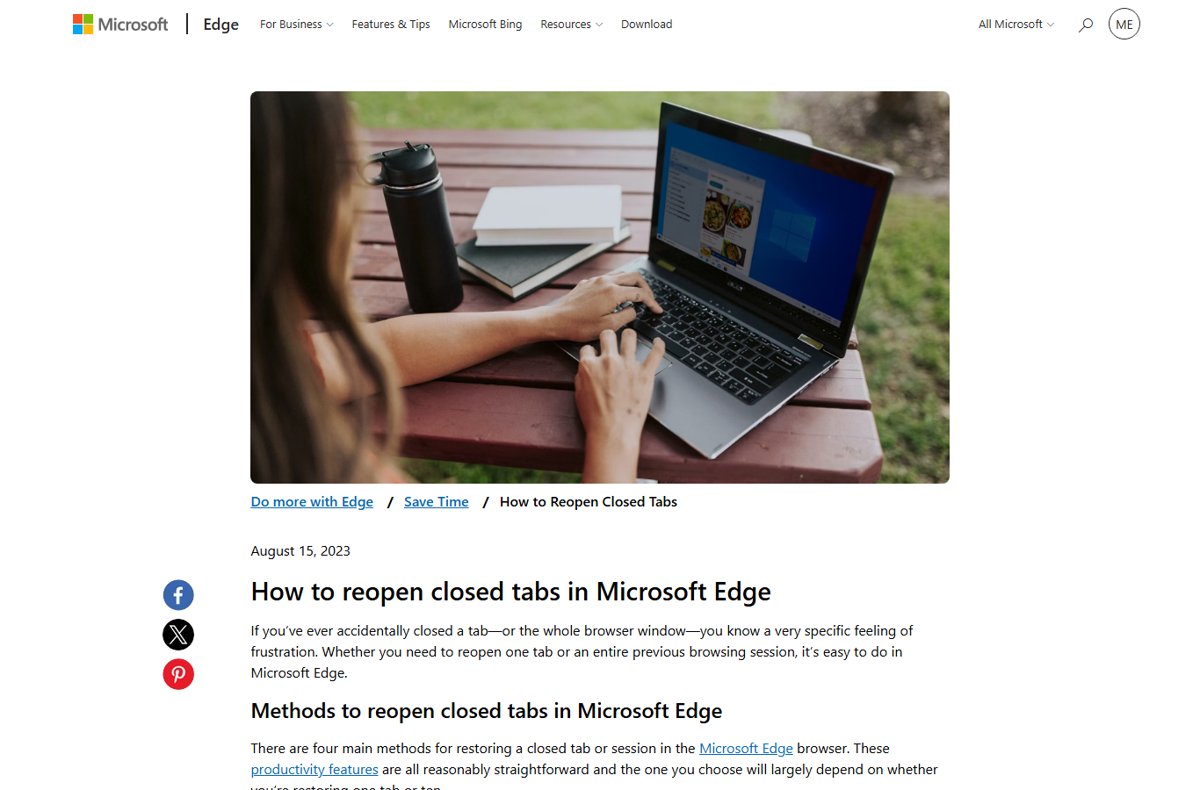
Edge keeps a list of recently closed tabs and windows, so you can pick a specific one instead of pressing the shortcut repeatedly.
- Open Microsoft Edge.
- Press Ctrl + Shift + T (Mac: Command + Shift + T) to reopen the last closed tab and switch to it.
- To choose a particular tab or window, select Settings and more (the three dots) > History > Recently closed.
- Select the tab or window in the list to reopen it.
- If the tab is not in the list, press Ctrl + H (Mac: Command + Y) and search the full history for the site name.
- As an alternative to the shortcut, right-click blank space in the title bar at the top of the window and choose the option to reopen the closed tab.
Restore the previous session in Chrome
Chrome's own crash help says the reopen shortcut also brings back the tabs that were open before Chrome closed.
- Open Chrome.
- Press Ctrl + Shift + T on Windows, or Command + Shift + T on a Mac.
- Repeat the shortcut to bring back more closed tabs or windows.
- For anything older, select More (three dots) > History > History, or press Ctrl + H (Mac: Command + Y).
- Select the page in the list to open it again.
Closed tab groups in Chrome are saved, not deleted. Reopen one from the bookmarks bar or the tab group menu.
Restore the previous session in Firefox
Firefox has both a shortcut and a menu command that rebuilds every window from your last session.
- Open Firefox.
- Press Ctrl + Shift + T (Mac: Command + Shift + T) to reopen the last closed tab.
- Keep pressing it. In Firefox 112 and later, once no closed tabs from the current session remain, the shortcut restores the previous session.
- Or open the Firefox main menu and select Restore Previous Session.
- For a specific tab, select the Firefox View folder icon at the left end of the tab strip and pick it from the recently closed tabs list.
Restore the previous session in Safari on Mac
Safari puts every restore command in its History menu, including one that brings back all windows from the last session.
- Open Safari.
- Press Shift-Command-T to reopen the last closed tab or window.
- To choose from a list, select History > Recently Closed and click the item.
- To bring back a closed window, select History > Reopen Last Closed Window.
- After quitting Safari or restarting the Mac, select History > Reopen All Windows from Last Session.
Reopen closed tabs in Opera
Opera uses the same shortcut as Edge and Chrome and adds a reopen command to the tab right-click menu.
- Open Opera.
- Press Ctrl + Shift + T on Windows, or Command + Shift + T on a Mac.
- Or right-click any tab (Ctrl-click on macOS) and select Reopen last closed tab.
- For older pages, press Ctrl + H (Mac: Command + Shift + H) to open History and select the page.
Where each browser keeps its restore shortcut, history and startup setting
Use this as a quick reference. Mac shortcuts are in brackets.
| Browser | Reopen closed tab | Open history | Reopen tabs at startup setting |
|---|---|---|---|
| Microsoft Edge | Ctrl + Shift + T (Command + Shift + T) | Ctrl + H (Command + Y); Settings and more > History | Settings > Start, home, and new tab page > When Edge starts > Open tabs from previous session |
| Google Chrome | Ctrl + Shift + T (Command + Shift + T) | Ctrl + H (Command + Y); More > History > History | Settings > On startup > Continue where you left off |
| Mozilla Firefox | Ctrl + Shift + T (Command + Shift + T) | Firefox View icon on the tab strip | Settings > General > Startup session restore checkbox |
| Safari (Mac) | Shift-Command-T | History > Show All History | Settings > General > Safari opens with |
| Opera | Ctrl + Shift + T (Command + Shift + T) | Ctrl + H (Command + Shift + H) | Settings > Basic > On startup > Retain tabs from previous session |
Use browser history to reopen tabs closed days ago
The shortcut and recently closed lists only reach back through the current and last session. History keeps every page you visited in a normal window, and Safari keeps it for up to a year by default.
- Open history: press Ctrl + H in Edge, Chrome or Opera on Windows; Command + Y in Edge or Chrome on a Mac; Command + Shift + H in Opera on a Mac; select History > Show All History in Safari; or select Firefox View in Firefox.
- Type part of the site name or page title into the history search box.
- Find the entry by the date and time you last had it open.
- Click the entry to open the page in a tab.
- Repeat for each page, or bookmark them together once they are open so you do not lose them again.
Restore tabs from another device with sync
Sync only helps if it was already on when the tabs were open. Both devices must be signed in to the same account.
| Browser | Turn on tab sync | Find the other device's tabs |
|---|---|---|
| Chrome | More > Settings > You and Google > select your account name > turn on History and tabs | More > History > History > Tabs from other devices |
| Microsoft Edge | Select the profile icon > Sign in to sync data (open tabs and history are included) | Open History on the other device and look for the synced entries |
| Firefox | Sign in to your account and include open tabs in sync | Firefox View lists tabs from your other synced devices |
| Safari | Apple menu > System Settings > your name > iCloud > See All next to Saved to iCloud > turn on Safari | Mac: Bookmarks > Show Start Page. iPhone or iPad: open a New Tab and scroll to the bottom of the start page |
iCloud Tabs needs the same Apple Account on every device and two-factor authentication turned on. Private tabs are never shared to other devices.
How to check the restore worked
- Count the windows and tabs against what you remember having open.
- Click each restored tab once and confirm the page loads, not just its title.
- Check that sites you were signed in to still show you as signed in. Chrome keeps cookies with Continue where you left off, so a sign-in prompt means site data was cleared on close.
- Close the browser normally, reopen it, and confirm the same tabs return. That proves the startup setting is working.
How to make each browser reopen your tabs at startup
This is the setting that stops tabs vanishing after a restart or an update. Change it once per browser profile.
| Browser | Steps | What else to know |
|---|---|---|
| Microsoft Edge | Select Settings and more > Settings > Start, home, and new tab page. Under When Edge starts, select Open tabs from previous session (shown as Continue where you left off in some versions). | Restoring the last session turns off settings that act on exit, such as clearing browsing data when Edge closes. |
| Google Chrome | Select More > Settings. On the left select On startup, then Continue where you left off. | Cookies are saved, so sites you were signed in to open signed in. |
| Mozilla Firefox | Open the menu and select Settings. In the General panel, under Startup, tick the box that restores previous windows and tabs. | Closed tabs now persist between sessions from Firefox 119 even without this box ticked. |
| Safari (Mac) | Select Safari > Settings > General. Choose the last-session option in the Safari opens with menu. | Hold Shift while opening Safari to skip the restore once. |
| Opera | Open Settings > Basic > On startup and select Retain tabs from previous session. | Begin fresh with start page discards open tabs but keeps pinned tabs pinned. |
Fix missing tabs that will not restore
Ctrl + Shift + T does nothing
The closed tab was in a private window, the browser window does not have focus, or every closed tab has already been reopened.
- Click inside a normal browser window, not a private one, and press Ctrl + Shift + T again.
- On a Mac, use Command instead of Ctrl.
- Open the recently closed list instead: in Edge select Settings and more > History > Recently closed; in Safari select History > Recently Closed.
- If the list is empty, search history with Ctrl + H (Safari: History > Show All History).
Microsoft Edge won't restore tabs on startup
The startup option is set to a new tab page, Edge clears data on close, or your organisation manages the startup policy.
- Select Settings and more > Settings > Start, home, and new tab page.
- Under When Edge starts, select Open tabs from previous session.
- Go to Settings > Privacy, search, and services and open Choose what to clear every time you close the browser.
- Turn off the data types that are set to clear on close.
- On a work or school PC, the startup action can be enforced by policy. If you cannot change it, ask your IT administrator.
Tabs didn't restore after restarting the PC or after a crash
The browser opened with a fresh start page because it is not set to reopen the last session.
- Do not close the new window. Press Ctrl + Shift + T (Mac: Command + Shift + T) first; Chrome and Firefox 112+ use it to bring back the tabs from before the browser closed.
- In Firefox, open the main menu and select Restore Previous Session.
- In Safari, select History > Reopen All Windows from Last Session.
- In Edge, select Settings and more > History > Recently closed.
- On a Mac, check that Close windows when quitting an application is off in Apple menu > System Settings > Desktop & Dock, and leave Reopen windows when logging back in ticked when you restart.
- Set the browser's startup option so the next restart restores tabs automatically.
Tabs were lost after a browser update
The update restarted the browser, and the startup setting opened a new tab page instead of the last session.
- Open the recently closed list or press Ctrl + Shift + T before opening anything else.
- In Edge, select Settings and more > Settings > About Microsoft Edge to confirm the update finished.
- Change the startup setting to reopen previous tabs.
- If Edge keeps crashing after the update, go to Start > Settings > Apps > Installed apps, select Microsoft Edge > Modify > Repair. Repair keeps your browsing data.
Private tabs are gone and unrecoverable
InPrivate, Incognito and Safari Private windows save no history and no recently closed list by design.
- Accept that no browser command brings the tab back. Edge deletes history, cookies and site data when the last InPrivate window closes.
- Check whether you also visited the page in a normal window, then search normal history.
- Search for the page again, or look in your downloads and bookmarks, which private mode keeps.
Frequently asked questions
What is the shortcut to restore tabs?
Press Ctrl + Shift + T on Windows or Command + Shift + T on a Mac. It works in Edge, Chrome, Firefox and Opera, and Safari uses Shift-Command-T. Each press reopens one more closed tab, starting with the most recent.
How do I restore my tabs in Microsoft Edge?
Press Ctrl + Shift + T, or select Settings and more > History > Recently closed and pick the tab or window. To restore tabs every launch, set When Edge starts to Open tabs from previous session under Start, home, and new tab page.
How do I restore pinned tabs in Edge?
A closed pinned tab comes back like any other tab: press Ctrl + Shift + T or use History > Recently closed. To stop losing pinned tabs after a restart, set When Edge starts to Open tabs from previous session.
How do I restore my tabs in Chrome?
Press Ctrl + Shift + T (Mac: Command + Shift + T) to reopen closed tabs or windows, including the tabs that were open before Chrome closed. For older pages, open More > History > History.
How do I restore tabs after restarting my computer?
Open the browser and press Ctrl + Shift + T before doing anything else, or use Safari's History > Reopen All Windows from Last Session. Then turn on the browser's reopen-previous-tabs startup setting so a restart never clears them again.
How do I restore all tabs at once?
Restore the whole last session: select Restore Previous Session in Firefox, History > Reopen All Windows from Last Session in Safari, or reopen the closed window from Recently closed in Edge. In Chrome, pressing Ctrl + Shift + T reopens a closed window with all its tabs.
Why can't I restore my tabs?
The usual reasons are that the tabs were in a private window, the browser clears data on close, or the tabs closed so long ago they are no longer in the recently closed list. Search full history with Ctrl + H for anything the shortcut cannot reach.
Can I restore tabs after closing the whole browser window?
Yes. Press Ctrl + Shift + T in Chrome, use History > Reopen Last Closed Window in Safari, or select the window under Settings and more > History > Recently closed in Edge. The window returns with its tabs.
Can I restore tabs from another computer or phone?
Yes, if sync was on for both devices. In Chrome open History > Tabs from other devices. In Safari, iCloud Tabs appear on the start page. Firefox shows synced tabs in Firefox View, and Edge syncs open tabs when you sign in.
Are private or incognito tabs recoverable after closing them?
No. Edge InPrivate, Chrome Incognito and Safari Private Browsing do not save visited pages, and Edge does not offer Recently closed for InPrivate windows. Once the private window closes, the tabs are gone.


How To Get New Tabs In Edge To Open With A Page Of My Choice - Techdows
[…] you would rather pick up where you left off, choose Continue where you left off instead. The guide to restoring tabs in Edge and other browsers covers getting a closed session […]
Privacy and security settings in Edge browser on Windows 11/10 - Techdows
[…] InPrivate tabs cannot be reopened from history, unlike normal tabs you can restore after closing. Favorites and downloaded files you save in InPrivate are […]