To change the wallpaper on a Mac, open Apple menu > System Settings > Wallpaper, then choose one of Apple’s built-in wallpapers or add your own photo. The change takes effect immediately, and the same steps work on MacBook Air, MacBook Pro, iMac, Mac mini, Mac Studio, and Mac Pro running a recent version of macOS.
You can use a static picture, Dynamic Wallpaper, aerial scenery, a solid color, or photos stored on your Mac. macOS also lets you shuffle multiple images and use different wallpapers on separate desktops or monitors.
The steps below cover the current macOS Wallpaper settings, faster ways to set your own image, multiple displays, Dynamic Wallpapers, and fixes for a wallpaper that refuses to change.
How to Change Wallpaper on Mac
- Click the Apple menu in the upper-left corner of the screen.
- Select System Settings.
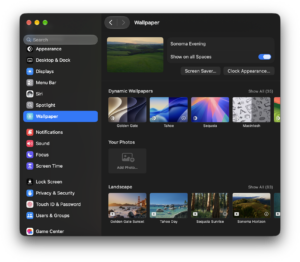
- Scroll down and click Wallpaper.
- Choose a wallpaper from one of the available categories.
- Click the image you want to use.
Your desktop background changes as soon as you select the new wallpaper.
Depending on your version of macOS, Apple may show categories such as:
- Dynamic Wallpapers
- Your Photos
- Landscape
- Cityscape
- Underwater
- Earth
- Shuffle Aerials
- Pictures
- Colors
Some Apple wallpapers are not stored locally until you use them. If you see a download icon beside a wallpaper, click it and wait for macOS to download the required files.
How to Change Mac Wallpaper to Your Own Photo
You can use a JPG, PNG, HEIC, or another image format supported by macOS instead of one of Apple’s included backgrounds.
- Open System Settings > Wallpaper.
- Scroll to Your Photos.
- Click Add Photo.
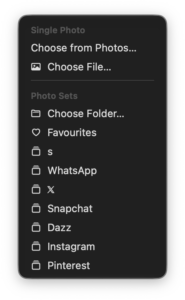
- Choose Choose from Photos, Choose File, or Choose Folder.
- Select the image you want.
If you choose a folder, macOS can use the images inside it as a wallpaper collection rather than forcing you to add each picture individually.
Choose a wallpaper from the Photos app
If the image is already in your Photos library:
- Open Photos.
- Select the photo.
- Click the Share button.
- Select Set Wallpaper.
This is faster than opening Wallpaper settings when you already know which photo you want to use.
How to Change Wallpaper on Mac from Finder
You can set an image as your Mac wallpaper directly from Finder without opening System Settings.
- Open Finder.
- Locate the image you want to use.
- Control-click or right-click the image.
- Select Set Desktop Picture.
The selected file becomes your wallpaper immediately.
If you do not see Set Desktop Picture, confirm that you selected an actual image file rather than a folder, PDF, or unsupported format.
How to Set a Picture from Safari as Mac Wallpaper
Safari can turn many images from the web into desktop wallpaper without requiring you to save the file manually first.
- Open the image in Safari.
- Control-click or right-click the image.
- Select Use Image as Desktop Wallpaper.
The option appears only when Safari can access the image itself. Some websites use page elements or protected image viewers that prevent the normal wallpaper command from appearing. In that case, download the image first and set it from Finder.
How to Use Dynamic Wallpaper on Mac
Dynamic Wallpapers change their appearance during the day instead of showing one identical image at all times.
- Open System Settings > Wallpaper.
- Scroll to Dynamic Wallpapers.
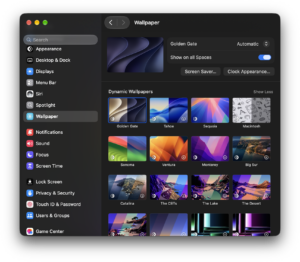
- Select the wallpaper you want.
- Open the appearance menu beside the selected wallpaper if one is available.
- Choose Dynamic.
Apple can provide several modes for the same wallpaper:
| Option | What it does |
|---|---|
| Dynamic | Gradually changes the wallpaper based on the time of day. |
| Automatic | Uses the light or dark version according to your Mac Appearance settings. |
| Light (Still) | Keeps the light version displayed all the time. |
| Dark (Still) | Keeps the dark version displayed all the time. |
Dynamic Wallpapers can use your location to match daylight changes more accurately. If Location Services is disabled, macOS can instead use the time zone configured on the Mac.
How to Use Aerial Wallpapers on Mac
Recent versions of macOS include aerial wallpapers showing landscapes, cities, underwater scenes, and views of Earth. These can also transition into moving screen savers.
- Open System Settings > Wallpaper.
- Scroll to an aerial category such as Landscape, Cityscape, Underwater, or Earth.
- Select an aerial.
- Allow macOS to download it if required.
When supported, you can use the same aerial as both the desktop wallpaper and screen saver. The screen saver displays the moving version, while the desktop normally shows a still frame.
How to Automatically Change Wallpaper on Mac
You do not have to keep one background permanently. macOS can rotate through a collection of wallpapers automatically.
One option is Shuffle Aerials:
- Open System Settings > Wallpaper.
- Go to Shuffle Aerials.
- Select the collection you want to use.
- Choose how often the wallpaper should change.
You can also add a folder containing your own photos and use the available shuffle controls to cycle through those images.
This is useful if you have a folder of landscapes, family photos, artwork, or wallpapers downloaded specifically for your Mac.
How to Set Different Wallpapers on Multiple Monitors
macOS can either show the same wallpaper on every connected monitor or let different desktop Spaces use separate backgrounds.
To use the same wallpaper everywhere:
- Connect the external monitor.
- Open System Settings > Wallpaper.
- Select the wallpaper you want.
- Turn on Show on all Spaces.
Apple states that this option applies the selected wallpaper across additional desktop Spaces and connected displays.
Use a different wallpaper on each display
Turn off Show on all Spaces first. Then move to the desktop or display you want to customize and choose its wallpaper.
If you use several virtual desktops on each display, macOS treats those desktops as Spaces, so the wallpaper can differ between them as well.
How to Set Different Wallpapers for Different Mac Desktops
Mission Control lets you create multiple virtual desktops, called Spaces. You can give each Space a different wallpaper so you can identify them more easily.
- Open System Settings > Wallpaper.
- Turn off Show on all Spaces.
- Open Mission Control.
- Switch to the desktop you want to customize.
- Return to Wallpaper settings.
- Select a wallpaper for that desktop.
- Repeat the process for the other Spaces.
Apple supports up to 16 Spaces, so this can be useful if you keep separate desktops for work, browsing, editing, or personal apps.
How to Change the Lock Screen Wallpaper on Mac
Mac does not provide the same independent Lock Screen wallpaper picker found on an iPhone. The desktop wallpaper and screen saver determine much of what appears when the Mac is locked.
On current versions of macOS, aerial wallpaper can transition into its matching screen saver when you lock the Mac. You can also choose a separate screen saver:
- Open System Settings > Wallpaper.
- Click Screen Saver.
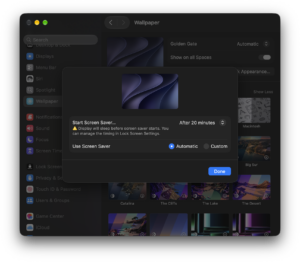
- Select Custom if you want a screen saver different from the current wallpaper.
- Choose an Apple screen saver or your own photos.
Lock Screen settings such as password timing are controlled separately under System Settings > Lock Screen.
How to Use Your Photos as a Mac Screen Saver
- Open System Settings > Wallpaper.
- Click Screen Saver.
- Select Custom.
- Scroll to Other.
- Select Photos.
- Click Options.
- Choose your Photos library or a folder containing images.
This changes the screen saver rather than the normal desktop background, so you can use one photo as your wallpaper and a different collection while the Mac is idle.
How to Change Wallpaper on Older Versions of macOS
Older releases of macOS use System Preferences instead of System Settings.
If your Mac does not have a Wallpaper section:
- Click the Apple menu.
- Open System Preferences.
- Select Desktop & Screen Saver.
- Open the Desktop tab.
- Select an Apple wallpaper or add a folder containing your own images.
You can still right-click an image in Finder and use Set Desktop Picture on many older macOS versions.
Best Wallpaper Size for Mac
For the sharpest result, use an image with a resolution at least as large as your Mac display. A smaller picture can look soft or pixelated when macOS stretches it to fill the screen.
The ideal resolution depends on the Mac and any external monitor you use. Retina displays contain more pixels than their apparent workspace resolution, so high-resolution images generally produce better results.
Landscape images usually work best because Mac displays are wider than they are tall. If the subject sits close to the edge of the image, macOS may crop part of it when fitting the wallpaper to the screen.
Fix Mac Wallpaper Not Changing
Wallpaper changes back after switching desktops
Open System Settings > Wallpaper and check Show on all Spaces. Turn it on if you want one wallpaper everywhere, or leave it off and configure each Space individually.
Your custom photo disappeared
If the wallpaper uses an image stored on an external drive, network location, or removable device, macOS may lose access after the drive disconnects.
Copy the image to a permanent folder on the Mac, such as Pictures, and select it again.
A Dynamic Wallpaper is not changing
Confirm that its mode is set to Dynamic rather than Light or Dark Still. Also check the Mac’s date, time zone, and Location Services settings.
The wallpaper looks blurry
Use a larger source image with a resolution closer to or higher than the display’s native resolution. A heavily compressed image can also look poor even when its pixel dimensions are large.
An external monitor keeps using the wrong wallpaper
Check whether Show on all Spaces is enabled. Turn it off when you want independent wallpapers, then select the appropriate desktop or monitor before choosing the new background.
Frequently Asked Questions
How do I change the wallpaper on a MacBook Air?
Open Apple menu > System Settings > Wallpaper and select a built-in image or click Add Photo to use your own. The process is the same on current MacBook Air and MacBook Pro models.
How do I change the wallpaper on a MacBook Pro?
Go to System Settings > Wallpaper, then click the wallpaper you want. You can also right-click an image in Finder and select Set Desktop Picture.
Can I use my own photo as Mac wallpaper?
Yes. Open System Settings > Wallpaper > Add Photo, or select a photo in Finder or Photos and use the Set Wallpaper option.
Can I have different wallpapers on two Mac monitors?
Yes. Turn off Show on all Spaces in Wallpaper settings and configure the desktops or displays separately.
Can I use a different wallpaper on every Mac desktop?
Yes. Turn off Show on all Spaces, switch to each Space using Mission Control, and select its wallpaper individually.
Can Mac wallpaper change automatically?
Yes. Use Dynamic Wallpapers for changes based on the time of day, or use Shuffle Aerials or a photo collection to rotate between different images.
Where are wallpaper settings on Mac?
On current macOS versions, go to Apple menu > System Settings > Wallpaper. Older versions use System Preferences > Desktop & Screen Saver.
Why does my Mac wallpaper keep changing?
A shuffle option, Dynamic Wallpaper, separate desktop Space, or wallpaper-management app may be responsible. Check System Settings > Wallpaper and confirm which wallpaper and shuffle settings are active.
Can I set a GIF as Mac wallpaper?
macOS does not provide a standard option for using an animated GIF as the desktop wallpaper. Third-party apps can create animated backgrounds, but they are not required for normal static or dynamic Apple wallpapers.
Can I set a video as wallpaper on Mac?
macOS does not offer a general option for choosing any video file as desktop wallpaper. Apple’s supported moving backgrounds use its aerial and screen saver system.

![How to Enable & Use Thunderbolt on Windows 11 [Easy Guide]](https://techdows.com/wp-content/uploads/2026/10/How-to-Enable-Use-Thunderbolt-on-Windows-11-Easy-Guide-600x338.jpg)