To download apps on a Vizio TV, open VIZIO Home, press the Left Arrow on the remote, select Apps > App Search, find the app and add it to your Home screen.
This guide covers the app search on VIZIO OS (formerly SmartCast) and onn powered by VIZIO TVs, managing Home screen apps, what to do when an app is missing, and fixes for apps that will not open.
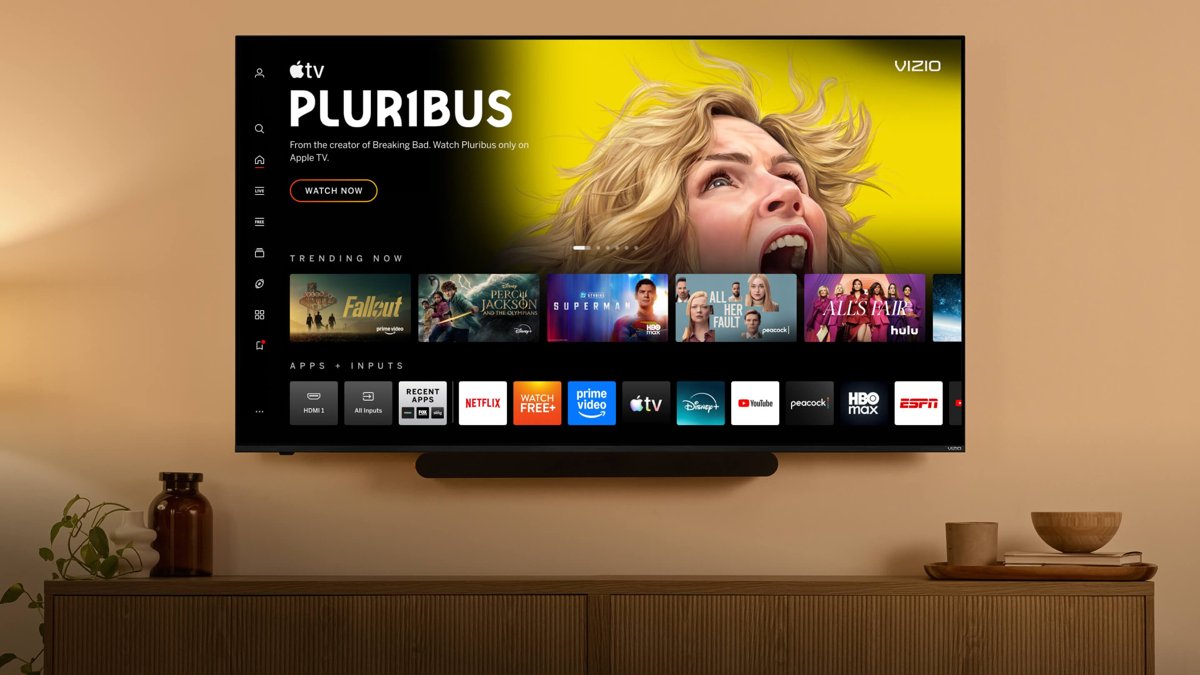
How to download apps on Vizio TV
VIZIO OS apps come from the TV platform itself, so there is no separate download file. Searching for the app and adding it is the whole process.
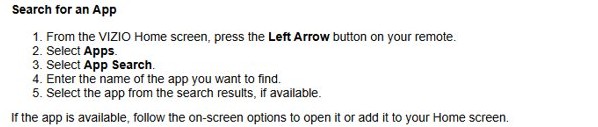
- Press the Input button on the remote and select VIZIO Home (or press the V, Home or VIZIO Home button if your remote has one).
- Press the Left Arrow button on the remote.
- Select Apps, then App Search.
- Type the name of the app you want.
- Select the app in the results.
- Follow the on-screen options to open it or add it to your Home screen, then sign in to the service.
Menu names can differ slightly by TV model and software version, but the route through Apps is the same on current VIZIO OS TVs.
Vizio TV app store, casting or streaming stick: what to use
Pick the method that matches your TV and the app you want. Start with the built-in app search, and fall back only when the app is not offered.
| Your situation | Use this method | Why |
|---|---|---|
| The app appears in App Search | Add it from Apps > App Search | It runs natively on the TV with the Vizio remote |
| The app is missing but has a Cast button on your phone | Google Cast (Chromecast built-in) | Plays the content on the TV from an Android device, iPhone, tablet or computer |
| You use an iPhone, iPad or Mac | Apple AirPlay 2 | Streams or mirrors from the Apple device |
| The app has no casting support | An external streaming device (Roku, Fire TV, Apple TV or Google TV) | Those platforms carry their own app catalogs |
| Your older TV has no VIZIO Home or App Search | Casting, AirPlay or a streaming device | The app search route needs a current VIZIO OS TV |
Why app downloads work differently on Vizio TVs
| Fact | What it means for you |
|---|---|
| VIZIO OS comes preloaded on Vizio smart TVs | There is nothing to download to get the platform itself |
| Apps are provided through the TV platform | You add apps from Apps, not by installing files like on a phone |
| Apps cannot always be manually downloaded or installed | There is no sideloading route for a missing app |
| Availability is set by VIZIO and the app provider | An internet connection does not guarantee every app |
| Availability varies by model, region and provider | Two Vizio TVs can show different app lists |
| 300+ apps, including Netflix, Disney+, Hulu, Max, Apple TV+ and YouTube | Most major services are already in the catalog |
| A VIZIO customer account is needed to use VIZIO OS | Sign in once on the TV; WatchFree+ also needs the account |
Add, remove or rearrange apps on the Vizio Home screen
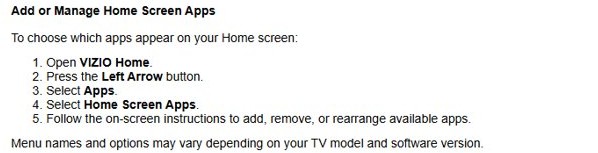
- Open VIZIO Home from the Input button.
- Press the Left Arrow button.
- Select Apps.
- Select Home Screen Apps.
- Follow the on-screen instructions to add, remove or rearrange the available apps.
What to do when the app is not available
If an app does not show up in App Search, it may not be offered on VIZIO OS right now. You can usually still watch the service another way. Common examples are Xfinity Stream, Spectrum TV, DIRECTV, DIRECTV STREAM, DISH Anywhere and Sling TV.
| Option | How to use it | Works with |
|---|---|---|
| Cast the app from your phone (Google Cast) | Open the service's mobile app on the same Wi-Fi as the TV, tap the Cast icon and choose the Vizio TV | Compatible Android devices, iPhones, tablets and computers |
| Mirror your whole screen (AirPlay 2) | Use AirPlay from Control Center or the app's AirPlay button and pick the Vizio TV | iPhone, iPad and Mac |
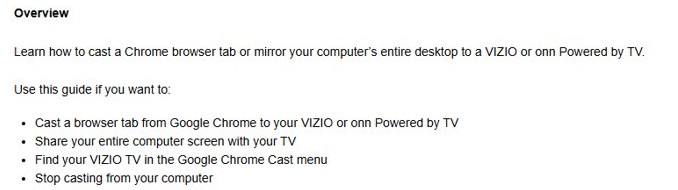
| Cast a computer screen or Chrome tab | Use Google Cast from the Chrome browser to send a tab or the desktop | Windows, Mac and ChromeOS computers with Chrome |
| Add a streaming stick or box | Plug it into an HDMI port and install the app on that device | Roku, Fire TV, Apple TV or Google TV, if the app is supported there |
Check the service's own mobile app first: if it supports casting or AirPlay, you need no extra hardware.
Check the Vizio TV internet connection for new apps
New apps and app updates can arrive automatically while the TV is online, so a disconnected TV shows an out-of-date catalog.
- Press Menu (or the Gear button) on the remote.
- Go to All Settings > Network.
- Confirm the TV shows a Wi-Fi or Ethernet connection.
- Select Test Connection and review the result.
- Reconnect to your Wi-Fi network if the test fails, then run App Search again.

Tips for managing apps on your Vizio TV
| Tip | Why it helps |
|---|---|
| Keep the TV connected to the internet | VIZIO OS and app updates arrive automatically while it is online |
| Put the apps you use most first under Home Screen Apps | They open from VIZIO Home without searching |
| Search by the exact service name | App Search results only show apps offered on your model and region |
| Use the VIZIO mobile app as a remote | Browse apps and type searches from your phone |
| Sign out and back in to an app that misbehaves | It clears account-related playback errors without a reset |
| Note any app error code | The provider's help site can look up the exact cause |
The VIZIO mobile app for iPhone and Android also controls volume, inputs and playback, and needs Local Network access on an iPhone to find the TV.
Still not working? Try these fixes
The app does not appear in App Search
The app is not offered on VIZIO OS for your model or region, or the TV is offline.
- Confirm the connection under All Settings > Network.
- Search again with the service's exact name.
- If it is still missing, cast it, use AirPlay 2 or add a streaming device.
An app will not open, load or stream
A network problem, a service outage or a temporary TV software issue.
- Press Menu, select Network, then Test Connection.
- Restart your modem and router, and check whether other apps work.
- Test the same app on a phone or computer to rule out an outage.
- Sign out of the app and sign back in if it offers that option.
Several apps freeze or fail at once
A temporary TV software or network issue.
- Unplug the TV, wait at least 5 seconds and plug it back in.
- Or press Menu, select Reset & Admin, then Soft Power Cycle.
- Turn the TV on and open the app again.
Apps still fail after a power cycle
A persistent software problem on the TV.
- Write down your Wi-Fi password and app logins; a reset erases them.
- Press Menu, select Admin & Privacy, then Reset to Factory Settings (labeled System or Help on some models).
- Follow the on-screen setup, then add your apps again from App Search.
Vizio TV apps FAQ
Can you download apps on a Vizio TV?
Yes, on VIZIO OS TVs you add apps from VIZIO Home > Apps > App Search. You cannot install arbitrary apps like on a phone; only apps VIZIO and the provider offer for your model and region appear.
How do I get to the Vizio app store?
Press Input and select VIZIO Home, then press the Left Arrow on the remote and select Apps. App Search finds a specific app, and Home Screen Apps controls which apps appear on the Home screen.
How do I go to apps on a Vizio TV?
Open VIZIO Home with the Input button or the V, Home or VIZIO Home button on your remote. Your added apps sit on the Home screen, and the full list is under Apps after pressing the Left Arrow.
What is the VIZIO app?
The VIZIO mobile app for Android and iPhone controls compatible VIZIO TVs and soundbars. It works as a remote, browses streaming apps, streams WatchFree+ live channels and shares photos with VIZIOgram.
Do I need a Vizio account to add apps?
Yes. VIZIO says a customer account is needed to use VIZIO OS, and WatchFree+ requires one too. Individual streaming apps also need their own sign-in or subscription.
How do I update apps on a Vizio TV?
Keep the TV connected to the internet. New apps and app updates can arrive automatically, and VIZIO OS updates itself over time, so there is no manual update button to press.
Why can't I find a specific app on my Vizio TV?
App availability depends on the TV model, region and service provider, and VIZIO and the app provider decide what is offered. If App Search does not show it, cast it, use AirPlay 2 or add a streaming device.
How do I install an app on an older Vizio TV?
If your TV has no VIZIO Home or App Search, use Google Cast, AirPlay 2 where supported, or plug in a Roku, Fire TV, Apple TV or Google TV device and install the app there.
Quick summary
Use VIZIO Home > Apps > App Search to add apps, arrange them under Home Screen Apps, and cast, use AirPlay 2 or plug in a streaming device for anything the search does not find. VIZIO OS only offers apps that VIZIO and the provider make available for your model, and there is no way to sideload the rest.