To turn an ad blocker on or off in Microsoft Edge on a PC, open Extensions next to the address bar, select Manage extensions and flip the toggle beside your ad-blocking extension.
This guide covers Edge's own tracking prevention, ad-blocking extensions, per-site exceptions, the Block ads switch in Edge for Android and iPhone, and fixes when ads still appear.
![How to Turn On/Off Ad Blocker in Microsoft Edge? [Step-By-Step]](https://techdows.com/wp-content/uploads/2026/10/How-to-Turn-OnOff-Ad-Blocker-in-Microsoft-Edge-Step-By-Step.jpg)
Turn an ad blocker extension on or off in Microsoft Edge
Desktop Edge has no single switch named ad blocker, so the blocking you see comes from an extension you installed. The toggle on the extensions page turns it on or off without uninstalling it.
- Open Microsoft Edge on your Windows PC or Mac.
- Select the Extensions button to the right of the address bar.
- Select Manage extensions.
- Find your ad blocker in the list of installed extensions.
- Turn the toggle off to pause the ad blocker, or on to start blocking again.
- Reload the open page so the change takes effect there.
You can also reach the same page from Settings and more (the three dots) > Extensions > Manage extensions.
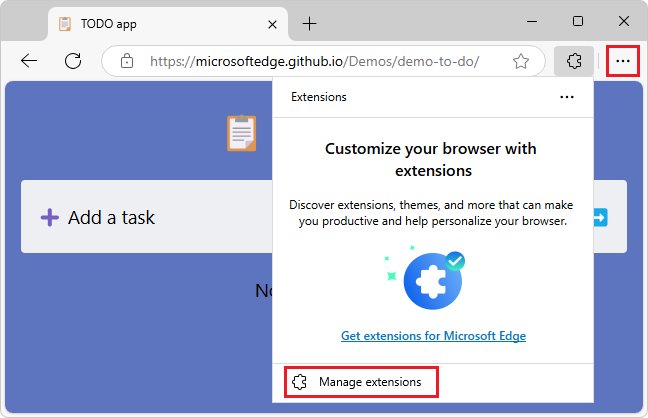
Edge ad blocker options compared
| What you want | Use this | Where it lives |
|---|---|---|
| Block most ads on every site | An ad-blocking extension | Extensions > Manage extensions |
| Cut ad trackers without an add-on | Tracking prevention set to Strict | Settings > Privacy, search, and services |
| Let one site show ads | Pause the extension for that site, or add a tracking prevention exception | Extension icon, or Tracking prevention > Exceptions |
| Block ads on a phone | The built-in Block ads switch | Edge app > Settings > Content blockers |
| Stop new windows from opening | The pop-up blocker | Site permissions > Pop-ups and redirects |
How to turn on or off ad blocker in Microsoft Edge? All the steps
Follow these steps in order the first time you set Edge up. Each one turns a different layer of blocking on or off.
- Open Edge and select Settings and more (the three dots) in the top-right corner.
- Select Settings, then Privacy, search, and services.
- Under Tracking prevention, turn the toggle on and pick Basic, Balanced or Strict, or turn it off.
- Open Settings and more > Extensions to manage ad-blocking add-ons.
- To turn on a new ad blocker, select Get Extensions for Microsoft Edge, find the extension, then select Get > Add extension.
- To turn an ad blocker off, select Manage extensions and switch its toggle off.
- To disable the blocker on one website, open that site, select the extension's icon and use its pause or allow option for that site.
- To remove an ad blocker completely, select More actions beside it on the Extensions menu, choose Remove from Microsoft Edge, then Remove.
Does Microsoft Edge have a built-in ad blocker?
| Edge version | Built-in ad blocking | What it does |
|---|---|---|
| Windows and macOS | Tracking prevention | Blocks known trackers; Strict also blocks most trackers across sites, which removes many ads |
| Windows and macOS | Intrusive ads blocking | Blocks ads on sites that show intrusive ads, based on Chrome's ad filter; on by default |
| Windows and macOS | Pop-up blocker | Stops pop-ups and redirects; on by default |
| Android and iPhone | Block ads (Adblock Plus) | Blocks ads on web pages; on/off switch in Content blockers |
None of the desktop features is a full ad blocker. For that, add an extension such as uBlock Origin from the Edge Add-ons store.
Turn on tracking prevention in Microsoft Edge
Tracking prevention is on at Balanced by default. Raising it to Strict blocks most trackers across sites and removes many personalised ads.
- Select Settings and more > Settings.
- Select Privacy, search, and services.
- Make sure the Tracking prevention toggle is on.
- Select Strict for the most blocking, Balanced for the default, or Basic for the least.
- Turn the toggle off only if you want Edge to stop blocking trackers altogether.
Strict can break parts of some sites, such as embedded videos or sign-in boxes. Add an exception for those sites instead of lowering the level everywhere.
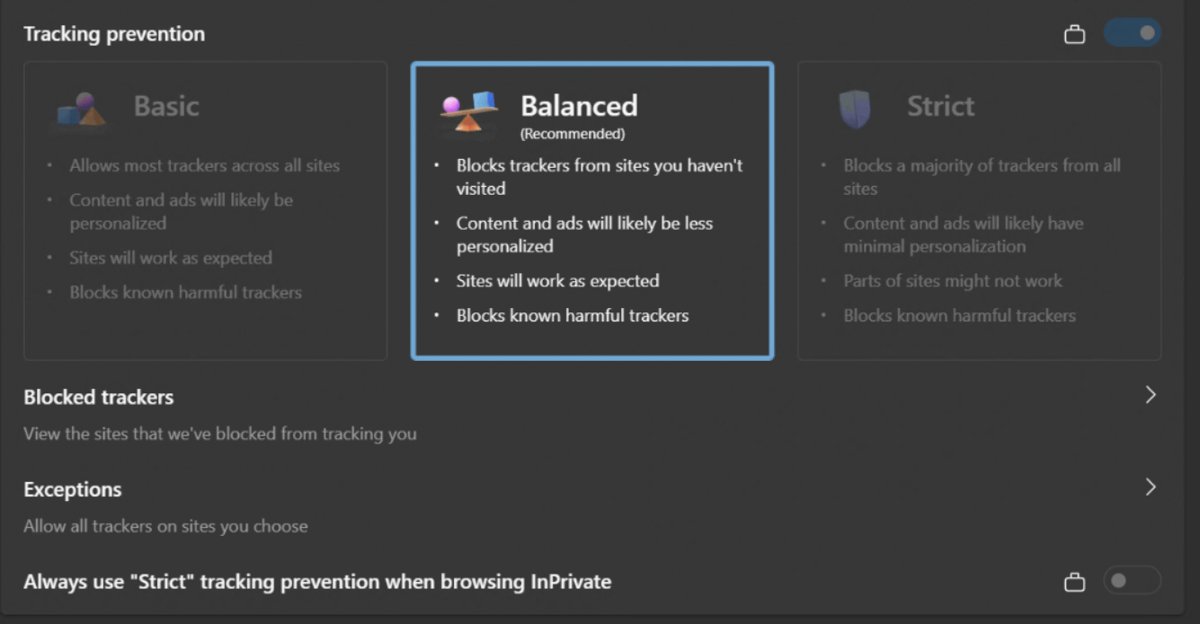
Disable Edge ad blocker for a specific website
- Open the website you want to allow.
- Select the extension's icon next to the address bar and choose its pause or allow-this-site option.
- For tracking prevention, go to Settings > Privacy, search, and services > Tracking prevention > Exceptions.
- Select Add a site, enter the site address and select Add.
- Reload the website.
You can also select View site information (the padlock) in the address bar and check Trackers to see what Edge blocked on that page.
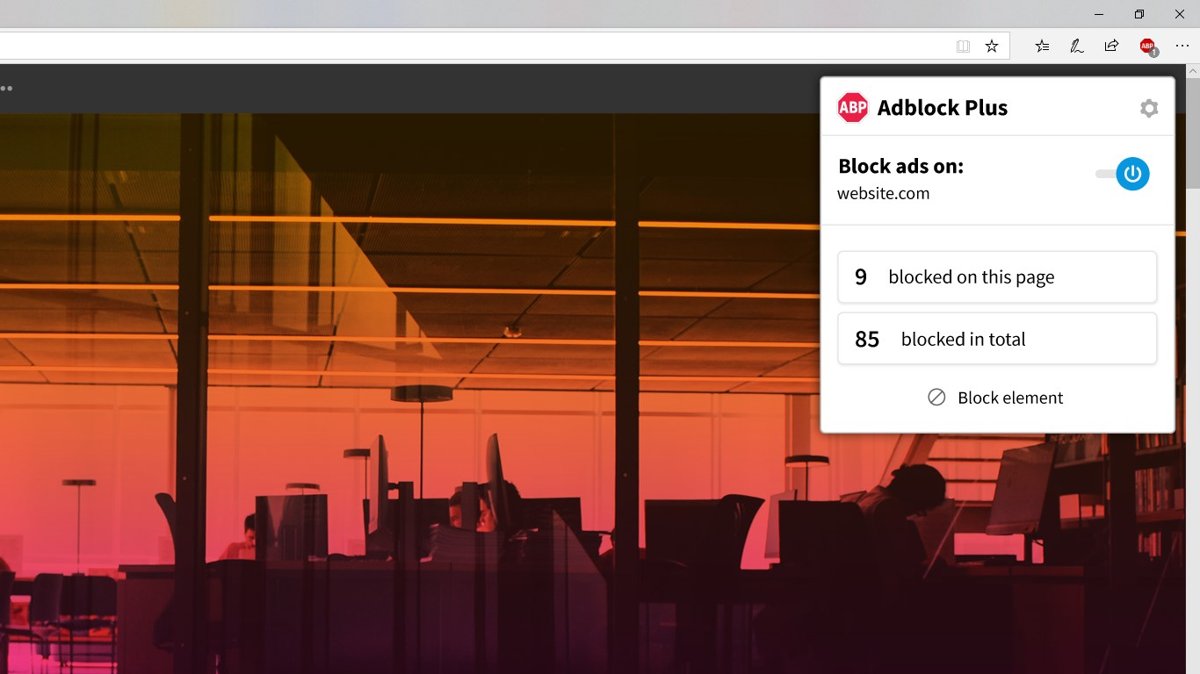
Turn on ad blocker in Edge on Android and iPhone
Edge for Android and iOS includes an ad blocker powered by Adblock Plus. It is controlled by one switch.
- Open the Edge app and tap the menu (…) at the bottom.
- Tap Settings.
- Tap Content blockers.
- Turn Block ads on to block ads, or off to show them.
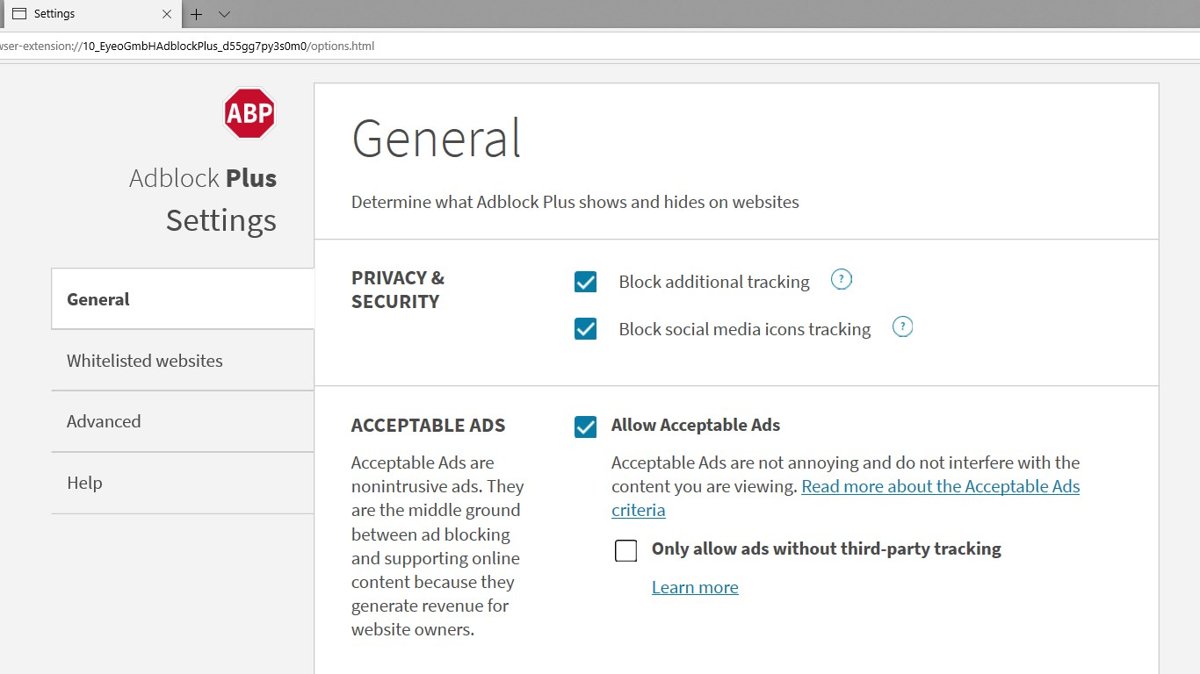
- Open Advanced settings and turn off Allow acceptable ads if you want stricter blocking.
Remove an ad blocker extension from Edge
- Right-click the ad blocker's icon next to the address bar.
- Select Remove from Microsoft Edge.
- Select Remove to confirm.
- If the icon is hidden, open Extensions, select More actions next to the extension and choose Remove from Microsoft Edge.
Removing an extension deletes its settings and allow list. Turn it off instead if you plan to use it again.
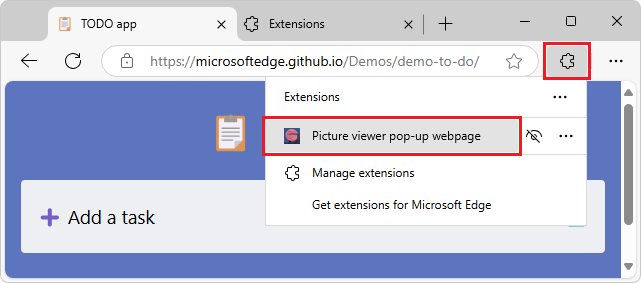
How do I know if my ad blocker is working in Edge?
- Open Manage extensions and confirm the ad blocker's toggle is on.
- Visit a news site that normally shows banner ads and check the ad slots are empty.
- Select the extension's icon; most blockers show a count of blocked items for the page.
- Select View site information > Trackers to see the trackers Edge itself blocked.
Ads still showing in Edge with ad blocker on
Ads appear even though an ad blocker is installed
The extension is switched off, paused for the site, or Edge turned it off.
- Open Manage extensions and turn the ad blocker back on.
- Select the extension's icon on the site and make sure it is not paused there.
- Update Edge from Settings and more > Help and feedback > About Microsoft Edge, then restart it.
Pop-up windows keep opening
Pop-ups are a separate setting from ad blocking, so you need to turn on the Edge pop-up blocker as well.
- Go to Settings > Privacy, search, and services > Site permissions > All permissions > Pop-ups and redirects.
- Turn Blocked (recommended) on.
- Run a Microsoft Defender scan if pop-ups appear when no site is open.
A website stops working or asks you to disable your ad blocker
Strict tracking prevention or the extension blocks a script the site needs.
- Pause the extension for that site from its icon.
- Add the site under Tracking prevention > Exceptions.
- Reload the page.
Microsoft Edge ad blocker FAQs
Does Microsoft Edge have a built-in ad blocker?
Edge for Android and iOS has a built-in Block ads switch powered by Adblock Plus. Desktop Edge has tracking prevention, intrusive ads blocking and a pop-up blocker, but full ad blocking on Windows and Mac needs an extension.
Which tracking prevention level should I use?
Balanced suits most people because it blocks trackers from sites you have not visited and rarely breaks pages. Choose Strict if you want the most blocking and accept that some sites may need an exception to work.
Why are ads still showing after enabling an ad blocker?
The extension may be paused for that site, switched off in Manage extensions, or out of date. Some ads are served from the site itself, and tracking prevention alone does not remove them. Check the toggle and update Edge.
Is it safe to use ad blocker extensions?
Install ad blockers only from the Edge Add-ons store or the Chrome Web Store, and check the publisher and permissions first. An ad blocker needs to read and change site data, so avoid copycat extensions with unfamiliar publishers.
Can I use multiple ad blockers at the same time?
You can, but two blockers filtering the same pages slow browsing and can break sites without blocking more ads. Keep one ad-blocking extension turned on and use Edge's tracking prevention alongside it.
How do I temporarily turn off the ad blocker in Edge?
Open Extensions > Manage extensions and switch the ad blocker's toggle off. The extension and its settings stay installed, so you can turn it back on with the same toggle later.
Does turning off tracking prevention show more ads?
Turning it off lets more trackers run, so you may see more personalised ads that follow you between sites. It does not affect an installed ad-blocking extension, which keeps working on its own.
Best way to block ads in Microsoft Edge
Install one ad-blocking extension from the Edge Add-ons store and keep tracking prevention on Balanced or Strict; on a phone, turn on Block ads in Content blockers. The extension removes the ads, tracking prevention cuts the trackers behind them, and both can be switched off per site when a page breaks.