The AMD-Action:authenticate:SP error means the Mac App Store could not finish signing in to your Apple Account, and signing out of the App Store, correcting the date and time, and signing back in clears it in most cases.
This guide covers the quick fix, the account and network causes behind a failed App Store login on a Mac, and what to do when the error keeps coming back.
Fix the AMD-Action:authenticate:SP error in the Mac App Store
Run these steps in order. Stop as soon as the App Store accepts your sign-in.
- Open the Apple System Status page at apple.com/support/systemstatus and confirm that Mac App Store and Apple Account both show as available.
- Choose Apple menu > System Settings, click General, then click Date & Time and turn on Set time and date automatically.
- Open the App Store app and choose Store > Sign Out.
- Quit the App Store with Command-Q, then open it again.
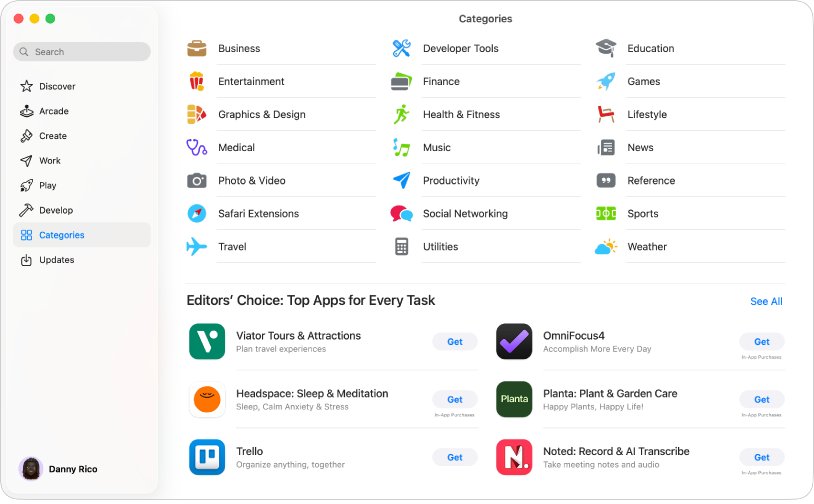
- Click Sign In at the bottom-left corner of the App Store window.
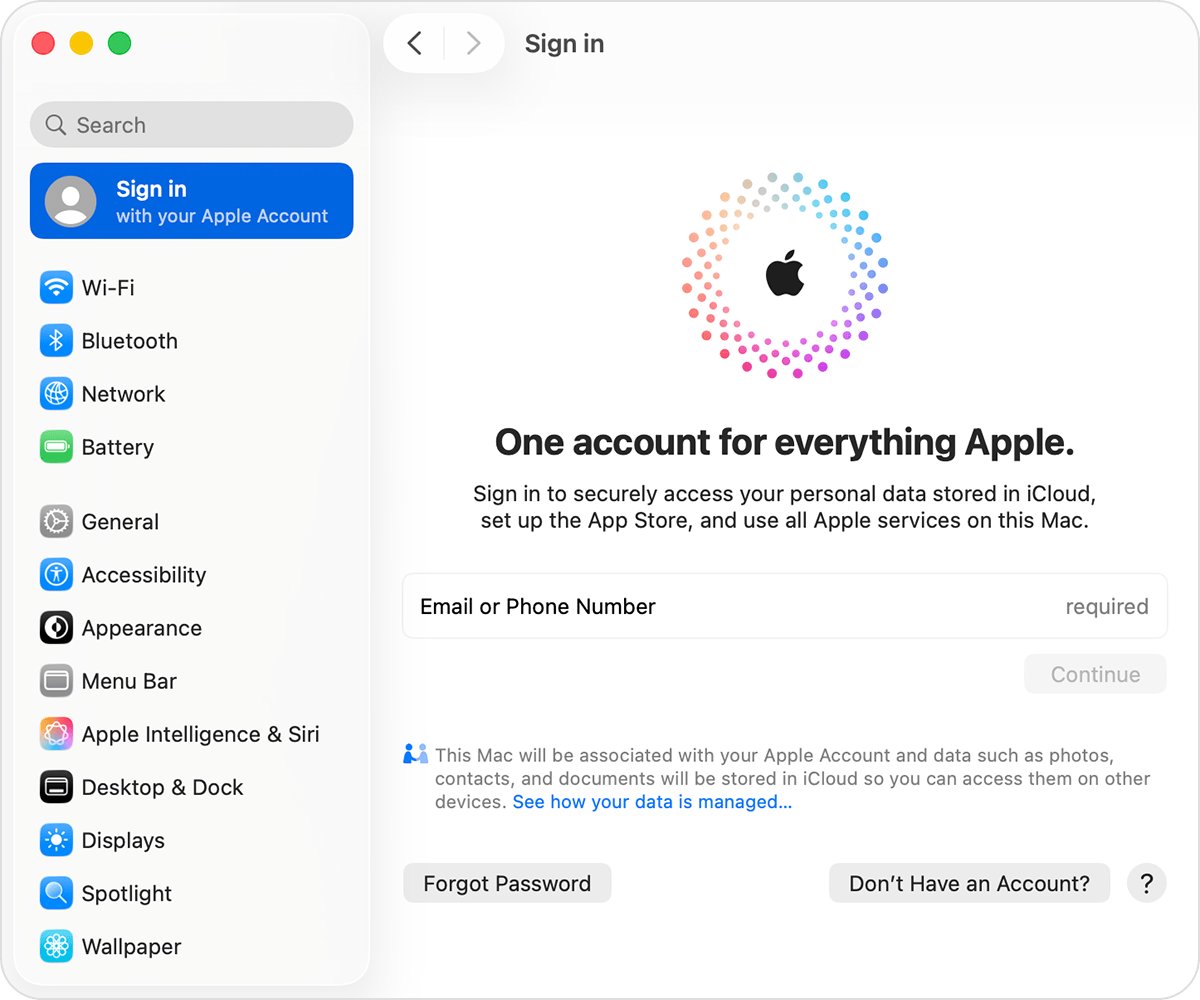
- Enter the email address or phone number for your Apple Account and follow the onscreen instructions.
If the error appears again, work through the causes below. Each one has its own fix.
What does AMD-Action:authenticate:SP mean on Mac?
Apple does not publish a definition for this code. The text names the step that failed, an authentication action, so the useful question is what blocked the sign-in.
| Likely cause | What you notice | Where the fix is |
|---|---|---|
| Apple service outage | Other Apple services also fail to sign in | Apple System Status page |
| Wrong date, time or time zone | The clock in the menu bar is off | System Settings > General > Date & Time |
| Stale App Store session | The error appears straight after you click Sign In | Store > Sign Out, then sign in again |
| Password or account problem | The password is rejected or you cannot get a code | Forgot Password? and account recovery |
| Account set to another country or region | Sign-in works but the store refuses the account | Account Settings > Change Country or Region |
| Outdated macOS | Your Mac shows updates waiting in Software Update | System Settings > General > Software Update |
Check Apple System Status for App Store and Apple Account outages
When Apple's servers are down, no setting on your Mac fixes the login. Check the server side first so you do not change settings for nothing.
- Open Safari and go to apple.com/support/systemstatus.
- Find Mac App Store in the list and check that it shows a green Available marker.
- Find Apple Account and check that it also shows as available.
- If either one shows an issue, wait until Apple marks it resolved, then sign in again.
Set the date and time automatically on Mac
A clock that is far off can make secure sign-in requests fail. Let your Mac set the time from a network time server.
- Choose Apple menu > System Settings.
- Click General in the sidebar, then click Date & Time. You may need to scroll down.
- Turn on Set time and date automatically.
- Turn on Set time zone automatically using your current location. Location Services must be on for this option.
- Check that the date and time shown match your local time, then open the App Store again.
Sign out of the App Store and sign in again on Mac
Signing out clears the current App Store session. The same steps also switch the store to a different Apple Account.
- Open the App Store app on your Mac.
- Choose Store > Sign Out from the menu bar.
- Quit the App Store with Command-Q.
- Restart your Mac from Apple menu > Restart.
- Open the App Store and click Sign In at the bottom-left corner of the window.
- Enter the email address or phone number for your Apple Account, then follow the onscreen instructions, including any two-factor verification code.
Reset a forgotten Apple Account password for the App Store
If the App Store rejects your password, reset it rather than retrying. Apple ID is now called Apple Account, and the same email address or phone number still works.
- On a trusted device that is already signed in to your Apple Account, change the password from its Apple Account settings.
- Without a trusted device, choose Forgot password? in the App Store sign-in window.
- Follow the onscreen instructions. You may be asked for your trusted phone number, your Apple Account email address, or a code from your recovery contact.
- If you cannot reset the password, request account recovery at iforgot.apple.com. Recovery can take several days or more.
- Sign in to the App Store with the new password.
Change the App Store country or region on Mac
An account set to a different country or region than the store you are using can block sign-in or purchases. Check the setting from Account Settings.
- Open the App Store app on your Mac.
- Click your name in the bottom-left corner, or click Sign In if you are not signed in.
- Click Account Settings at the top of the window, then sign in again if asked.
- In the Apple Account Summary section, click Change Country or Region.
- Choose the correct country or region from the pop-up menu and follow the onscreen instructions.
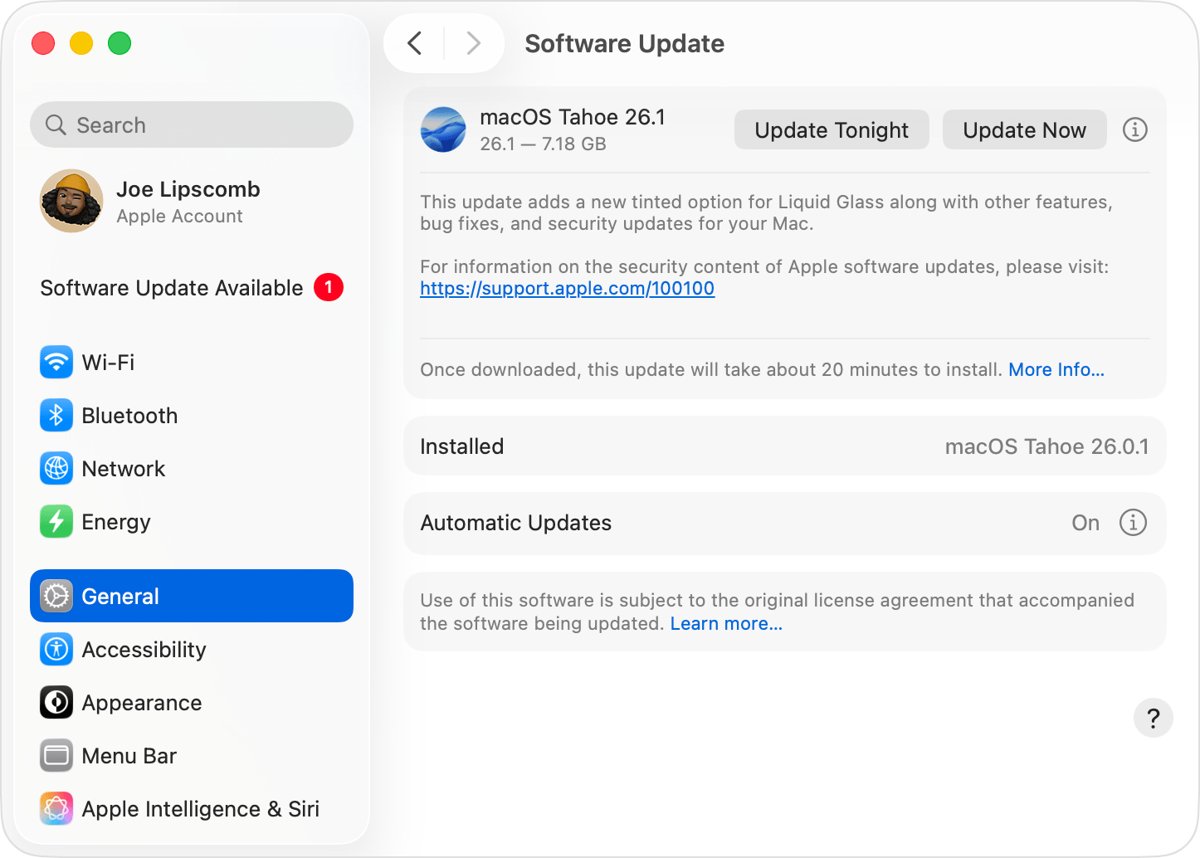
Update macOS to fix App Store sign-in errors
Apple recommends running the latest macOS your Mac supports for security and compatibility. The App Store is a built-in app, so it updates with macOS.
- Back up your Mac with Time Machine or another backup method.
- Choose Apple menu > System Settings.
- Click General in the sidebar, then click Software Update.
- Click the button to update or restart now if an update is listed.
- Enter your administrator password when asked and let the installation finish without closing the lid.
- Open the App Store and sign in again.
Confirm the Mac App Store is signed in
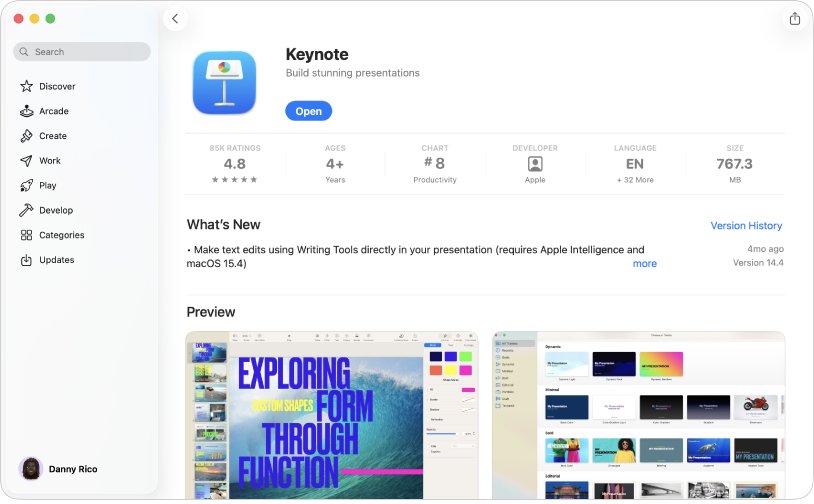
- Open the App Store app.
- Look at the bottom-left corner of the window. Your name should appear there instead of Sign In.
- Click your name, then click Account Settings to confirm the store opens your account details.
- Open any app page and check that the Get or download button works without asking you to sign in again.
Can't log in to the App Store on Mac: other fixes
App Store is not opening or not loading on Mac
The app is stuck, or macOS needs an update.
- Quit the App Store with Command-Q.
- Restart your Mac from Apple menu > Restart.
- Install any update shown in System Settings > General > Software Update.
- Open the App Store again.
Error connecting to the App Store
An Apple service outage or a wrong system clock.
- Check Mac App Store on the Apple System Status page.
- Turn on Set time and date automatically in Date & Time settings.
- Try a different network, such as a personal hotspot, and sign in again.
Can't get into the App Store with the right password
Two-factor verification or account security is blocking the sign-in.
- Keep a trusted device or your trusted phone number nearby for the verification code.
- Choose Forgot password? if the password is refused.
- Start account recovery at iforgot.apple.com if you have no trusted device or number.
The error still appears after every fix
An account-side problem only Apple can see.
- Confirm that your Apple Account works on another Apple device or in another Apple app.
- If the account works elsewhere but the App Store still fails, contact Apple Support and quote the full error text AMD-Action:authenticate:SP.
Mac App Store login error FAQ
Why can't I log in to the App Store on my Mac?
The most common causes are an Apple service outage, a wrong date and time, a stale App Store session, or a password problem. Check Apple System Status, set the time automatically, then sign out with Store > Sign Out and sign in again.
Why is my App Store not working?
The App Store stops working when Apple's servers are down, when macOS is out of date, or when the app is stuck. Check the Apple System Status page, quit and reopen the App Store, and install waiting updates in Software Update.
Why is my App Store not opening?
A stuck process or an outdated macOS usually stops the App Store from opening. Quit it with Command-Q, restart your Mac, and install any update listed under System Settings > General > Software Update before opening it again.
Why can't I access the App Store with my Apple Account?
Your account may need a password reset, a verification code, or the correct country or region. Use Forgot password? in the sign-in window, and check Change Country or Region under Account Settings in the App Store.
What does AMD-Action:authenticate:SP mean?
Apple does not document this code. It appears when the Mac App Store fails to authenticate your Apple Account, so treat it as a sign-in failure and fix the clock, the session and the account in that order.
What happened to my App Store app on Mac?
The App Store is a built-in macOS app that updates through Software Update. Search for App Store with Spotlight to open it, and update macOS if it misbehaves.
Is Apple ID the same as Apple Account?
Yes. Apple renamed Apple ID to Apple Account. You still sign in to the App Store with the same email address or phone number and password.