Desktop Window Manager (dwm.exe) high memory, CPU or GPU usage is almost always caused by an outdated display driver, heavy visual effects, a high refresh rate on several monitors, or an app that redraws the screen constantly.
This guide explains what dwm.exe does, how to tell the real process from malware, why you cannot disable it, and the fixes that bring its usage back down on Windows 11 and Windows 10.
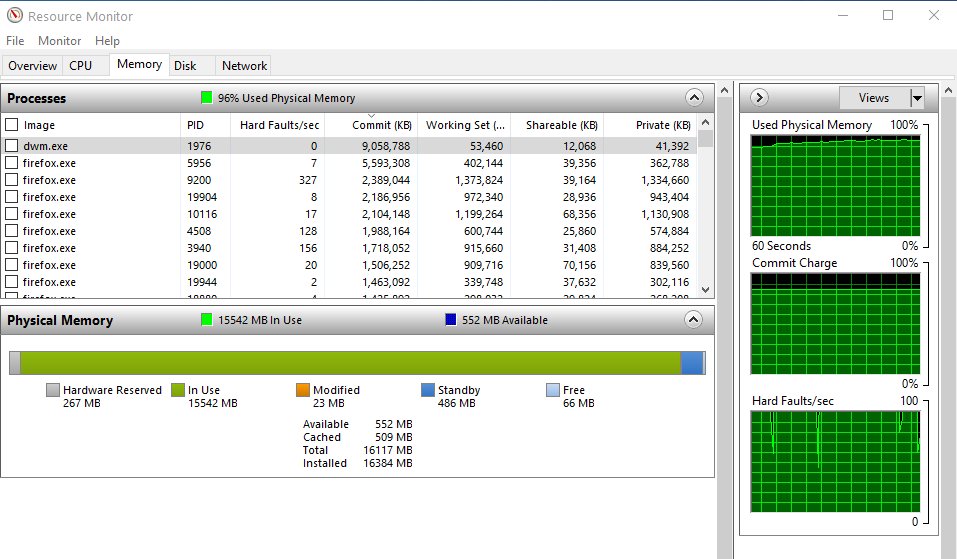
Desktop Window Manager consumes high memory, CPU, GPU
Start with the two fixes that clear most cases: restart the graphics stack, then update the display driver.
- Save your work, then press Win + Ctrl + Shift + B to reset the graphics driver. The screen goes black for a second.
- Press Ctrl + Shift + Esc to open Task Manager and check the Desktop Window Manager row on the Processes tab.
- If usage is still high, right-click Start and select Device Manager.
- Expand Display adapters, right-click your graphics card and select Update driver.
- Select Search automatically for drivers, or install the latest driver from Intel, AMD or NVIDIA's own site.
- Restart the PC and check Task Manager again.
A short spike when you open, move or resize windows is normal. Sustained usage while the desktop is idle is the problem to fix.
What is dwm.exe?
Desktop Window Manager is the Windows component that composes everything you see. Apps draw their windows to off-screen surfaces in video memory, and DWM combines those surfaces into the final desktop image.
That composition powers transparency, window animations, snap previews, thumbnails and high-DPI scaling. Because it runs on the GPU, dwm.exe shows GPU use in Task Manager whenever the screen changes. You can read more about what Desktop Window Manager does in everyday use.
| Detail | Desktop Window Manager |
|---|---|
| File name | dwm.exe |
| Genuine location | C:\Windows\System32 |
| Runs as | A system process, one per signed-in session |
| Introduced | Windows Vista |
| Can be turned off | No, not on Windows 8, 10 or 11 |
What causes dwm.exe high CPU usage and can it be malware?
DWM does work only when something on screen changes, so its usage reflects what other apps and settings ask of it.
| Symptom | Likely cause | Fix |
|---|---|---|
| High GPU and CPU after a Windows update | Old or mismatched display driver | Update or reinstall the graphics driver |
| dwm.exe high memory that keeps growing | A driver memory leak, common on some AMD and Intel versions | Install the newest driver, then restart |
| High usage with several monitors | High refresh rates or mixed scaling across displays | Lower the refresh rate on secondary monitors |
| High usage only while one app is open | The app redraws its window constantly, often a browser or overlay | Update or close that app, turn off its overlay |
| High usage on a low-end PC | Transparency and animations | Turn off visual effects |
| A second dwm.exe outside System32 | Malware using the same name | Run a Microsoft Defender full scan |
To check the file, right-click Desktop Window Manager in Task Manager and select Open file location. The genuine file opens in C:\Windows\System32. Any other folder means you should run a Microsoft Defender full scan at once.
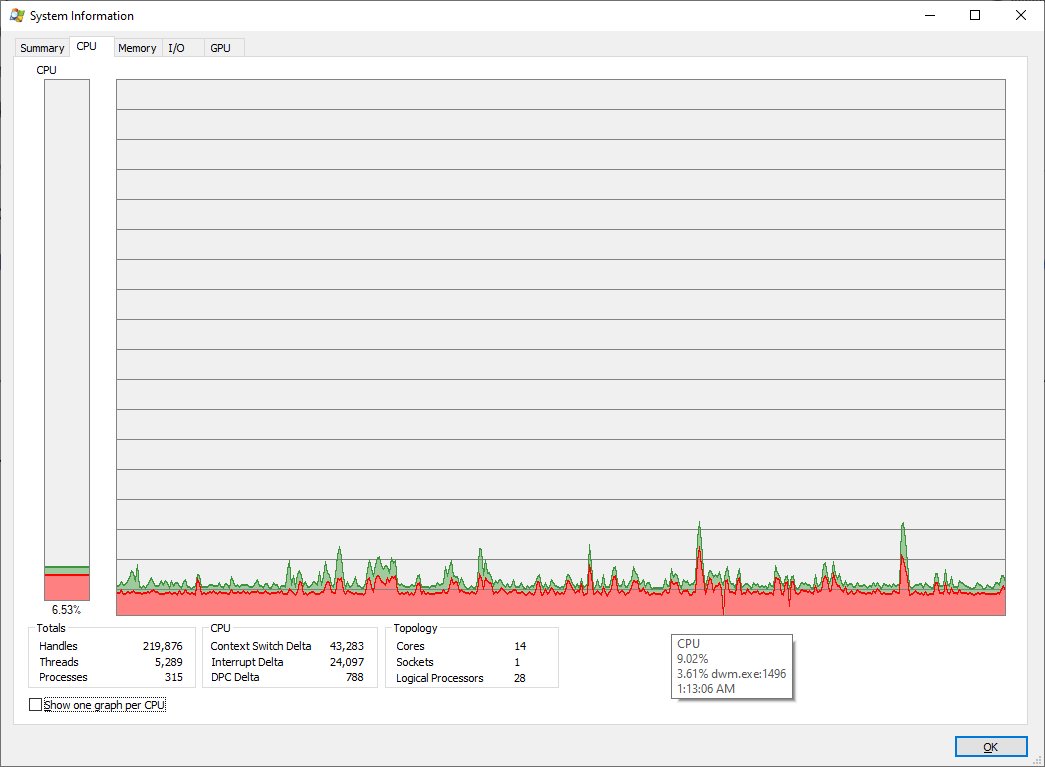
How to disable or remove the Desktop Window Manager (dwm.exe) process
You cannot disable or remove Desktop Window Manager on Windows 8, Windows 10 or Windows 11. Microsoft deprecated the function that turned composition off, and from Windows 8 onward DWM can no longer be disabled.
Ending dwm.exe in Task Manager makes the screen flicker or go black while Windows restarts it automatically. Deleting the file breaks the desktop. Reduce the load on it instead.
Leave dwm.exe running and lower its workload with the fixes below. DWM is a required part of the Windows desktop since Windows 8, and Windows relaunches it if it stops.
Potential fixes for dwm.exe high CPU usage
Work through these in order and check Task Manager after each one.
Turn off visual effects and transparency
Animations and transparency add composition work on every frame.
- Press Win + R, type
sysdm.cpland press Enter. - Open the Advanced tab and select Settings under Performance.
- Choose Adjust for best performance, then select Apply and OK.
- Open Settings > Personalization > Colors and turn off Transparency effects.
Lower the refresh rate on extra monitors
Each high-refresh display multiplies the frames DWM composes.
- Open Settings > System > Display > Advanced display.
- Pick the secondary monitor under Select a display to view or change its settings.
- Set Choose a refresh rate to 60 Hz and check usage again.
Install pending Windows updates
Updates often carry DWM and graphics stack fixes.
- Open Settings > Windows Update.
- Select Check for updates and install everything offered, including optional driver updates.
- Restart the PC.
Repair system files
Damaged system files can make DWM misbehave.
- Right-click Start and select Terminal (Admin).
- Run
DISM /Online /Cleanup-Image /RestoreHealthand wait for it to finish. - Run
sfc /scannowand restart when it completes.
Find the app that drives DWM
A browser, game overlay or animated wallpaper can keep DWM busy.
- Close apps one at a time while watching the Desktop Window Manager row in Task Manager.
- Update the app whose closing drops usage, or turn off its hardware acceleration or overlay.
- Remove animated wallpaper and live widget tools if they are the trigger.
Check dwm.exe usage in Task Manager
- Press Ctrl + Shift + Esc to open Task Manager.
- On the Processes tab, find Desktop Window Manager under Windows processes.
- Leave the desktop idle for a minute and read the CPU, Memory and GPU columns.
- Right-click a column header and enable GPU if it is hidden.
On an idle desktop, dwm.exe should sit near zero CPU and use only a modest amount of memory. Usage that climbs back after the fixes points to the driver, so try the previous driver version.
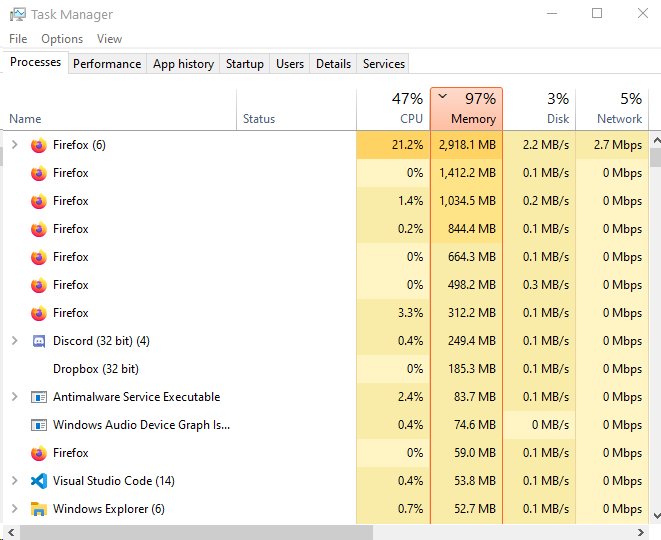
Fix dwm.exe high GPU, memory and hangs
dwm.exe desktop window manager high GPU usage
Display driver or high refresh rate.
- Update the graphics driver from the GPU maker's site.
- Lower the refresh rate on secondary displays.
- Turn off game and recording overlays.
dwm.exe high memory on AMD graphics
Memory that grows without stopping points to the driver rather than Windows.
- Install the latest AMD Software driver for your card.
- Restart and watch memory for an hour of normal use.
- If it still grows, roll back the driver in Device Manager > Properties > Driver > Roll Back Driver.
Desktop Window Manager hangs or the screen freezes
The graphics driver stopped responding.
- Press Win + Ctrl + Shift + B to restart the graphics driver.
- If the desktop stays frozen, press Ctrl + Alt + Delete and restart from the power icon.
- Reinstall the display driver after the restart.
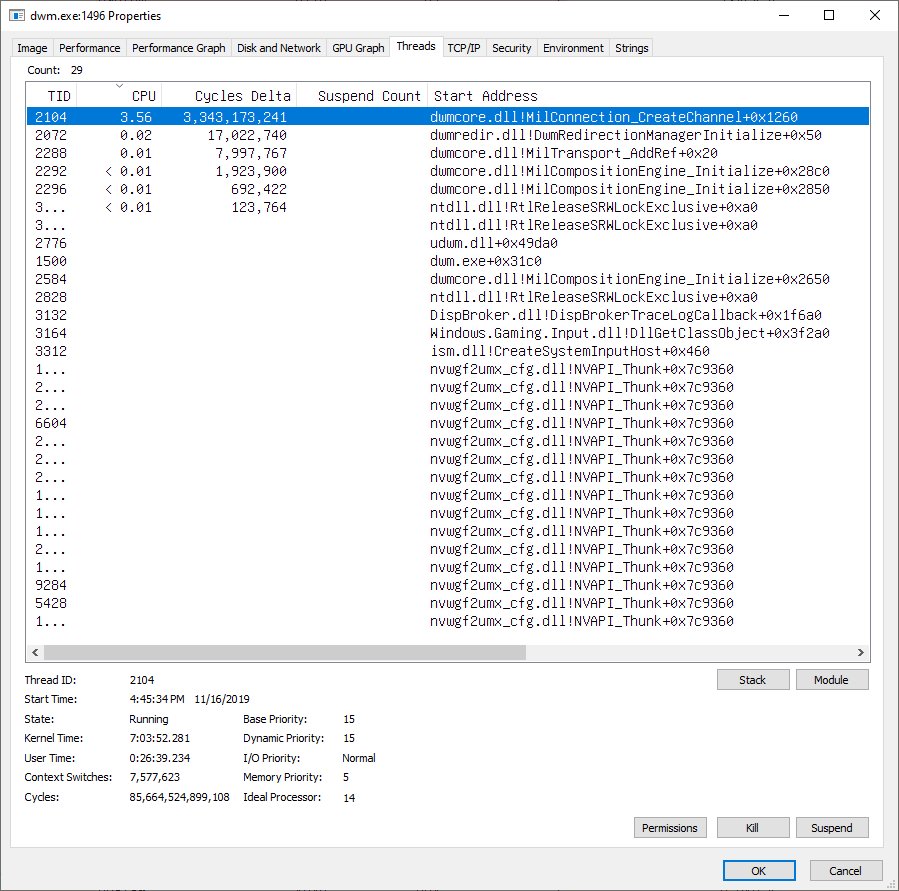
Other important system processes in Windows 10
These processes also show high usage in Task Manager and have their own fixes, such as Vmmem high memory and CPU usage or WSAPPX high CPU usage.
| Process | What it does |
|---|---|
| csrss.exe | Client Server Runtime, handles console windows and shutdown |
| explorer.exe | File Explorer, the taskbar and Start |
| svchost.exe | Hosts Windows services |
| MsMpEng.exe | Antimalware Service Executable, Microsoft Defender's scanner |
| vmmem | Memory and CPU of WSL 2 and Hyper-V virtual machines |
Desktop Window Manager dwm.exe FAQ
What is dwm.exe desktop window manager?
It is the Windows process that composes every window into the final desktop image. It powers transparency, animations, thumbnails and high-DPI scaling, and it runs from C:\Windows\System32 on every Windows 10 and Windows 11 PC.
How does dwm.exe desktop window manager work?
Apps draw their windows to off-screen surfaces in video memory instead of straight to the screen. DWM then combines those surfaces on the GPU and presents the result, which is why it shows GPU usage.
Why does dwm.exe use so much memory?
High memory usually comes from a display driver leak, many high-resolution monitors, or apps that keep large windows redrawing. Updating the graphics driver and restarting fixes most cases.
How do I fix dwm.exe high CPU usage?
Restart the graphics driver with Win + Ctrl + Shift + B, update the display driver, turn off visual effects and transparency, install Windows updates, and close the app that keeps DWM busy.
Why does dwm.exe have high GPU usage?
DWM composes the desktop on the GPU, so high refresh rates, several monitors, overlays and animated content raise its GPU use. An old graphics driver makes this worse.
Can I end dwm.exe in Task Manager?
You can, but the screen flickers or goes black and Windows restarts it straight away. It does not fix high usage and you should not rely on it.
Is dwm.exe a virus?
The genuine dwm.exe is a Windows system file in C:\Windows\System32. A copy in any other folder is suspicious and should be removed with a Microsoft Defender full scan.