To use Task Scheduler in Windows 11 or 10, open it from Start search, choose Create Basic Task, pick a trigger such as Daily, and set Start a program as the action.
This guide covers what each part of a task does, the full wizard, common jobs like startup apps and backups, the command-line route, and fixes for tasks that never run.
Create a basic task in Task Scheduler
The Basic Task wizard is the quickest route and works the same on Windows 11 and Windows 10.
- Select Start, type Task Scheduler, and open the best match.
- In the right-hand Actions pane, select Create Basic Task.
- Type a Name and an optional Description, then select Next.
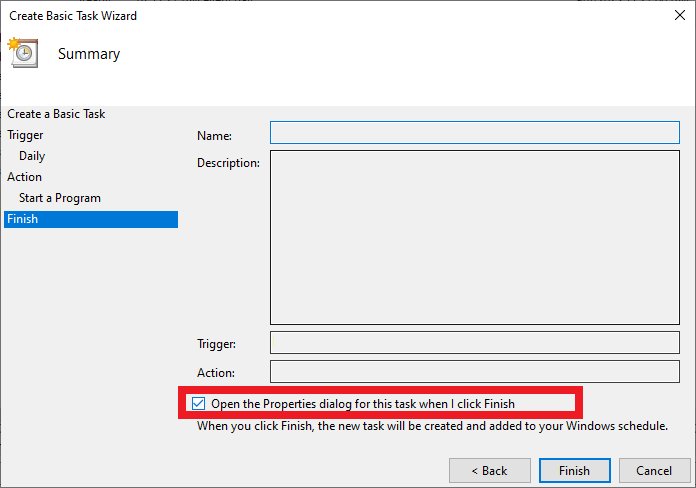
- Choose when the task runs, such as Daily, When the computer starts or When I log on, and select Next.
- Set the start date and time if the trigger asks for them, then select Next.
- Select Start a program, select Next, and browse to the program or script file.
- Review the summary and select Finish.
The new task appears in Task Scheduler Library with the status Ready.
Understanding Task Scheduler in Windows
Task Scheduler runs a program, script or command automatically when a condition you define is met.
Every task needs at least one trigger and one action; the other tabs refine when and how it runs.
| Part of a task | What it controls | Examples |
|---|---|---|
| Triggers | When the task starts | A time, daily, weekly, monthly, at startup, at logon, when idle, on an event log entry |
| Actions | What the task does | Start a program, script or batch file |
| Conditions | Extra requirements before it starts | Only when idle, only on AC power, wake the computer to run |
| Settings | How it behaves around the run | Run as soon as possible after a missed start, stop after a time limit, restart on failure |
| Task history | A log of each run | Triggered, started, completed and error events on the History tab |
| Task Scheduler Library | The folder tree that stores tasks | Your own tasks plus the Microsoft folder of built-in Windows tasks |
By default a task stops if it runs longer than 72 hours. Change that on the Settings tab if a job genuinely needs longer.
Is Task Scheduler available for Windows 10?
Yes. Task Scheduler is installed with every supported version of Windows, including Windows 10 and Windows 11, and its service starts each time Windows starts.
| Item | Windows 10 | Windows 11 |
|---|---|---|
| Task Scheduler console (taskschd.msc) | Included | Included |
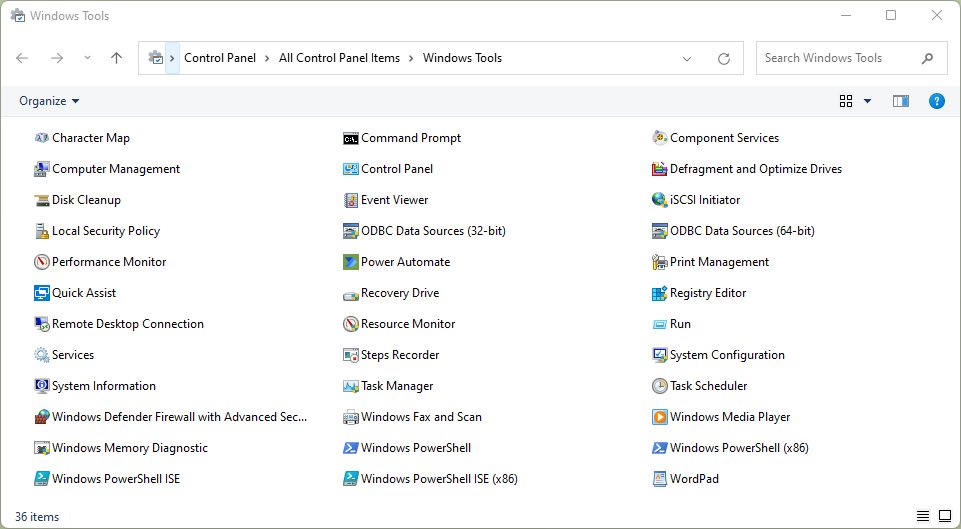
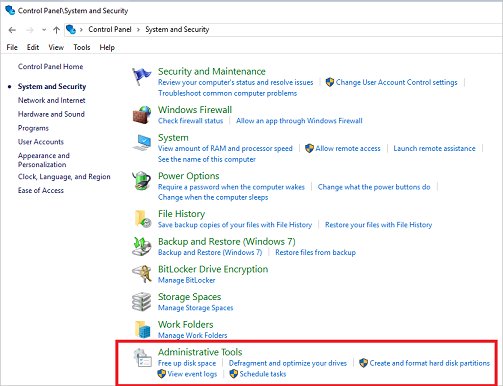
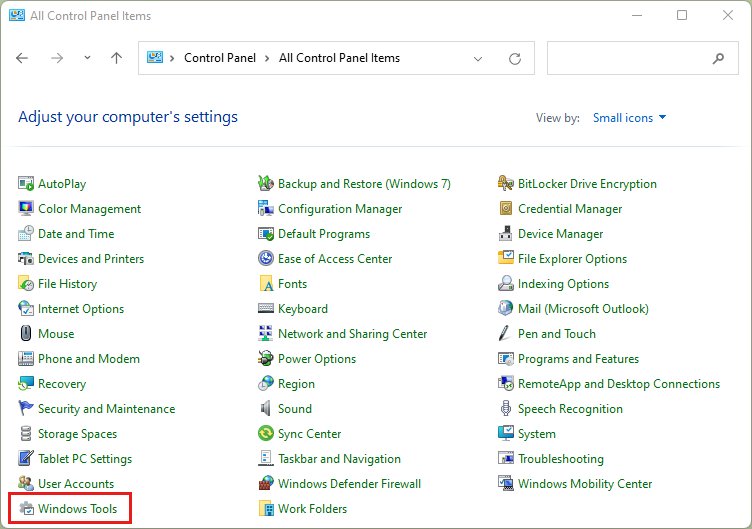
| Folder in Control Panel | Administrative Tools | Windows Tools |
| schtasks command | Included | Included |
| ScheduledTasks PowerShell module | Included | Included |
Home and Pro editions both include it. There is nothing to download or switch on.
How to use Task Scheduler in Windows 11 & 10?
Use Create Task instead of the basic wizard when you need several triggers, admin rights or a working folder.
- Press Win + R, type
taskschd.msc, and press Enter. - Select Create Task in the Actions pane.
- On the General tab, enter a name and choose Run only when user is logged on or Run whether user is logged on or not.
- On the Triggers tab, select New, pick the trigger from Begin the task, and select OK.
- On the Actions tab, select New, keep Start a program, and enter the program path, any arguments, and the Start in folder.
- On the Conditions and Settings tabs, clear or set the power, idle and retry options you need.
- Select OK and enter your account password if Windows asks for it.
The Start in field sets the working directory. Scripts that open files by relative path fail without it.
Test a scheduled task and read its history
- Select Task Scheduler Library in the left pane and find your task.
- Right-click the task and select Run.
- Press F5 to refresh, then read the Last Run Result column. A result of 0x0 means the action exited cleanly.
- Open the History tab under the task to see whether it was triggered, started and completed.
- Confirm the result itself, such as the backup file or the log your script writes, because a 0x0 result only reports the exit code.
Modify or delete a scheduled task
- Open Task Scheduler and select Task Scheduler Library.
- Right-click the task and select Properties to change triggers, actions, conditions or settings.
- Select OK to save the changes.
- To pause a task without losing it, right-click it and select Disable.
- To remove it, right-click it, select Delete, and confirm with Yes.
Leave the tasks under the Microsoft folder alone unless you know what each one does, since Windows uses them for updates and maintenance.
Other uses of Task Scheduler in Windows 11 & 10
The same task can do very different jobs depending on the trigger, action and settings you pair together.
| Job | Trigger or setting | Action |
|---|---|---|
| Run a program automatically at startup | At startup | Start a program (runs before anyone signs in) |
| Open an app when you sign in | At log on, optional delay | Start a program |
| Run a program at a specific time | One time, Daily, Weekly or Monthly | Start a program |
| Automatically run PowerShell scripts | Any trigger | Program powershell.exe, argument -File "C:\Scripts\task.ps1" |
| Run batch files automatically | Any trigger | Start a program pointing at the .bat file, with Start in set |
| Create automatic backup tasks | Daily or Weekly at a quiet hour | Start your backup script or tool |
| Run maintenance tasks automatically | On idle, with Start only if the computer is on AC power | Cleanup or maintenance script |
| Run a task when the computer becomes idle | On idle | Any program |
| Run a task when a specific event occurs | On an event, with Log, Source and Event ID | Notification or repair script |
| Restart a program automatically | Settings tab: If the task fails, restart every | The program to keep running |
| Run tasks with administrative privileges | General tab: Run with highest privileges | Any program that needs admin rights |
| Automatically stop a task | Settings tab: Stop the task if it runs longer than | Any long-running job |
Create a scheduled task with schtasks
Run Command Prompt or Terminal as administrator to create a task without opening the console. This example runs a program every day at 9:00.
schtasks /create /tn "DailyApp" /tr "C:\Apps\myapp.exe" /sc daily /st 09:00/tn names the task, /tr is the full path of what it runs, /sc sets the schedule type and /st the 24-hour start time. Swap /sc for onstart, onlogon, onidle /i 10 or onevent to use other triggers, and add /rl highest for admin rights.
You should see: The command reports SUCCESS, and DailyApp appears in Task Scheduler Library.
Run schtasks /run /tn "DailyApp" to test it, and schtasks /delete /tn "DailyApp" to remove it.
Create a scheduled task with PowerShell
The ScheduledTasks module builds the action and trigger separately, then registers them as one task.
$Sta = New-ScheduledTaskAction -Execute "C:\Apps\myapp.exe"
$Stt = New-ScheduledTaskTrigger -Daily -At 3am
Register-ScheduledTask -TaskName "DailyApp" -Action $Sta -Trigger $Stt
New-ScheduledTaskAction sets what runs, New-ScheduledTaskTrigger sets when (use -AtLogOn, -AtStartup or -Weekly for other schedules), and Register-ScheduledTask saves it to the Task Scheduler Library.
You should see: PowerShell prints the task with State Ready, and Get-ScheduledTask -TaskName DailyApp returns it.
Task Scheduler task not running in Windows 11 or 10
The task runs from Run but not on schedule
A condition blocks it, often the default rule that a task does not start on battery power.
- Open the task Properties and select the Conditions tab.
- Clear Start the task only if the computer is on AC power if it must run on a laptop battery.
- On the Settings tab, tick Run task as soon as possible after a scheduled start is missed.
Last Run Result shows an error code instead of 0x0
The program or script itself failed, or it ran with the wrong working folder.
- Run the script by hand in PowerShell as administrator or Command Prompt and fix any error first.
- Add the script's folder to Start in on the action.
- Check the History tab for the error event and its details.
The task works only while you are signed in
The security context differs when the task runs without a signed-in user.
- Switch the General tab to Run only when user is logged on and test again.
- If that works, the problem is the account context: use full paths, not mapped drive letters, and confirm the account has rights to every folder used.
The task stays in Running status
The program never exits, for example a script waiting for input.
- Find the process in Task Manager and end it.
- Remove prompts from the script, or set Stop the task if it runs longer than on the Settings tab.
The History tab is empty
Task history is turned off for all tasks.
- Select Task Scheduler Library.
- Select Enable All Tasks History in the Actions pane.
- For full detail, open Event Viewer and go to Applications and Services Logs > Microsoft > Windows > TaskScheduler > Operational.
FAQs about Task Scheduler in Windows 11 & 10
Is Task Scheduler free in Windows 11 and 10?
Yes. Task Scheduler is built into Windows 11 and Windows 10 at no cost, in Home and Pro editions alike. Open it by typing Task Scheduler in Start search or by running taskschd.msc.
What is the difference between Create Basic Task and Create Task?
Create Basic Task is a short wizard with one trigger and one action. Create Task opens the full dialog, where you can add several triggers, run with highest privileges, set a Start in folder and change conditions and settings.
Can Task Scheduler run a task when the computer is asleep?
Yes, if you tick Wake the computer to run this task on the Conditions tab. Windows then wakes from sleep or hibernation at the trigger time, runs the task and can return to sleep afterwards.
Can Task Scheduler run a PowerShell script?
Yes. Set the action program to powershell.exe and put -File followed by the script's full path in Add arguments. Test the script by hand first, since a script that fails interactively also fails as a task.
Why does my scheduled task not run on a laptop?
New tasks do not start on battery power by default. Open the task's Properties, select the Conditions tab, and clear Start the task only if the computer is on AC power, then save the task.
How do I run a scheduled task as administrator?
Open the task's Properties, select the General tab, and tick Run with highest privileges. With schtasks, add /rl highest to the create command. Either way, an administrator account must create or edit the task.
Where are scheduled tasks stored in Windows?
Tasks appear in the Task Scheduler Library inside the console. Windows also keeps each task's definition as a file under C:\Windows\System32\Tasks, but edit tasks through Task Scheduler rather than those files.
How do I stop a scheduled task from running?
Right-click the task in Task Scheduler Library and select End to stop the current run. Select Disable to stop future runs while keeping the task, or Delete to remove it completely.