If you can only hear a caller on speakerphone, the earpiece receiver at the top of your iPhone is usually blocked by dirt, a screen protector or a case.
This guide covers cleaning the receiver, the settings and accessories that pull call audio away from it, how to test the fix, and when the iPhone needs service.
Fix iPhone can't hear caller unless on speaker
Speakerphone uses the bottom speaker, while normal calls use the receiver slot above the screen. When only speaker works, start with that slot.
- Remove any screen protector, film or case from the iPhone.
- Look at the receiver opening at the top of the display for lint, dust or residue.
- Clean the receiver opening gently with a small, soft-bristled brush that is clean and dry.
- Make a test call and hold the iPhone to your ear without speakerphone.
- Press the volume up button during the call to raise the earpiece volume.
Do not push pins, liquids or compressed air into the opening. A dry brush is the only cleaning tool Apple names.
Why you can't hear calls on iPhone unless on speaker
| What you notice | Likely cause | What to do |
|---|---|---|
| Speaker works, earpiece silent or faint | Blocked or dirty receiver | Remove the protector and brush the receiver |
| Problem started with a new case or screen protector | Accessory covers the receiver | Remove it and test a call |
| Audio goes to earbuds or a car | A Bluetooth device is connected | Turn off Bluetooth or switch the call audio |
| No sound from any speaker | Silent mode, Do Not Disturb or hardware fault | Check the sound settings, then test the speaker |
| Static or crackling on every call, even on speaker | Network or reception | Call again later or from another location |
Turn off Bluetooth when iPhone call audio goes to another device
A connected headset, car kit or speaker can take the call audio, so the receiver stays silent.
- Swipe down from the top-right corner to open Control Center.
- Tap the Bluetooth button to disconnect accessories.
- Place a test call and hold the iPhone to your ear.
- If the caller is now clear, reconnect Bluetooth only when you want to use that accessory.
Check iPhone sound settings that mute calls
| Setting | Where to check | Correct state |
|---|---|---|
| Ring/Silent switch | Left side of iPhone models with a switch | Pushed toward the display, no orange showing |
| Silent mode (Action button models) | Control Center, or press the Action button | Silent mode off |
| Do Not Disturb | Settings > Focus > Do Not Disturb | Off |
| Ringtone and Alerts volume | Settings > Sounds & Haptics (or Sounds) | Slider moves and plays sound |
Test the iPhone receiver and speaker
- Open Settings and tap Sounds & Haptics (or Sounds).
- Drag the Ringtone and Alerts slider back and forth a few times.
- If you hear no sound, or the speaker button on the slider is dimmed, the speaker needs service.
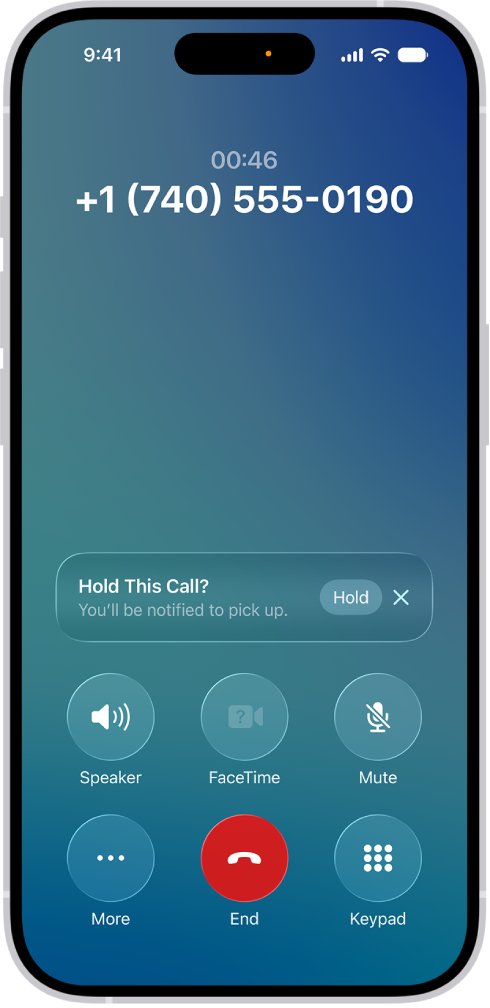
- If you hear sound, make a call and turn on speakerphone, then turn it off and listen through the receiver.
- If the caller is clear on speaker but silent on the receiver after cleaning, the receiver needs service.
Can't hear caller on iPhone troubleshooting
Can't hear iPhone calls unless on speaker
The receiver opening is blocked, or a protector or case covers it.
- Remove the screen protector and case.
- Brush the receiver opening with a clean, dry, soft-bristled brush.
- Test a call held to your ear.
Can't hear caller on iPhone 11 or iPhone 12
The same receiver and accessory causes apply to every iPhone model.
- Work through the receiver cleaning steps above.
- Turn off Bluetooth and test again.
- If the receiver is still silent, contact Apple for service.
iPhone can barely hear caller, with static or crackling
Poor network reception distorts the call audio on both receiver and speaker.
- Turn on speakerphone during the call.
- If static remains on speaker too, call again later from your recent calls list or from a different location.
- If only the receiver crackles, clean it and then get service.
Callers can't hear me on my iPhone
This is a microphone problem, not a receiver problem, and a case or film can also cover the microphones.
- Remove the case and any film.
- Check the microphone openings for dirt and brush them gently.
- Make a test call. If the caller still cannot hear you, get service.
When to get iPhone receiver service
Book service with Apple if the receiver stays silent after you remove accessories, clean the opening and turn off Bluetooth. Those steps clear every user-fixable cause, so a receiver that still fails while speakerphone works points to a hardware fault.
iPhone can't hear caller FAQ
Why can't I hear iPhone calls unless on speaker?
Normal calls play through the receiver above the screen, and speakerphone uses the bottom speaker. If only speaker works, the receiver is usually blocked by dirt, a screen protector or a case. Remove the accessory and brush the opening gently.
Why can't I hear the caller on my iPhone?
Common causes are a blocked receiver, a connected Bluetooth device taking the audio, low call volume, or poor reception. Remove accessories, clean the receiver, turn off Bluetooth, and raise the volume during the call.
Why can't I hear the caller on my iPhone 11?
iPhone 11 has the same receiver design as other models, so the fixes match. Remove the screen protector and case, brush the receiver opening, and turn off Bluetooth. If the receiver stays silent, the phone needs service.
How do I clean my iPhone earpiece?
Use a small, soft-bristled brush that is clean and dry, and brush the receiver opening gently. Remove any screen protector first, because a protector can cover the slot. Avoid liquids and sharp objects.
Can a screen protector block the iPhone earpiece?
Yes. A screen protector or film that covers the receiver opening muffles or blocks call audio. Apple lists removing screen protectors, films and cases as a first step when you cannot hear a person clearly.
Why does my iPhone call sound crackly?
If static or crackling continues on speakerphone too, network reception is the likely cause. Try the call again later or from another location. If only the receiver crackles, clean it, then get service.
Why can't callers hear me on my iPhone?
When callers cannot hear you, the microphone is the problem rather than the receiver. Remove the case, check the microphone openings for dirt, and test again. Get service if the problem continues.