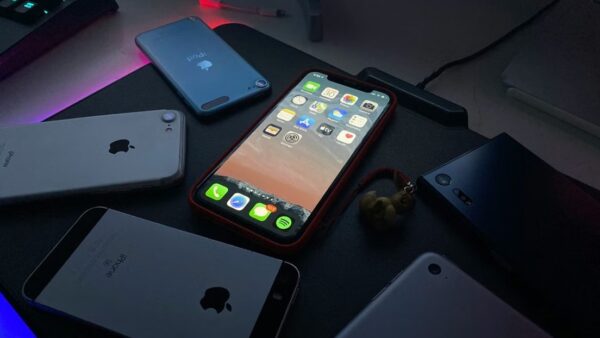
Charge an iPhone or iPad by connecting it to a wall outlet with a USB-C or Lightning cable and a power adapter, or to a computer that is switched on.
This guide covers adapter wattage for fast charging, MagSafe speeds, the charge limit and Optimized Battery Charging settings, battery health, and what to do when your iPhone is not charging, is slow or is on hold.
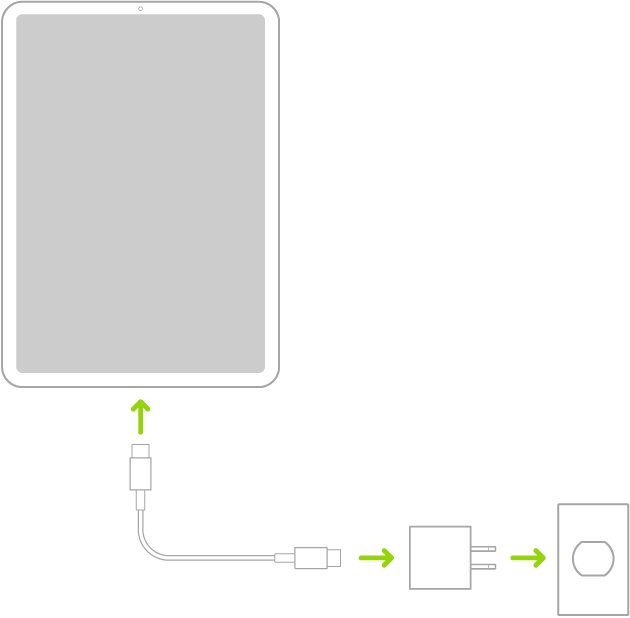
How to charge an iPhone or iPad
- Plug the cable into the device's charging port and into a power adapter.
- Plug the adapter into a wall outlet.
- Check that the battery icon in the status bar shows the charging bolt.
- To charge from a computer instead, connect the cable to a computer that is turned on and awake.
A computer that is turned off can drain the battery instead of charging it. If the computer cannot supply enough power, iPad shows Not Charging in the status bar.
Best way to charge iPhone: wall, MagSafe or computer
| Charging method | Speed | Best for |
|---|---|---|
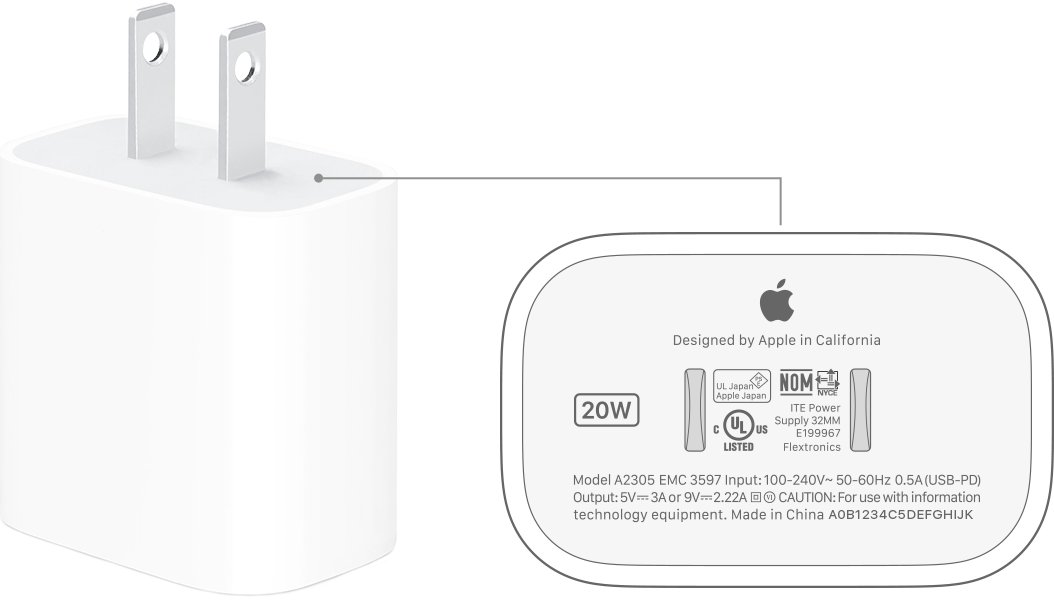
| USB-C Power Delivery adapter, wired | Fastest; supports fast charging | Topping up quickly |
| MagSafe Charger with a high-watt adapter | Fast wireless on supported models | Desk or bedside charging |
| Wired charger of 7.5 W or less | Slow | Overnight charging when speed does not matter |
| Computer USB port | Slow; may report Not Charging on iPad | Charging while syncing |
| Keyboard USB port | Usually not enough power | Avoid unless the port is high-power |
iPhone fast charging adapter wattage by model
Apple measures these times from the moment the Apple logo appears at startup. Real times vary with the adapter, settings, use and temperature.
| iPhone model | Wired fast charge | MagSafe fast charge |
|---|---|---|
| iPhone 18 Pro, 18 Pro Max | Up to 50% in about 15 minutes with the 40W Dynamic Power Adapter (60W Max) or a comparable 60W adapter | Up to 50% in about 30 minutes with a 35W or higher adapter |
| iPhone Duo | Up to 50% in about 20 minutes | Up to 50% in about 30 minutes with a 35W or higher adapter |
| iPhone 17, 17 Pro, 17 Pro Max | Up to 50% in about 20 minutes with a 40W or higher adapter | Needs a MagSafe Charger and a 30W or greater adapter |
| iPhone 17e, iPhone Air | Up to 50% in about 30 minutes with a 20W or higher adapter | Air: MagSafe Charger and a 30W or greater adapter |
| iPhone 16 models | USB-C cable and an 18W or greater USB-C adapter | MagSafe Charger and a 30W or greater adapter |
| iPhone 15 and earlier | USB-C or USB-C to Lightning cable with a USB Power Delivery adapter | Up to 15W with a MagSafe Charger and a 20W or greater adapter |
Why iPhone and iPad charging slows down after 80%
Apple devices charge quickly to about 80 percent, then switch to slower trickle charging to reduce battery stress and heat. This is automatic and needs no setting change.
| Behaviour | What it means |
|---|---|
| Fast charge to about 80% | Normal fast stage |
| Slow charge from 80% to 100% | Trickle charging to protect battery lifespan |
| Charging pauses in heat or cold | Thermally limited charging; resumes at normal temperature |
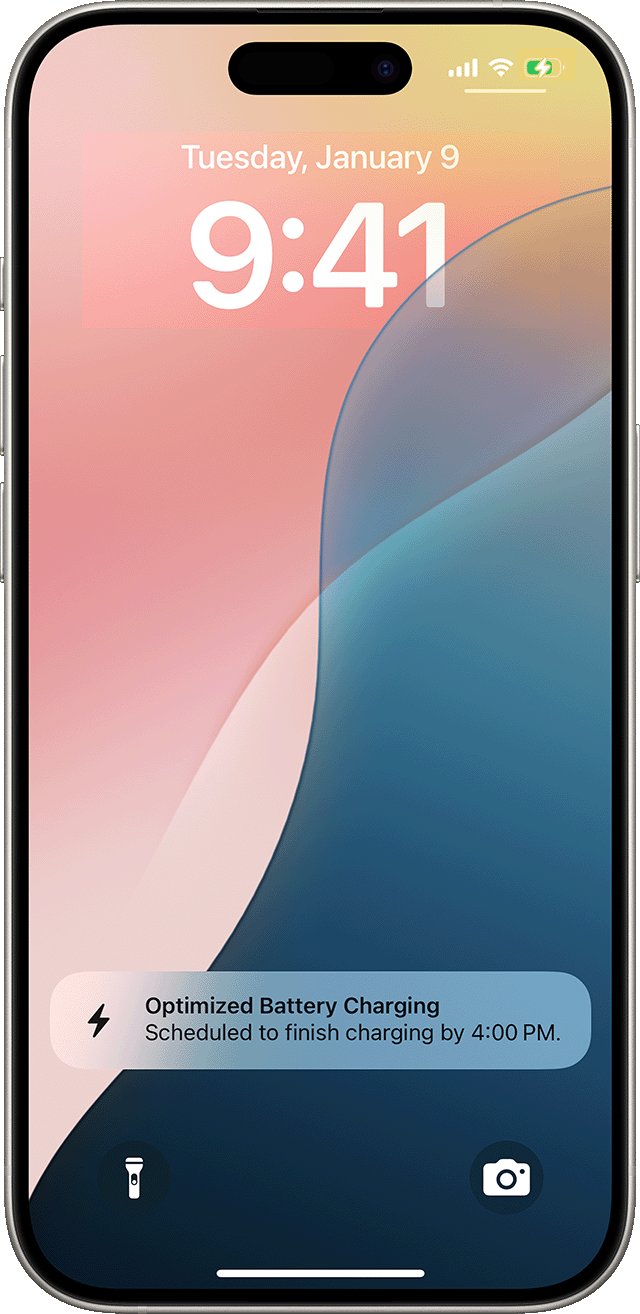
| Lock Screen says when it will be fully charged | Optimized Battery Charging is delaying the last 20% |
| Stops a few points below your limit | Charge Limit is working as set |
How to set a charge limit on iPhone
Charge Limit is on iPhone 15 models and later. The iPhone stops within a few points of the limit and resumes if the level drops more than 5 percent.
- Open the Settings app and tap Battery.
- Tap Charging.
- Choose a limit between 80 and 100 percent, in 5 percent steps.
- Leave it at 100 percent if you want Optimized Battery Charging available.
With a limit below 100 percent, the iPhone occasionally charges to 100 percent to keep its battery estimates accurate.
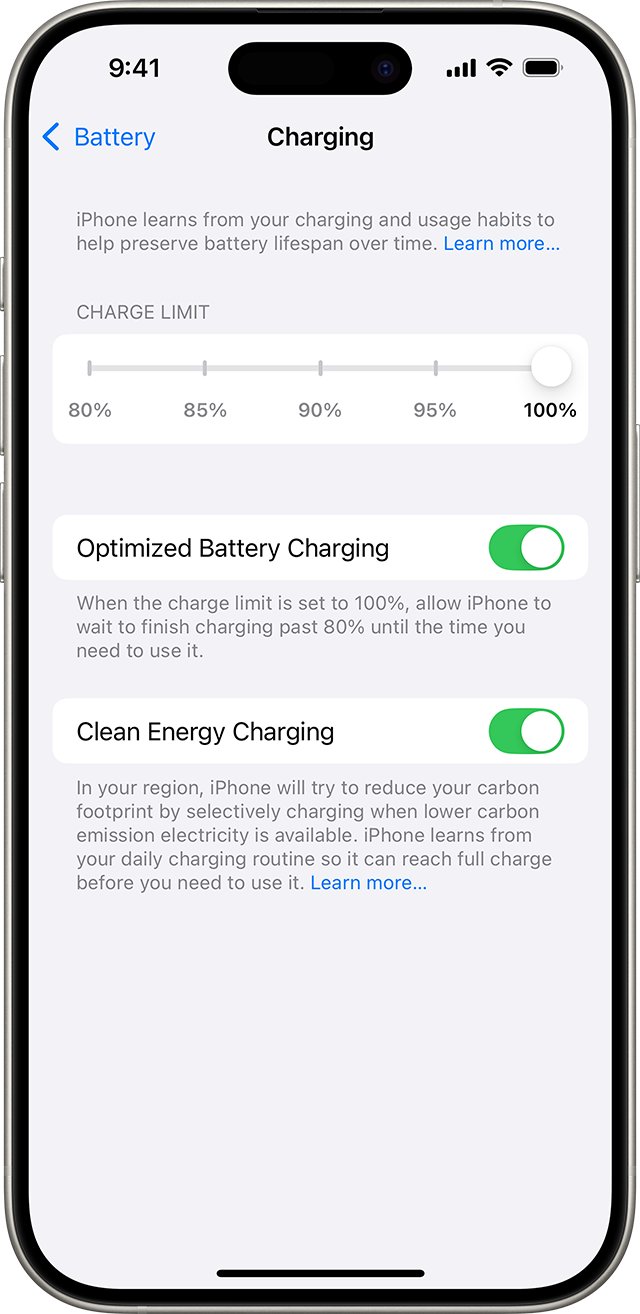
Turn Optimized Battery Charging on or off
Optimized Battery Charging is on by default. It delays charging past 80 percent when the iPhone predicts a long charge, such as overnight.
- On iPhone 14 and earlier, open Settings and tap Battery.
- Tap Battery Health & Charging.
- Turn Optimized Battery Charging on or off.
- To get a full charge right away, touch and hold the Lock Screen notification and tap Charge Now.
The feature needs at least 14 days to learn your habits and at least 9 charges of 5 hours or more in one location before it engages.
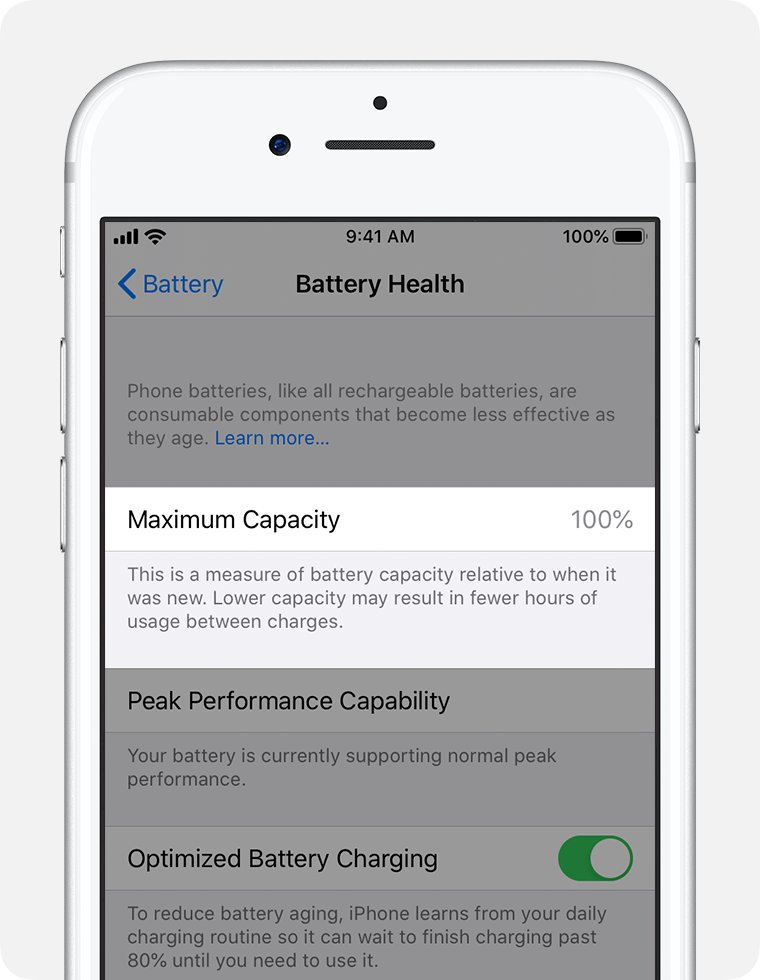
Check iPhone and iPad battery health
- Open the Settings app and tap Battery.
- Tap Battery Health to see maximum capacity and, on supported models, cycle count.
- Check when the device was last fully charged on the main Battery screen.
iPhone 14 and earlier batteries are designed to keep 80 percent capacity at 500 complete cycles; iPhone 15 batteries at 1,000 cycles, under ideal conditions. If an iPad shows no Battery Health entry, that model does not support it.
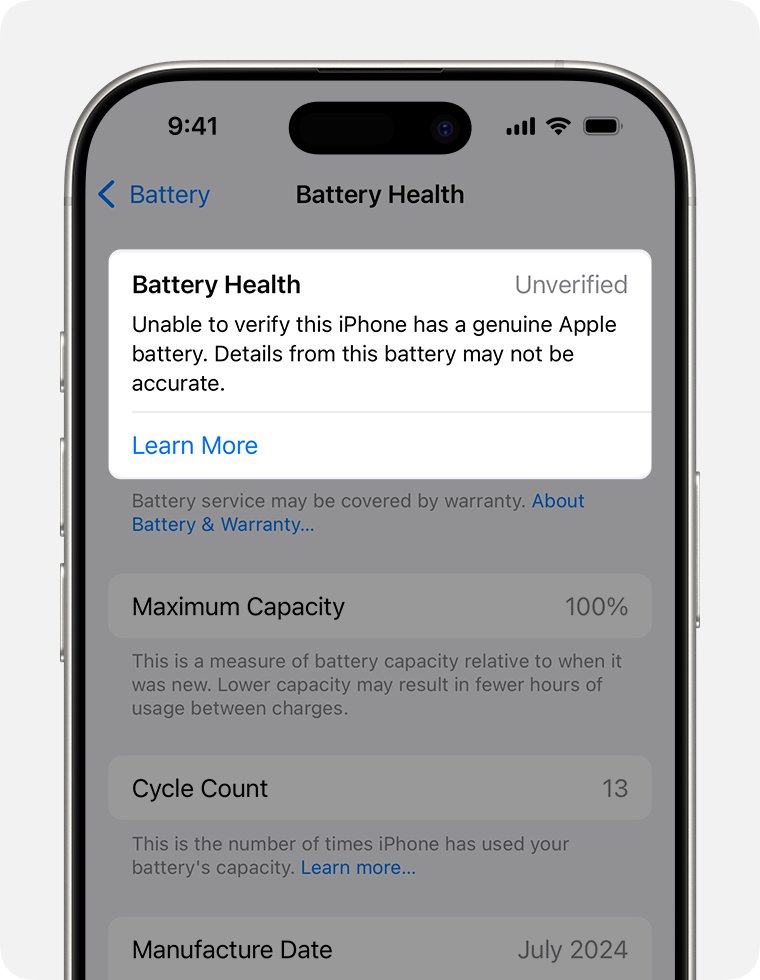
iPhone or iPad charging slow or not charging
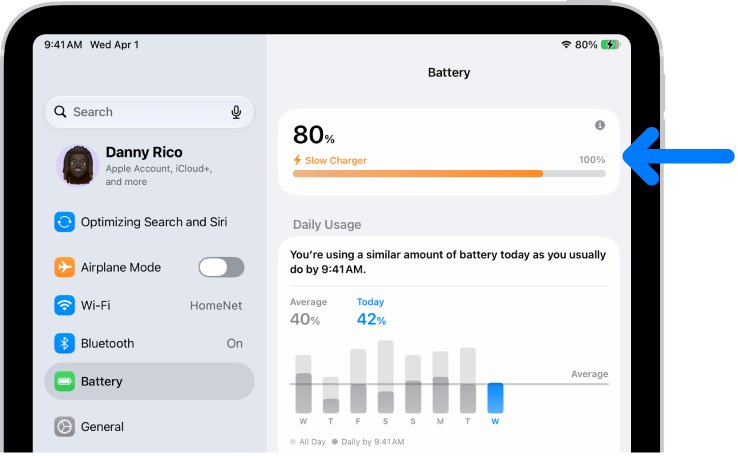
Slow Charger message in Battery settings
The device supports fast charging but the connected charger cannot deliver enough power.
- Switch to a USB-C Power Delivery adapter rated at the wattage in the table above.
- Avoid wired chargers of 7.5 W or less.
Charging On Hold on the Lock Screen
The battery is too hot or too cold, so charging pauses.
- Move the device out of direct sunlight or a hot car.
- Remove the case if it heats up while charging.
- Charge between 32 and 95 degrees F (0 and 35 degrees C).
Not Charging when connected to a computer
The computer port does not supply enough power, or the computer is asleep or off.
- Wake or turn on the computer.
- Use a wall adapter instead.
Screen stays black after plugging in a dead device
A very low battery needs time before the device can start.
- Leave it plugged in; the display can stay blank for up to 2 minutes.
- Wait up to 10 minutes after the low-battery image appears before using it.
Liquid may be in the charging port
Charging a wet port is a safety risk.
- Do not plug in the cable until the port is dry.
iPhone and iPad charging FAQ
Is it bad to charge an iPhone overnight?
No. Optimized Battery Charging holds the battery at 80 percent and finishes charging before you usually unplug, which reduces the time the battery spends full.
Why does my iPhone stop charging at 80 percent?
Either Optimized Battery Charging is delaying the last 20 percent, a Charge Limit of 80 percent is set, or the battery is too warm and charging is limited.
Can I charge my iPad from a laptop?
Yes, but the computer must be on and awake. If it cannot supply enough power, the iPad shows Not Charging in the status bar.
What adapter do I need to fast charge an iPhone?
Use a USB-C Power Delivery adapter. iPhone 15 and later need at least 18W; iPhone 17 models reach 50 percent in about 20 minutes with 40W or more.
What is a charge cycle?
A charge cycle is using 100 percent of the battery's capacity in total, even across several days. Using 75 percent one day and 25 percent the next counts as one cycle.
Is it normal for an iPhone to get warm while charging?
Some warmth is normal. If it gets too warm, iOS slows or pauses charging and resumes automatically once the battery cools to its normal range.