To update the BIOS on an ASUS laptop, open MyASUS, click System Update, select BIOS Update for Windows and restart when prompted.
This guide covers the MyASUS app route, the BIOS Update for Windows utility from the ASUS support site, EZ Flash 3 for laptops and motherboards, and what to do when an update is interrupted.
Update ASUS BIOS with MyASUS on Windows 11
Keep the AC adapter plugged in and save your work before you start. Have your BitLocker recovery key ready, because Windows can ask for it after a BIOS update.
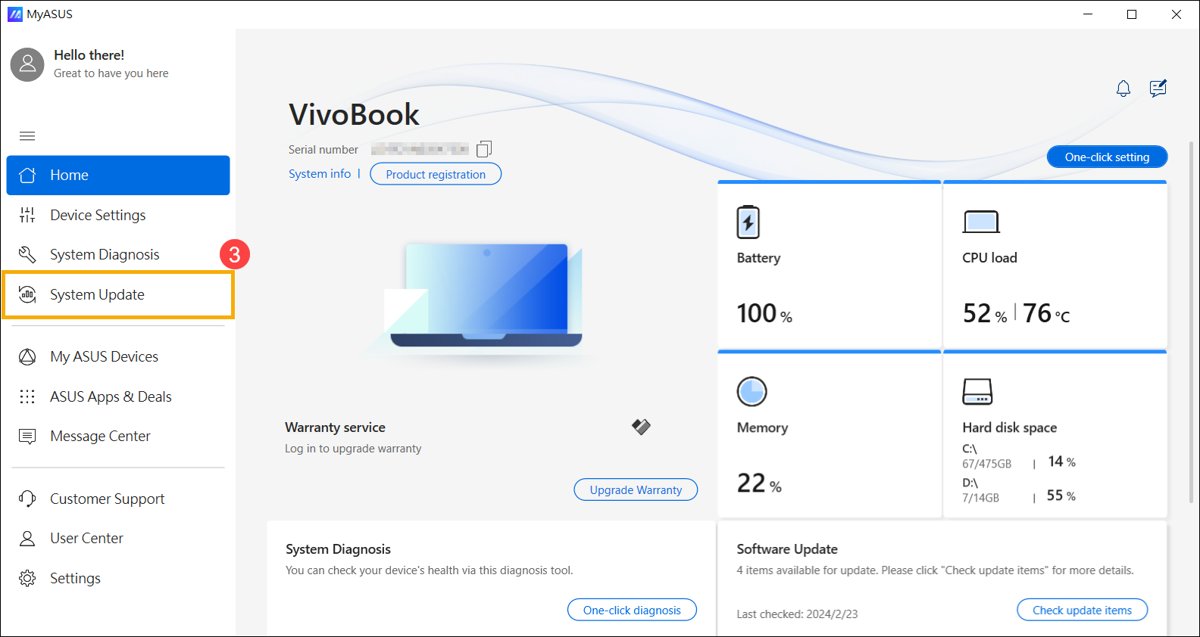
- Type MyASUS in the Windows search box and open the app.
- Click System Update. If the tab is missing, your model does not support this route; use the support-site utility below.
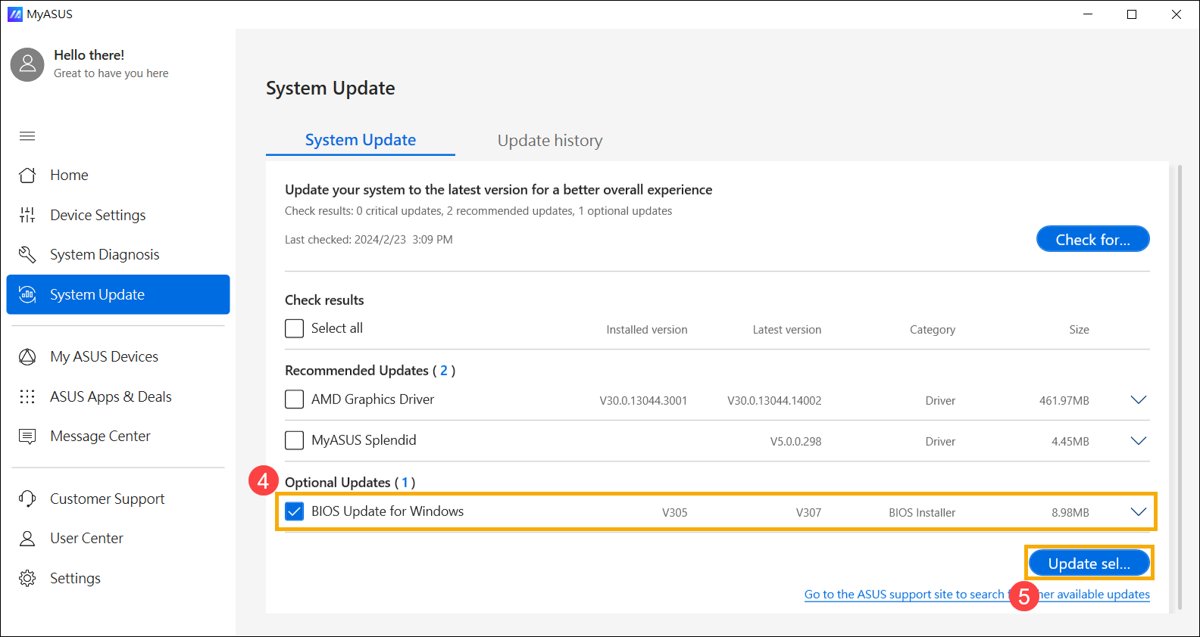
- Select BIOS Update for Windows or BIOS Installer for Windows, then click Update Selected Items.
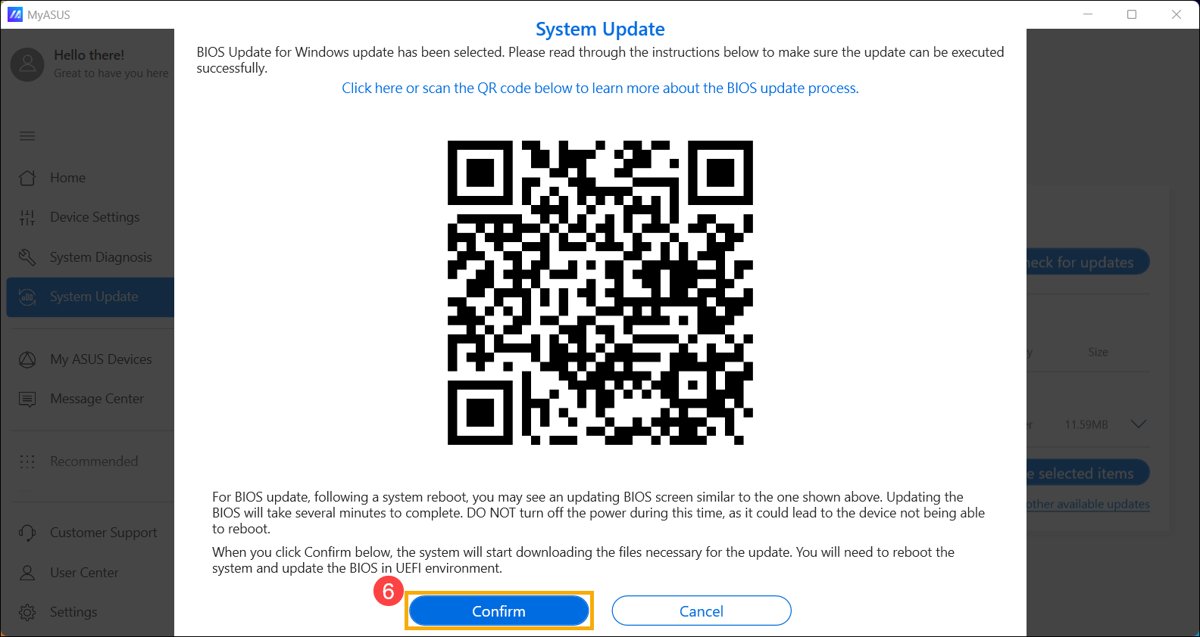
- Review the details and click Confirm to download the file.
- Click Restart when the download finishes.
- On the UEFI screen, select Yes or Confirm and wait for the update to finish.
- Click Ok or Confirm to return to Windows.
ASUS BIOS update tool options compared
| Your situation | Use this | Needs a USB drive? |
|---|---|---|
| ASUS laptop with MyASUS installed | MyASUS System Update | No |
| ASUS laptop without the System Update tab | BIOS Update for Windows from the ASUS support site | No |
| Laptop that cannot update in Windows | ASUS Firmware Update / EZ Flash 3 in the BIOS | Yes, FAT32 |
| ASUS desktop motherboard | EZ Flash 3 from the BIOS Tools page | Yes, FAT16 or FAT32 |
| Newer laptop platforms (Intel Arrow Lake, AMD Krackan Point and later) | Cloud Update inside the BIOS | No, needs a network connection |
ASUS BIOS Update utility for Windows computers
ASUS calls its Windows flashing tool BIOS Update for Windows or BIOS Installer for Windows. It is the way to install an ASUS BIOS update without a USB drive when MyASUS does not offer it.
- Open the ASUS support site, search for your exact model name and open Driver & Utility.
- Under the BIOS Update(Windows) category, find BIOS Update for Windows or BIOS Installer for Windows and click Download.
- If the file is a zip, right-click it and select Extract All.
- Double-click the BIOS Update application.
- Click Next, check I accept the agreement and click Next again.
- Select Yes, restart the computer now, then click Finish.
- Confirm the update on the UEFI screen and wait until Windows loads again.
Check Settings > System > About > System type first. These packages are for x86/x64 PCs; ARM laptops use a separate BSP package.
Update ASUS laptop BIOS with EZ Flash
Use this route when the Windows utility is not listed for your model. You need a USB drive formatted as FAT32.
- Download the BIOS file from the BIOS category on your model's support page, extract it and copy it to the USB drive.
- Shut down the laptop, hold F2, press the power button, and release F2 when the BIOS screen appears.
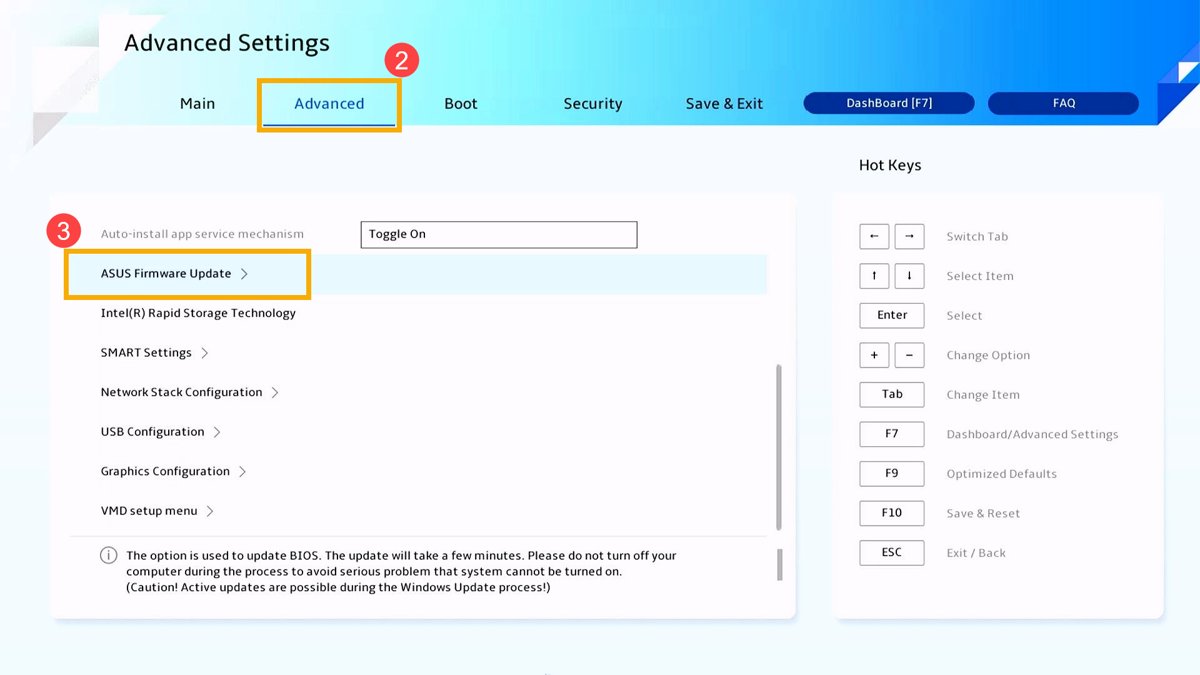
- Press F7 to open Advanced Mode, then open the Advanced screen.
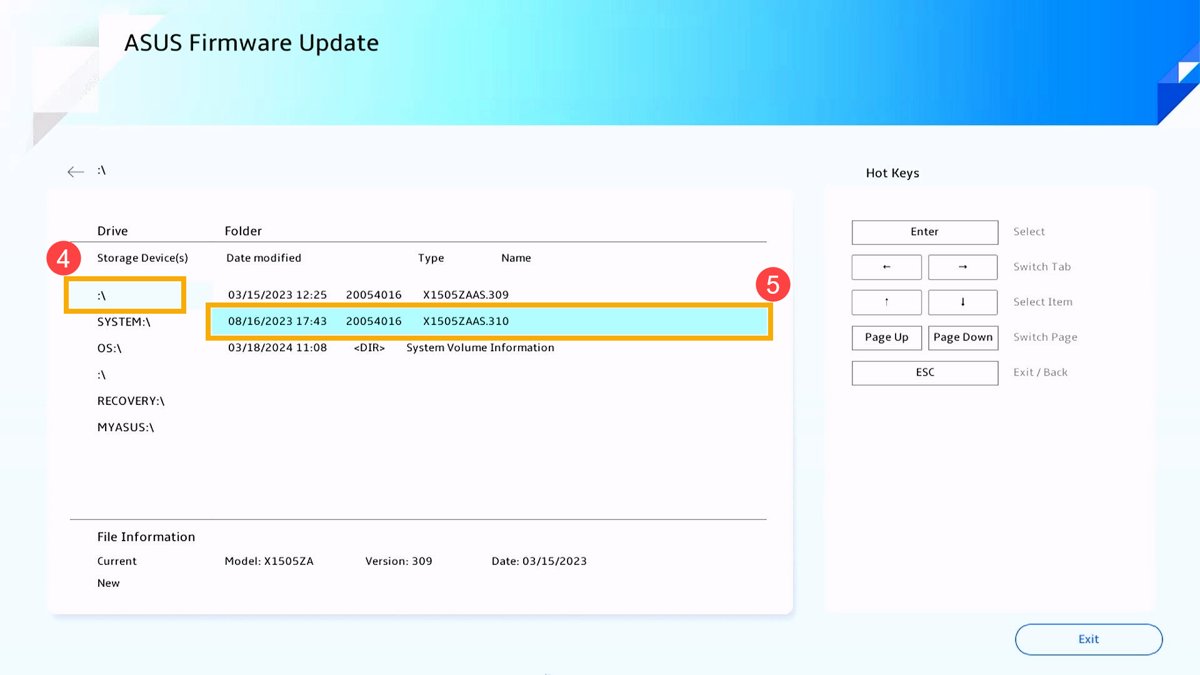
- Select ASUS Firmware Update (some models show ASUS EZ Flash 3 Utility).
- Choose the USB drive and the BIOS file.
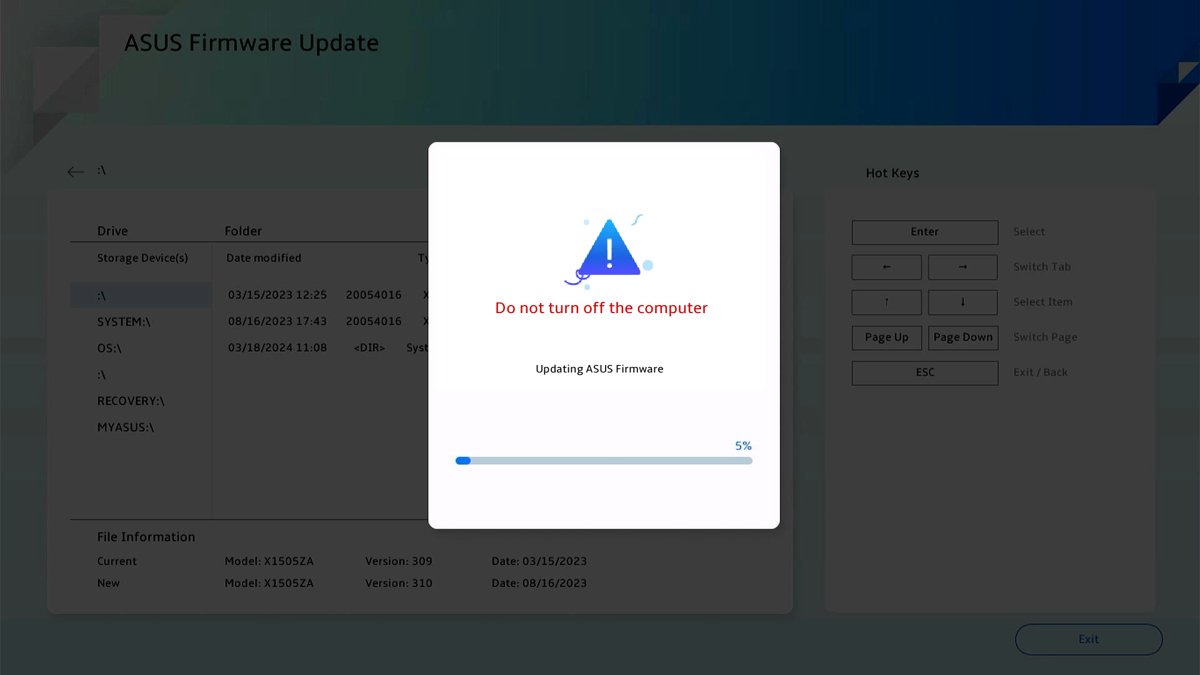
- Select Yes to proceed, then Yes again to confirm the file details.
- Wait for the laptop to restart into Windows on its own.
How to update BIOS on an ASUS motherboard
Desktop boards use EZ Flash 3 from the Tools page. Use a FAT16 or FAT32 USB drive of 1 GB or more.
- Download the BIOS for your exact board from the ASUS Download Center under Driver & Utility > BIOS & FIRMWARE.
- Unzip it onto the USB drive and confirm a
.CAPfile sits in the root folder. - Plug the drive into the PC, restart and press Del at the ASUS logo.
- Press F7 for Advanced Mode and open the Tools page.
- Select ASUS EZ Flash 3 Utility, then pick the USB drive and the
.CAPfile. - Confirm both prompts to start the flash.
- Click OK when the progress bar completes; the system reboots.
Check the ASUS BIOS version after updating
- Press Win + R, type
msinfo32and press Enter. - Read the BIOS Version/Date line in System Summary.
- Compare it with the newest version listed on your model's ASUS support page.
ASUS BIOS not updating: fixes
Accidentally turned off PC during BIOS update on Windows 11
An interrupted flash can leave the firmware incomplete, which ASUS warns can cause a boot failure.
- Plug in the AC adapter and power the PC on once.
- If it reaches the BIOS or Windows, run the same update method again from the start.
- If it shows no display or will not boot, stop and contact an ASUS service center.
System Update tab or BIOS Update for Windows is missing
Some models do not support updating the BIOS from Windows.
- Use the EZ Flash method above with a FAT32 USB drive.
EZ Flash rejects the file or the update will not start
The file is for another model, sits inside a folder, or is older than the installed BIOS. ASUS does not allow downgrading.
- Download the file again for your exact model.
- Extract it to the root of the USB drive.
- Check that its version is newer than the one shown in
msinfo32.
PC unstable or asks for a BitLocker key after the update
Firmware changes reset settings and trigger BitLocker recovery.
- Enter the recovery key from your Microsoft account.
- For a motherboard, press Del at boot, press F5 to load optimized defaults and confirm with OK.
ASUS BIOS update FAQ
Does ASUS have a BIOS update tool?
Yes. ASUS offers BIOS Update for Windows (also called BIOS Installer for Windows) through MyASUS and its support site, plus EZ Flash 3 built into the BIOS setup screen itself.
What is ASUS BIOS update?
It is a firmware package from ASUS that replaces the BIOS on your laptop or motherboard. Updates fix bugs, improve hardware compatibility and add support for newer components.
Can I update ASUS BIOS without USB?
Yes. MyASUS System Update and the BIOS Update for Windows utility flash the BIOS from Windows with no USB drive. Newer laptop platforms can also use Cloud Update inside the BIOS.
Does ASUS BIOS update automatically?
Not by default on every model. ASUS lists Windows Update as one delivery route for laptop BIOS updates, and MyASUS shows available updates, but you confirm the install yourself.
How do I update the BIOS on an ASUS motherboard?
Copy the .CAP file from the ASUS Download Center to a FAT32 USB drive, press Del at boot, press F7, open Tools and run ASUS EZ Flash 3 Utility.
How do I install an ASUS BIOS update?
On a laptop, open MyASUS, click System Update, select BIOS Update for Windows and click Update Selected Items. Restart when asked and confirm the update on the UEFI screen.
Can I downgrade the ASUS BIOS?
No. ASUS states that downgrading the BIOS version is not allowed on its laptops, so EZ Flash refuses a file older than the installed version.