When an album page in the iTunes Store on iPad Pro shows no track list, the cause is usually a failed connection to Apple's servers, a wrong date and time setting, outdated iPadOS, or a content restriction that hides music.
This guide walks through each fix in the order Apple recommends, then shows how to view the items you already bought through the Purchased list.
Fix iTunes Store album songs not showing on iPad Pro
Work through these checks in order and reopen the album page after each one.
- Open Apple's System Status page and confirm the iTunes Store has no reported outage in your country or region.
- Open a website in Safari to confirm the iPad Pro is online.
- Open Settings > General > Date & Time and turn on automatic date and time, or set the correct time zone.
- Install the latest iPadOS update, then open the iTunes Store app again.
- Switch to a different Wi-Fi network or to cellular data and reload the album page.
iTunes Store not loading album tracks on iPad
The album page opens but the song list stays blank
The iPad cannot finish talking to the iTunes Store, often because of the network or a service problem.
- Check Apple's System Status page for an iTunes Store outage.
- Restart your Wi-Fi router if other devices on the same network also fail to load the store.
- Turn off any VPN on the iPad and reload the album.
- Try another network; if the album loads there, report the problem to your network administrator or internet provider.
Album songs load on Wi-Fi but not on cellular
Cellular data is turned off for the iTunes Store app.
- Open Settings > Cellular.
- Find iTunes Store in the app list and turn its switch on.
- Reopen the album page.
The store shows errors or empty pages after the clock changed
Apple services refuse connections when the date and time do not match your time zone.
- Open Settings > General > Date & Time.
- Turn on Set Automatically.
- Close and reopen the iTunes Store app.
Nothing loads anywhere in the store
An outage may have just started that the status page does not show yet.
- Wait a while and open the album again.
- Contact Apple Support if the album still shows no songs after the other fixes.
Check Content & Privacy Restrictions for music on iPad
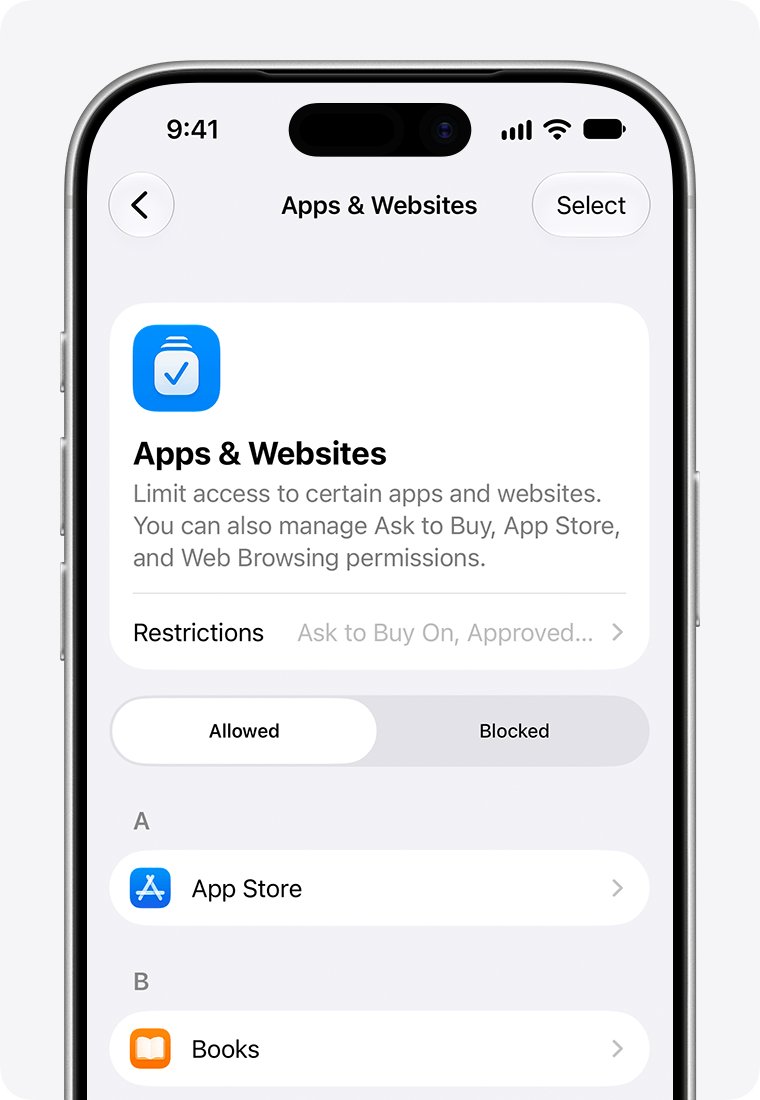
A child's iPad Pro managed with Screen Time can block or age-limit music, which hides songs in the store. The parent changes this from their own device or the child's Settings.
- Open the Settings app and tap Family.
- Tap your child's name.
- Tap Content & Privacy Restrictions and enter the Screen Time passcode if asked.
- Open the content restrictions for music and choose a setting that allows the songs you need.
- Reopen the album in the iTunes Store app.
View purchased album songs in the iTunes Store on iPad
If the album is one you already bought, the Purchased list shows every track even when the store page does not.
- Open the iTunes Store app.
- Tap Purchased.
- Tap Music. With Family Sharing, tap a family member to see their purchased music.
- Select Not on This iPad, then select the artist.
- Tap the Download button next to the song you want.
Confirm the iTunes Store purchase on iPad Pro
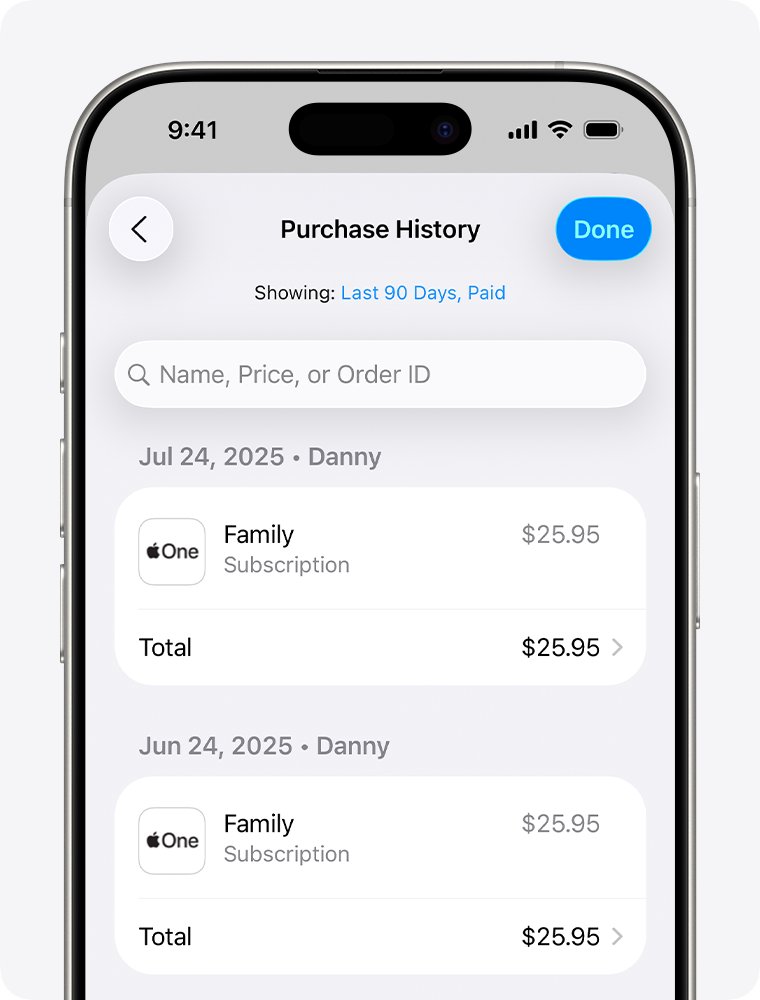
Purchase History proves whether a song or album was bought on your Apple Account, which helps when a track is missing from Purchased.
- Open the App Store and tap your photo or initials.
- Tap Apps & Purchase History and sign in if asked.
- Tap Purchase History.
- Tap Last 90 days to change the date range and find the album.
Why iTunes Store album songs are missing on iPad Pro
| What you see | Likely cause | Fix |
|---|---|---|
| Blank track list on every album | Network or iTunes Store outage | Check System Status, then your Wi-Fi |
| Works on Wi-Fi only | Cellular data off for iTunes Store | Turn it on in Settings > Cellular |
| Store errors after a clock change | Wrong date and time | Turn on Set Automatically |
| Songs hidden on a child's iPad | Content & Privacy Restrictions | Allow music in Screen Time |
| Bought album not showing tracks | Store page not loading | Use Purchased > Music > Not on This iPad |
iTunes Store on iPad Pro album songs FAQ
Why can't I see songs on an iTunes Store album on iPad?
The iPad usually cannot reach the iTunes Store. Check Apple's System Status page, confirm your internet works, set the date and time automatically, and update iPadOS. Then reopen the album page in the iTunes Store app.
Does a VPN stop the iTunes Store from loading albums?
It can. Apple lists VPNs among the things to check when its stores will not connect. Turn the VPN off on the iPad, reload the album, and turn it back on once the songs appear.
Why does the iTunes Store only work on Wi-Fi on my iPad?
Cellular data is probably switched off for the iTunes Store app. Open Settings, tap Cellular, find iTunes Store in the app list, and turn its switch on so album pages load over cellular.
Can parental controls hide songs in the iTunes Store?
Yes. Content & Privacy Restrictions in Screen Time can block music or limit it by rating. A parent opens Settings, taps Family, picks the child, and changes the music setting under Content & Privacy Restrictions.
How do I find songs I bought if the album page is empty?
Open the iTunes Store app, tap Purchased, then Music. Select Not on This iPad, pick the artist, and tap the Download button next to each song. You do not pay again for purchased music.
How do I check whether I bought an album on iPad?
Open the App Store, tap your photo or initials, tap Apps & Purchase History, then Purchase History. Change the date range from Last 90 days to find older album purchases.