To use Windows Update, open Start > Settings > Windows Update in Windows 11 (or Settings > Update & Security > Windows Update in Windows 10), select Check for updates, then Download & install and restart when asked.
Quick answers for the five common jobs come first, then the settings map, every 2026 Windows 11 update, the 26H2 feature update, error codes and the full reset.
Windows Update quick answers: install, pause, fix, uninstall
| What you want to do | Do this | What to expect |
|---|---|---|
| Check for and install updates | Settings > Windows Update > Check for updates, then Download & install | Windows downloads, installs and asks for a restart if the update needs one |
| Pause updates | Settings > Windows Update, then Pick a date on the Pause updates control | Updates stop for up to 35 days, then resume on their own |
| Fix a stuck or failing update | Settings > System > Troubleshoot > Other troubleshooters, then Run next to Windows Update | If that fails, clear the update cache or reset the update components (sections below) |
| Uninstall a bad update | Settings > Windows Update > Update history > Uninstall updates, pick the KB, select Uninstall | Some updates cannot be removed; Windows RE can remove the latest quality update if Windows will not start |
| Install an update manually | Search the KB number in the Microsoft Update Catalog, download the .msu file and double-click it | The Windows Update Standalone Installer applies it; restart to finish |
Where Windows Update settings live in Windows 11 and Windows 10
Windows 11 puts everything on one Windows Update page with an Advanced options sub-page. Windows 10 keeps it under Update & Security, alongside Delivery Optimization, troubleshooters and recovery.
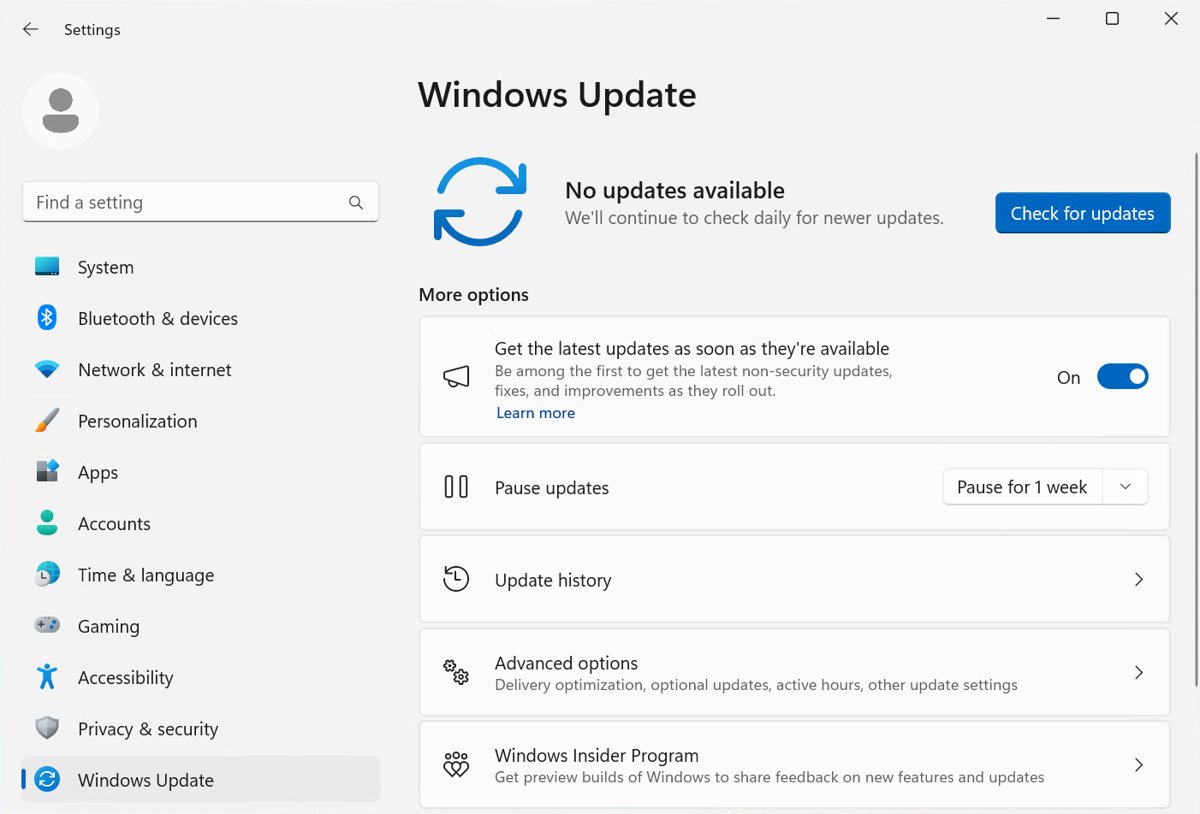
| Setting | Windows 11 path | Windows 10 path |
|---|---|---|
| Check for updates | Settings > Windows Update > Check for updates | Settings > Update & Security > Windows Update > Check for updates |
| Pause updates | Settings > Windows Update > Pause updates > Pick a date | Settings > Update & Security > Windows Update |
| Active hours | Settings > Windows Update > Advanced options > Active hours | Settings > Update & Security > Windows Update > Change active hours |
| Optional and driver updates | Settings > Windows Update > Advanced options > Optional updates | Settings > Update & Security > Windows Update > View optional updates |
| Updates for other Microsoft products | Advanced options > Receive updates for other Microsoft products | Advanced options > Receive updates for other Microsoft products when you update Windows |
| Update history and uninstall | Settings > Windows Update > Update history > Uninstall updates | Settings > Update & Security > Windows Update > update history > Uninstall updates |
| Delivery Optimization | Advanced options > Delivery Optimization > Allow downloads from other devices | Settings > Update & Security > Delivery Optimization > Allow downloads from other PCs |
| Windows Update troubleshooter | Settings > System > Troubleshoot > Other troubleshooters | Settings > Update & Security > Troubleshoot > Additional troubleshooters |
| Reinstall Windows through Windows Update | Settings > System > Recovery > Reinstall now | Not offered (Windows 11 only) |
| Your version and edition | Settings > System > About | Settings > System > About |
On Windows 11 you can change each Windows Update setting, from active hours to optional updates, without leaving that page. Windows 10 spreads its Update and Security settings across several pages, including ESU enrollment.
How to check for and install Windows updates in Windows 11
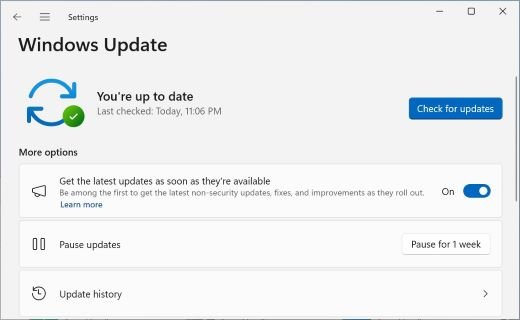
Windows 11 installs updates automatically; checking manually gets a fix sooner.
- Select Start > Settings > Windows Update.
- Select Check for updates.
- If updates appear, select Download & install (some show Install now or Restart now once downloaded).
- To get non-security fixes and new features as soon as they roll out, turn on Get the latest updates as soon as they're available. Security updates arrive either way.
- For driver updates, open Advanced options > Optional updates, tick the drivers you want and select Download and install.
- Restart when prompted, or select Start > Power > Update and restart.
Since updates released on or after July 28, 2026, Windows 11 24H2, 25H2 and 26H1 hold restart-requiring updates (drivers, .NET, firmware) and apply them together with the monthly security update, so the PC restarts once a month.
How to pause or stop Windows updates temporarily
Windows updates cannot be turned off permanently from Settings. Pausing delays them until a date you choose, and updates in progress are canceled.
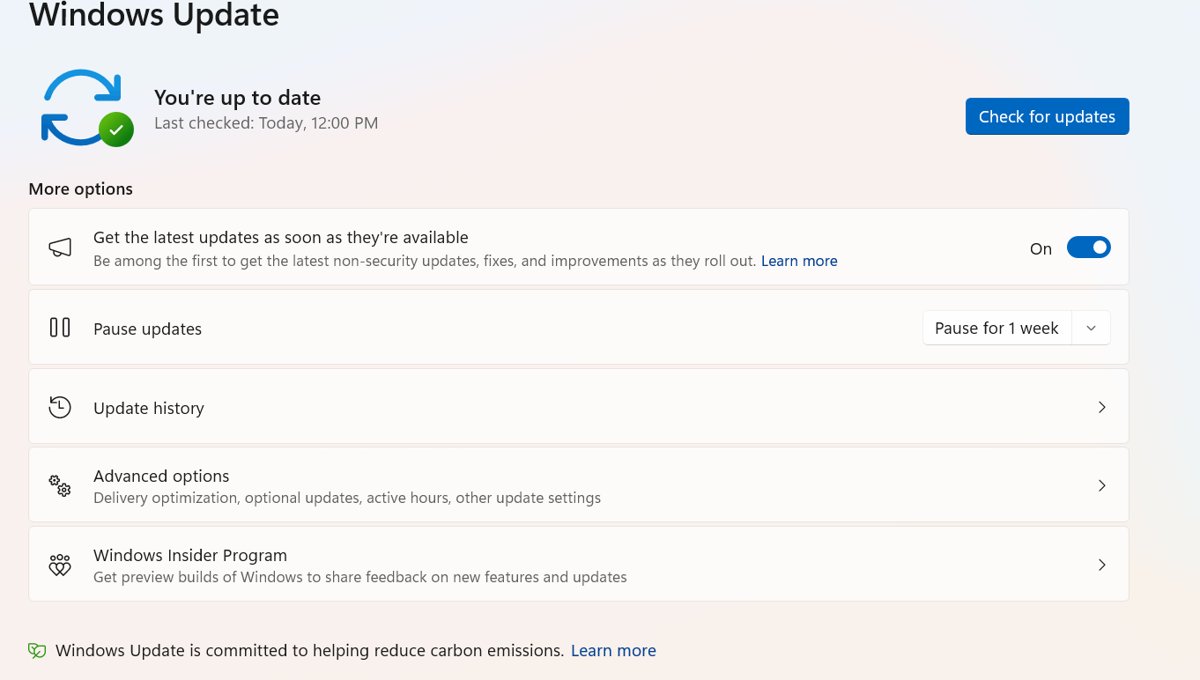
- Select Start > Settings > Windows Update.
- Select Pick a date on the Pause updates control.
- Choose an end date up to 35 days from today.
- To extend, pick a new end date on the same calendar; the 35 days always count from today, not from the original pause.
- To keep restarts out of your working day instead, open Advanced options > Active hours and set Adjust active hours to Manually or Automatically.
- Select Resume updates whenever you are ready; Windows checks, downloads and installs right away.
When the pause ends, Windows must install the latest updates before you can pause again.
Every 2026 Windows 11 update: KB numbers, dates and known issues
Windows 11 gets a cumulative security update on the second Tuesday of each month (B) and an optional preview in the fourth week (D).
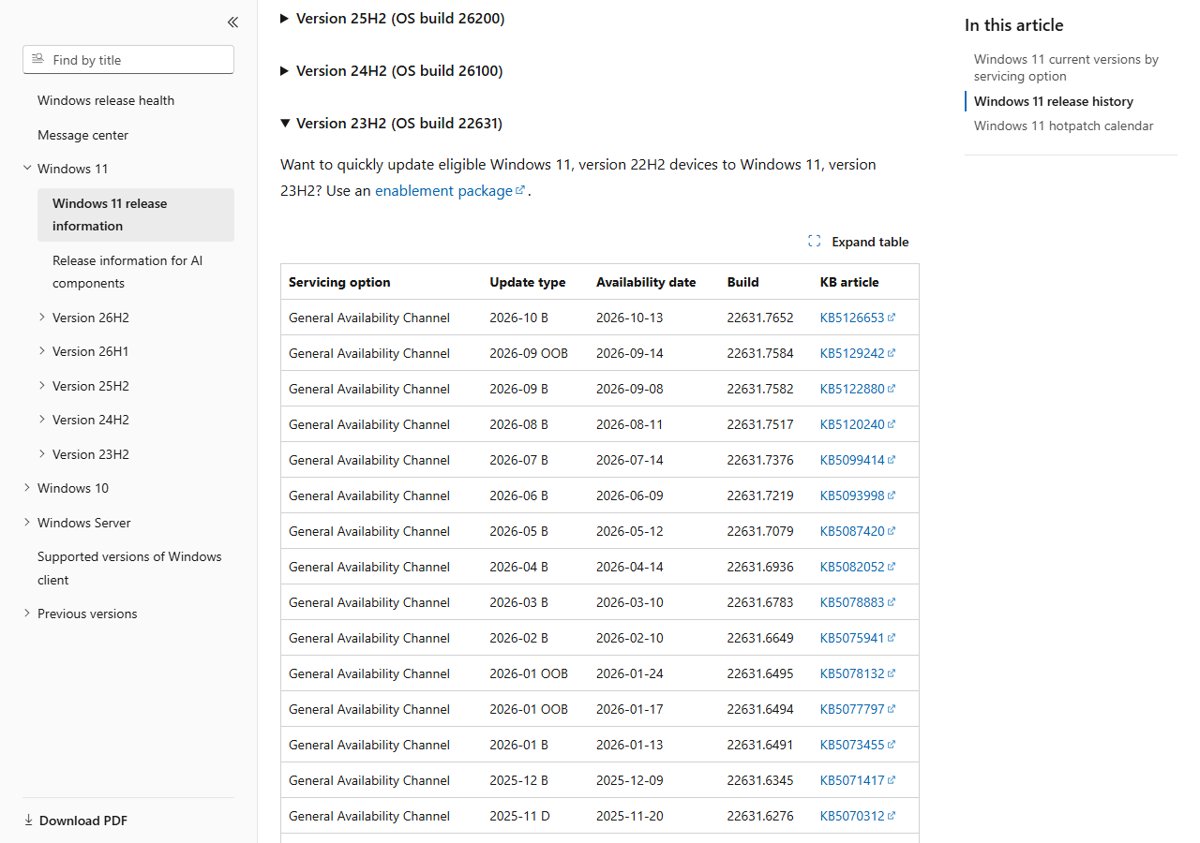
| KB | Release date | What it is | Techdows coverage |
|---|---|---|---|
| KB5074109 | January 13, 2026 | January 2026 security update (B) for 24H2 and 25H2; builds 26100.7623 and 26200.7623 | KB5074109 problems and removal |
| KB5079382 | Not listed in Microsoft's Windows 11 release history; reported March 7, 2026 | Update that fixes File Explorer white flashes | File Explorer white flash fix |
| KB5083631 | April 30, 2026 | April 2026 optional preview (D) for 24H2 and 25H2; builds 26100.8328 and 26200.8328 | KB5083631 .msu with Xbox mode |
| KB5101650 | July 14, 2026 | July 2026 security update (B) for 24H2 and 25H2; builds 26100.8875 and 26200.8875 | KB5101650 block on Dell PCs |
| KB5121794 | 26H2 available September 29, 2026 | Enablement package that turns 24H2 and 25H2 into 26H2 | KB5121794 offline installer |
| KB5127648 | October 13, 2026 | October 2026 security update (B) for 24H2, 25H2 and 26H2; builds 26100.9711, 26200.9711 and 26300.9711 | KB5127648 known issues and KB5127648 download links |
| KB5127646 | October 13, 2026 | October 2026 security update (B) for 26H1; build 28000.3231 | KB5127646 known issues and KB5127646 .msu downloads |
| KB5126653 | October 13, 2026 | October 2026 security update (B) for 23H2; build 22631.7652 | KB5126653 known issues and KB5126653 offline installers |
To match a KB to your PC, compare the build in Settings > System > About with the build column.
Windows 11 feature updates: 26H2, 26H1 and end of updates dates
Windows 11 gets one feature update a year. Home and Pro editions get 24 months of updates per version; Enterprise and Education get 36. As a version nears its end, Windows Update starts the next feature update automatically on unmanaged PCs.
| Version | Available | End of updates (Home, Pro) | End of updates (Enterprise, Education) | Notes |
|---|---|---|---|---|
| 26H2 (build 26300) | September 29, 2026 | October 10, 2028 | October 9, 2029 | Reached from 24H2 or 25H2 with the KB5121794 enablement package and one restart |
| 26H1 (build 28000) | February 10, 2026 | March 14, 2028 | March 13, 2029 | Only for new devices; not offered as an in-place update from 24H2 or 25H2 |
| 25H2 (build 26200) | September 30, 2025 | October 12, 2027 | October 10, 2028 | Still receives monthly updates |
| 24H2 (build 26100) | October 1, 2024 | Ended | October 12, 2027 | Home and Pro PCs need to move to 25H2 or 26H2 |
| 23H2 (build 22631) | October 31, 2023 | Ended | November 10, 2026 | Final Enterprise update due November 2026 |
26H2 ships its new features dormant inside the monthly updates for 24H2 and 25H2, which is why the 26H2 enablement package is small and needs only one restart.
How to get the Windows 11 26H2 update version
26H2 installs over 24H2 or 25H2. The enablement package needs the September 22, 2026 preview update (KB5124010) or a later cumulative update installed first.
- Open Settings > System > About and confirm the PC runs version 24H2 or 25H2.
- Open Settings > Windows Update and turn on Get the latest updates as soon as they're available.
- Select Check for updates and install the latest cumulative update first if one is offered.
- Select Check for updates again; when the Windows 11, version 26H2 feature update appears, select Download & install.
- Restart once when prompted.
- Return to Settings > System > About; the version reads 26H2 and the OS build starts with 26300.
If the offer never appears, a safeguard hold or a missing prerequisite is usually the reason, and you can fix 26H2 not showing in Windows Update step by step.
You can also install the KB5121794 .msu offline, or run the Windows Update Assistant, which installs the latest feature update on a compatible PC without waiting for the rollout.
How to defer or delay the Windows 11 26H2 update
Home and Pro users have no deferral policy, but three settings control how soon 26H2 arrives.
- Open Settings > Windows Update and turn off Get the latest updates as soon as they're available, so the PC is not prioritised for new features. Security updates keep coming.
- Select Pick a date under Pause updates to hold everything for up to 35 days.
- Extend the pause before it expires if you need more time, staying within 35 days of today.
- Stay on 25H2 until its end of updates date (October 12, 2027 for Home and Pro); as that date nears, Windows Update starts the feature update automatically.
- On 24H2 Home or Pro, plan the move now: that version no longer gets updates on those editions.
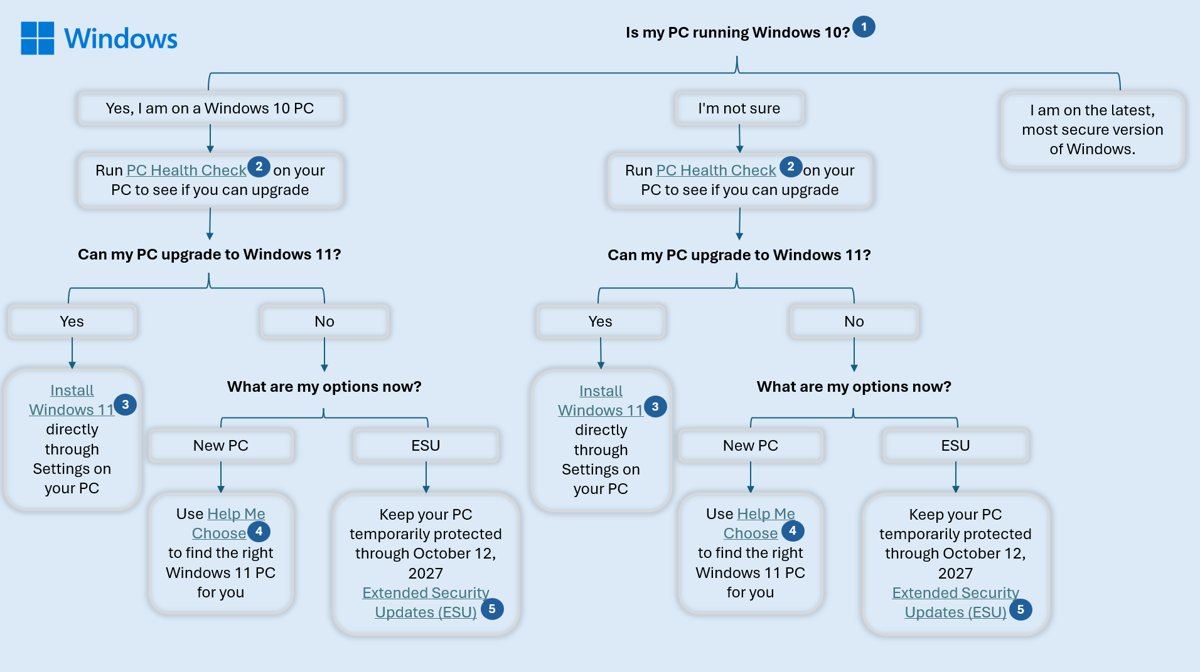
Windows 10 end of support and ESU updates
| Item | Date or rule |
|---|---|
| Windows 10 end of support | October 14, 2025 (Home, Pro, Pro Education, Pro for Workstations) |
| Final Windows 10 version | 22H2 |
| Consumer Extended Security Updates (ESU) | Protects an enrolled Windows 10 PC until October 12, 2027 |
| Latest ESU security update | KB5126657, October 13, 2026 (OS builds 19045.7807 and 19044.7807) |
| Microsoft 365 apps security updates on Windows 10 | Until October 10, 2028 |
| Free upgrade to Windows 11 | Windows 10 version 22H2 PCs that meet the minimum hardware specifications |
Without ESU, Windows 10 keeps working but gets no security updates. ESU enrollment starts from Windows Update, and the free Windows 11 offer shows up under Settings > Update & Security > Windows Update.
How to uninstall Windows updates in Windows 11
Remove an update only when it clearly causes a problem, and know that uninstalling a security update reopens the holes it closed. On Windows 11, Reinstall now in Recovery is worth trying first.
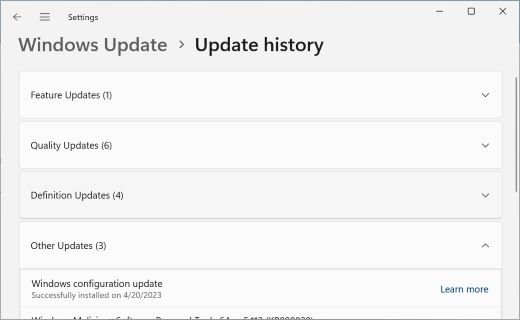
- Select Start > Settings > Windows Update.
- Under More options, select Update history.
- Under Related settings, select Uninstall updates.
- Find the KB number, select Uninstall next to it and confirm.
- Restart, then pause updates so Windows does not reinstall it straight away.
- If Windows will not start, open Windows RE and select Troubleshoot > Advanced options > Uninstall Updates > Uninstall latest quality update.
Some updates have no Uninstall option. You can also remove problematic Windows updates from Command Prompt or Windows RE when Settings is not an option.
Fix Windows Update manually installing updates on Windows 11
When Windows Update keeps failing on one KB, install that update by hand from the Microsoft Update Catalog. Since 24H2, a cumulative update can need earlier checkpoint updates, and the Catalog lists them with it.
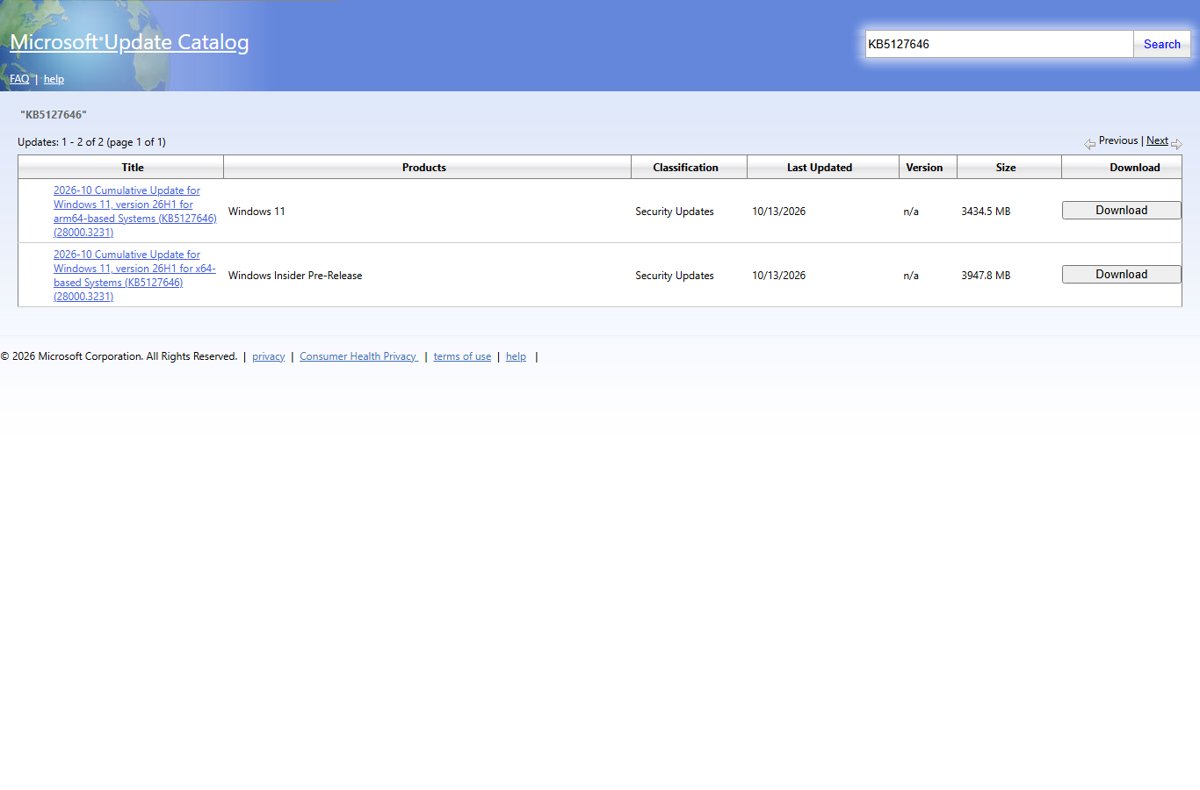
- Note the KB number of the failing update in Settings > Windows Update > Update history.
- Open the Microsoft Update Catalog in your browser and search for the KB number.
- Pick the row that matches your version and architecture (x64 or ARM64) and select Download.
- Save every .msu file the pop-up lists, including earlier checkpoint updates, into one empty folder such as
C:\packages. - Double-click the target .msu to run the Windows Update Standalone Installer, or open Command Prompt as administrator and run
DISM /Online /Add-Package /PackagePath:C:\packages. - Restart when the installer finishes, then check Update history for the KB.
Pointing DISM at the folder lets it install any missing checkpoint updates in the right order before the target update. PowerShell's Add-WindowsPackage cmdlet can also manually install Windows updates from the same .msu files.
Methods to reset Windows Update
Reset Windows Update when updates keep failing with the same error, stay stuck at one percentage, or the service will not start. Pick the lightest method that fits.
| Your situation | Method | Why |
|---|---|---|
| First failure, any error code | Windows Update troubleshooter (Settings or Get Help) | Runs diagnostics and resets the components that need it, with no commands |
| Troubleshooter found nothing, error 0x8007000d or a corrupted download | Command Prompt (CMD): stop services and rename the SoftwareDistribution and catroot2 folders | Forces a fresh download cache; six commands |
| You prefer PowerShell | PowerShell as administrator, running the same net stop / net start commands |
net works the same in PowerShell; use $env:SystemRoot instead of %systemroot% in the rename commands |
| Cache reset did not help | Full component reset (BITS queue, DLL re-registration, Winsock) | Microsoft's complete manual procedure for Windows 11 and Windows 10 |
| System files are corrupted | DISM RestoreHealth, then SFC | Repairs the component store the updates install into |
| Nothing above works | Reinstall now under Settings > System > Recovery | Reinstalls the current Windows 11 version and keeps apps, files and settings |
| Considering the WURESET tool | Not a Microsoft tool | WURESET is a third-party script; the Microsoft methods above cover the same resetting steps |
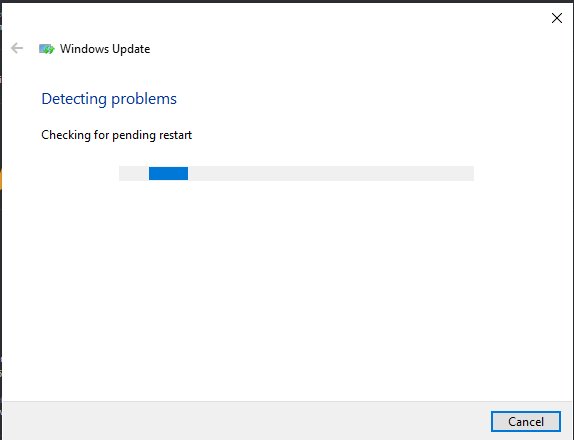
Reset Windows Update with Troubleshoot on Windows 11
- Select Start > Settings > System.
- Select Troubleshoot, then Other troubleshooters.
- Select Run next to Windows Update and follow the prompts.
- Restart the PC when the troubleshooter finishes.
- Open Settings > Windows Update and select Check for updates.
On Windows 11 the same check also runs as an automated troubleshooter in the Get Help app. On Windows 10 it sits at Settings > Update & Security > Troubleshoot > Additional troubleshooters. If you run the Windows Update troubleshooter and it reports a problem it cannot fix, move on to the cache reset below.
Reset Windows Update with Command Prompt on Windows 11
Type command prompt in the taskbar search, select Run as administrator, then run these commands one at a time, letting each finish before the next.
net stop bits
net stop wuauserv
ren %systemroot%\softwaredistribution softwaredistribution.bak
ren %systemroot%\system32\catroot2 catroot2.bak
net start bits
net start wuauserv
The first two lines stop the Background Intelligent Transfer Service and the Windows Update service. The ren lines rename the download cache and the catroot2 signature folder so Windows rebuilds both. The last two lines start the services again. Close Command Prompt and restart the PC afterwards.
You should see: Each net command reports that the service stopped or started successfully, and the ren lines return no message. A "system error 5" means the window is not elevated.
Reset Windows Update components in Windows 11/10
This is Microsoft's full manual reset for Windows 11 and Windows 10. Run every command in an elevated Command Prompt and press Enter after each.
- Stop the services:
net stop bits,net stop wuauservandnet stop cryptsvc. - Delete the BITS queue files:
Del "%ALLUSERSPROFILE%\Application Data\Microsoft\Network\Downloader\qmgr*.dat". - Rename the cache folders:
Ren %Systemroot%\SoftwareDistribution\DataStore DataStore.bak,Ren %Systemroot%\SoftwareDistribution\Download Download.bakandRen %Systemroot%\System32\catroot2 catroot2.bak. - Run
cd /d %windir%\system32, then re-register the BITS and Windows Update files withregsvr32.exe, starting withregsvr32.exe atl.dlland includingwuapi.dll,wuaueng.dll,wups.dll,wups2.dll,qmgr.dllandqmgrprxy.dll. - Reset Winsock:
netsh winsock reset. - Start the services again:
net start bits,net start wuauservandnet start cryptsvc. - Restart the PC and select Check for updates.
Microsoft's sc.exe sdset commands reset the service permissions to default but overwrite existing security settings; use them only as a last resort.
Fix Windows Update repairing corrupted files on Windows 11
Errors such as 0x800f081f, 0x800f0831 and 0x80073701 mean the component store, which every update installs into, is damaged. DISM repairs it and SFC repairs the system files on top.
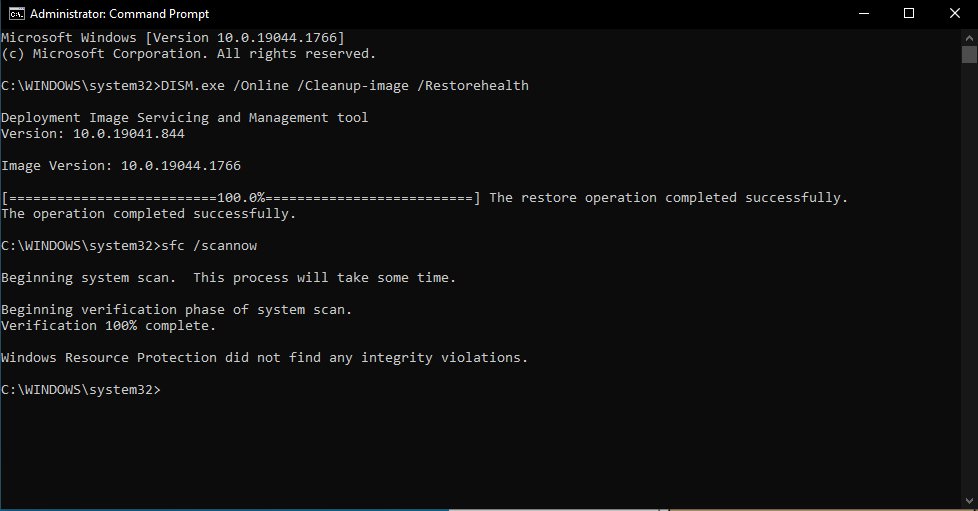
- Type command prompt in the taskbar search and select Run as administrator.
- Run
DISM.exe /Online /Cleanup-image /Restorehealthand wait for "The restore operation completed successfully". - Run
sfc /scannowand wait until verification reaches 100%. - Restart the PC and run Windows Update again.
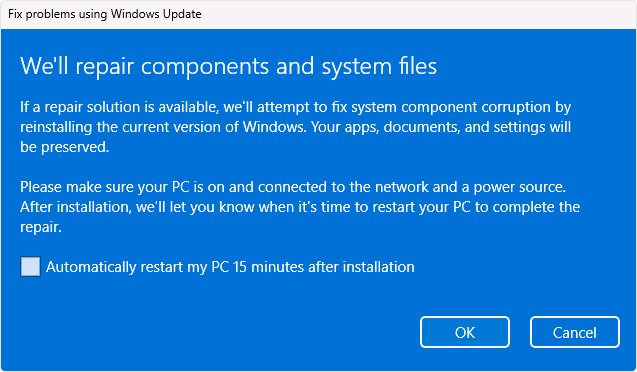
- If the update still fails, open Settings > System > Recovery and select Reinstall now under Fix problems using Windows Update.
Reinstall now downloads a repair copy of your current Windows 11 version and keeps apps, files and settings. It is not available on work- or school-managed PCs.
Windows Update error codes and how to fix them
These codes and causes come from Microsoft's own Windows Update troubleshooting documentation. Find the code in Update history next to the failed update.
| Error code | What it means | Fix |
|---|---|---|
| 0x8007000d | Windows Update files or the update cache are corrupted | Run the troubleshooter, then rebuild the SoftwareDistribution cache |
| 0x800705b4 | The update took too long or was interrupted | Check the network connection and restart the PC |
| 0x80240034 | The update is stuck after an incomplete update or a connection problem | Make sure the Windows Update service is running, then run the troubleshooter |
| 0x800f0922 | Not enough disk space, or a .NET Framework or component problem | Free up space (20 GB for a 64-bit upgrade) and disconnect any VPN |
| 0x80070057 or 0x80080005 | Corrupted files, permissions or system configuration | Run sfc /scannow, then the troubleshooter |
| 0xC1900101 | An incompatible driver blocks the update | Update or uninstall network and graphics drivers in Device Manager, then try a clean boot |
| 0x80248014 | Windows Update database problem, or the service is not running | Run the troubleshooter and start the Windows Update service in services.msc |
| 0x80070422 | The Windows Update service is disabled or stopped | Start the Windows Update service in services.msc |
| 0x80070005 | Access denied: missing permissions | Install updates from an administrator account |
| 0x80070002 | The update failed to install | Restart, run the troubleshooter and check free space |
| 0x800f081f, 0x800f0831 or 0x80073701 | Component store corruption | Run DISM RestoreHealth and sfc /scannow, then restart; 24H2 and 25H2 PCs with 0x80073712 or 0x800f0993 failures take the same repair route |
| 0x80072EFD, 0x80072EFE or 0x80D02002 | The connection to the update servers timed out | Make sure no firewall rule or proxy blocks Microsoft download addresses |
| 0x80242014 | The post-restart part of an update is still pending | Restart the PC to finish the installation |
Fix Windows Update not working, stuck or failing to install
Windows Update stuck at 0% downloading
No stable connection, too little disk space, or another program blocking the download.
- Restart the PC.
- Open Settings > Network & Internet > Wi-Fi and confirm you are connected.
- Free up disk space; a feature update needs at least 20 GB on a 64-bit PC.
- Run the Windows Update troubleshooter, then select Check for updates. If it stops at 51-99% instead, give it time, then check for updates again.
Windows Update is not downloading at all
Updates are paused, the connection is metered, or the update service is stopped.
- Open Settings > Windows Update and select Resume updates if a pause is active.
- Check whether the network is set as metered; some updates do not install automatically on a metered connection.
- Press Win + R, type
services.msc, right-click Windows Update and select Start. - Select Check for updates and then install pending Windows updates from the same page.
Windows Update failed to install
A corrupted download, a damaged component store or a driver conflict.
- Note the error code in Update history and match it in the error code table above.
- Disconnect external drives, docks and other hardware you do not need.
- Reset the update cache with the Command Prompt commands above.
- Run DISM RestoreHealth and
sfc /scannow, then try again.
Not enough space for Windows Update
Old update files and superseded components fill the system drive.
- Delete files, uninstall unused apps or move large files to OneDrive or an external drive.
- Run Windows Update Cleanup to remove superseded update files.
- Select Check for updates again.
How to confirm Windows Update is working after a reset
- Open Settings > Windows Update and select Check for updates; the page should reach "You're up to date" or list available updates without an error.
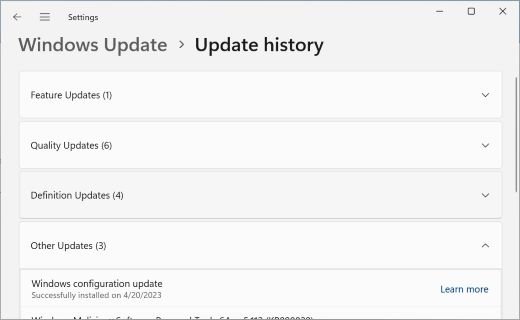
- Open Update history and confirm the latest quality update shows as successfully installed.
- Open Settings > System > About and compare the OS build with the 2026 update table above.
- Press Win + R, type
services.mscand confirm Windows Update starts without an error. - If something still fails, run
Get-WindowsUpdateLogin PowerShell to turn the trace files inC:\Windows\Logs\WindowsUpdateinto a readable WindowsUpdate.log.
Resetting Windows Update components: common questions
Can the WURESET tool be used on both Windows 11 and Windows 10?
WURESET is a third-party script, not a Microsoft tool. The Microsoft reset commands in this article work on both Windows 11 and Windows 10, so you do not need an outside tool for the same steps.
What should I do if the Windows Update service won't restart?
Open services.msc, right-click Windows Update and select Start. If it won't start, restart the PC, run the Windows Update troubleshooter, and then run DISM RestoreHealth and sfc /scannow to repair damaged system files.
Are there risks involved in resetting Windows Update components?
The cache commands are low risk because they rename folders rather than delete them. The sc.exe sdset step overwrites service permissions, so Microsoft advises it only as a last resort. Every step needs an administrator account.
Is a restart necessary after the reset?
Yes. Microsoft's steps end with closing Command Prompt and restarting the computer. The restart lets the services start cleanly and finishes any update that was pending before you check for updates again.
Can I automate resetting Windows Update with scripts?
Yes. Paste the commands into a text file saved with a .bat extension, then right-click it and select Run as administrator. Remove the .bak folders from earlier runs first, or the rename commands will fail.
How often should I reset Windows Update components?
Only when updates fail. A reset is a repair, not maintenance. Run the troubleshooter first, and use the full component reset only when the cache commands and the troubleshooter have not solved the problem.
Can resetting Windows Update affect previously installed updates?
No. The reset renames the download cache and the catroot2 folder; it does not uninstall anything. Windows downloads any files it still needs again. Removing an installed update is a separate action in Update history > Uninstall updates.
Are there alternative methods to reset Windows Update?
Yes. The Windows Update troubleshooter resets components automatically, and on Windows 11 Settings > System > Recovery > Reinstall now repairs Windows through Windows Update while keeping apps, files and settings.
Windows Update FAQ
How do I run Windows Update from CMD or PowerShell?
Use Settings to scan for updates. To install a downloaded .msu from an elevated Command Prompt, run DISM /Online /Add-Package /PackagePath: followed by the file or folder path. In PowerShell, the Add-WindowsPackage cmdlet does the same job.
How do I turn off Windows Update in Windows 11 or Windows 10?
You cannot turn it off permanently in Settings. Select Pick a date under Pause updates to stop updates for up to 35 days, and extend the pause before it ends. Updates resume automatically when the pause expires.
Why does Windows Update take so long?
Download time depends mostly on your connection speed, network settings and the size of the update. Feature updates are far larger than monthly quality updates. Keep the PC plugged in and online, and restart when prompted so installation can finish.
What Windows update version do I have?
Open Settings > System > About and look under Windows specifications for the version and OS build. For individual KB numbers, open Settings > Windows Update > Update history, which lists each installed update with its install date.
What Windows update is causing problems?
Open Update history and note which update installed just before the problem started. Compare its KB number with the 2026 update table above, then uninstall it from Uninstall updates if Microsoft or the known issues confirm the fault.
Where are Windows update files stored?
Downloaded update files sit in C:\Windows\SoftwareDistribution. Clearing that folder is a standard fix for corrupted downloads. Superseded files that Windows keeps for rollback are removed with Windows Update Cleanup in Disk Cleanup or Storage Sense.
Where is the Windows Update log?
Windows Update writes trace files to C:\Windows\Logs\WindowsUpdate, and the servicing log is in %systemroot%\Logs\CBS. Run Get-WindowsUpdateLog in PowerShell to merge the trace files into a single readable WindowsUpdate.log file.
Can I update Windows 10 to Windows 11 for free?
Yes, if the PC runs Windows 10 version 22H2 and meets the minimum hardware specifications. Go to Settings > Update & Security > Windows Update and select Check for updates to see whether the upgrade is offered.
Can a Windows update mess up my computer?
It can occasionally cause errors with specific hardware or apps, which is why Microsoft lets you uninstall updates. Check the known issues for a KB before installing it, and pause updates if your PC is affected.