Windows 11 KB5083631 has been released with several new features, including a new Xbox mode, which aims to improve gaming performance and experience on Windows 11. These changes will also show up in the upcoming monthly security update, and you can install it to get a taste of new features and changes.
Xbox mode is a custom setting that loads a console-like experience on your Windows 11 PC. By console experience, I’m referring to a distinct, console-like UI that replaces your regular desktop. There are no desktop icons or other stuff, and you can easily navigate the UI, play your favorite games, and tweak settings using a controller.
While I appreciate the idea and how it intends to free up resources and direct everything to the games, it won’t make a huge difference in game performance. But Microsoft’s packaging of Xbox mode as a standalone experience is good if you don’t want system processes hogging your CPU and memory. It’ll take care of that and let you play games from Xbox and other platforms like Steam from a unified interface.
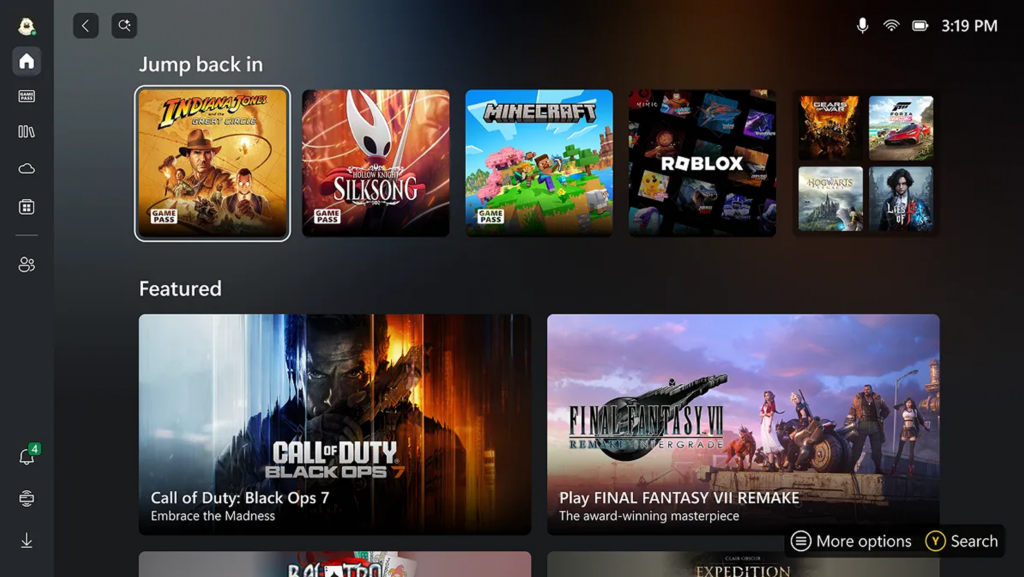
There are several ways to enter Xbox mode. You can do so from the settings app, Xbox app, or by pressing the Win + F11 shortcut.
Since KB5083631 is an optional update, Microsoft won’t force install it on your system. Open the settings app and check for updates, and you’ll see the “2026-04 Preview Update (KB5083631) (26200.8328)” message. Download and apply it to get early access to the new feature. Before discussing more new features, have a look at the direct download links for the offline installer file (.msu) published by Microsoft.
Download Links for Windows 11 KB5083631
Windows 11 KB5083631 Offline Installer (.msu):Microsoft Update Catalog
What’s new in Windows 11 KB5083631?
The first major change was Xbox mode, which I briefly discussed above, but that’s not the only surprise. File Explorer is one of the core focus areas of Microsoft now, and it aims to fix its flaws. With this update, the File Explorer will remember your sorting and view preferences, even when you open it via other apps.
I can relate to this because I need to upload images and other media every day via WordPress. Whenever I browse the computer for selecting a file, it launches the File Explorer in details view and doesn’t remember my preferences. So, I must use the scroll wheel to change the icon size.
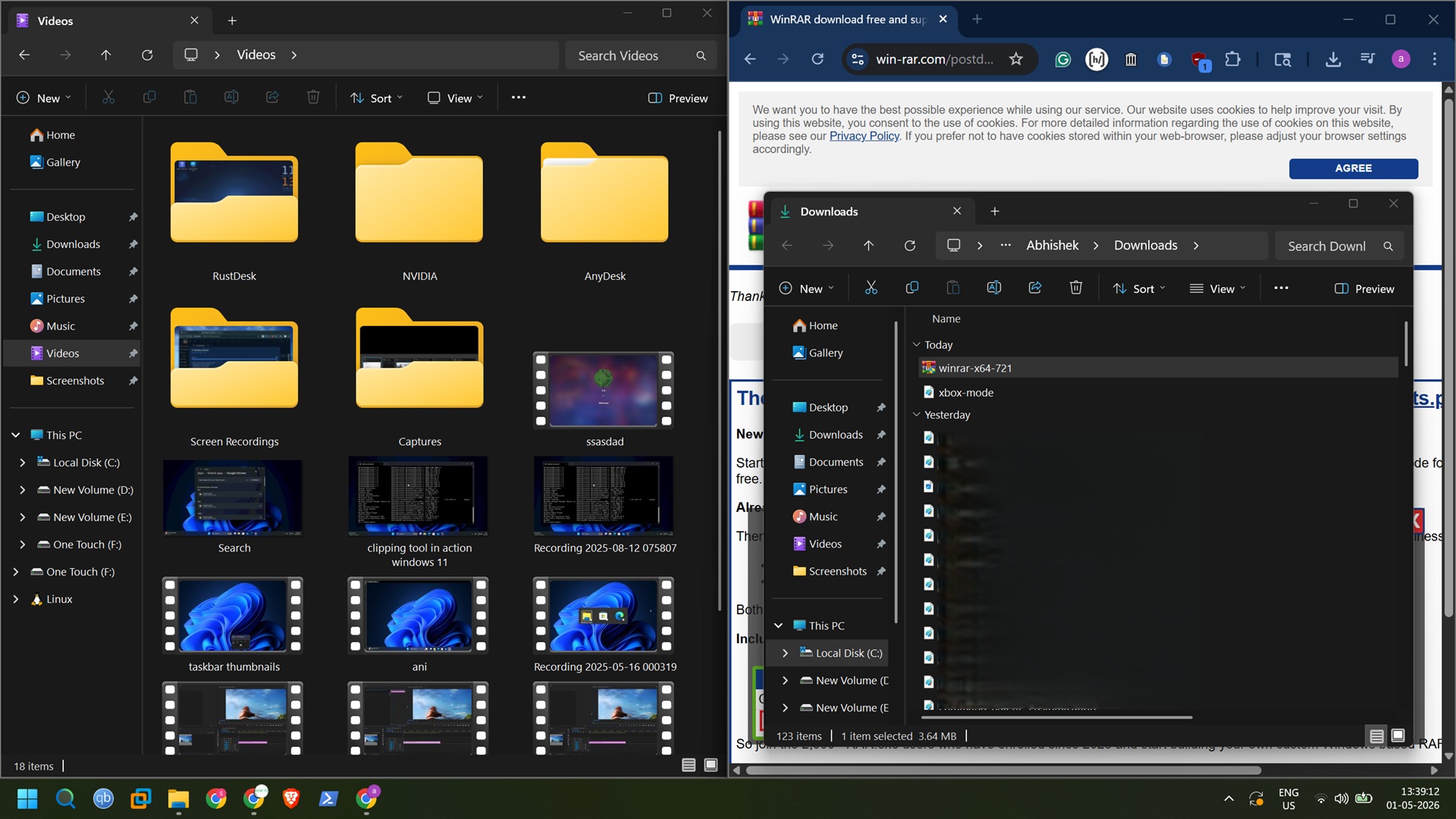
KB5083631 will force File Explorer to remember my preferences even when I try to access it via other apps. The app now supports more archive formats, and you can natively extract nupkg, xar, uu, and cpio, along with the currently supported formats. You don’t need to use an app like WinRAR or another one to extract the items.
The update also fixes a weird white flash bug that appears if you open the “This PC” section of the File Explorer. There are some other performance-related improvements.
Another surprising feature addition is the inclusion of Haptic feedback support. It’s similar to what you experience when you type or do other actions on your smartphone. The phone vibrates in that area, and Windows 11 will now deliver the same experience.
It’s safe to say that only a certain section of mouse brands and trackpads will support it. Other devices could include digital pens. The setting app mentions it as a “subtle vibration” when you do actions like snapping Windows, aligning objects, and more.

![How to Get Help in Windows 11 [Fast]](https://techdows.com/wp-content/uploads/2026/07/How-to-Get-Help-in-Windows-11-600x338.jpg)