When your iPhone keeps asking for your Apple Account password and then says you must enter both your Apple Account and password, sign out of your Apple Account in Settings and sign back in manually with your email address or phone number and your password.
This guide covers that fix, the iOS update and password reset that stop repeat prompts, and the separate fixes for Mail, Outlook, Google and App Store password requests.
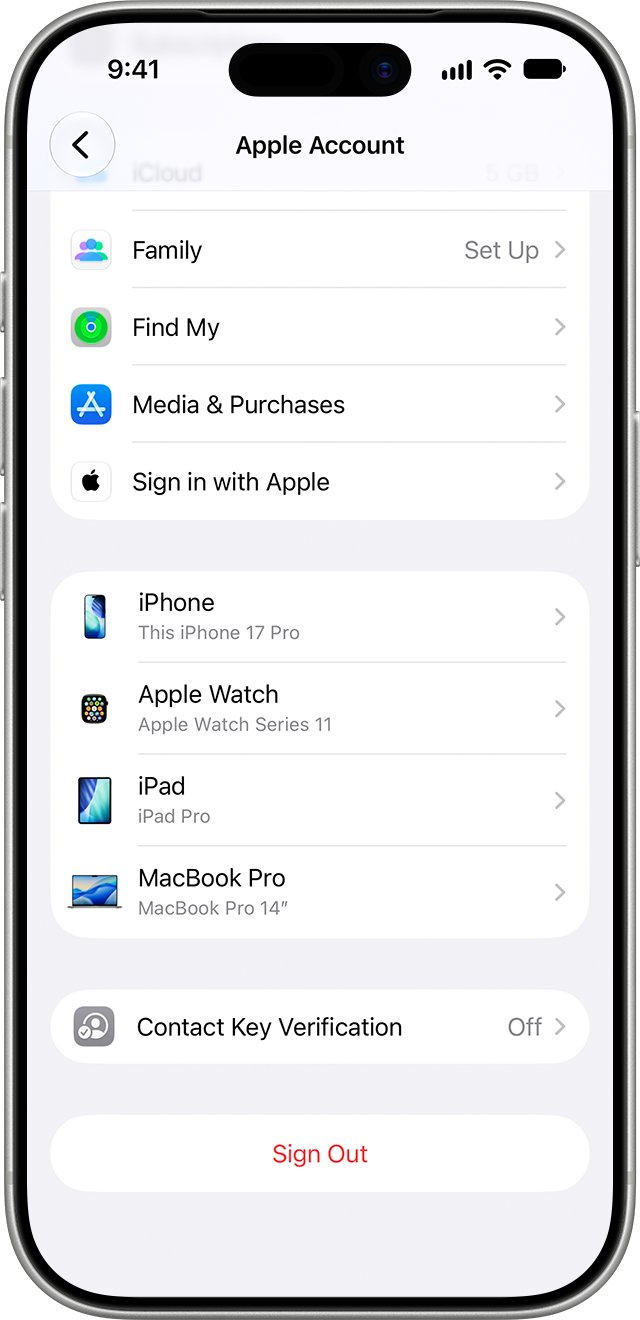
Sign out and back in to stop the Apple Account password prompt
The pop-up that says "Apple Account required" only offers a password field, so it cannot accept the account name it then asks for. Signing in again from Settings gives you both fields.
- Open Settings and tap your name.
- Scroll to the bottom and tap Sign Out.
- Choose Sign Out But Don't Erase to keep your data on the iPhone.
- Enter your iPhone passcode or Apple Account password when asked, then tap Confirm and Sign Out.
- Go back to Settings and tap Apple Account.
- Tap Sign in Manually, enter your email address or phone number, then enter your password.
- Enter the six-digit verification code if two-factor authentication asks for one.
Apple advises changing your password first if you do not know it, because you need it to sign back in. Make sure you have a recent iCloud backup before you sign out.
Which iPhone password prompt fix do you need?
| What the iPhone asks for | Fix to use | Why |
|---|---|---|
| "Apple Account required", then "You must enter both your Apple Account and password" | Sign out and sign back in manually | The pop-up has no account field, so Settings sign-in is the only complete route |
| Apple Account password several times a day | Update iOS, then restart | Apple's software updates carry security updates and bug fixes |
| Apple Account password after you changed it elsewhere | Enter the new password, or change it again on the iPhone | Other devices may stay signed in with stale details |
| Password you no longer know | Reset it with Forgot password? | A trusted device or recovery details can set a new one |
| Email, Outlook, Exchange, IMAP or Google password | Remove and re-add the mail account | Mail asks for the email provider's password, not your Apple Account |
| Cannot sign out because Apple Account is greyed out | Change Screen Time restrictions | Accounts set to Don't Allow blocks sign-out |
Why does iPhone keep asking for Apple Account password?
| Cause | What you see | Fix |
|---|---|---|
| Sign-in session no longer accepted | "Apple Account required: please sign in to your Apple Account in Settings" at random times | Sign out and back in |
| Password changed for security reasons | Prompts on every device, sometimes with a verification code | Sign in with the current password |
| Older iOS version | Repeated prompts that continue after you enter the right password | Install the latest iOS |
| Apple Account service problem | Many prompts or failed sign-ins at once | Check Apple's System Status page |
| A mail account's password changed | "Enter password" for an email address, not Apple Account | Update or re-add the mail account |
| Old devices still on the account | Prompts linked to devices you no longer use | Remove them from your device list |
Apple says a device asks for a verification code again only if you sign out completely, erase it, or need to change your password for security reasons.
What you need before you sign back in to your Apple Account
| Item | Why it matters |
|---|---|
| Your Apple Account email address or phone number | Manual sign-in asks for the account name first |
| Your current Apple Account password | Needed to sign back in after signing out |
| A trusted device or trusted phone number | Receives the six-digit verification code |
| Your iPhone passcode | Confirms sign-out and may be needed for end-to-end encrypted iCloud data |
| A recent iCloud or computer backup | Protects your data if anything goes wrong |
| Wi-Fi or cellular connection | Sign-in and verification need the internet |
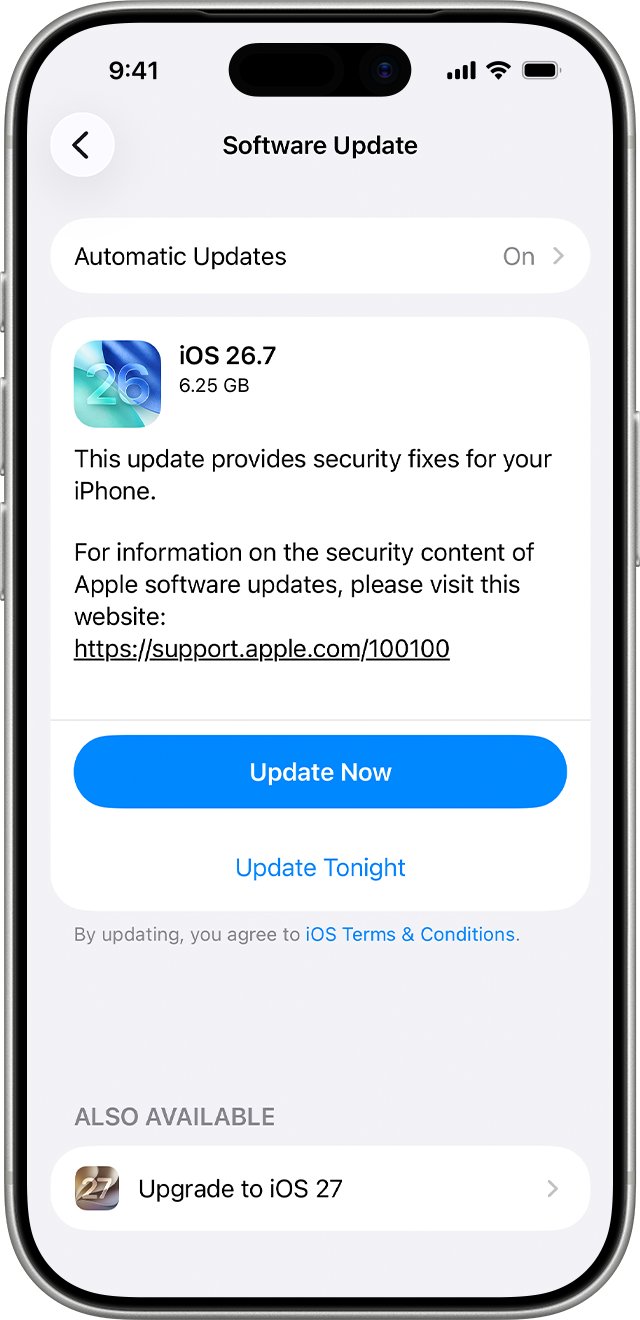
Update iOS to fix repeated Apple Account sign-in prompts
- Back up your iPhone with iCloud or a computer.
- Plug the iPhone into power and connect to Wi-Fi.
- Open Settings and tap General.
- Tap Software Update to see your current iOS version.
- If an update is available, tap Download and Install and follow the onscreen instructions.
- After the restart, wait a few minutes to see if the password prompt returns.
A VPN or proxy connection can stop the iPhone from reaching Apple's update servers, so turn it off if the update will not download.
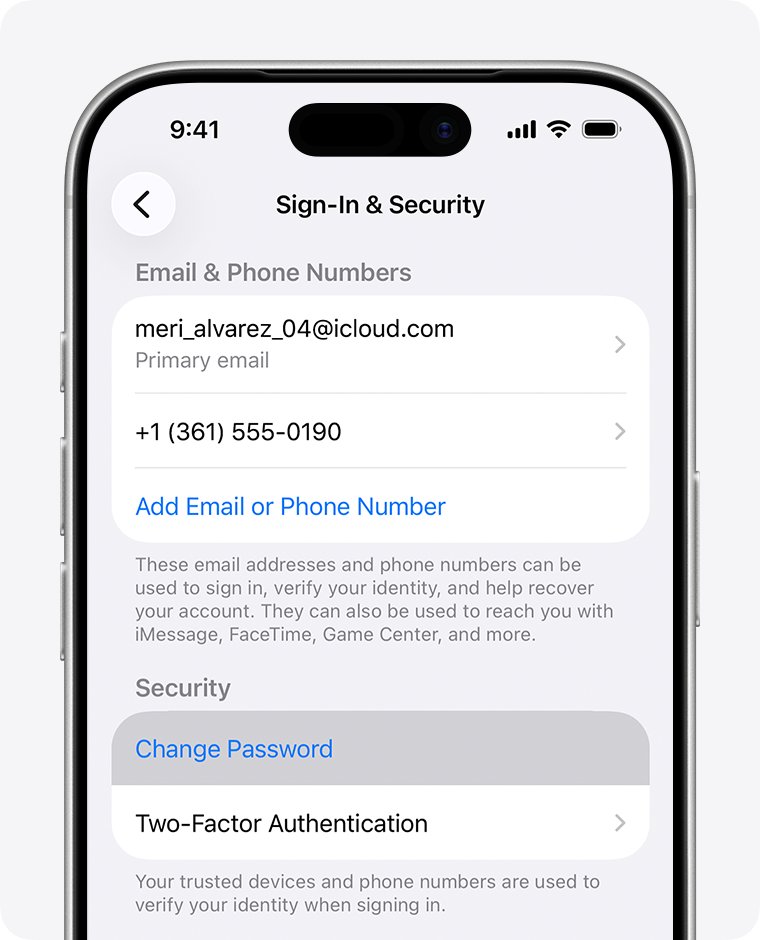
Change your Apple Account password on iPhone
A fresh password ends any sign-in session that is stuck, and you can choose to sign other devices out at the same time.
- Open Settings and tap your name.
- Tap Sign-In & Security.
- Tap Change Password.
- Follow the onscreen prompts to set a new password.
- Tap Remove Other Devices if you want every other device to sign in again with the new password.
- If Stolen Device Protection is on, wait up to one hour for the change to take effect.
If you forgot the password, tap Forgot password? at any Apple Account sign-in screen and follow the steps. You can also change your Apple Account password from a Mac if it is signed in to the same account.
Remove old devices from your Apple Account
- Open Settings and tap your name.
- Scroll down to the list of devices signed in to your Apple Account.
- Tap a device you no longer use or do not recognise.
- Tap Remove from Account, read the message and confirm.
- Repeat for any other old device.
A removed device loses access to iCloud and Find My and stops showing verification codes. It appears again only if someone signs in on it.
Fix iPhone Mail keeps asking for email password
Prompts that name an email address come from the Mail app, so your Apple Account is not involved. Outlook, Exchange, IMAP and Google accounts ask again when the provider's password changes.
- Change or confirm the password with your email provider first.
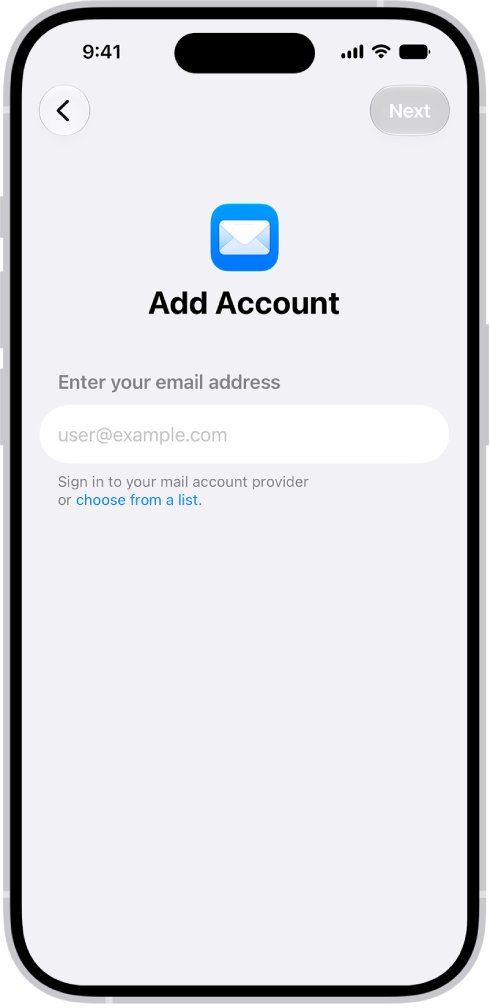
- Open Settings, tap Apps, then tap Mail.
- Tap Mail Accounts and tap the account that keeps asking.
- Tap Sign Out or Delete Account. This removes it from the iPhone without closing the account.
- Tap Add Account, choose your provider, such as Microsoft Exchange or Google, or tap Add Other Account.
- Enter your email address and the current password, then tap Next and finish setup.
Check that the iPhone stopped asking for your password
- Open Settings and confirm your name appears at the top instead of a sign-in option.
- Tap your name and confirm your iPhone appears in the device list.
- Open the App Store and download a free app or update without a password request.
- Open Mail and pull down to refresh each inbox without a password request.
- Use the iPhone normally for a day and confirm no random password pop-ups return.
Fix iPhone password prompts that keep coming back
Can't sign out because Apple Account is greyed out
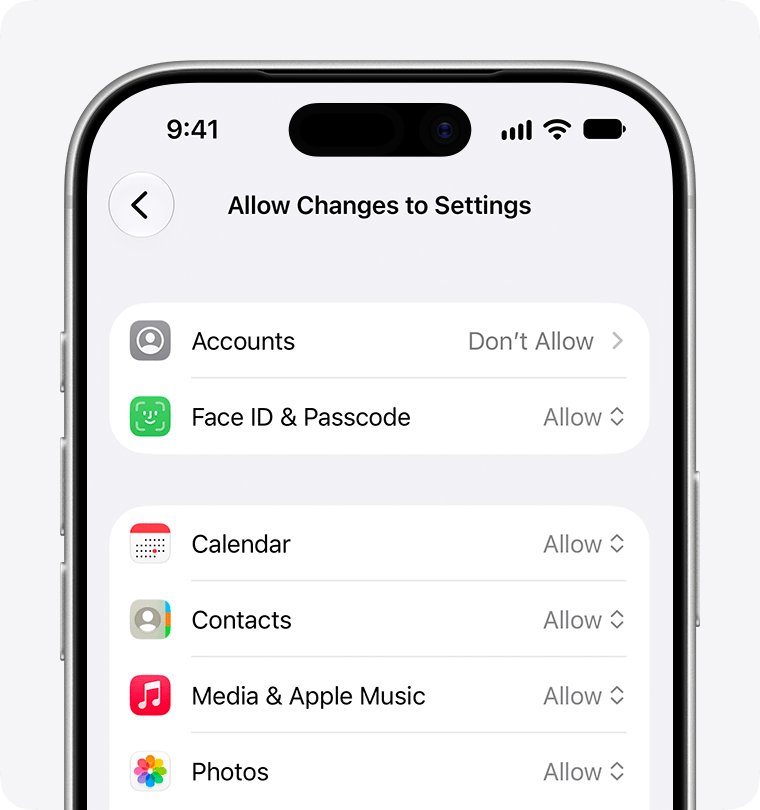
Screen Time restrictions or a Screen Time passcode block account changes.
- Open Settings > Screen Time > Content & Privacy Restrictions.
- Tap Allow Changes to Settings, then Accounts, and choose Allow.
- If sign-out is still blocked, go to Screen Time > Change Screen Time Passcode > Turn Off Screen Time Passcode.
- For a child account in Family Sharing, ask the organiser or guardian to make the change.
Why does Apple keep asking for password after entering it correctly?
Apple's account services may be having a problem, or the iPhone needs a restart.
- Open Apple's System Status page and check Apple Account and iCloud Account & Sign In.
- If both show as available, force restart: press and release volume up, press and release volume down, then hold the side button until the Apple logo appears.
- Sign out and back in again from Settings.
iPhone App Store keeps asking for password
The App Store sign-in uses your Apple Account, so a stuck sign-in shows up there first.
- Update iOS from Settings > General > Software Update.
- Sign out and back in to your Apple Account from Settings.
- Check Media & Purchases under your name in Settings shows the right Apple Account.
Prompts continue after every other fix
A changed setting may be interfering with account services.
- Back up the iPhone.
- Open Settings > General > Transfer or Reset iPhone > Reset.
- Tap Reset All Settings. This resets settings but deletes no data or media.
- Sign in to Wi-Fi again, then check whether the prompt returns.
iPhone keeps asking for Apple Account password FAQ
Why does my iPhone keep asking for my password?
Your iPhone asks again when its Apple Account sign-in is no longer accepted, after a password change, or because of a bug in older iOS. Sign out of your Apple Account in Settings, sign back in manually, and install the latest iOS update.
Why does my iPhone keep asking for my Apple ID password?
Apple ID is now called Apple Account, and the prompt usually means the saved sign-in needs renewing. Sign out from Settings > [your name] > Sign Out, choose Sign Out But Don't Erase, then sign in again with your email and password.
Why is my iPhone asking for my Apple ID password at random times?
Random prompts usually come from a sign-in session that has stopped working or from an outdated iOS version. Update iOS, restart the iPhone, and sign out and back in to your Apple Account if the prompt returns.
Why does Apple keep asking for my password after I enter it?
Apple account services may be down, or the pop-up cannot complete sign-in because it has no account field. Check Apple's System Status page, then sign in from Settings, where you enter both the account and the password.
What does "You must enter both your Apple Account and password" mean?
It means the sign-in needs your Apple Account email or phone number as well as the password. The random pop-up only shows a password field, so sign out in Settings and use Sign in Manually to enter both.
Why does my iPhone keep asking for my email password?
Mail asks for your email provider's password when it changes or stops working. Update the password with your provider, then remove and re-add the account in Settings > Apps > Mail > Mail Accounts.
Why does my iPhone keep asking for my Outlook or Exchange password?
The Outlook or Exchange account in Mail is using an old password or needs signing in again. Delete the account in Settings > Apps > Mail > Mail Accounts, then add it back with Microsoft Exchange or your provider and the current password.
Why does my iPhone keep asking me to change my password?
Apple can require a password change for security reasons, and you then sign in again on each device. Change it in Settings > [your name] > Sign-In & Security > Change Password and use the new password everywhere.

![How to change your user account picture in Windows 11? [Easy steps]](https://techdows.com/wp-content/uploads/2026/10/How-to-Change-Your-User-Account-Picture-in-Windows-11-Easy-Steps-600x338.jpg)