If you are unable to disable Find My iPhone, the usual cause is Stolen Device Protection, which keeps Find My switched on until you turn that feature off first.
This guide covers the normal Settings route, every blocker Apple documents (Stolen Device Protection, Screen Time restrictions, a forgotten Apple Account password, a work-managed phone) and how to remove a broken or sold iPhone on iCloud.com.
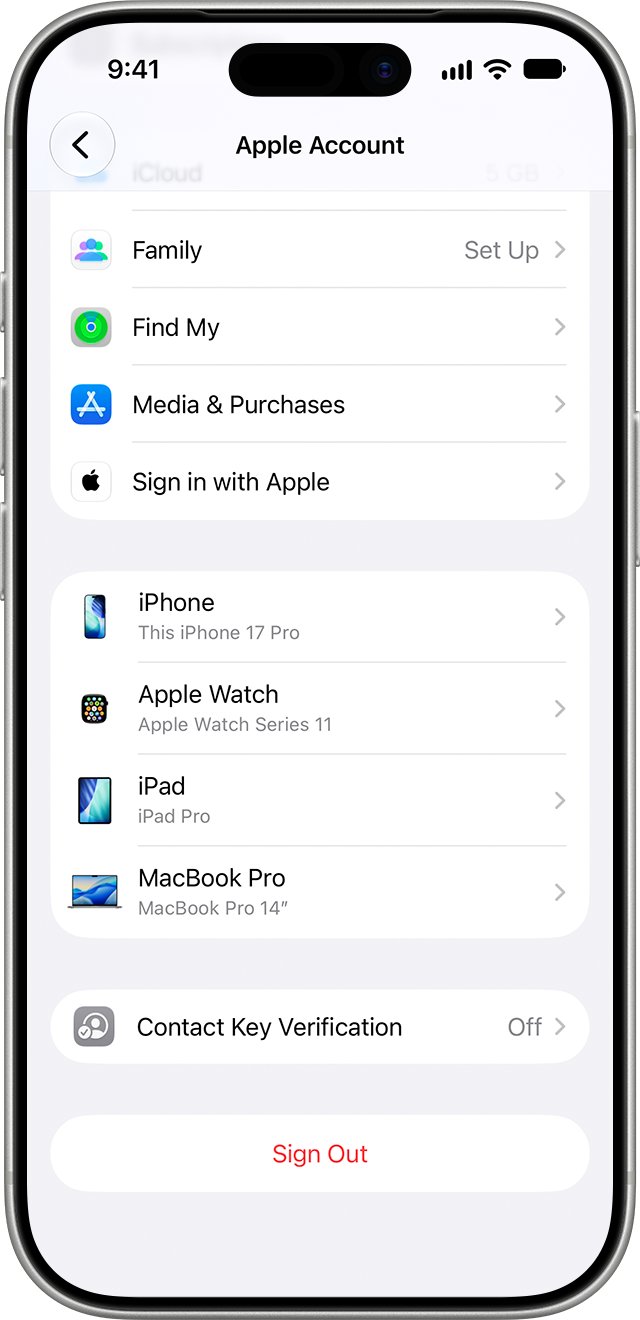
How to disable Find My iPhone in Settings
This is the route Apple documents for current iOS versions. You need the iPhone in hand and your Apple Account password.
- Open the Settings app on the iPhone.
- Tap [your name] at the top of the list.
- Tap Find My.
- Tap Find My iPhone, then tap the switch to turn it off.
- Enter your Apple Account password, then tap Turn Off.
If the switch will not move, the switch is dimmed, or iOS says Find My cannot be turned off, use the table below to find the blocker.
Why you cannot turn off Find My iPhone: causes and fixes
| What you see | Likely cause | What to do |
|---|---|---|
| Find My iPhone stays on and iOS refuses to turn it off | Stolen Device Protection is on; Apple states Find My can't be turned off while it is enabled | Turn off Stolen Device Protection in Face ID & Passcode, then retry |
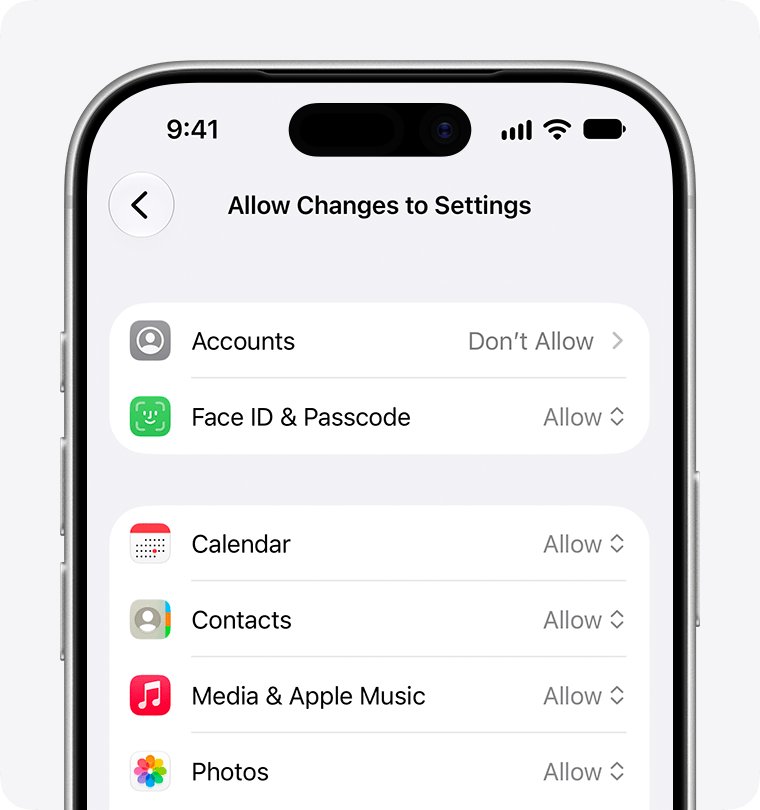
| Your name or Apple Account is grayed out in Settings | Screen Time Content & Privacy Restrictions block account changes | Set Accounts to Allow under Allow Changes to Settings |
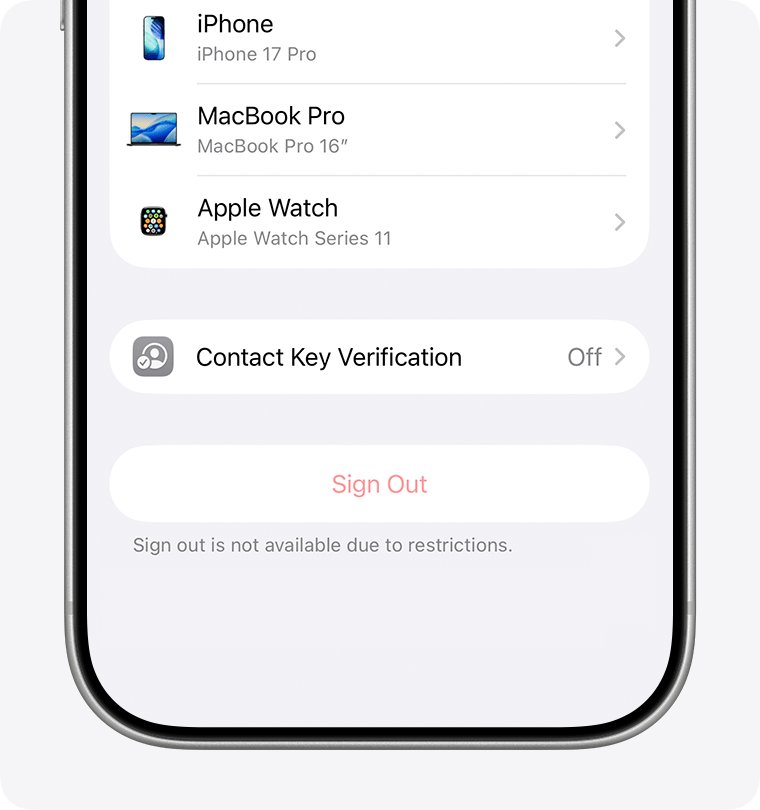
| "Sign out is not available due to restrictions" | A Screen Time passcode is set | Turn off the Screen Time passcode, or ask the parent who set it |
| The password prompt rejects your password | Wrong Apple Account, or a forgotten password | Reset the password with Forgot password? and try again |
| The iPhone is broken, will not turn on, or is already sold | There is no way to reach Settings on the device | Use Remove This Device at icloud.com/find |
| The iPhone belongs to an employer or school | The device is managed by the organization | Contact the IT department or manager |
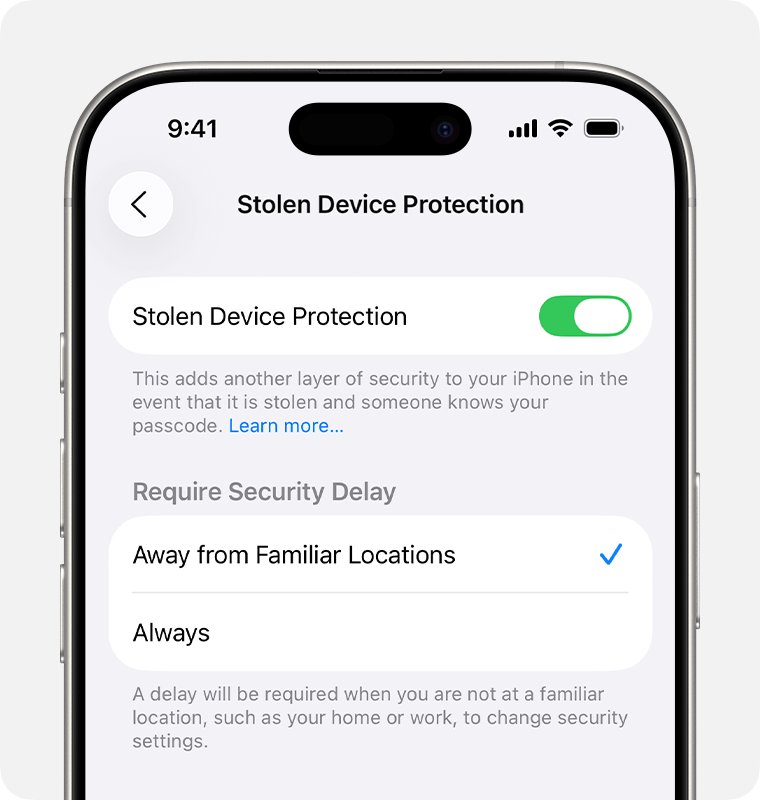
Turn off Stolen Device Protection to disable Find My iPhone
Stolen Device Protection needs Find My, and Apple states you can't turn Find My off while Stolen Device Protection is enabled. It is available on iOS 17.3 or later and may be on by default.
Away from familiar locations such as home or work, turning it off starts a one-hour security delay. Do this at home to skip the wait.
- Open Settings and tap Face ID & Passcode (or Touch ID & Passcode).
- Enter your iPhone passcode.
- Tap Stolen Device Protection, then turn it off.
- If a security delay starts, wait the hour, then authenticate with Face ID or Touch ID again to finish.
- Go to Settings > [your name] > Find My > Find My iPhone and turn it off.
- Enter your Apple Account password and tap Turn Off.
Apple advises turning off Stolen Device Protection before you sell, give away or trade in an iPhone, so this step belongs in any hand-over checklist.
Find My iPhone grayed out: allow account changes in Screen Time
When your name or Apple Account is dimmed in Settings, Screen Time restrictions are the documented cause. You cannot reach Find My until account changes are allowed again.
- Open Settings and tap Screen Time.
- Tap Content & Privacy Restrictions.
- If All Restrictions is on, scroll down to Privacy Restrictions.
- Tap Allow Changes to Settings.
- Tap Accounts and set it to Allow, entering the Screen Time passcode if asked.
- Set any other entry on that screen that shows Don't Allow to Allow.
- Return to Settings > [your name] > Find My and turn off Find My iPhone.
To remove the Screen Time passcode itself, open Settings > Screen Time > Manage Screen Time > Change Screen Time Passcode > Turn Off Screen Time Passcode.
On a child account in Family Sharing, only the parent or guardian can enter the Screen Time passcode, and changes to it are made on their device.
Disable Find My iPhone when you forgot the Apple Account password
Activation Lock requires your Apple Account password before anyone can turn off Find My, erase the iPhone or reactivate it. There is no way around that prompt, so reset the password first.
- On the password prompt, or in Settings > [your name], tap Forgot password?.
- Follow the onscreen steps; iOS sends you to a trusted device or asks for a code sent to your trusted phone number.
- Set a new password you will remember.
- Go back to Settings > [your name] > Find My > Find My iPhone and turn it off with the new password.
- If you have no trusted device or trusted phone number, start account recovery at iforgot.apple.com in Safari, or in the Support app under Reset Password.
Account recovery can take several days or more. Signing in with your password cancels a pending recovery request, so do not keep guessing during the wait. If you are unsure which address your account uses, try each email address or phone number you use with Apple; any one tied to the account works. You can also sign in with your Apple ID on another Apple device to test the password.
Disable Find My iPhone on iCloud.com when the phone is broken or sold
If the iPhone will not turn on, has a dead screen, or is already with a new owner, remove it from your account on the web. This lifts Activation Lock without touching the phone.
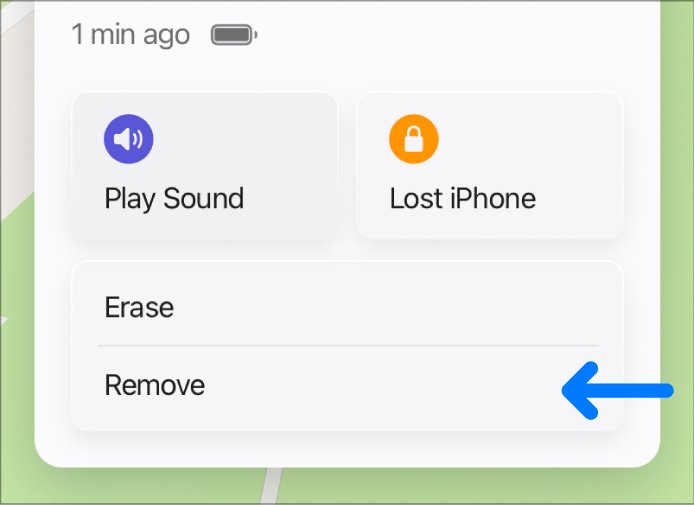
- Go to icloud.com/find in a browser and sign in to your Apple Account.
- Select the iPhone in the list of devices.
- If you no longer own it, choose Erase iPhone first and leave the phone number and message blank.
- After the erase finishes, or straight away for a dead offline phone, select Remove This Device.
- Confirm the removal.
An offline device has Activation Lock removed at once and leaves Find My after 30 days. An online iPhone cannot always be removed this way; selecting Continue marks it Ready for Repair or Trade In for 30 days instead.
If an offline iPhone comes back online after those 30 days while still signed in to your account, it reappears in the list and Activation Lock turns back on.
Other ways to turn off Find My iPhone and Activation Lock
| Route | Where | What happens to Find My |
|---|---|---|
| Turn off the Find My iPhone switch | Settings > [your name] > Find My > Find My iPhone | Find My and Activation Lock turn off; your data stays |
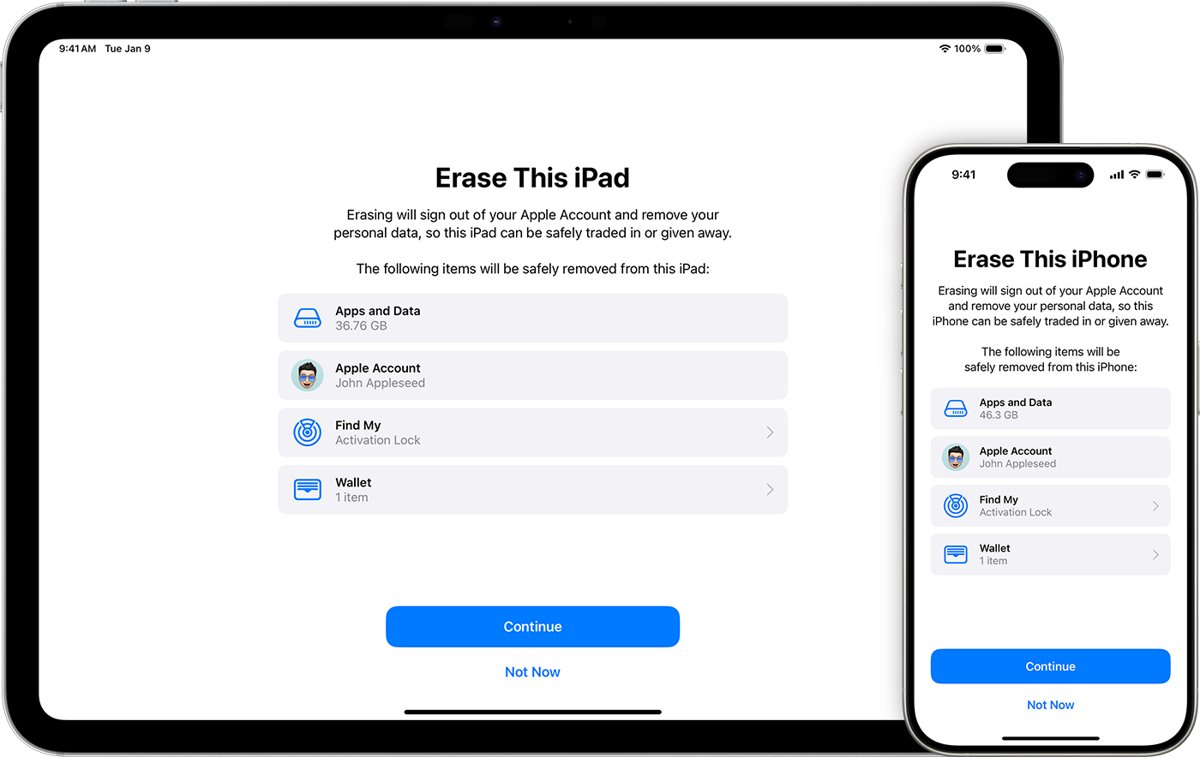
| Sign out of the Apple Account (iOS 26 or later) | Settings > [your name] > Sign Out, then Erase this iPhone or Sign Out But Don't Erase | The iPhone leaves your account and Find My |
| Erase the iPhone | Settings > General > Transfer or Reset iPhone > Erase All Content and Settings | Find My and Activation Lock turn off; you may be asked for your Apple Account password |
| Remove from the account list | Settings > [your name], tap the device, then Remove from Account | Signs the device out remotely; it can reappear if still signed in |
| Remove in Find My on another iPhone | Find My > Devices > device > Remove | Works when the device is offline |
With Stolen Device Protection on, signing out of your Apple Account and erasing all content and settings also carry the extra Face ID, Touch ID or delay requirements away from familiar locations.
How to check Find My iPhone is turned off
- Open Settings > [your name] > Find My and confirm Find My iPhone reads Off.
- On another device, open Find My and tap Devices, or sign in at icloud.com/find.
- Confirm the iPhone is gone from the device list, or shows as removed.
- If you are selling the phone, erase it and check that it starts at the Hello screen with no request for your Apple Account.
A buyer who sees a request for the previous owner's Apple Account during setup is looking at a phone still linked to that account.
Cannot turn off Find My iPhone: fixes by symptom
Find My iPhone will not turn off and no password prompt appears
Stolen Device Protection keeps Find My on.
- Open Settings > Face ID & Passcode and enter your passcode.
- Turn off Stolen Device Protection, waiting out the security delay if one starts.
- Turn off Find My iPhone again.
Find My iPhone or your Apple Account is grayed out
Screen Time restrictions block account changes.
- Open Settings > Screen Time > Content & Privacy Restrictions.
- Open Allow Changes to Settings and set Accounts to Allow.
- Ask the parent or guardian for the Screen Time passcode if this is a child account.
The Apple Account password is not accepted
The phone is signed in to a different account, or the password has changed.
- Check the email address shown under [your name] in Settings.
- Tap Forgot password? and reset the password for that account.
- Retry the Turn Off prompt with the new password.
The iPhone will not turn on or the screen is broken
Settings cannot be reached on the device.
- Sign in at icloud.com/find from any browser.
- Select the iPhone and choose Remove This Device.
- Keep the phone powered off so it stays offline while Activation Lock is removed.
Activation Lock screen on a used iPhone you bought
The previous owner never turned off Find My.
- Ask the seller to enter their Apple Account password on the iPhone.
- If they are not present, ask them to remove the device at icloud.com/find.
- With proof of purchase, start an Activation Lock support request with Apple.
What turning off Find My iPhone changes
Turn off Find My iPhone only when you are selling, trading in or servicing the phone, or moving it to a new account. Turning it off also removes Activation Lock, the feature that stops a thief from erasing and reactivating your iPhone, and you can no longer locate it, mark it as lost or erase it remotely.
If the goal is just to hide your location from friends, you can stop sharing your location in Find My instead of turning off Find My iPhone.
Find My iPhone disable FAQ
How do I disable Find My iPhone?
Open Settings, tap your name, tap Find My, then tap Find My iPhone and turn the switch off. Enter your Apple Account password and tap Turn Off. Find My and Activation Lock then switch off on that iPhone.
Why can't I turn off Find My iPhone?
The most common reason is Stolen Device Protection, which Apple says keeps Find My on while it is enabled. A grayed-out account caused by Screen Time restrictions, a forgotten Apple Account password or a work-managed phone also blocks the switch.
Can I disable Find My iPhone without the password?
No. Activation Lock requires the Apple Account password before anyone can turn off Find My, erase the iPhone or reactivate it. If you forgot it, reset it with Forgot password? or start account recovery at iforgot.apple.com, then turn Find My off.
How do I disable Find My iPhone from a computer?
Sign in at icloud.com/find, select the iPhone and choose Remove This Device. An offline iPhone has Activation Lock removed immediately. If you no longer own the phone, erase it first, then remove it from the list.
Does turning off Find My iPhone remove Activation Lock?
Yes. Activation Lock turns on automatically with Find My, and turning off Find My iPhone on the device removes it and disconnects the iPhone from your Apple Account. Erasing the iPhone also turns off both.
What does Find My iPhone is disabled mean?
It means the Find My iPhone switch is off, so the phone cannot be located, locked or erased remotely, and Activation Lock is not protecting it. Turn it back on in Settings, your name, Find My, Find My iPhone.
Can Apple disable Find My iPhone for me?
Apple can help remove Activation Lock if you have proof of purchase. Start an Activation Lock support request from Apple's How to remove Activation Lock page. For a phone owned by a business or school, the organization's IT department handles it.
Why is Find My unable to find my iPhone?
Find My shows no current location when the iPhone is offline or its battery is dead. You can see the last known location for up to seven days; after that it shows No location found. An online phone with a Location Services problem shows Not sharing location.