To keep a backlit keyboard always on, change the backlight timeout in the laptop's firmware or settings, such as Keyboard Backlight Timeout set to Always On in a Dell BIOS, and turn off any automatic dimming in Windows or macOS.
This guide covers Dell, HP, Lenovo, ASUS and Mac laptops, the Windows settings that switch the light off on their own, and fixes when the backlight still goes dark.
Keep a laptop keyboard backlight always on (fastest route)
The backlight timeout lives in the laptop firmware, not in Windows. Dell documents the clearest version of this setting.
- Press the backlight hotkey (often Fn plus a key with a keyboard-light icon) to turn the light on.
- Shut the laptop down completely, not Sleep or Hibernate.
- Turn it on and press the firmware key at the logo; on Dell it is F2, pressed once per second.
- Open the Keyboard section and find the backlight timeout setting.
- Set Keyboard Backlight Timeout to Always On.
- Apply the change, exit, and let Windows start.
If your firmware has no timeout setting, use the brand sections below. On many laptops the light turns off because an automatic mode or an ambient light sensor is active, not because of a timer. If the light never comes on in the first place, turn on the keyboard light with your brand's hotkey first.
Backlit keyboard always on settings by laptop brand
| Laptop | Turn the light on | Keep it on |
|---|---|---|
| Dell | Fn + backlight key (often F5, F6, F7 or F10; right arrow on some XPS) | BIOS Keyboard Backlight Timeout > Always On; disable ALS if present |
| HP | Fn + backlight key (usually F5, F9 or F11; right arrow on some models) | Check the keyboard backlight options in BIOS settings; OMEN Command Center Lighting on OMEN |
| Lenovo | Fn + Space | Pick a fixed brightness level instead of auto |
| ASUS | Fn + F7, Fn + F3/F4, or Fn + Up/Down on gaming models | Use MyASUS or Armoury Crate lighting options where your model has them |
| MacBook | Brightness keys or System Settings > Keyboard | Set Turn keyboard backlight off after inactivity to the longest time |
If no key on the keyboard shows a backlight icon, the laptop has no backlit keyboard, and software cannot add one.
What is a backlit keyboard?
| Question | Answer |
|---|---|
| What it is | LEDs under the keys light the legends so you can type in low light |
| Why it turns off | A firmware timeout, an auto mode that lights only while typing, or an ambient light sensor |
| Benefits of backlit keyboards | Readable keys in dark rooms, adjustable levels, and less need for a desk lamp |
| Cost of always on | The backlight draws power, so a timeout saves battery when unplugged |
| Who controls it | On Dell, the embedded controller, so it works before Windows loads |
Dell backlit keyboard: set the backlight timeout to always on
Dell puts the timer in the Dell BIOS Setup Utility. Common values are 5, 15, 30 or 60 seconds, and Always On.
- Save your work and shut the laptop down completely.
- Press the power button and start pressing F2 once per second when the Dell logo appears. Do not hold it.
- In the BIOS Setup Utility, select Keyboard in the left panel.
- Set Keyboard Illumination to Dim or Bright, not Disabled.
- Set Keyboard Backlight Timeout to Always On.
- If you see Keyboard Illumination with ALS or Ambient Light Sensor, set it to Disabled.
- Select Apply Changes, then exit and restart.
The timeout is independent of Windows display sleep, so changing a Windows power plan does not affect it. Alienware laptops with zone or per-key RGB lighting use Alienware Command Center instead of these keys.
HP backlit keyboard: turn on and keep the light on
Backlit keyboards ship on HP ENVY, Pavilion, OMEN, Spectre and select EliteBook and ProBook models.
- Find the key with the keyboard-light icon, usually F5, F9 or F11.
- Press Fn with that key; on some models the right arrow key controls the light.
- Press the combination again to cycle through brightness levels until the light is at the level you want.
- Restart and open the HP BIOS settings, then confirm the keyboard backlight is turned on there.
- If the BIOS lists a backlight timeout option, set it to the value that never turns the light off.
- On OMEN laptops, open OMEN Command Center and go to Lighting to set a static color.
HP's BIOS menu names differ between consumer and business models, so look for keyboard or built-in device options.
Lenovo backlit keyboard: stop auto mode turning the light off
Lenovo keyboards with an auto setting light up only when you start typing or using the touchpad. Choosing a fixed level keeps the keys lit.
- Press Fn + Space to turn on the keyboard backlight.
- Press Fn + Space again to step through the brightness levels, off, and auto on models that have it.
- Stop on a fixed brightness level rather than auto.
- On Legion laptops, press Fn + Space to cycle lighting effects and use the Fn brightness keys to set brightness.
- Open Lenovo Vantage to personalize lighting effects on Legion models.
Lenovo backlit keyboard models include ThinkPad, Yoga and Legion lines, and the shortcut can differ by model, so check the shortcut keys page of your user guide. If Fn + Space works in the firmware setup screen but not in Windows, update the UEFI/BIOS firmware and the keyboard driver.
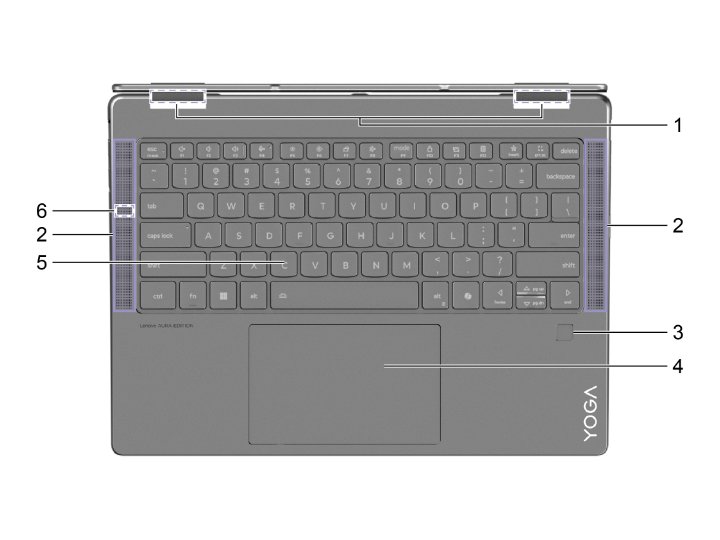
ASUS backlit keyboard shortcuts and settings
ASUS uses three hotkey layouts. Pressing the brightness-up combination past the highest level turns the light off, so stop on the level you want.
- On most ASUS laptops, press Fn + F7 to turn on and raise the backlight.
- On some models, press Fn + F4 to raise it and Fn + F3 to lower it.
- On ASUS gaming laptops, press Fn + Up to raise it and Fn + Down to lower it.
- If the F-keys act as hotkeys without Fn, the Function key lock setting is on; press the key alone.
- Open MyASUS or Armoury Crate to set lighting features on models that support them.
If the hotkeys chapter of your ASUS user manual lists no backlight key, the laptop has no backlit keyboard.
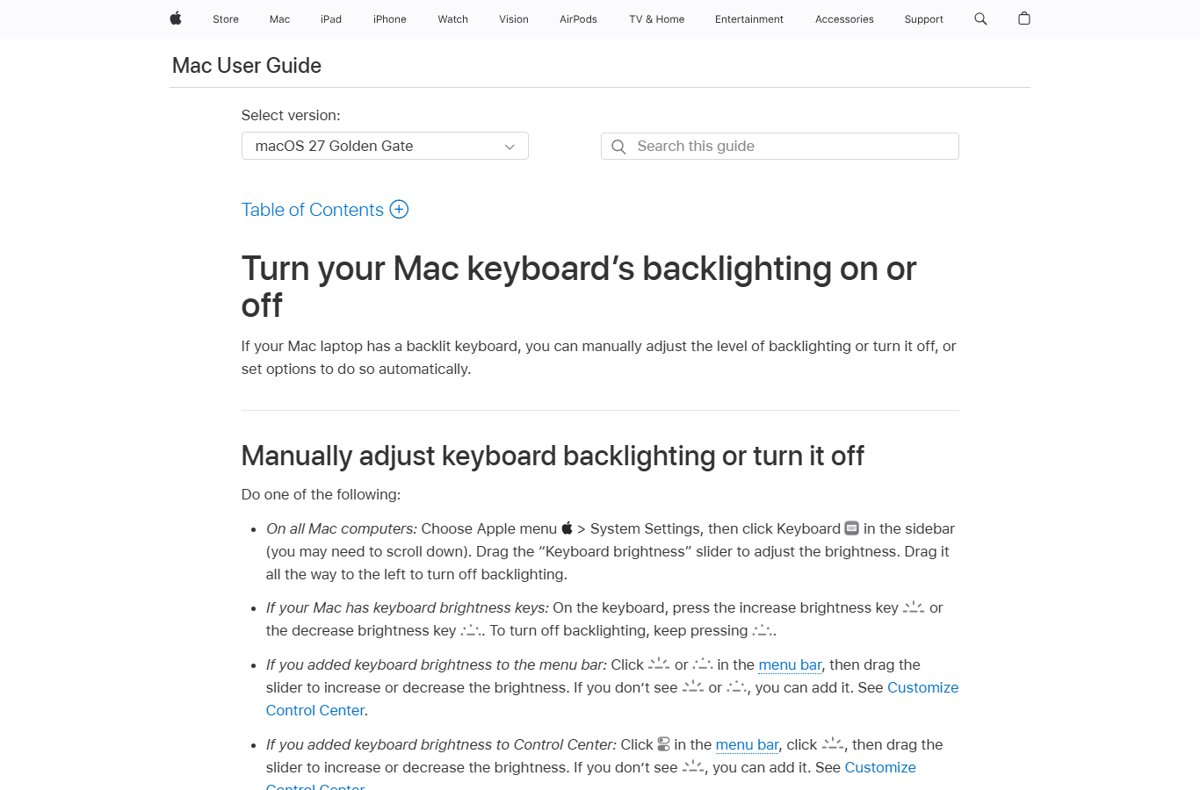
Keep a MacBook keyboard backlight on
- Choose Apple menu > System Settings.
- Click Keyboard in the sidebar; you may need to scroll down.
- Drag the Keyboard brightness slider to the level you want.
- Turn off Adjust keyboard brightness in low light so the sensor does not change the level.
- Click the pop-up menu next to Turn keyboard backlight off after inactivity and choose the longest time.
The light sensor sits at the top of the Mac near the camera. Covering it makes the automatic setting misjudge the room.
Windows 11 settings that turn the keyboard backlight off
On compatible laptops running Windows 11, version 25H2, build 26200.7922 or later, Windows can dim the backlight on its own.
| Setting | Path | Set it to |
|---|---|---|
| Automatic keyboard brightness | Settings > Bluetooth & devices > Keyboard > Keyboard backlight > Change keyboard brightness automatically when lighting changes | Off |
| Energy saver dimming | Settings > System > Power & battery > Energy saver > Lower keyboard brightness when using energy saver | Off |
These options appear only on laptops whose keyboard supports Windows backlight control. Windows display timeout settings do not control the firmware backlight timer.
How to check the keyboard backlight stays on
- Turn the backlight on with the hotkey.
- Leave the keyboard and touchpad untouched for longer than the old timeout, such as two minutes.
- Confirm the keys are still lit without pressing anything.
- Unplug the charger and repeat, since some laptops behave differently on battery.
- Restart the laptop and confirm the setting survived the reboot.
Keyboard backlight keeps turning off: fixes
Backlight works briefly, then turns off
A firmware timeout is set.
- Open the BIOS and set the backlight timeout to Always On where it exists.
- On Lenovo, move off the auto level with Fn + Space.
- On a Mac, raise the Turn keyboard backlight off after inactivity time.
Brightness changes back after you set it
An ambient light sensor or automatic brightness overrides manual control.
- On Dell, set Keyboard Illumination with ALS to Disabled in BIOS.
- In Windows 11, turn off Change keyboard brightness automatically when lighting changes.
- On a Mac, turn off Adjust keyboard brightness in low light.
Backlight dims on battery
Energy saver lowers the brightness.
- Turn off Lower keyboard brightness when using energy saver in Windows 11.
- Or plug in the charger, which ends energy saver.
Backlight does not turn on at all
The light is disabled in firmware, a driver is faulty, or the laptop has no backlight.
- Check that a key shows a backlight icon; without one, there is no backlight.
- On Dell, set Keyboard Illumination to Dim or Bright in BIOS.
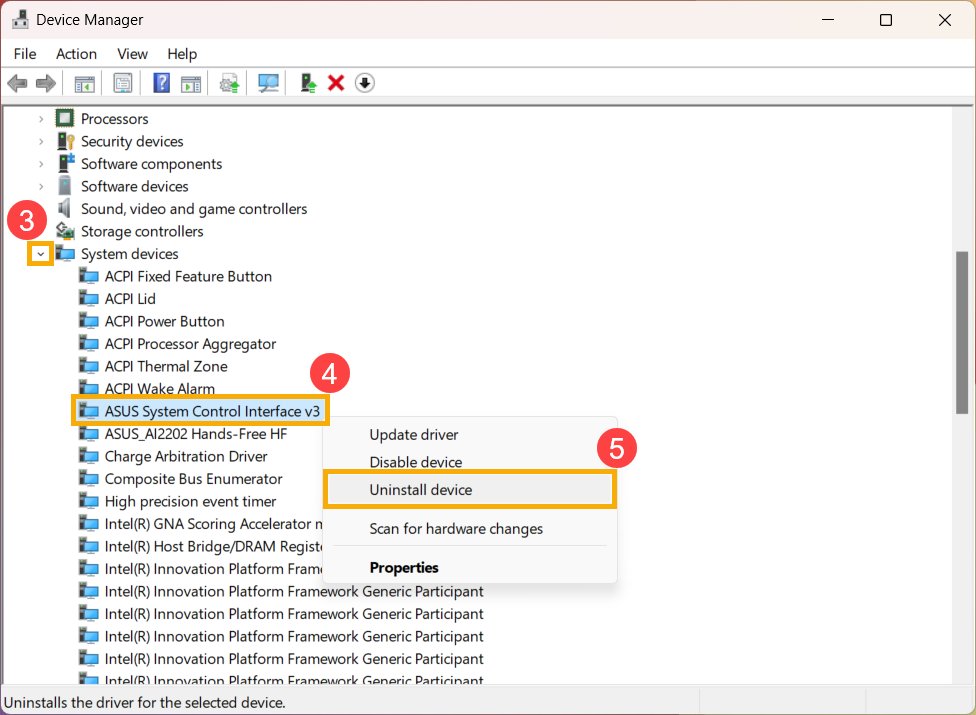
- On ASUS, restore BIOS defaults, update the BIOS and drivers, then reinstall the ASUS System Control Interface driver.
- On Lenovo, test Fn + Space in the firmware setup screen and update the keyboard driver if it works there.
Backlit keyboard always on FAQ
Why does my keyboard backlight turn off after a few seconds?
A backlight timeout in the firmware or settings turns it off when you stop typing. On Dell, set Keyboard Backlight Timeout to Always On in BIOS. On Lenovo, pick a fixed level instead of auto.
Can Windows keep the keyboard backlight always on?
Not directly. The timeout is in the laptop firmware. Windows 11 only adds automatic brightness and energy saver dimming on compatible keyboards, and you can turn both off in Settings.
Does an always-on keyboard backlight drain the battery?
Yes, the backlight uses power whenever it is lit. Dell suggests a shorter timeout when running on battery, and Always On when the light switching off becomes a problem.
How do I turn on the keyboard light on an HP laptop?
Press Fn with the key that shows a keyboard-light icon, usually F5, F9 or F11. Some HP models use the right arrow key. Press it again to change the brightness level.
What is the Lenovo backlit keyboard shortcut?
Press Fn + Space. Each press steps through the backlight levels, including off and, on some models, auto. Stop on a fixed level to keep the light on.
What is the ASUS backlit keyboard shortcut?
Most ASUS laptops use Fn + F7. Some use Fn + F4 and Fn + F3, and gaming models use Fn + Up and Fn + Down.
How do I know if my laptop has a backlit keyboard?
Look for a keyboard-light icon on a function key or arrow key. If no key has one and the user manual lists no backlight hotkey, the laptop has no backlit keyboard.
Can I keep my MacBook keyboard backlight on?
Set Turn keyboard backlight off after inactivity to the longest time in System Settings > Keyboard, and turn off Adjust keyboard brightness in low light so the sensor does not dim it.
Bottom line: keeping a backlit keyboard lit
Set the firmware timeout to Always On where your laptop has one, choose a fixed level instead of auto, and turn off automatic dimming in Windows or macOS. The timer and the sensors are what switch the light off; once all of them are disabled, the backlight stays at the level you set until you change it.