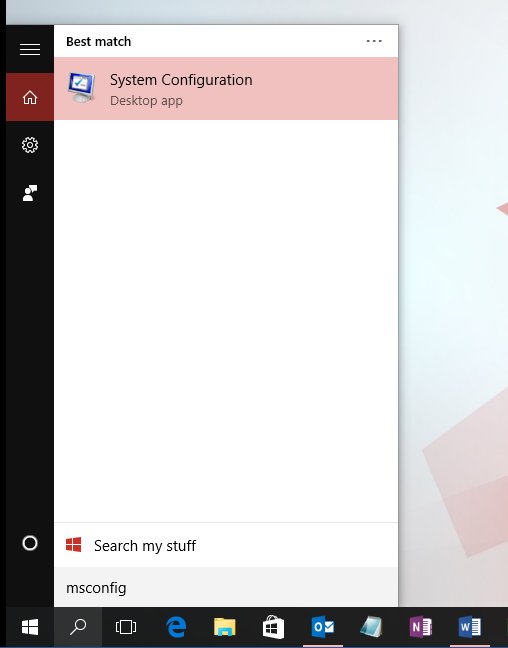
To access MsConfig in Windows 10, press Windows logo key + R, type msconfig in the Open box and press Enter to open System Configuration.
This guide covers each way to open it, what the General, Boot, Services, Startup and Tools tabs do, how to run a clean boot, and how to get out of a Safe boot loop.
Open MsConfig in Windows 10 from the Run box
The Run box is the quickest route and works from any screen on the desktop. You need to be signed in as an administrator to use System Configuration.
- Press Windows logo key + R to open the Run box.
- Type
msconfigin the Open box. - Select OK or press Enter.
- Enter an administrator password or select Yes if User Account Control asks.
- Confirm the System Configuration window opens on the General tab.
Ways to open MsConfig in Windows 10 compared
| Method | What to do | Best when |
|---|---|---|
| Run box | Press Win + R, type msconfig, press Enter |
Keyboard works and you want the fastest route |
| Taskbar search | Type msconfig in the Search box on the taskbar and select System Configuration |
You prefer the mouse or forget the command |
| Task Manager | File > Run new task, type msconfig |
The Start menu or search is not responding |
| Safe boot loop fix | Open MsConfig from Safe Mode with Win + R and clear Safe boot | Windows keeps restarting into Safe Mode |
Access MsConfig from Windows 10 search
- Select the Search box on the taskbar.
- Type
msconfig. - Select System Configuration from the list of results.
- Approve the User Account Control prompt if one appears.
If the network you are on is managed by a company, network policy settings can stop you from changing options in System Configuration.
Access MsConfig from Task Manager
Task Manager's Run new task box opens programs much like the Run box, and it can create a task with administrative privileges. Use it when the Start menu or search will not open.
- Press Ctrl + Shift + Esc to open Task Manager.
- Select File > Run new task.
- Type
msconfigand select the option to create the task with administrative privileges. - Select OK to open System Configuration.
MsConfig on Windows 10
MsConfig is the System Configuration utility (Msconfig.exe). Microsoft describes it as a tool that finds and isolates startup problems, not a startup manager: it temporarily stops services and programs from loading so you can test what causes an issue, then restore the original setup.
| Tab | What it controls in Windows 10 |
|---|---|
| General | Startup mode: Normal startup, Diagnostic startup or Selective startup with Load system services and Load startup items |
| Boot | Boot settings for the installed Windows, including the Safe boot checkbox under Boot options |
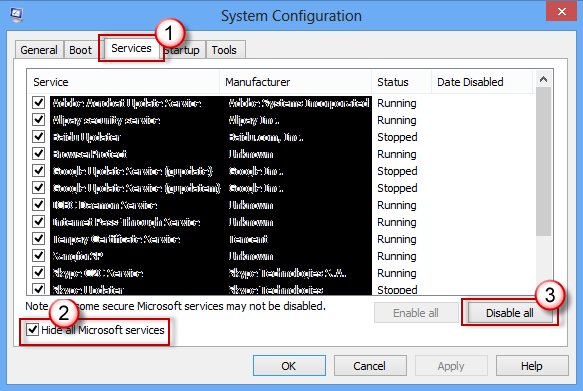
| Services | Turn individual services on or off at startup; Hide all Microsoft services, Disable all and Enable all buttons |
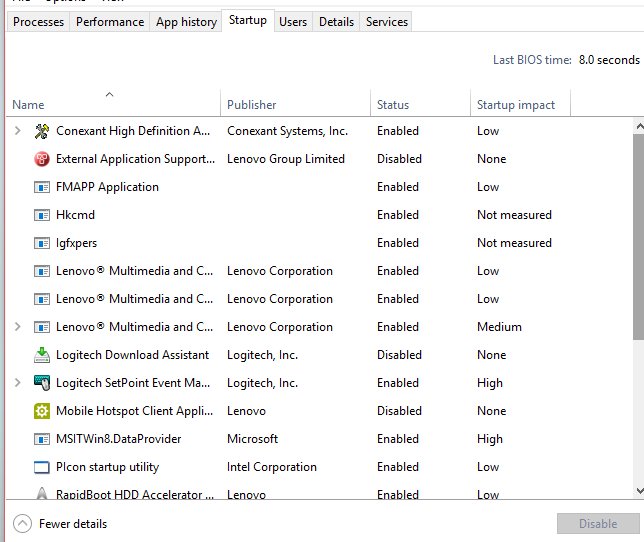
| Startup | In Windows 10 it no longer lists startup programs; select Open Task Manager to manage them on Task Manager's Startup tab |
| Tools | Launches diagnostic and admin tools and shows each tool's path and switches; select a tool and select Launch |
MsConfig can also change boot settings that would otherwise need the BCDEdit command, and Microsoft points to it as the safer graphical alternative. Microsoft also warns that an incorrect setting can stop Windows from starting, so back up the PC before changing boot options.
MsConfig startup options explained: normal, diagnostic and selective
| Option on the General tab | What loads | Use it to |
|---|---|---|
| Normal startup | All programs, services and device drivers (the Windows default) | Return to normal after troubleshooting |
| Diagnostic startup | Basic drivers and software only; services such as networking, Plug and Play, event logging, error reporting and System Restore are off | Check whether the problem exists in a minimal Windows |
| Selective startup | Only what you tick: Load system services, Load startup items, Use original boot configuration | Narrow the problem to services or startup items |
Clearing a checkbox on the Services tab switches the General tab to Selective startup automatically. Use original boot configuration cannot be changed.
Use MsConfig to perform a clean boot in Windows 10
A clean boot starts Windows with essential drivers and a minimal set of startup programs, which isolates software conflicts better than Safe Mode. Note what you turn off so you can turn it back on.
- Sign in as an administrator and open MsConfig.
- On the Services tab, select Hide all Microsoft services, then select Disable all and Apply.
- On the Startup tab, select Open Task Manager.
- On Task Manager's Startup tab, select each Enabled item and select Disable.
- Close Task Manager.
- On the Startup tab of System Configuration, select OK and restart the PC.
If the problem disappears, turn services back on half at a time and restart after each change until one service or startup app brings it back. Some features may not work while the PC is in a clean boot state. To review startup apps in more detail, view all startup programs in Task Manager.
Reset MsConfig to normal startup after troubleshooting
- Open MsConfig.
- On the General tab, select Normal startup.
- On the Services tab, clear Hide all Microsoft services, select Enable all, then select Apply.
- On the Startup tab, select Open Task Manager and enable each startup program you disabled.
- Select OK in System Configuration.
- Select Restart when prompted.
Check MsConfig changes took effect
- After the restart, open MsConfig again.
- Check that the General tab shows the mode you chose: Normal startup, Diagnostic startup or Selective startup.
- On the Services tab, confirm the services you meant to change show the right checkbox state.
- On the Boot tab, confirm Safe boot is cleared unless you want Safe Mode.
- Open Task Manager's Startup tab and check the status column for the apps you changed.
MsConfig problems in Windows 10 and fixes
Windows 10 keeps booting into Safe Mode
Safe boot is ticked on the MsConfig Boot tab, so every restart goes back to Safe Mode.
- Press Windows logo key + R, type
msconfigand select OK. - Select the Boot tab.
- Under Boot options, clear the Safe boot checkbox.
- Select OK and restart.
Safe boot is set but MsConfig cannot be reached
The safeboot value is still in the boot configuration data.
- Open Command Prompt as administrator.
- Run
bcdedit /deletevalue {default} safeboot. - Restart the PC to start in normal mode.
MsConfig changes are blocked or greyed out
You are not signed in as an administrator, or network policy on a managed PC prevents the change.
- Sign in with an administrator account.
- Open MsConfig again and approve the User Account Control prompt.
- On a work or school PC, ask the administrator, because policy settings override local changes.
Error: The Windows Installer service could not be accessed
Load system services is cleared, so Windows Installer does not start.
- Search for
computer managementand open Computer Management. - Expand Services and Applications and select Services.
- Right-click Windows Installer and select Start, then run the setup again.
Windows 10 will not start after an MsConfig change
A boot or service setting stopped Windows from loading.
- Let the PC fail to start a few times so it opens the Windows Recovery Environment.
- Select Troubleshoot > Advanced options > Startup Settings > Restart.
- Press 4 for Enable Safe Mode, then open MsConfig and select Normal startup.
If you still need Safe Mode on purpose, you can enable the F8 key for the Safe Mode boot menu instead of leaving Safe boot ticked.
MsConfig in Windows 10 FAQ
What is the command to open MsConfig in Windows 10?
The command is msconfig. Press Windows logo key + R, type msconfig in the Open box and press Enter, and the System Configuration utility opens on the General tab.
Do I need administrator rights to use MsConfig?
Yes. Microsoft states you must be signed in as an administrator or a member of the Administrators group to use System Configuration, and Windows shows a User Account Control prompt when you open it.
Can I manage startup programs in MsConfig on Windows 10?
Not directly. The Startup tab in Windows 10 shows an Open Task Manager link, and startup programs are enabled or disabled on Task Manager's Startup tab instead.
What does Diagnostic startup do in MsConfig?
Diagnostic startup loads only basic drivers and software and turns off services such as networking, Plug and Play, event logging, error reporting and System Restore. Use it to see whether a problem exists in a minimal Windows.
How do I get out of Safe Mode set in MsConfig?
Open MsConfig, select the Boot tab, clear the Safe boot checkbox under Boot options, select OK and restart. Windows then starts normally instead of returning to Safe Mode.
Is it safe to disable services in MsConfig?
Disabling third-party services after selecting Hide all Microsoft services is the method Microsoft uses for a clean boot. Disabling Microsoft services can turn off networking and other features, so leave them alone unless a support engineer advises otherwise.
How do I undo changes made in MsConfig?
Open MsConfig, choose Normal startup on the General tab, select Enable all on the Services tab, re-enable startup apps in Task Manager, then select OK and restart.
MsConfig in Windows 10: conclusion
Open MsConfig with Win + R and msconfig, use Selective startup or a clean boot to find a misbehaving service, and return to Normal startup with Safe boot cleared once you are done. System Configuration is a troubleshooting switchboard, not a place to leave settings changed; a forgotten Safe boot tick or disabled service causes more problems than it solves.




![Troubleshooting headphone detection on Windows 11, 10 [Step-by-step]](https://techdows.com/wp-content/uploads/2026/10/Troubleshooting-Headphone-Detection-on-Windows-11-10-Step-By-Step-500x338.jpg)