Yes, an iPhone 15 Plus can run a second iCloud email account: go to Settings > Apps > Mail > Mail Accounts > Add Account, choose iCloud and sign in with the second Apple Account.
This guide covers adding the account on each iOS version, creating a second @icloud.com address, using a free alias instead, sending from the right address, and fixing mail that does not arrive.
Add a second iCloud email account to Mail on iPhone 15 Plus
The Apple Account signed in at the top of Settings stays your main iCloud account. The second iCloud account is added to the Mail app only, next to the first one.
- Open the Settings app on your iPhone 15 Plus.
- Tap Apps, then tap Mail.
- Tap Mail Accounts, then tap Add Account.
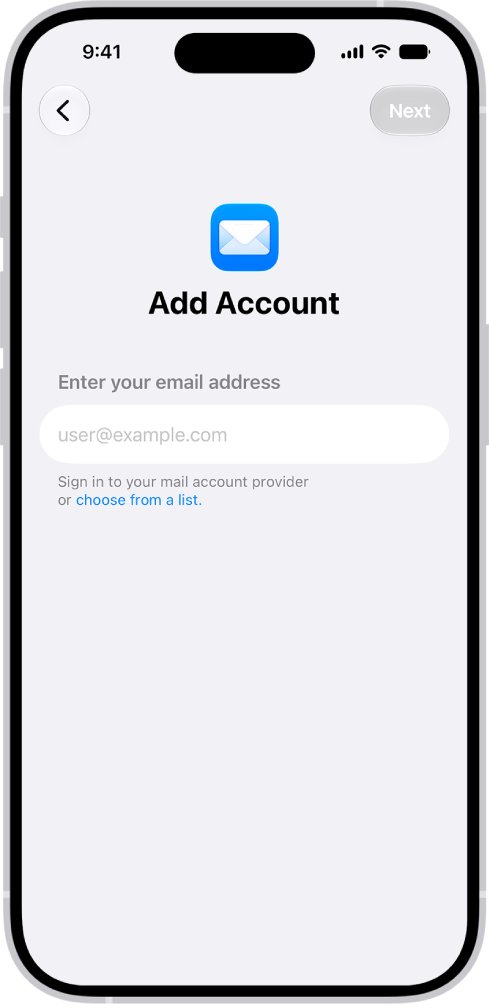
- Enter the second @icloud.com address and tap Next, or tap choose from a list under the email field and select iCloud.
- Enter the account information for the second Apple Account and complete any verification prompt.
- Make sure Mail is turned on for the new account, then open the Mail app.
Both accounts then appear in the Mail app mailbox list, each with its own iCloud section and inbox.
Where to add a second iCloud account on iPhone 15 Plus by iOS version
Apple moved the Mail settings into an Apps list in iOS 18, so the path depends on the iOS version your iPhone 15 Plus runs. If one path is missing, try the other row.
| iOS version on your iPhone 15 Plus | Path to add the account | What to tap next |
|---|---|---|
| iOS 17 | Settings > Mail > Accounts > Add Account | Tap iCloud, then enter the account information |
| iOS 18 | Settings > Apps > Mail > Mail Accounts > Add Account | Tap iCloud, then enter the account information |
| Current iOS | Settings > Apps > Mail > Mail Accounts > Add Account | Enter the address and tap Next, or tap choose from a list > iCloud |
Second iCloud account vs iCloud alias: which one to use
A second iCloud address does not always need a second Apple Account. Pick the option that matches why you want it.
| Your goal | Use this | Why |
|---|---|---|
| Keep a family member's or business iCloud mail on your phone | Second iCloud account in Mail | Separate Apple Account, separate storage and password |
| A spare address for sign-ups or a side project | iCloud email alias | Free, up to nine aliases, same inbox and storage |
| A throwaway address for one sender | Hide My Email (iCloud+) | Random address that forwards to your inbox |
| Your own domain name, such as [email protected] | Custom email domain (iCloud+) | Uses your domain with iCloud Mail |
Create a second Apple Account with a free iCloud email address
If the second iCloud address does not exist yet, it needs its own Apple Account, and that account needs a primary @icloud.com address. An alias cannot be turned into a separate Apple Account.
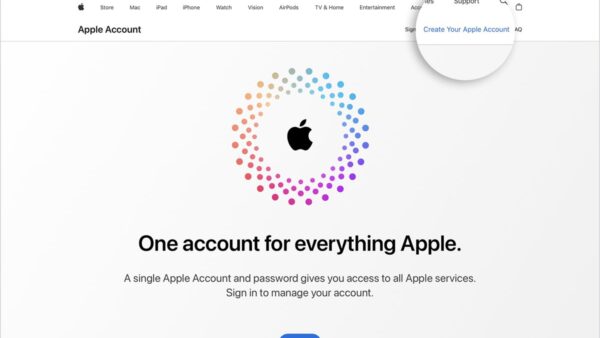
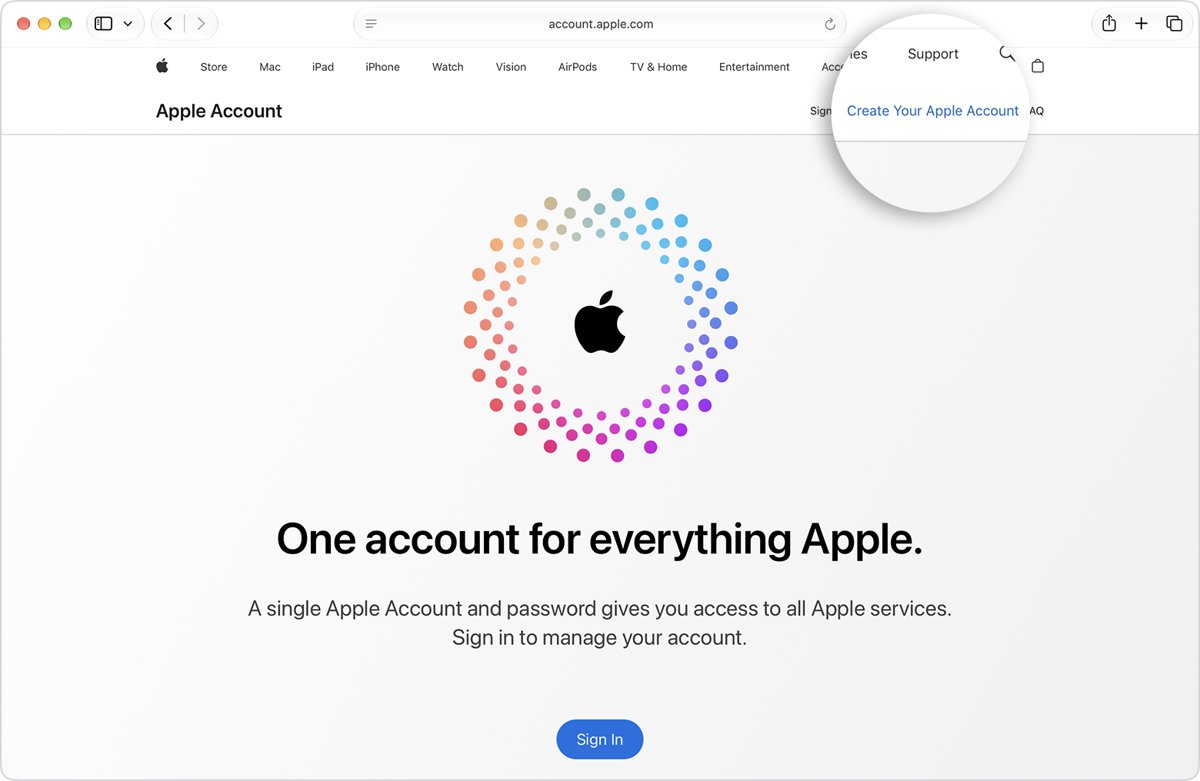
- On a computer or in Safari, go to account.apple.com and click Create Your Apple Account.
- Enter an email address you can access, create a strong password and set your region.
- Enter your birthday and a phone number you can always access, then click Continue.
- Verify the email address and phone number with the codes Apple sends.
- Go to icloud.com/mail, sign in with the new Apple Account and select Create Email Address.
- Choose an available address of more than three characters, then add the account to Mail on your iPhone 15 Plus with the steps above.
Each Apple Account has its own iCloud storage, so mail in the second account counts against that account, not yours. You cannot rename a primary iCloud address later.
Add an iCloud email alias instead of a second account
An alias is a second @icloud.com address on your existing account. Mail sent to it lands in your normal iCloud inbox, and you can send from it on any device with iCloud Mail turned on.
- On your iPhone 15 Plus, open Safari and go to icloud.com/mail, then sign in to your Apple Account.
- Select the More button at the top of the Mailboxes list, then choose Settings.
- Select Add Alias.
- Enter the Alias Address (3 to 20 characters), a Label and the Full Name that recipients see.
- Select Create.
You can have up to nine aliases. If you delete one while at nine, you must wait 7 days before creating another. A disabled or deleted alias returns mail to the sender.
Send email from the second iCloud address on iPhone
- Open the Mail app and tap the compose button.
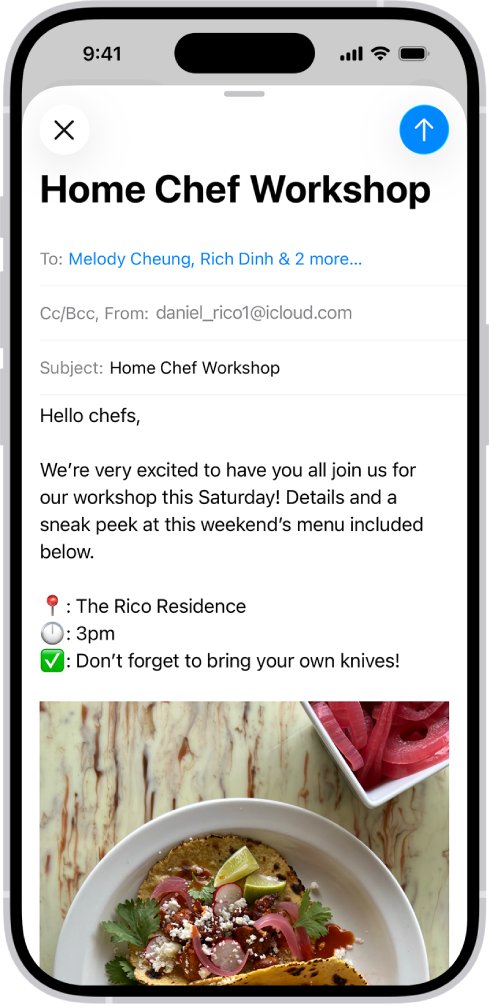
- Tap the Cc/Bcc, From field.
- Tap From, then choose the second iCloud account or one of your aliases.
- Write the message and tap the send button.
To make an alias the default sender on iCloud.com, open Mail Settings, select the address under Send From, choose it in the Default Send Address pop-up menu and select Save.
Create a random second iCloud address with iCloud+
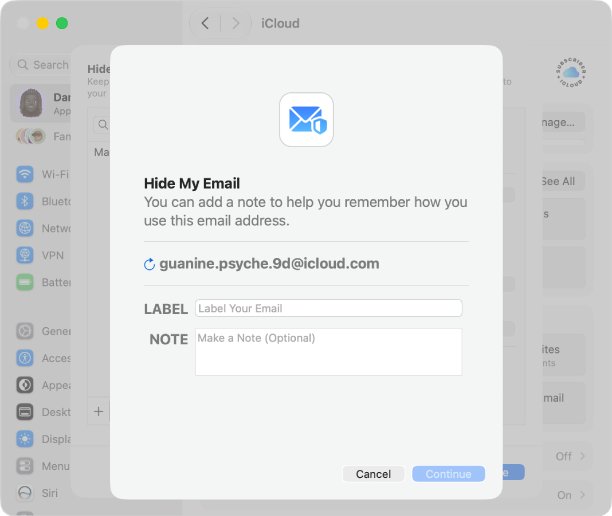
Hide My Email is part of iCloud+. It creates a unique random address per recipient and forwards replies to your inbox, which keeps your real address private.
- Go to icloud.com/mail and sign in.
- Select the compose button in the top-right corner.
- Add one recipient in the To field.
- Select Cc/Bcc or From, open the pop-up menu in the From field and choose Hide My Email.
- Write the email and send it.
Hide My Email messages can go to a single recipient only.
Check that both iCloud email accounts work on iPhone 15 Plus
- Open Mail and tap back to Mailboxes.
- Confirm each iCloud account has its own section with an inbox.
- Send a test email from another address to the second iCloud address.
- Reply from the second account using the From field and confirm the reply arrives from that address.
Turn off or remove the second iCloud account on iPhone
- Go to Settings > Apps > Mail > Mail Accounts.
- Tap the second iCloud account.
- To pause it, turn off Use on this iPhone.
- To remove it, tap Sign Out or Delete Account.
Removing the account from the iPhone does not close it. The mail stays on iCloud.com and you can add the account back later.
Fix a second iCloud email account that will not sync
New mail in the second iCloud account arrives late
Push works for one account at a time, so the other account waits for its fetch schedule.
- Go to Settings > Apps > Mail > Mail Accounts > Fetch New Data.
- Tap the account that matters most and turn on Push.
- Under Fetch, choose a timed schedule for the other account to check more often than Automatically.
The second account sends or receives nothing
Mail is off for the account, its iCloud storage is full, or a VPN is interfering.
- Open the account in Mail Accounts and confirm Mail is turned on.
- Sign in to icloud.com/mail with that account to check whether mail arrives there.
- Check the second account's iCloud storage, turn off any VPN and restart the iPhone.
"The maximum number of free accounts have been activated"
Too many accounts have been set up with iCloud on this iPhone in one year.
- If you have another iPhone, iPad or Mac, sign in with the second Apple Account there and set up iCloud first.
- Or use an iCloud alias on your existing account, which needs no new Apple Account.
The alias or second address is missing from the From field
The address is not selected as a sending address, or the alias is disabled.
- On iCloud.com, open Mail Settings and select the addresses under Send From.
- Check the alias is not marked Disable alias.
- Close and reopen the Mail app on the iPhone.
Second iCloud email on iPhone FAQ
Can I have two iCloud email accounts on one iPhone?
Yes. Your main Apple Account stays signed in at the top of Settings, and a second iCloud account can be added to the Mail app under Mail Accounts > Add Account. Both inboxes then appear in Mail.
Does a second iCloud email account need a second Apple Account?
Yes, a separate iCloud mail account belongs to its own Apple Account. If you only want another address, an iCloud alias on your existing account is free and needs no new Apple Account.
How many iCloud email aliases can I create?
You can create up to nine @icloud.com aliases on iCloud.com. Each alias must be 3 to 20 characters. Deleting one while you have nine means waiting 7 days before creating a new one.
Do two iCloud accounts share storage on iPhone?
No. Each Apple Account has its own iCloud storage, so mail in the second account counts against that account. Aliases share the storage of the account they belong to.
Can I choose which iCloud address to send from on iPhone?
Yes. While writing an email in Mail, tap the Cc/Bcc, From field, tap From and pick the account or alias. On iCloud.com you can also set a default send address in Mail settings.
Will adding a second iCloud account sync its photos and backups to my iPhone?
No. Adding it in Mail Accounts sets up mail and, if you choose, contacts, calendars and reminders for that account. iCloud Photos, backups and iCloud Drive stay with the Apple Account signed in at the top of Settings.
How do I remove a second iCloud email account from my iPhone?
Go to Settings > Apps > Mail > Mail Accounts, tap the account and tap Sign Out or Delete Account. This removes it from the iPhone only; the account and its mail stay on iCloud.
Bottom line: second iCloud account or alias on iPhone 15 Plus?
Add a second iCloud account through Mail Accounts when the address belongs to a different Apple Account; create an alias when you only need another address for yourself. A second account keeps separate storage and passwords, while an alias is free, needs no new Apple Account and delivers into the inbox you already check.