Press Windows + R, type shell:AppsFolder and press Enter to open a File Explorer window that lists every app installed on your Windows 10 or Windows 11 PC.
This guide shows how to open the folder, what it is, how to make shortcuts and startup entries from it, and how to read each app's ID with File Explorer or PowerShell.
How to use Shell:AppsFolder to view all apps on Windows 10/11
The Run dialog is the quickest route, and it works the same way on Windows 10 and Windows 11.
- Right-click Start and select Run, or press Windows + R.
- Type
shell:appsfolderin the Open box. - Press Enter or select OK.
- Browse the File Explorer window that opens; it lists the desktop programs and Microsoft Store apps installed on the device in one place.
- Double-click any entry to launch that app.
The command is not case-sensitive in practice, so shell:AppsFolder and shell:appsfolder open the same window. Microsoft's own support pages use both spellings.
What is shell:AppsFolder in Windows?
shell:AppsFolder is a shell command that opens a Windows known folder called Applications. It is a virtual folder, so it collects shortcuts to apps rather than storing any files of its own.
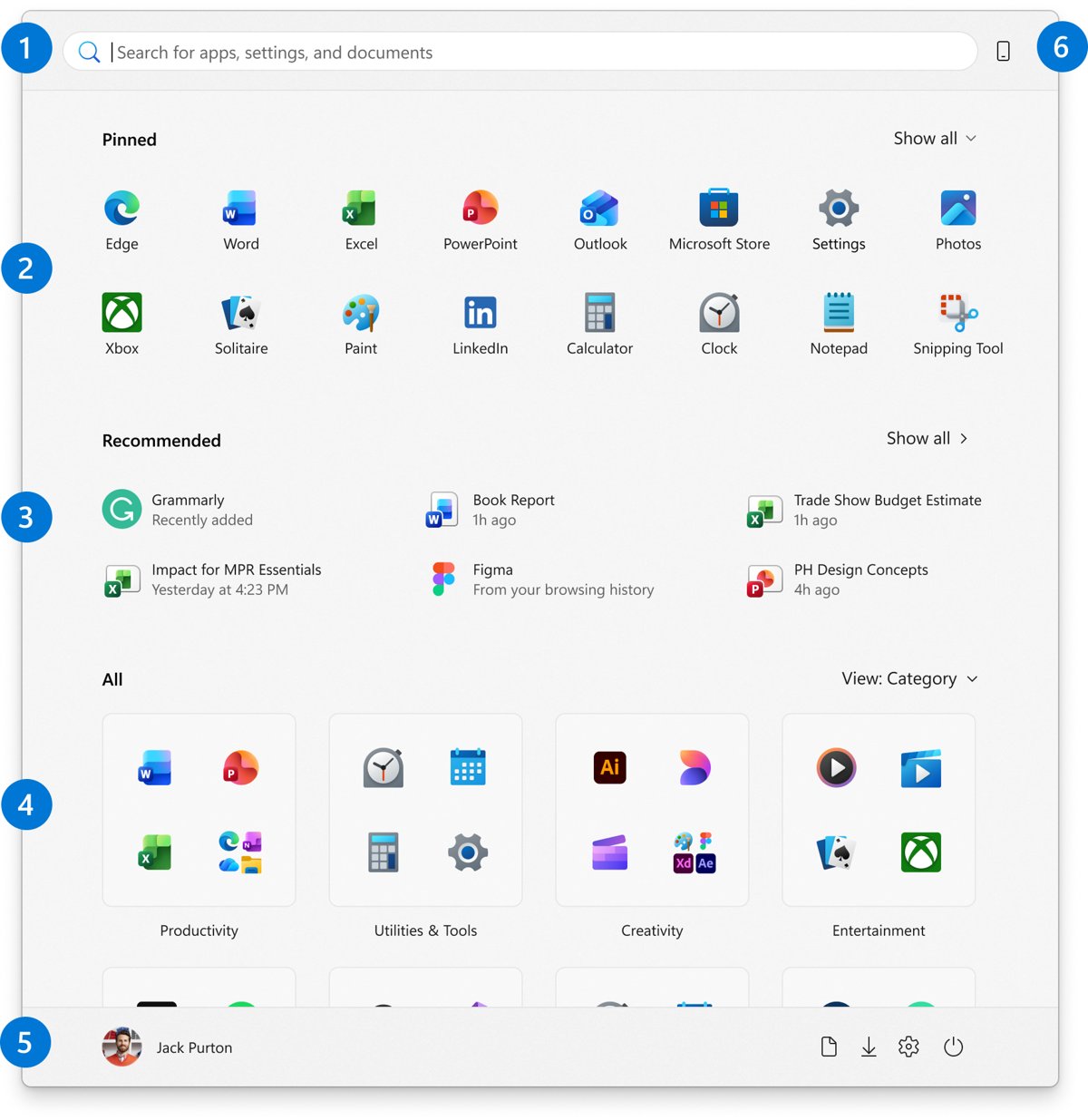
Its main value is that it shows classic desktop programs and Microsoft Store apps together, which the Start menu splits across pinned tiles, folders and the All list.
| Property | Value |
|---|---|
| Known folder name | FOLDERID_AppsFolder |
| Display name | Applications |
| Folder type | Virtual, with no default path on disk |
| Folder GUID | {1e87508d-89c2-42f0-8a7e-645a0f50ca58} |
| First available | Windows 8, so it works on Windows 10 and Windows 11 |
| Shell namespace used by Microsoft's PowerShell samples | shell:::{4234d49b-0245-4df3-b780-3893943456e1} |
| What each entry points to | An Application User Model ID (AUMID), not an .exe path |
Open shell:AppsFolder from the File Explorer address bar
If File Explorer is already open, you can jump to the folder without the Run dialog.
- Press Windows + E to open File Explorer.
- Click the address bar at the top of the window.
- Type
shell:appsFolderand press Enter. - Switch the layout with the View menu if you prefer a list to large icons.
Microsoft uses this exact route in its Azure Virtual Desktop documentation to find the ID of a Microsoft Store app before publishing it.
How to create a Shell:AppsFolder shortcut on Windows 10/11
Any app in the folder can become a desktop shortcut. This matters most for Microsoft Store apps, whose install folders include a version number that changes with every Store app update.
A shortcut made from shell:AppsFolder points to the app's ID instead, so it keeps working after the app updates itself.
- Open
shell:appsFolderfrom Run or the File Explorer address bar. - Find the app you want in the list.
- Right-click it and select Create shortcut.
- Select Yes in the prompt that appears to place the shortcut on the desktop.
- Right-click the new desktop shortcut and select Properties to see its Target value.
- Move the shortcut into any folder you like; the target stays the same.
For a Store app, the Target reads in the form shell:AppsFolder\<PackageFamilyName>!<AppId>. Microsoft's example for Paint is shell:appsFolder\Microsoft.Paint_8wekyb3d8bbwe!App.
Another way to get the same desktop shortcut is to open Start, select All on Windows 11, and drag the app's name onto the desktop.
Add startup apps with shell:AppsFolder and shell:startup
Apps that are not registered with a startup task do not appear in Settings > Apps > Startup. Microsoft's fix is to drag them from shell:AppsFolder into the Startup folder.
- Right-click Start, select Run, type
shell:appsfolderand press Enter. Keep this window open. - Right-click Start and select Run again.
- Type
shell:startupfor your own account, orshell:common startupfor every user on the PC, and press Enter. - Drag the apps you want to launch at sign-in from the first window into the second.
- Sign out and back in to confirm they start.
shell:startup maps to %userprofile%\AppData\Roaming\Microsoft\Windows\Start Menu\Programs\Startup. shell:common startup maps to %ProgramData%\Microsoft\Windows\Start Menu\Programs\Startup. To stop an app starting, delete its link from the Startup window.
Find an app's AUMID in shell:AppsFolder on Windows 10
The Application User Model ID (AUMID) is the identifier Windows uses to launch and tell apps apart. Kiosk and Assigned Access setups need it. Microsoft documents a File Explorer route for Windows 10.
- Select Start > Run, enter
shell:Appsfolderand select OK. - Press Alt + V in the File Explorer window and select Choose details.
- Tick AppUserModelId in the Choose Details window and select OK.
- Change the view from Tiles to Details if the new column does not appear.
- Read each app's ID in the AppUserModelId column.
Microsoft's Windows 11 version of the same article lists only the PowerShell and registry methods, so use the commands in the next section on Windows 11.
List shell:AppsFolder apps and AUMIDs with PowerShell
PowerShell gives you a text list you can copy, filter or save. Get-StartApps works on Windows 10 and Windows 11.
Get-StartAppsLists the name and AUMID (the AppID column) of every app that appears in the Start menu. Apps that are not listed in the Start menu do not appear in its output.
You should see: A two-column table of Name and AppID, one row per app. Pipe it to Where-Object Name -like '*Paint*' to find a single app.
To read the Applications folder itself, Microsoft's sample uses the Shell.Application object: (New-Object -ComObject Shell.Application).NameSpace('shell:::{4234d49b-0245-4df3-b780-3893943456e1}').Items() | Select-Object Name, Path. The Path column holds each app's AUMID.
Find all installed programs using the winget list command
Windows Package Manager (winget) gives a text list of everything installed, including apps that winget did not install. Run it in Command Prompt, PowerShell or Windows Terminal.
winget listDisplays the applications currently installed on the computer, whether they came through Windows Package Manager or were installed by other means. It also shows when an update is available for an app.
You should see: A table with one row per installed app, its installed version and source; an update column appears only when updates are available.
To list only Microsoft Store apps from the command line, restrict the query to the Store source with winget list --source msstore. Add a word after winget list, such as winget list paint, to filter by name, or use winget list --upgrade-available to see only apps with updates waiting.
View all installed programs and apps via Settings in Windows 10/11
Settings shows the same apps as shell:AppsFolder but adds uninstall, repair and reset options for each one.
- Select Start > Settings > Apps > Installed apps. On Windows 10, the page is Apps & features.
- Scroll the list to see every installed app and program.
- Select the More (three dots) button next to an app to see Advanced options or Uninstall.
- Use Advanced options > Repair or Reset when an app from the list misbehaves; not every app has these options.
Some programs cannot be removed from Settings. For those, use Control Panel instead.
Find all installed programs in Control Panel
Control Panel lists classic desktop programs only, so Microsoft Store apps that appear in shell:AppsFolder are missing here.
- Type control panel in the taskbar search box and select Control Panel.
- Select Programs > Programs and Features.
- Right-click a program and select Uninstall, Uninstall/Change, Repair or Change, depending on what the program offers.
Find all installed apps in Microsoft Store
The Microsoft Store library lists the Store apps and games tied to your Microsoft account, including ones bought on another PC that are not installed here.
- Open Microsoft Store from Start.
- Open the Store library and select My Library.
- Browse the apps and games listed there.
- Look for the Download icon: an app or game with that icon is owned but not installed on this PC.
- Select Download to install a missing app; it then appears in shell:AppsFolder too.
Where is shell:AppsFolder located?
shell:AppsFolder has no location on disk. Windows builds the list from installed packages and from the Start menu shortcut folders below.
| Source | Path or command | What it holds |
|---|---|---|
| Applications virtual folder | shell:AppsFolder (no default path) | The combined list of desktop programs and Store apps |
| Start menu programs, all users | %ALLUSERSPROFILE%\Microsoft\Windows\Start Menu\Programs | Shortcuts installed for everyone on the PC |
| Start menu programs, current user | %APPDATA%\Microsoft\Windows\Start Menu\Programs | Shortcuts installed only for your account |
| Startup folder, current user | shell:startup | Apps that launch when you sign in |
| Startup folder, all users | shell:common startup | Apps that launch when anyone signs in |
Useful additional shell shortcuts in Windows
Type any of these in Run (Windows + R) or the File Explorer address bar. They are the fastest route for getting to the AppsFolder, and to the folders you use with it, quickly when you build shortcuts or startup entries.
| Type this | What opens |
|---|---|
shell:appsfolder |
The Applications folder listing every installed app |
shell:startup |
Your own Startup folder, for apps that launch when you sign in |
shell:common startup |
The all-users Startup folder, for apps that launch for anyone who signs in |
%APPDATA%\Microsoft\Windows\Start Menu\Programs |
Start menu shortcuts installed only for your account |
%ALLUSERSPROFILE%\Microsoft\Windows\Start Menu\Programs |
Start menu shortcuts installed for everyone on the PC |
shell:::{4234d49b-0245-4df3-b780-3893943456e1} |
The Applications namespace that Microsoft's PowerShell sample reads app IDs from |
How to check shell:AppsFolder opened correctly
- Look at the File Explorer address bar; it shows Applications rather than a drive path.
- Scroll the list and confirm it includes both a Store app such as Calculator and a desktop program you installed yourself.
- Run
Get-StartAppsin PowerShell and compare a few names; every app in the Start menu should also be in the folder. - Double-click one entry and confirm the app opens.
Diagnose a missing app entry in shell:AppsFolder
Work from the simple checks to the repairs, and change one thing at a time. The last group covers the common AppsFolder mistakes to avoid, such as deleting a startup link and expecting the app to be uninstalled.
An app you installed is not listed in shell:AppsFolder
The app is not installed for this account, or it has no Start menu shortcut
- Open Settings > Apps > Installed apps and confirm the app is listed.
- Run
Get-StartAppsin PowerShell; an app missing there has no Start menu entry either. - For a Store app you own, open the Microsoft Store library (My Library) and download it again.
- For a desktop program that was copied rather than installed, put a shortcut to its .exe in
%APPDATA%\Microsoft\Windows\Start Menu\Programs, then reopen shell:AppsFolder.
The entry is listed but the app will not open
The app's files or settings are damaged
- Open Settings > Apps > Installed apps, select More next to the app and choose Advanced options.
- Select Repair if it is listed.
- If Repair is missing or does not help, select Reset.
- For a desktop program, open Control Panel > Programs > Programs and Features, right-click it and select Repair or Change.
A shortcut or startup entry made from shell:AppsFolder stopped working
The app was uninstalled, or the link was edited
- Open the shortcut's Properties and check the Target still reads
shell:AppsFolder\followed by the app's ID. - Delete the broken link and create a new one from shell:AppsFolder.
- Remember that deleting a link from
shell:startuponly stops the app launching; it does not uninstall it.
Is shell:AppsFolder safe to use?
Yes. shell:AppsFolder is a built-in Windows known folder, and opening it only displays shortcuts to apps that are already installed. It does not download, install or change anything. Microsoft itself tells users to open it in its startup-apps support article and its AUMID documentation. The only changes happen when you act on an entry, for example by dragging it into the Startup folder or deleting a link.
Shell:AppsFolder FAQ
Where is shell:AppsFolder located?
shell:AppsFolder is a virtual folder with no path on disk. Windows assembles it from installed Store packages and the Start menu Programs folders under %ALLUSERSPROFILE% and %APPDATA%, which is why you open it with a shell command instead of browsing to it.
Is shell:AppsFolder safe?
Yes. It is a built-in Windows folder that Microsoft's own support pages tell you to open. Viewing it changes nothing; it only lists apps that are already installed on the PC.
Does shell:AppsFolder work on Windows 11?
Yes. The Applications known folder has existed since Windows 8, and the Run command shell:appsfolder opens it on both Windows 10 and Windows 11.
How do I run shell:AppsFolder?
Press Windows + R, type shell:appsfolder and press Enter. You can also type the same text into the File Explorer address bar. Both open the Applications window that lists every installed app.
What does shell:AppsFolder followed by Microsoft. and an app name mean?
That string is a shortcut target pointing to a Microsoft Store app by its ID, in the form shell:AppsFolder\<PackageFamilyName>!<AppId>. Microsoft's Paint example is shell:appsFolder\Microsoft.Paint_8wekyb3d8bbwe!App. It survives app updates because it contains no version number.
How do I make a shortcut from shell:AppsFolder?
Open shell:AppsFolder, right-click the app and select Create shortcut, then select Yes to put it on the desktop. The shortcut's Target shows the app's ID, and the shortcut keeps working after Store updates.
Why does an app appear in shell:AppsFolder but not in Get-StartApps?
Get-StartApps returns only apps that are listed in the Start menu. Microsoft notes that apps not listed there do not appear in its output, so the folder can show entries the cmdlet skips.