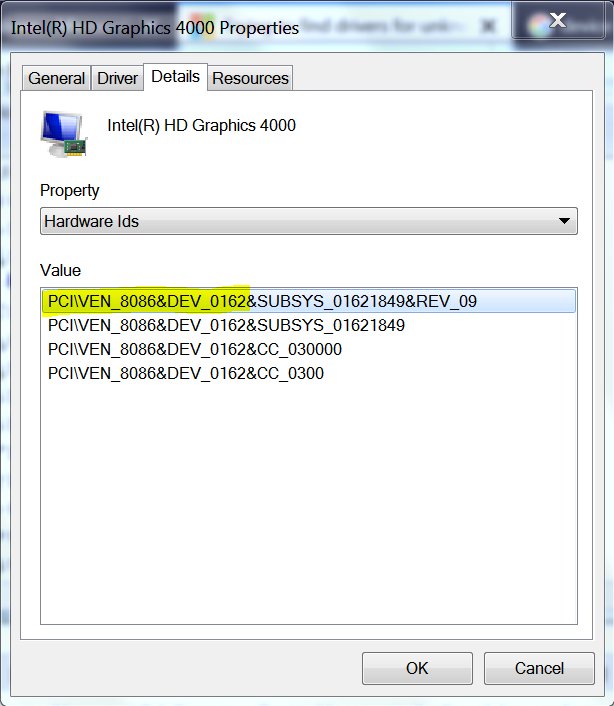
Find a hardware ID (HWID) in Windows 11 by opening Device Manager, right-clicking the device, selecting Properties, then the Details tab, and choosing Hardware Ids in the Property list.
This guide also covers the Command Prompt and PowerShell routes, the serial number and system UUID that support desks ask for, and how to read what the ID says. Changing, spoofing or resetting hardware IDs is not covered.
The fastest way to find a device's hardware ID in Windows 11
These are the steps Microsoft documents for getting the list of hardware IDs Windows uses to match a device to a driver.
- Right-click Start and select Device Manager, or type
Device Managerin Windows search and select it. - Expand the category that holds your device, such as Display adapters or Network adapters.
- Right-click the device and select Properties.
- Select the Details tab.
- Open the Property list and select Hardware Ids. The IDs appear in the Value box, most specific first.
Select Compatible Ids in the same list when a driver search on the full hardware ID finds nothing. Compatible IDs are the more generic strings a driver package can also match.
Which HWID do you actually need?
"HWID" gets used for several different identifiers. Match the request you have to a row before you start copying strings.
| Your situation | Use this | Why |
|---|---|---|
| A device has no driver, or you need the exact driver for one component | Device Manager > device Properties > Details > Hardware Ids | Hardware IDs are the strings Windows matches against driver packages |
| You want the IDs for every device, or you only have a keyboard | pnputil /enum-devices /deviceids in an administrator Command Prompt |
Lists hardware and compatible IDs for all devices on Windows 11, version 21H2 and later |
| You are writing a script or checking one named device | Get-PnpDevice piped to Get-PnpDeviceProperty in PowerShell |
Returns the DEVPKEY_Device_HardwareIds property as data you can filter |
| Support or warranty asks for the PC's serial number | Settings > System > About, or Get-CimInstance -ClassName Win32_BIOS |
The serial number identifies the whole PC, not one component |
| An IT administrator asks for the system UUID | Get-CimInstance -ClassName Win32_ComputerSystemProduct |
The UUID property comes from the SMBIOS System Information structure |
An older tutorial tells you to type a wmic command |
The PowerShell Get-CimInstance equivalent |
WMIC is removed from Windows 11, version 24H2 and later |
Get hardware IDs from Command Prompt with pnputil
PnPUtil ships in %windir%\system32 on every version of Windows since Vista, so there is nothing to install. Microsoft's instructions run it from a Command Prompt opened with Run as administrator.
pnputil /enum-devices /deviceids                      Every device, with hardware and compatible IDs
pnputil /enum-devices /connected /deviceids           Only devices currently connected
pnputil /enum-devices /class Display /deviceids       Only one device class, here display adapters
pnputil /enum-devices /bus PCI /deviceids             Only devices on the PCI bus
pnputil /enum-devices /problem                        Only devices reporting a problem
/enum-devices lists devices and has existed since Windows 10, version 1903. /deviceids adds the hardware and compatible IDs, and /bus filters by bus; both need Windows 11, version 21H2 or later. /class accepts a device class name or GUID, and /problem narrows the list to devices with an error, which is usually the one missing a driver.
You should see: Each device prints as a block with its instance ID and description, followed by its Hardware IDs and Compatible IDs. Copy the first hardware ID in a block; it is the most specific one.
Get hardware IDs with PowerShell
The PnpDevice module finds a device by name or class, then reads its properties. Replace the name in quotes with the name Device Manager shows.
Get-PnpDevice -PresentOnly -Status ERROR,DEGRADED,UNKNOWN
Get-PnpDevice -Class 'Mouse'
Get-PnpDevice -FriendlyName 'Generic USB Hub' | Get-PnpDeviceProperty -KeyName 'DEVPKEY_Device_HardwareIds' | Select-Object -ExpandProperty Data
The first line lists present devices with an error, degraded or unknown status, which is where a missing driver shows up. The second lists every device in one class. The third pipes a named device into Get-PnpDeviceProperty, asks only for DEVPKEY_Device_HardwareIds, and expands the Data field so the full strings are not cut off.
You should see: PowerShell prints one hardware ID per line, such as USB\VID_8087&PID_0024. If several devices share the friendly name, you get one set of IDs for each.
Find the serial number support asks for in Settings
When a manufacturer or help desk asks for a hardware ID to look up your PC, they usually mean the serial number. Microsoft lists it on the About page for Windows 11 and Windows 10.
- Right-click Start and select Settings.
- Select System, then About.
- Find the Windows specifications section.
- Read the value next to Serial number.
- If no serial number appears there, use the PowerShell command in the next section.
Surface owners can also open the Surface app and expand Device information, which shows the serial number for the device and each Surface accessory.
Get the serial number and system UUID from PowerShell instead of wmic
Microsoft removed the WMIC command-line tool from Windows 11, version 24H2 and later, and it is no longer offered as a Feature on Demand. WMI itself still works, and PowerShell's CIM cmdlets read the same data.
(Get-CimInstance -ClassName Win32_BIOS -Property SerialNumber).SerialNumber
Get-CimInstance -ClassName Win32_BIOS
Get-CimInstance -ClassName Win32_ComputerSystemProduct | Select-Object -Property Vendor, Name, IdentifyingNumber, UUID
The first line returns only the serial number as plain text. The second shows the full BIOS summary, including Manufacturer, SMBIOSBIOSVersion and SerialNumber. The third reads the product record, where UUID is the 128-bit identifier from SMBIOS and IdentifyingNumber is the product identification number.
You should see: You see a single serial number string for the first line. For the third, a UUID of all zeros means the firmware did not supply one, which Microsoft documents as the fallback value.
Where to find the HWID in Windows 11 and Windows 10
The Device Manager route is the same on both versions. The command-line options are where they part.
| Tool | Windows 11 | Windows 10 |
|---|---|---|
| Device Manager > Details > Hardware Ids | Yes | Yes |
pnputil /enum-devices |
Yes | Yes, from version 1903 |
pnputil /enum-devices /deviceids |
Yes, from version 21H2 | No; use Device Manager |
| Serial number on Settings > System > About | Yes | Yes |
Get-CimInstance -ClassName Win32_BIOS |
Yes | Yes |
wmic |
Removed from version 24H2 and later | Deprecated since version 21H1 |
Support for Windows 10 ended on October 14, 2025. Microsoft also notes that on Windows 10 some IDs that used to appear under Hardware Ids now appear under Compatible Ids.
How to read a hardware ID
A hardware ID is a vendor-defined string that Windows uses to match a device to a driver package. The bus driver builds it, so the format tells you which bus the device sits on.
| Part | Example | What it means |
|---|---|---|
| Prefix before the backslash | PCI\, USB\, ACPI\ |
The enumerator, meaning the bus driver that reported the device |
VEN_ on PCI devices |
VEN_1414 |
Four-character vendor code assigned by PCI-SIG |
DEV_ on PCI devices |
DEV_00E0 |
Four-character device code chosen by the vendor |
SUBSYS_ |
SUBSYS_00000000 |
Subsystem ID followed by the subsystem vendor ID |
REV_ |
REV_04 |
Revision number of the chip or device |
CC_ |
CC_0300 |
Base class and subclass code from configuration space |
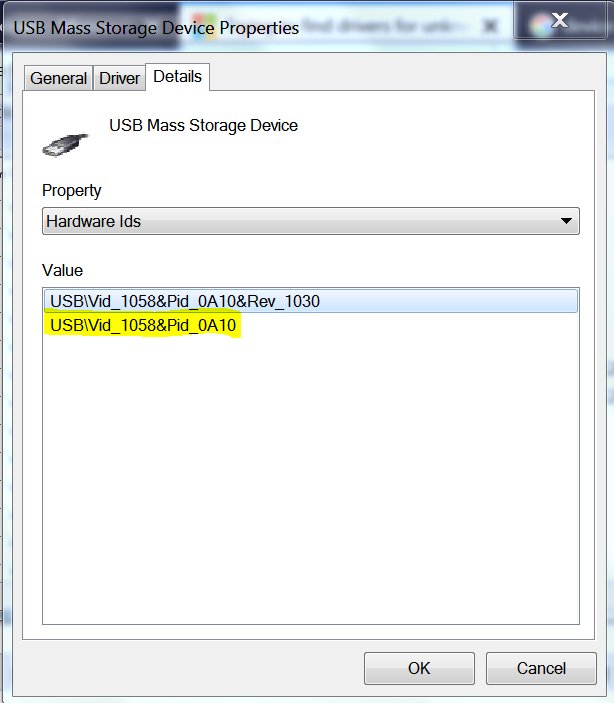
VID_ and PID_ on USB devices |
USB\VID_8087&PID_0024 |
Vendor code assigned by the USB committee, then the vendor's product code |
MI_ on USB devices |
MI_00 |
Interface number on a composite USB device with several functions |
A device can report up to 64 hardware IDs, sorted from most to least specific. The vendor and device codes are the part to search on when you look for a driver on the manufacturer's site.
How to check you copied the right ID
A wrong device or a truncated string sends you to the wrong driver. Run these checks before you search.
- Confirm the Properties window title names the device you meant.
- Check the string starts with a bus prefix such as
PCI\orUSB\and was not cut off at the end. - Confirm you took the first line under Hardware Ids, not a line from Compatible Ids.
- Run
pnputil /enum-devices /deviceidsand check the same string appears in that device's block. - For a serial number, check that the Settings > System > About value matches the
Win32_BIOSSerialNumber output.
Fix HWID commands that do not work in Command Prompt
Both symptoms come from following an older command-line guide on a current Windows 11 build.
"'wmic' is not recognized as an internal or external command"
WMIC is removed from Windows 11, version 24H2 and later and can no longer be added back as a Feature on Demand.
- Type
PowerShellin Windows search and open Windows PowerShell. - Run
(Get-CimInstance -ClassName Win32_BIOS -Property SerialNumber).SerialNumberfor the serial number. - Run
Get-CimInstance -ClassName Win32_ComputerSystemProduct | Select-Object -Property UUIDfor the system UUID. - Use
pnputil /enum-devices /deviceidsfor device hardware IDs.
pnputil rejects /deviceids or /bus, or prints devices without IDs
Those flags need Windows 11, version 21H2 or later, and the tool expects an administrator Command Prompt.
- Open Settings > System > About and check the version under Windows specifications.
- Type
cmdin search, right-click Command Prompt and select Run as administrator. - Run
pnputil /?to see which flags your build supports. - On Windows 10 or an older build, use Device Manager > Details > Hardware Ids instead.
Frequently asked questions
How do I find my HWID on Windows 11?
Open Device Manager, right-click the device and select Properties. On the Details tab, choose Hardware Ids in the Property list. The first line in the Value box is the most specific hardware ID for that device.
How do I get the HWID from CMD?
Open Command Prompt with Run as administrator and run pnputil /enum-devices /deviceids. It lists hardware and compatible IDs for every device. Add /class Display or /connected to shorten the list. The /deviceids flag needs Windows 11, version 21H2 or later.
How do I find the HWID on Windows 10?
Use Device Manager the same way as on Windows 11: device Properties, Details tab, then Hardware Ids. The pnputil /deviceids flag is not available on Windows 10, so Device Manager is the dependable route there.
How do I check the HWID of every device on my PC at once?
Run pnputil /enum-devices /deviceids from an administrator Command Prompt on Windows 11, version 21H2 or later. Each device prints as a block with its hardware IDs. Use /problem instead to list only devices with an error.
How do I view a device's HWID in PowerShell?
Run Get-PnpDevice -FriendlyName 'Device name' | Get-PnpDeviceProperty -KeyName 'DEVPKEY_Device_HardwareIds' | Select-Object -ExpandProperty Data. Replace the name with the one Device Manager shows. PowerShell prints each hardware ID on its own line.
Does the wmic command still work for getting an HWID?
No, not on current Windows 11. Microsoft removed WMIC from Windows 11, version 24H2 and later. Use Get-CimInstance -ClassName Win32_BIOS for the serial number and pnputil /enum-devices /deviceids for device hardware IDs.
Is the HWID the same as the serial number?
No. A hardware ID describes a type of component, such as a graphics chip model, and identical parts share it. A serial number identifies one specific PC. Find the serial number under Settings > System > About or with Get-CimInstance -ClassName Win32_BIOS.
Can I change or reset my HWID on Windows 11?
This guide does not cover changing, spoofing or resetting hardware IDs, because that is mainly done to evade a game or software ban. Hardware IDs are reported by the device's bus driver, and a Windows setting does not control them.



![How to Enable & Use Thunderbolt on Windows 11 [Easy Guide]](https://techdows.com/wp-content/uploads/2026/10/How-to-Enable-Use-Thunderbolt-on-Windows-11-Easy-Guide-600x338.jpg)