Microsoft has redesigned most of the inbox Apps (Media Player, Notepad, Paint, Photos, Task Manager), services, and components in Windows 11. This is not the case with App Picker or open with dialog that lets you choose other apps to open a file. It has been existing with outdated design from Windows 8 metro, in fact, Micorsoft has already updated with looks and feel of Windows 11 design in build 22563 but it is hidden, here is how you can enable it.
When you attempt to open a file with supported programs installed, Windows displays the options in open with dialog and let you choose and select always open the file with the selected app.
The “how do you want to open this file” dialog looks like this now in Windows 11.
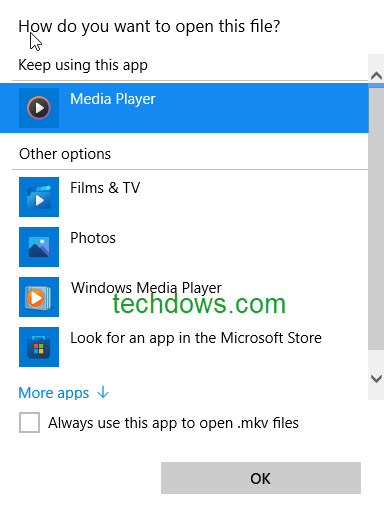
The interface recommends to keep using the current app and lists other options, it also allows to look for another app on PC and offers a checkbox at the bottom to always use that app to open such files.
The dialogs interface or UI has been finally updated. The new redesigned App Picker now displays Default App, suggested Apps, and Always and Just once (options) wordings in the UI.
New App Picker
Features
- Redesigned, the fluent design looks modern
- Acrylic
- Supports dark mode
The feature is hidden by default, here is how you can enable it. You should be using Windows 11 build 22563 or higher in the dev channel and requires a Vibranium feature configuration tool.

Enable new App Picker on Windows 11
- Download Vive tool from Github
- Extract its contents to a folder
- Open command prompt as administrator
- Copy Vivetool folder path in command prompt
- Run vivetool addconfig 36302090 2
Note: For some reason, the command hasn’t worked in Powershell where we previously opened it by selecting the Open in terminal option in the right-click menu.
To restore old App Picker. run this command in command prompt window: vivetool delconfig 36302090 2
Using new App Picker or open with dialog in Windows 11
After completing the above steps, if you try to open a file (that could be PDF or text or MP4 or MKV) with another program, you get a chance to see the App chooser.
All you need to do is right-click on a file, select Open with and choose “choose another App“.
The App Picker has crashed when we try to open an image. It worked and open well for PDF, MP4, MKV other files where the dialog displayed supported App that can open the file.
What’s your take on Windows 11’s new app Picker? Don’t you think this should have been updated muchbefore? Let us know in the comments below.
More about Windows 11:
How to get rid of the ‘System requirements not met’ watermark on Windows 11 Unsupported PCs
How to enable & use dark Mode for the new WhatsApp UWP app on Windows 11/10
How to enable or disable new Task Manager in Windows 11
Windows 11 tests Windowed Alt+Tab experience, how to enable