To completely uninstall Chrome on Windows 11, close every Chrome window, open Settings > Apps > Installed apps, select the More menu next to Google Chrome, choose Uninstall, and tick Also delete your browsing data when it appears.
This guide covers the Windows 11 and Windows 10 Settings routes, removing your local profile, deleting synced data from your Google Account, the winget command, and what to do when the uninstall does not finish.
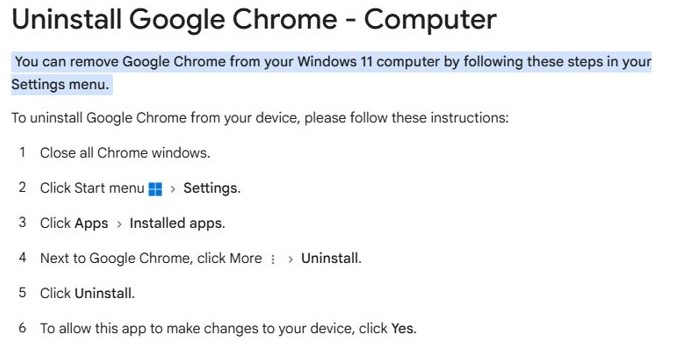
Remove Google Chrome from Windows 11 using Settings
Chrome must be fully closed before Windows can remove it. Close every window and tab first, including any Chrome window on another desktop.
- Close all Chrome windows and tabs.
- Open Start, then select Settings.
- Select Apps, then Installed apps.
- Find Google Chrome in the list, select the More (three dots) menu next to it, and choose Uninstall.
- Select Uninstall again to confirm.
- When User Account Control asks whether to allow the app to make changes to your device, select Yes.
- In the Chrome uninstall window, tick Also delete your browsing data to remove bookmarks, history and other profile data, then select Uninstall.
Leave Also delete your browsing data unticked if you plan to reinstall Chrome and want your local profile back. Ticking it is what makes the removal complete.
Remove Google Chrome from Windows 10 using Settings
Windows 10 lists apps under Apps & features rather than Installed apps. The Chrome uninstaller itself is the same.
- Close all Chrome windows and tabs.
- Open Start, select Settings, then select Apps.
- Under Apps & features, find and select Google Chrome.
- Select Uninstall, then select Uninstall again to confirm.
- Select Yes if Windows asks for permission.
- Tick Also delete your browsing data to remove your profile information, then select Uninstall.
Windows 10 support ended on October 14, 2025, but the Chrome removal steps still work on it.
What does a complete Chrome uninstall remove?
A plain uninstall removes the browser program. A complete uninstall also removes the Chrome profile data on your PC and, separately, the copy stored in your Google Account.
| Data | Removed by plain uninstall | Removed with Also delete your browsing data | Removed from Google servers |
|---|---|---|---|
| Chrome program files | Yes | Yes | Not applicable |
| Bookmarks, history and settings on this PC | No | Yes | No |
| Saved passwords and data synced to your Google Account | No | Removed from this PC only | Only after you delete data at chrome.google.com/data |
| Your Google Account itself | No | No | No |
Google states that when you delete profile information during the uninstall, the data is no longer on your computer. Synced data can still be on Google's servers until you delete it there.
Delete Chrome synced data from your Google Account
Do this before you uninstall, because it runs inside Chrome. Skip it if you want your bookmarks and passwords back on another device.
- Open Chrome while you are still signed in to it.
- Go to
https://chrome.google.com/datain the address bar. - Review what is stored, then select Delete data and confirm.
- Open the Profile menu at the top right and select Sign out of Chrome.
- Close Chrome and run the uninstall steps for your version of Windows.
Uninstall Google Chrome with the winget command
The Windows Package Manager can remove Chrome from Terminal, which helps when you want to script the removal on several PCs. It removes apps that were not installed with winget too.
winget uninstall --name "Google Chrome" --source wingetFinds the installed app named Google Chrome and runs its uninstaller. The –source winget flag avoids the Microsoft Store agreement prompt during the search.
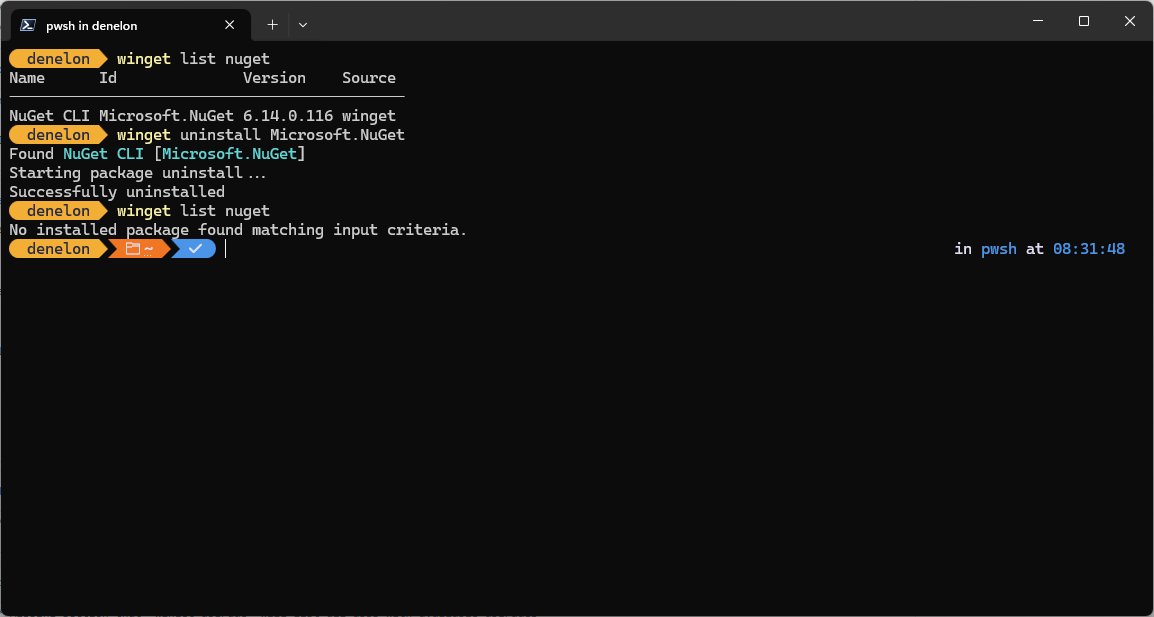
You should see: winget reports that it successfully uninstalled the app, and winget list no longer shows Google Chrome.
If winget shows several matches, run winget list to see the exact name, then repeat the command with --exact. The command line route does not show the Also delete your browsing data option, so delete the profile through the Settings route if you need it gone.
Confirm Google Chrome is uninstalled
- Open Settings > Apps > Installed apps (or Apps & features on Windows 10) and search for Chrome. It should not appear.
- Open Start and type Chrome. No Google Chrome app should be listed.
- Run
winget list --name "Google Chrome"in Terminal. It should report that no installed package matches. - Open your default browser settings and set another browser, such as Microsoft Edge, as the default if Windows still points links at Chrome.
Chrome won't uninstall on Windows 11 or 10
The uninstall stops or says Chrome is still running
A Chrome window or background process is still open.
- Close every Chrome window, including ones on other virtual desktops, which clears the please close all Chrome windows error.
- Press Ctrl + Shift + Esc to open Task Manager, select any Google Chrome entry, and select End task.
- Run the uninstall from Settings again.
The Uninstall button is grayed out or missing
Chrome was installed for all users or is managed by a work or school organisation.
- Sign in with an administrator account and try again.
- On a managed work or school PC, ask the administrator to remove Chrome, because policy can block it.
Bookmarks or history come back after reinstalling
Sync restored data from your Google Account, or the local profile was kept.
- Uninstall again and tick Also delete your browsing data.
- Delete synced data at
https://chrome.google.com/databefore signing in to the new install.
Older builds that refuse to leave can need a few extra steps to remove Chrome when it will not uninstall.
Uninstall Chrome on Windows FAQ
Does uninstalling Chrome delete my bookmarks and passwords?
Only on your PC, and only if you tick Also delete your browsing data during the uninstall. Bookmarks and passwords synced to your Google Account stay on Google's servers until you delete them at chrome.google.com/data.
Will I lose my Google Account if I uninstall Chrome?
No. Uninstalling Chrome removes the browser and, optionally, local profile data. Your Google Account, Gmail and Drive are not affected, and you can sign in from any other browser.
Can I reinstall Chrome after a complete uninstall?
Yes. Download Chrome again from Google's official site and install it. If you deleted your browsing data, it starts with a fresh profile, and signing in restores whatever is still synced to your account.
Does uninstalling Chrome fix browser problems?
Often. Google suggests uninstalling and reinstalling Chrome to fix most problems with search engines, pop-ups or Chrome updates. Tick Also delete your browsing data if you want a clean profile too.
Is it safe to uninstall Chrome from Windows 11?
Yes. Windows 11 includes Microsoft Edge, so you still have a browser after Chrome is gone. Set Edge or another browser as the default so links keep opening.
How do I uninstall Chrome from the command line?
Open Terminal and run winget uninstall --name "Google Chrome" --source winget. This runs Chrome's uninstaller without opening Settings, but it does not offer the option to delete browsing data.