When iPhone Storage still shows WhatsApp using a huge amount of space after you deleted your chats, the space is held by leftover copies of media and app data that clearing chats does not remove, and the reliable fix is to back up WhatsApp, delete the app, then reinstall it and restore.
This guide covers how to read the real WhatsApp number, how to delete every copy of large files inside WhatsApp, the delete-and-reinstall reset, and the iCloud backup side of the problem.
Reset WhatsApp storage on iPhone by deleting and reinstalling the app
Deleting an app removes it and all of its data from the iPhone, so this clears every leftover file in one pass. Back up first, or you lose the chats you still want.
- In WhatsApp, tap your profile picture or Settings, then tap Chats > Chat backup > Back up now.
- Turn off Include videos in chats before the backup if you do not need old videos back.
- Wait until the backup finishes, then close WhatsApp.
- On the Home Screen, touch and hold WhatsApp, tap Remove App, then tap Delete App and Delete.
- Open Settings > General > iPhone Storage and confirm WhatsApp is gone from the list.
- Reinstall WhatsApp from the App Store, verify the same phone number, and restore your chat history from the backup.
Storage can take a moment to update after an app is deleted. After the restore, WhatsApp only holds what was in the backup, which is usually far less than the old local total.
Why WhatsApp takes so much storage on iPhone after you delete chats
WhatsApp splits its footprint into device storage and backup storage. Clearing a chat in the app does not always free the device side, for the reasons below.
| Cause | What happens | What frees the space |
|---|---|---|
| Duplicate copies of media | A photo or video forwarded many times can exist as several copies; deleting one leaves the others | Delete items and any copies in Manage storage |
| Deleted items still saved on the device | WhatsApp states that deleted items might still be saved on your device | Delete and reinstall the app |
| Starred messages | Clearing all media can skip starred items unless you include them | Select Clear starred messages or Delete all |
| App documents and data | iPhone Storage counts the app plus its documents and data | Delete the app; offloading keeps the data |
| Different counting methods | WhatsApp and iPhone Storage measure differently, so totals do not match | Use iPhone Storage as the number that affects free space |
Back up WhatsApp chats before you clear iPhone storage
Deleting items, clearing chats and deleting the app are all permanent on the device. WhatsApp cannot restore chats for you because chat history is not kept on its servers.
| Requirement | Why it matters |
|---|---|
| Same phone number and same iCloud account | A restore only works with the number and cloud account that made the backup |
| iCloud and iPhone free space at least 2.05 times the backup size | WhatsApp lists this as the space needed for an iCloud backup |
| A strong, stable internet connection | Large backups fail or stall on weak connections |
| Latest iOS | WhatsApp asks for an updated iPhone before an iCloud backup |
| Your encryption key or password, if you use one | It is the only way to open an end-to-end encrypted backup later |
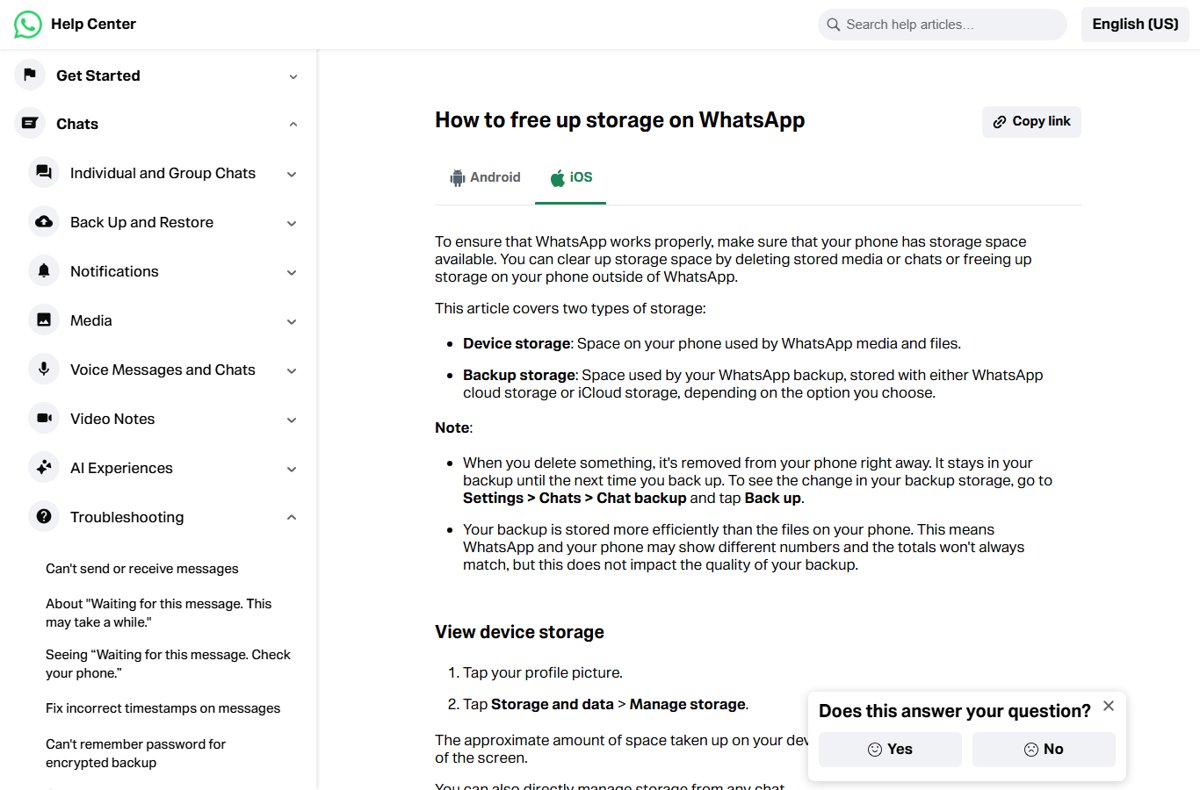
How to check WhatsApp storage on iPhone
Compare the two numbers before you delete anything. The iPhone figure is the one that decides your free space.
- Open Settings and tap General.
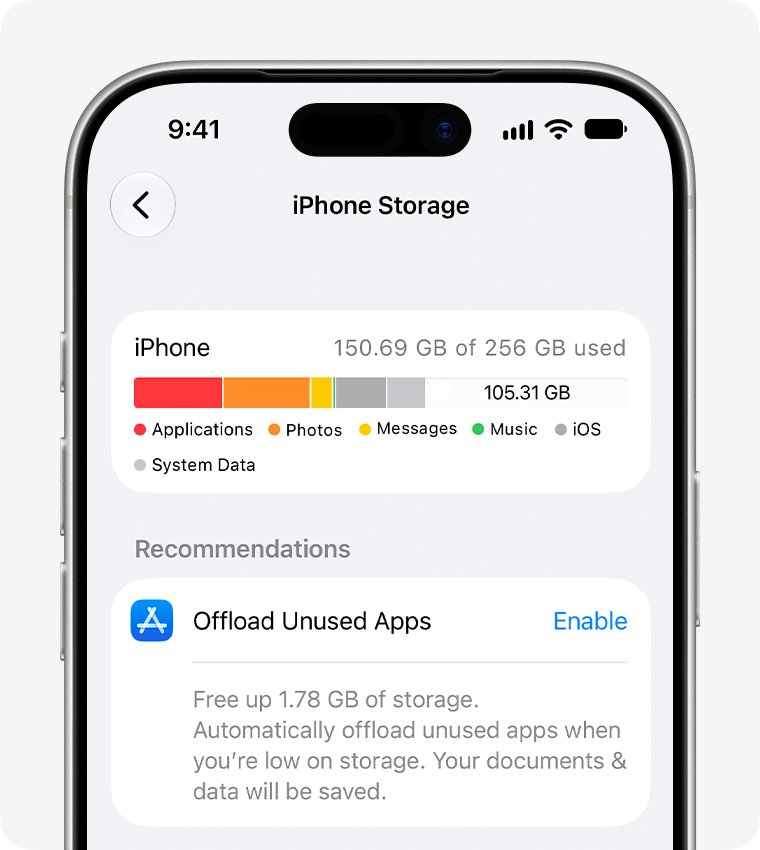
- Tap iPhone Storage and wait for the app list to load.
- Tap WhatsApp to see the app size and the size of its documents and data.
- Open WhatsApp, tap your profile picture or Settings, then tap Storage and data > Manage storage.
- Read the approximate WhatsApp total shown at the top of the screen.
If iPhone Storage shows far more than WhatsApp reports, the gap is data WhatsApp no longer lists, and only deleting the app clears it.
How to delete large WhatsApp media and every copy on iPhone
Use this when you want to keep the app and your text chats but remove the heavy files. Deleting here is permanent and cannot be redownloaded from the chat.
- Tap your profile picture or Settings, then tap Chats > Chat backup.
- Tap Manage your storage, then tap Review and delete media.
- Select a chat or channel, then tap the sort icon and choose Largest.
- Tap Select, choose the items to remove, or tap Select all.
- Tap the delete button.
- Choose Delete items and any copies if offered, or Delete all when starred items are included.
Repeat for each large chat. Picking the plain delete option leaves duplicate copies behind, which is the most common reason the total barely moves.
How to clear all media from a WhatsApp chat on iPhone
Clearing media from the chat list is faster for group chats full of videos. The chat itself stays in your list.
- On the Chats tab, touch and hold the chat you want to clear.
- Tap Clear chat, then select Clear all media.
- Check Videos and GIFs, Photos, Stickers, Documents and Audio.
- Select Clear starred messages so starred files go too.
- Tap Clear media.
To remove messages and links as well, open the chat, tap its name, and tap Clear chat > Clear all messages.
Offload WhatsApp vs delete WhatsApp on iPhone
| Option | What it removes | Use it when |
|---|---|---|
| Clear media in WhatsApp | Selected files in WhatsApp media | WhatsApp's own total is large and you want to keep the app |
| Offload App | The app only; documents and data stay | Never for this problem; the large data stays on the iPhone |
| Delete App, then reinstall | The app and all of its data | iPhone Storage still shows a large WhatsApp total after clearing |
Offload is found under Settings > General > iPhone Storage > WhatsApp. It frees only the app size, so it does not touch the space you are trying to recover.
Check that WhatsApp storage dropped on iPhone
- Open Settings > General > iPhone Storage.
- Wait for the bar at the top to finish calculating.
- Tap WhatsApp and compare its documents and data size with the figure you noted earlier.
- Confirm the available space at the top rose by roughly the same amount.
- In WhatsApp, open Storage and data > Manage storage and confirm the total is close to the iPhone figure.
WhatsApp storage full problem on iPhone: fixes
iPhone Storage still shows the old WhatsApp size
Storage figures take time to recalculate after large deletions.
- Close Settings and reopen General > iPhone Storage after a few minutes.
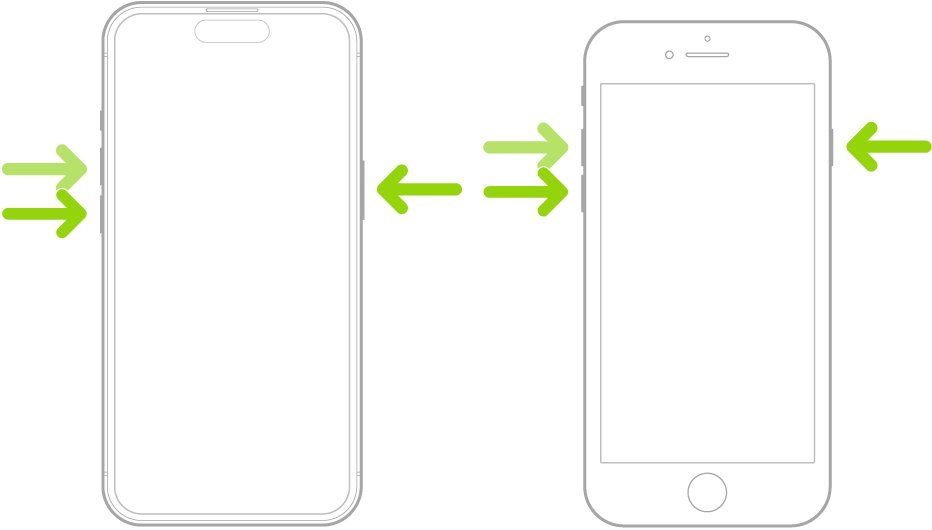
- Restart the iPhone with a quick soft reset.
- If the number still has not changed, back up, delete WhatsApp and reinstall it.
WhatsApp says a small number but iPhone Storage shows a huge one
Data WhatsApp no longer lists is still stored with the app.
- Back up with Chats > Chat backup > Back up now.
- Delete the app with Remove App > Delete App.
- Reinstall from the App Store and restore.
Storage fills up again after the restore
The backup brought back videos, or new media keeps arriving in large groups.
- Open Chats > Chat backup and turn off Include videos in chats and Include status archive.
- Run Back up now so the next restore stays small.
- Clear media from busy groups with Clear chat > Clear all media regularly.
WhatsApp backup fails because of low storage
The backup needs free space on both the iPhone and iCloud.
- Delete large media inside WhatsApp first to shrink the backup.
- Free iPhone space using the recommendations in iPhone Storage.
- Free iCloud space in Settings > your name > iCloud > Storage, or upgrade to iCloud+.
WhatsApp prompts you to free up space to keep working
Device storage has reached a critically low level.
- Open Settings > General > iPhone Storage and tap Show All under recommendations.
- Tap Enable on a recommendation, or review and delete the content it lists.
- Return to WhatsApp and clear large media from the biggest chats.
What happens to the WhatsApp iCloud backup when you delete chats
Deleting on the iPhone removes items from the device right away, but they stay in your backup until the next backup runs. The backup also counts against your iCloud storage, not your iPhone storage.
- After clearing media, open Chats > Chat backup and tap Back up now to shrink the backup.
- To see the iCloud side, open Settings, tap your name, then tap iCloud > Storage.
- Tap Backups, then the name of this iPhone, to review which apps are in the iPhone backup.
- Turn off WhatsApp there only if you rely on WhatsApp's own chat backup instead.
Turning an app off in iCloud Backup removes all of its information from that backup, so make sure a WhatsApp chat backup exists first.
WhatsApp iPhone storage FAQ
What is WhatsApp Inc in iPhone storage?
WhatsApp Inc. is the developer and seller name of the WhatsApp Messenger app on the App Store. The storage it uses is the WhatsApp app plus its documents and data, which you can see in Settings > General > iPhone Storage > WhatsApp.
Where is WhatsApp data stored on iPhone?
WhatsApp chats and media are stored inside the WhatsApp app's own data on the iPhone, and in your chat backup on iCloud or WhatsApp cloud storage. iPhone Storage lists that local data as WhatsApp documents and data.
How do I check WhatsApp storage?
Open WhatsApp, tap your profile picture or Settings, then tap Storage and data > Manage storage. The approximate space WhatsApp uses appears at the top. For the iPhone's own figure, open Settings > General > iPhone Storage and tap WhatsApp.
How do I clear WhatsApp storage on iPhone?
Go to Chats > Chat backup > Manage your storage > Review and delete media, sort by Largest, and delete items with their copies. If iPhone Storage still shows a large total, back up, delete the app and reinstall it.
Why does WhatsApp take so much storage?
Photos, videos and documents from chats are saved to the device, and forwarded files can exist as several copies. WhatsApp also notes that deleted items might still be saved on the device, so space is not always freed when you clear a chat.
How do I reduce WhatsApp storage on iPhone?
Delete the largest media first using the Largest sort in Manage storage, clear media from busy groups, and turn off Include videos in chats in Chat backup. Choosing Delete items and any copies stops duplicates from keeping the space.
Does deleting WhatsApp from iPhone delete my chats?
Yes, deleting the app removes its data from the iPhone, including chats and media. Your chats come back only if you restore from a WhatsApp backup made with the same phone number and cloud account.
Does offloading WhatsApp free up storage?
Only the app size, which is a few hundred megabytes. Offloading keeps the app's documents and data, so the large WhatsApp total stays on the iPhone. Delete the app instead when you need that space back.
Where are WhatsApp images stored on iPhone?
Images you receive are kept in WhatsApp's own data on the iPhone and appear in each chat's media. Any image you saved to the Photos app is a separate copy that counts under Photos, so delete it there too.
Does WhatsApp store data on its servers?
Not your chat history. WhatsApp states that chat history is not stored on its servers, which is why it cannot restore chats for you. Your only copies are on the phone and in your iCloud or WhatsApp cloud backup.
Bottom line: freeing WhatsApp storage on iPhone
Delete large media with the copies option first, and if iPhone Storage still shows a huge WhatsApp total, back up, delete the app and reinstall it. Clearing chats leaves duplicate copies and app data behind, while deleting the app removes all of its data from the iPhone and the restore brings back only what the backup holds.