When an iPhone 5 says iPhone is disabled, connect to iTunes, the only way back in is to erase it: put it in recovery mode, connect it to a computer and choose Restore, then set it up again.
This guide covers the restore in iTunes, Finder and the Apple Devices app, erasing through iCloud, the recovery mode buttons for every Home button iPhone, and what to do when the restore fails.
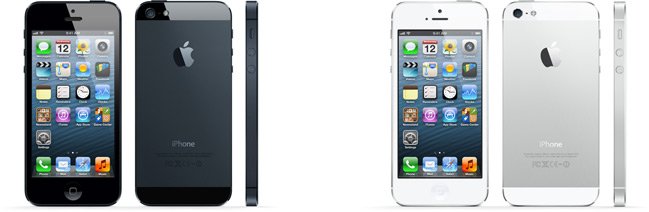
Fix a disabled iPhone 5 with recovery mode
Apple's fix for a forgotten passcode is the same on every iPhone with a Home button. The restore erases the phone, so data comes back only from a backup made earlier.
- Press and hold the top button until the power off slider appears, then drag the slider to turn the iPhone off.
- Connect a Lightning cable to your Mac or Windows PC, but not to the iPhone yet.
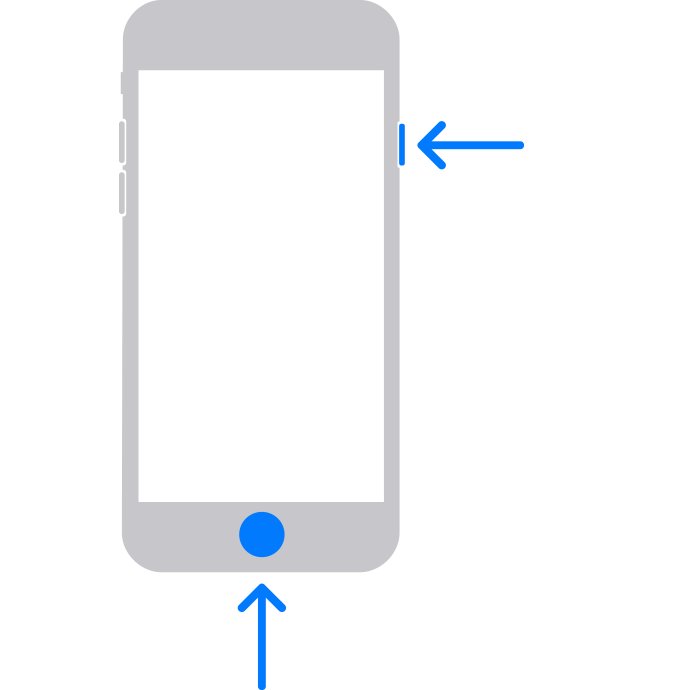
- Hold the Home button on the iPhone and connect the other end of the cable while you keep holding it.
- Keep holding Home through the Apple logo until an image of a computer and a cable appears.
- On the computer, select the iPhone in iTunes, Finder or the Apple Devices app.
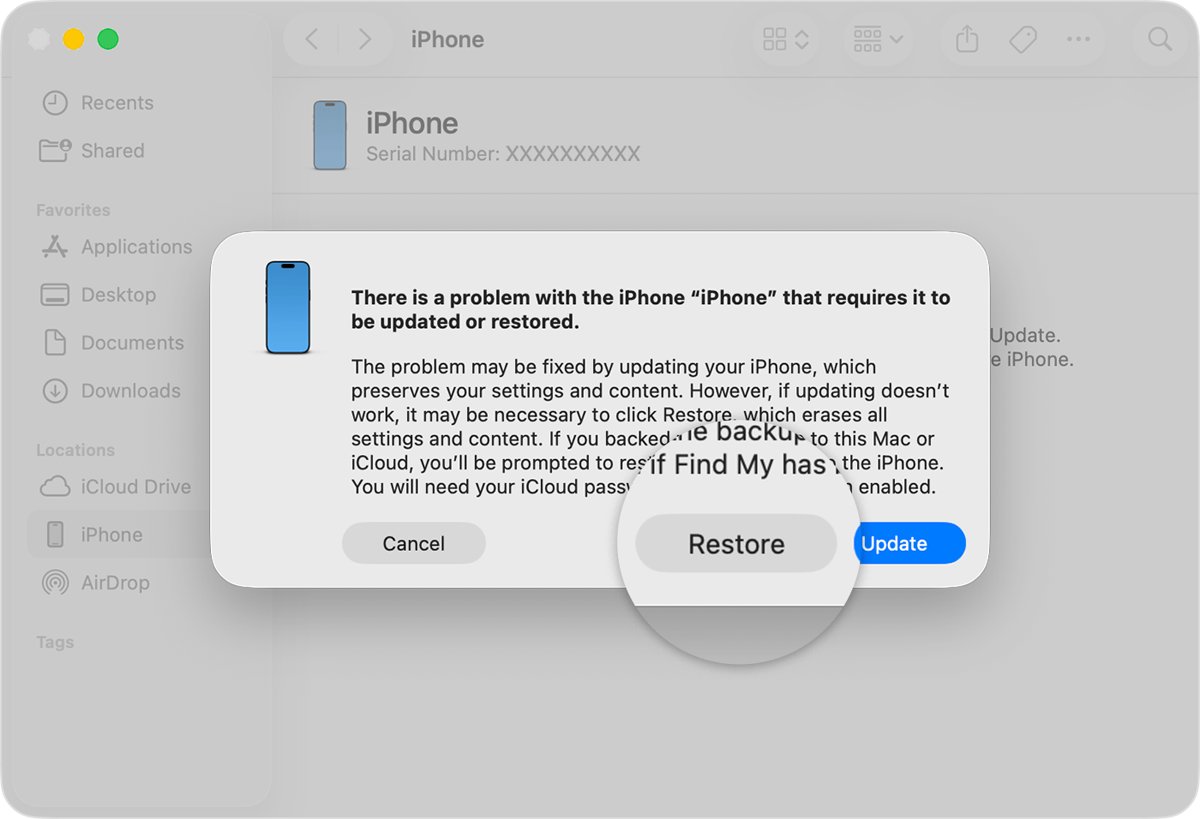
- Select Restore when you are offered Restore or Update, and follow the onscreen instructions.
- Wait for the Hello screen, disconnect the iPhone and set it up again.
If the software download takes more than 15 minutes, the iPhone can leave the recovery screen. Let the download finish, turn the iPhone off and start recovery mode again.
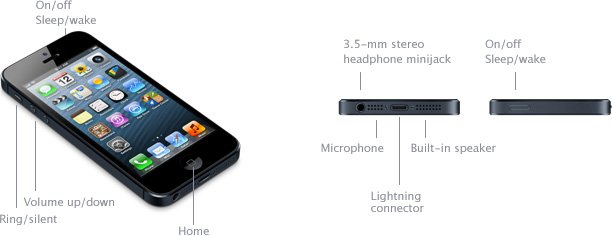
Which disabled iPhone fix should you use?
| Your situation | Use this | Why |
|---|---|---|
| You have a Windows PC with iTunes | Recovery mode, then Restore in iTunes | iTunes still restores older iPhones on Windows |
| You have a Windows PC with the Apple Devices app | Recovery mode, then Restore under General | Apple Devices replaces iTunes for device management on Windows |
| You have a Mac | Recovery mode, then Restore in Finder (or iTunes on older macOS) | Finder handles iPhone restores on current macOS |
| No computer, but Find My iPhone was on | Erase This Device at icloud.com/find | The erase runs over Wi-Fi or cellular without a cable |
| No computer and no Find My | Apple Store or Apple Authorized Service Provider | Apple's own advice when no computer can be borrowed |
| Buttons do not respond | Apple service | Recovery mode needs a working Home button |
What you need to restore a disabled iPhone 5
| Requirement | Detail |
|---|---|
| Computer | A Mac or a Windows PC, updated to its latest version |
| Software | Latest iTunes on Windows, or the Apple Devices app from the Microsoft Store; Finder on a current Mac |
| Cable | The Lightning to USB cable, or any cable that can charge the phone |
| Internet connection | The computer downloads the iOS software during the restore |
| Time | Up to 60 minutes |
| Apple Account password | Needed after the restore to pass Activation Lock if Find My iPhone was on |
The iPhone 5 tops out at iOS 10.3.4. Apple notes that over-the-air updates and iCloud Backup stopped working on an iPhone 5 that missed that update, so a computer restore is also how it gets the current version.
Restore a disabled iPhone 5 in iTunes on Windows
Use this route when the iPhone is already in recovery mode and your PC still runs iTunes. A restore deletes all information and settings on the phone.
- Open iTunes on your PC and install any iTunes update it offers.
- Put the iPhone 5 in recovery mode as shown in the first section.
- Wait for iTunes to report that it found an iPhone in recovery mode.
- Select Restore when you are offered Restore or Update.
- Review the terms and select Agree, then let iTunes download and install iOS.
- Disconnect the iPhone once the Hello screen appears.
If the phone was not disabled but working, the same restore sits under the Device button, then Summary, then Restore.

Restore a disabled iPhone with Finder or the Apple Devices app
Current Macs restore iPhones in Finder, and Windows PCs can use the Apple Devices app instead of iTunes. The recovery mode step is identical.
- Put the iPhone in recovery mode with the cable connected to the computer.
- On a Mac, open a Finder window and select the iPhone under Locations in the sidebar.
- On a PC, open Apple Devices and select the iPhone in the sidebar, then select General.
- Select Allow or Trust if the computer asks to let the accessory connect.
- Select Restore and follow the onscreen instructions.
- Disconnect the iPhone when the Hello screen appears.
Erase a disabled iPhone without iTunes using iCloud
If Find My iPhone was turned on and the phone is online, iCloud can erase it remotely. Activation Lock stays on after the erase.
- On any computer or phone, go to icloud.com/find and sign in with the Apple Account used on the iPhone.
- Select the disabled iPhone in the list of devices.
- Select Erase This Device.
- Follow the onscreen instructions to confirm the erase.
- Wait for the iPhone to restart to the Hello screen, then set it up and enter your Apple Account password.
An offline iPhone is erased the next time it connects to the internet. A confirmation email goes to your Apple Account address.
Recovery mode buttons for iPhone 5, 5s, 6, 7 and 8
The disabled message looks the same on every older iPhone, but the button you hold for recovery mode changes by model.
| iPhone model | Button to hold while connecting the cable | Release when |
|---|---|---|
| iPhone 5, iPhone 5c, iPhone 5s, iPhone 6, iPhone 6s, iPhone SE (1st generation) | Home button | The computer-and-cable image appears |
| iPhone 7, iPhone 7 Plus | Volume down button | The computer-and-cable image appears |
| iPhone 8, iPhone 8 Plus, iPhone SE (2nd and 3rd generation) | Side button | The computer-and-cable image appears |
Check that the disabled iPhone 5 restore worked
- Confirm the iPhone shows the Hello screen instead of iPhone is disabled.
- Swipe or press Home to start setup and join a Wi-Fi network.
- Enter the Apple Account and password used on the phone if the Activation Lock screen appears.
- Choose to restore from an iCloud or computer backup if you made one before the lockout.
- Set a new passcode you will remember, then open Settings > General > About and check Software Version reads 10.3.4.
Fix a disabled iPhone 5 that will not restore
The computer does not recognise the disabled iPhone
The phone is not in recovery mode, or the cable or port is not passing data.
- Turn the iPhone off and enter recovery mode again, holding Home until the computer-and-cable image appears.
- Try a different cable that can charge the phone, and a different USB port.
- Update iTunes, the Apple Devices app or macOS, then try again.
The iPhone leaves recovery mode before the restore starts
The iOS download took longer than 15 minutes.
- Leave the download running on the computer until it finishes.
- Turn the iPhone off and put it back in recovery mode.
- Select Restore again when the Restore or Update choice appears.
The iPhone asks for an Apple Account after the restore
Activation Lock stays on when Find My iPhone was turned on.
- Enter the Apple Account and password you used to set up the phone, or the device passcode if offered.
- If you forgot the password, reset your Apple Account password first.
- If you bought the phone used, ask the seller to remove it at icloud.com/find with Remove This Device.
- With proof of purchase, start an Activation Lock support request with Apple.
The Home button does not work, so recovery mode never starts
Recovery mode depends on a working button on this model.
- Use Erase This Device at icloud.com/find if Find My iPhone was on.
- Otherwise, book service with Apple or an Apple Authorized Service Provider.
Disabled iPhone 5 FAQ
How do I fix a disabled iPhone 5?
Turn the iPhone 5 off, hold the Home button while you connect it to a computer, and keep holding until the computer-and-cable screen appears. Then choose Restore in iTunes, Finder or the Apple Devices app and set the phone up again.
Why is my iPhone saying iPhone is disabled?
The iPhone locks itself and shows iPhone is disabled after too many wrong passcodes in a row. It protects the data from someone guessing the code. If you no longer know the passcode, the phone has to be erased and set up again.
How do I enable an iPhone 5s when it is disabled?
An iPhone 5s uses the same fix as an iPhone 5. Put it in recovery mode by holding the Home button while connecting it to a computer, then select Restore. If Find My iPhone was on, you can also erase it at icloud.com/find.
Can I unlock a disabled iPhone 5 without losing data?
No. Apple's only fix for a forgotten passcode erases the iPhone. Your photos, messages and apps come back only if you made an iCloud or computer backup before the lockout, which you can restore during setup.
Can I fix a disabled iPhone 5 without a computer?
Yes, if Find My iPhone was turned on. Sign in at icloud.com/find, select the iPhone and choose Erase This Device. Without Find My and without a computer, take the phone to an Apple Store or an Apple Authorized Service Provider.
Do I still need iTunes to fix a disabled iPhone?
Not always. Current Macs restore iPhones in Finder, and Windows PCs can use the Apple Devices app from the Microsoft Store. iTunes for Windows still works if it is already installed and up to date.
Why does my iPhone 5 ask for an Apple ID after the restore?
That is Activation Lock, which stays on when Find My iPhone was enabled. Enter the Apple Account and password used on the phone. If you forgot it, reset the password first, because the phone cannot be activated without it.
How long does it take to restore a disabled iPhone 5?
Allow up to 60 minutes. Most of that is the iOS download. If the download runs past 15 minutes, the phone may exit recovery mode; let the download finish, then enter recovery mode again and select Restore.
Bottom line: fixing iPhone is disabled on an iPhone 5
Use recovery mode and a computer restore: hold Home while connecting the cable, then choose Restore. It works whether or not Find My was on, and it also installs iOS 10.3.4, which an iPhone 5 needs for the App Store, iCloud and accurate dates.