To change the default RDP port 3389 on Windows, set the PortNumber value under HKEY_LOCAL_MACHINE\SYSTEM\CurrentControlSet\Control\Terminal Server\WinStations\RDP-Tcp to a new decimal number, allow that port in the firewall, and restart the PC.
This works on Windows 11, Windows 10 and Windows Server 2016 through 2025, and the guide covers PowerShell and Registry Editor methods, firewall rules, connecting with the new port, and fixes when the connection fails.
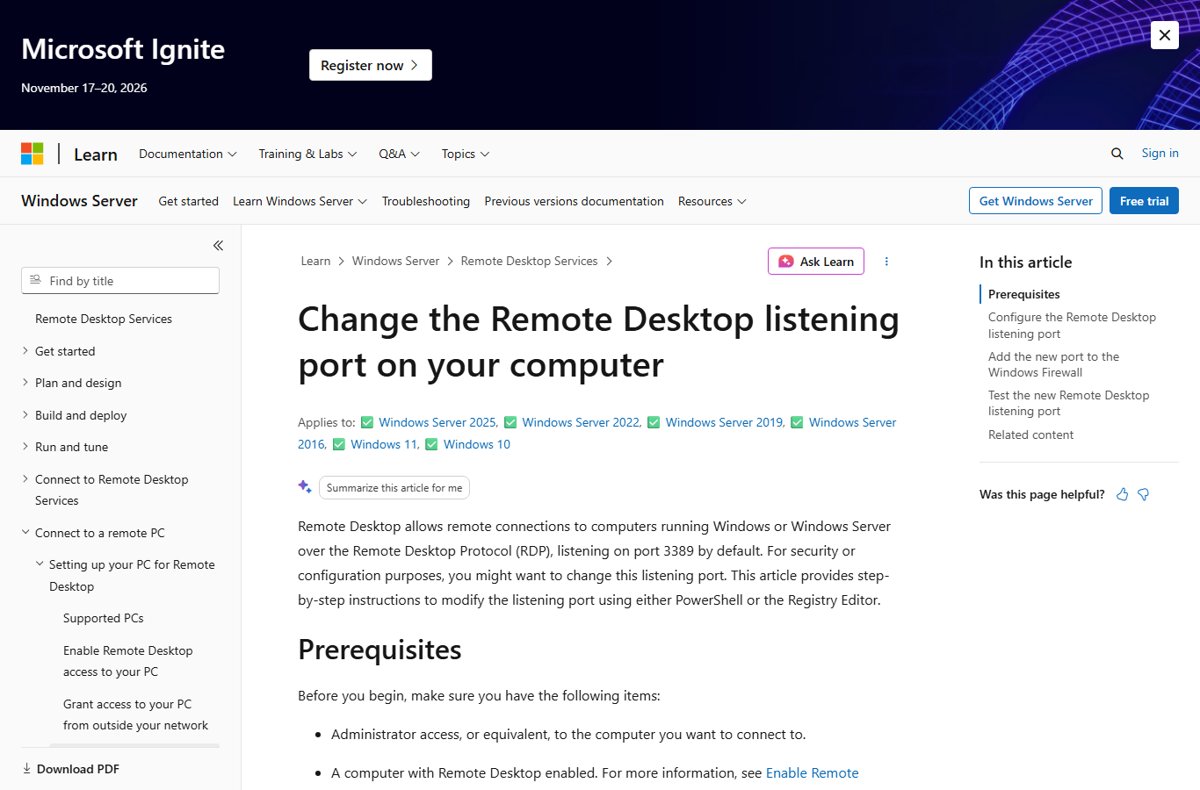
How to change the Remote Desktop port on Windows
Remote Desktop listens on TCP and UDP port 3389 by default, and the port is stored in the registry. Sign in with an administrator account on the PC you connect to, and make sure Remote Desktop is already turned on.
- Select Start, type Registry Editor, and open Registry Editor from the best match list.
- Expand
HKEY_LOCAL_MACHINE\SYSTEM\CurrentControlSet\Control\Terminal Server\WinStations\RDP-Tcpin the navigation pane. - Select
PortNumberin the right pane. - Select Edit > Modify, then select Decimal.
- Type the new port number, for example 3390, and select OK.
- Allow the new port in Windows Firewall (see the firewall section below).
- Close Registry Editor and restart your computer.
Back up the registry before you edit it. A wrong value in this key stops Remote Desktop from accepting connections until you set it back.
Requirements for changing the RDP listening port
| Requirement | Details |
|---|---|
| Windows edition | Windows 11 or 10 Pro, Enterprise or Education, or Windows Server 2016 to 2025. Home editions cannot host Remote Desktop. |
| Account | Administrator rights on the PC whose port you change |
| Remote Desktop | Turned on in Settings > System > Remote Desktop |
| A free port | A port no other app or service on that PC is listening on |
| Firewall access | Rights to add an inbound rule in Windows Firewall and any other firewall in the path |
| A test client | Remote Desktop Connection (mstsc.exe) or Windows App on another device |
If Remote Desktop is not on yet, enable Remote Desktop first, then change the port.
Change the Remote Desktop listening port with PowerShell
PowerShell edits the same PortNumber value without opening Registry Editor, which is faster on a server or over a remote session. Open PowerShell as an administrator for every command below.
- Right-click Start and select Terminal (Admin) or Windows PowerShell (Admin).
- Check the current port:
Get-ItemProperty -Path 'HKLM:\SYSTEM\CurrentControlSet\Control\Terminal Server\WinStations\RDP-Tcp' -name 'PortNumber' - Confirm the output shows
PortNumber : 3389, or whatever port is set now. - Set the new port, replacing 3390 with your choice:
$portValue = 3390 - Write it to the registry:
Set-ItemProperty -Path 'HKLM:\SYSTEM\CurrentControlSet\Control\Terminal Server\WinStations\RDP-Tcp' -name 'PortNumber' -Value $portValue - Run the
Get-ItemPropertycommand again and confirm it shows the new number. - Restart the Remote Desktop Services service with
Restart-Service TermService -Force, or restart the PC.
Restarting TermService ends any open Remote Desktop session on that PC. If you run these commands over RDP, add the firewall rule before you restart the service, or you lock yourself out.
Allow the new RDP port in Windows Firewall with PowerShell
The built-in Remote Desktop firewall rules only open port 3389. Add inbound rules for the new port over both TCP and UDP, because Remote Desktop uses UDP as well.
$portValue = 3390
New-NetFirewallRule -DisplayName 'RDPPORTLatest-TCP-In' -Profile Any -Direction Inbound -Action Allow -Protocol TCP -LocalPort $portValue
New-NetFirewallRule -DisplayName 'RDPPORTLatest-UDP-In' -Profile Any -Direction Inbound -Action Allow -Protocol UDP -LocalPort $portValue
Creates two inbound allow rules for the new port. -Profile Any applies them to the Domain, Private and Public network profiles; use Domain, Private or Public instead to limit where the rule works.
You should see: Each command prints the new rule with Enabled : True and Action : Allow.
If a router firewall, a cloud network security group or third-party firewall sits in front of the PC, open the new port there too.
Add an inbound RDP port rule in Windows Defender Firewall
Use the firewall console if you prefer a wizard to PowerShell. The result is the same allow rule.
- Select Start, type
wf.msc, and press Enter. - Select Inbound Rules in the navigation pane.
- Select Action > New rule.
- On the Rule Type page, select Custom, then Next; on the Program page, select All programs, then Next.
- On the Protocol and Ports page, select TCP, set the local port to your new RDP port, then select Next.
- Leave the Scope page as is or restrict the remote IP addresses, then select Next.
- Select Allow the connection, choose the profiles on the Profile page, then select Next.
- Name the rule, for example RDP 3390 TCP, and select Finish.
- Repeat the wizard with UDP selected for the same port.
Registry Editor or PowerShell for changing the RDP port
| Your situation | Use this | Why |
|---|---|---|
| Single PC, you prefer menus | Registry Editor | Visual edit of one value, then a restart |
| Server, Server Core or several PCs | PowerShell | Same commands work locally and in a remote PowerShell session |
| You are connected over RDP right now | PowerShell, firewall rule first | Lets you open the new port before the listener moves |
| You need to undo quickly | PowerShell | One command sets PortNumber back to 3389 |
Connect to Remote Desktop on a custom port
Clients still try 3389 unless you add the port to the address. Put a colon and the port after the computer name or IP address.
- On the client PC, select Start, type Remote Desktop Connection, and open it.
- In Computer, type the host and port, for example
pc1.contoso.com:3390or192.168.1.20:3390. - Select Connect.
- Enter the account credentials and select OK.
In Windows App, the Remote Desktop app or other Remote Desktop clients on another device, use the same host:port format in the PC name field. For access from outside your network, Microsoft recommends a VPN; if you use port forwarding, forward the new port, not 3389.
Check that RDP is listening on the new port
- On the host, open PowerShell as an administrator.
- Run
Get-NetTCPConnection -LocalPort 3390 -State Listen, using your new port, and confirm a listening entry appears. - Run
cmd /c 'netstat -ano | find "3390"'and note the PID on the LISTENING line. - Run
cmd /c 'tasklist /svc | find "<PID>"'and confirm the PID belongs to TermService. - From another PC on the network, run
Test-NetConnection -ComputerName <host> -Port 3390 -InformationLevel Detailed. - Confirm the output shows
TcpTestSucceeded : True, then connect withhost:3390.
Change the RDP port back to 3389
- Open PowerShell as an administrator on the host.
- Run
Set-ItemProperty -Path 'HKLM:\SYSTEM\CurrentControlSet\Control\Terminal Server\WinStations\RDP-Tcp' -name 'PortNumber' -Value 3389. - Run
Restart-Service TermService -Force, or restart the PC. - Remove the custom firewall rules with
Remove-NetFirewallRule -DisplayName 'RDPPORTLatest-TCP-In'and the same command for'RDPPORTLatest-UDP-In'. - Connect again using the computer name without a port.
In hexadecimal the default PortNumber is 0x00000d3d, which Registry Editor also shows as 3389 in decimal.
Remote Desktop not connecting after changing the port
Remote Desktop can't connect to the remote computer after the change
The firewall still allows only 3389, or the client still uses 3389.
- Add inbound TCP and UDP rules for the new port in Windows Firewall.
- Open the port on any router, hardware or cloud firewall in front of the PC.
- Connect with
host:port, not the bare computer name. - Run
Test-NetConnection -ComputerName <host> -Port <port>from the client and checkTcpTestSucceeded.
Port change has no effect and RDP still answers on 3389
Remote Desktop Services has not reloaded the setting.
- Confirm
PortNumbershows the new value withGet-ItemProperty. - Run
Restart-Service TermService -Force. - If the old port still answers, restart the PC.
Nothing is listening on the new port
Another program already uses that port, or the RDP-Tcp listener is not running.
- Run
cmd /c 'netstat -ano | find "<port>"'and note the PID. - Run
cmd /c 'tasklist /svc | find "<PID>"'to see which service owns it. - If it is not TermService, pick a different RDP port or move the other app.
- Run
qwinstaand check that rdp-tcp shows a state of Listen.
Locked out after changing the port over a Remote Desktop session
The listener moved before the firewall allowed the new port.
- Sign in at the PC, through a hypervisor or cloud serial console, or with a remote PowerShell session.
- Add the firewall rules for the new port, or set
PortNumberback to 3389. - Restart TermService and connect again.
For connection errors that have nothing to do with the port, work through the general Remote Desktop connection fixes.
Does changing the RDP port improve security?
Treat a custom RDP port as noise reduction, not protection: keep Network Level Authentication on, use strong unique passwords, and reach the PC through a VPN rather than exposing any RDP port to the internet. A different port avoids scans aimed only at 3389, but anyone who scans all ports still finds the listener. Microsoft warns that forwarding RDP opens the PC to the internet and recommends a VPN instead.
Custom RDP port FAQ
What is the default RDP port?
Remote Desktop listens on port 3389 by default, over TCP and UDP. The value is stored as PortNumber under the RDP-Tcp registry key, shown as 0x00000d3d in hexadecimal.
Where is the RDP port set in the registry?
It is the PortNumber DWORD under HKEY_LOCAL_MACHINE\SYSTEM\CurrentControlSet\Control\Terminal Server\WinStations\RDP-Tcp. Edit it in Decimal mode so the number you type is the actual port.
Do I need to restart after changing the RDP port?
Yes. Restart the PC, or restart the Remote Desktop Services service with Restart-Service TermService -Force. Either action ends current Remote Desktop sessions on that machine.
How do I connect to RDP on a different port?
Add a colon and the port after the host name or IP address, for example pc1.contoso.com:3390, in the Computer box of Remote Desktop Connection or the PC name field in Windows App.
Can I change the RDP port on Windows 11 Home?
No. Windows Home editions cannot act as a Remote Desktop host, so there is no listener to move. They can still connect out to a Pro, Enterprise, Education or Server machine on a custom port.
Do I need a firewall rule for the new RDP port?
Yes. The built-in Remote Desktop rules cover 3389 only. Add inbound TCP and UDP allow rules for the new port in Windows Firewall, and open it on any other firewall between the client and the PC.
How do I check which port RDP is using?
Run Get-ItemProperty -Path 'HKLM:\SYSTEM\CurrentControlSet\Control\Terminal Server\WinStations\RDP-Tcp' -name 'PortNumber' in an elevated PowerShell window. The PortNumber line shows the current port.
Bottom line: changing the default RDP port on Windows
Edit PortNumber with PowerShell, add TCP and UDP firewall rules for the new port before restarting TermService, then connect with host:port. Opening the firewall first prevents a lockout, and the host:port address is the only client-side change needed.