The iPhone 17 front camera tracks your face in WhatsApp because Center Stage is on, and you turn it off by opening Control Center during the video call, tapping WhatsApp at the top, then tapping Center Stage.
This guide covers the exact steps for WhatsApp, the same switch in FaceTime, the separate Center Stage options in the Camera app, and what to do when the setting will not stay off.
Turn off Center Stage in a WhatsApp video call on iPhone 17
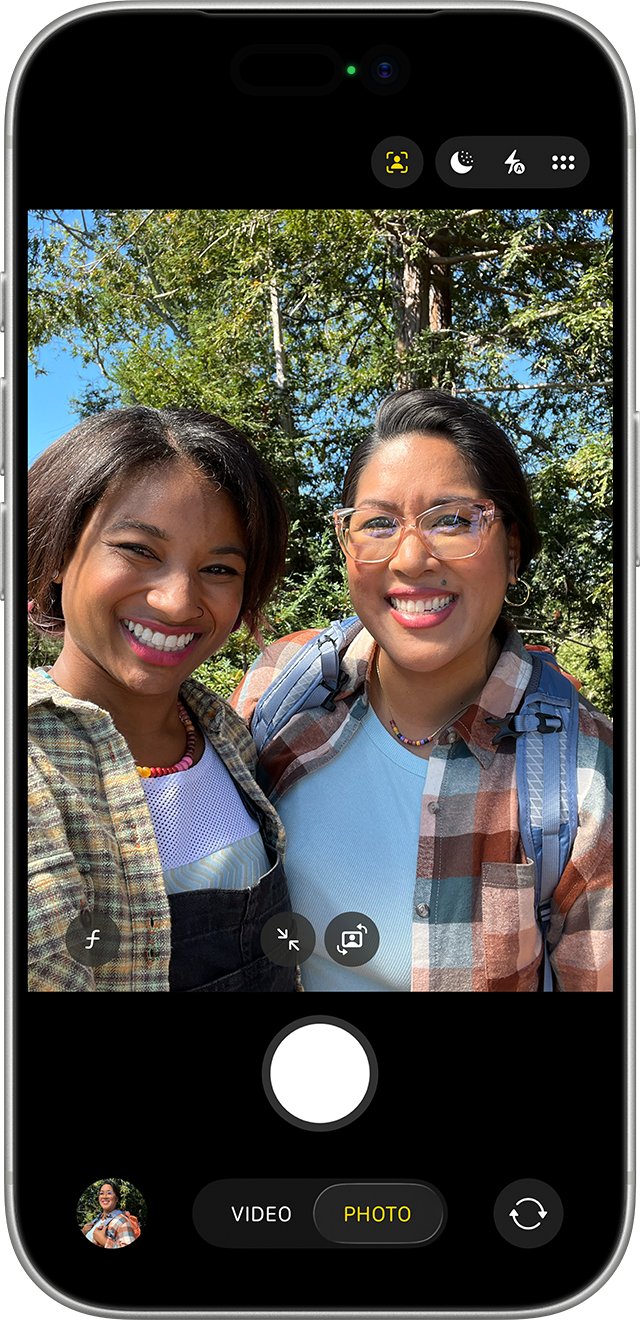
Center Stage keeps you in the frame by zooming and reframing the front camera as you move. In third-party apps such as WhatsApp video calls, the switch lives in Control Center, not inside WhatsApp.
- Start or answer a WhatsApp video call with the front camera.
- Swipe down from the top-right corner of the screen to open Control Center.
- Tap the WhatsApp button at the top of Control Center.
- Tap Center Stage so it is no longer highlighted.
- Swipe up from the bottom center of the screen to close Control Center and return to the call.
The preview stops following your face straight away. If Center Stage is on again during a later call, repeat the same steps.
What Center Stage on the iPhone 17 front camera does
iPhone 17, iPhone 17 Pro, iPhone 17 Pro Max and iPhone Air all have an 18MP Center Stage front camera. Center Stage works in two places, and each has its own switch.
| Where | What Center Stage does | Where to turn it off |
|---|---|---|
| WhatsApp, Zoom and other video call apps | Keeps you in the frame as you move | Control Center > app button > Center Stage |
| FaceTime | Keeps you in the frame; on by default on supported models | Your tile > Camera Effects > Center Stage |
| Camera app selfies | Auto Zoom widens the frame for faces at the edge; Auto Rotate turns it to landscape for groups | Center Stage options on the front camera screen |
The lens itself does not move. The frame is zoomed and rotated in software, which is why the picture appears to drift as your face moves.
Turn off Center Stage in FaceTime on iPhone 17
FaceTime keeps its own Center Stage control on your video tile, so turning it off in WhatsApp does not change FaceTime calls.
- Start or join a FaceTime video call.
- Tap your own video tile.
- Tap Camera Effects.
- Tap Center Stage to turn it off.
- Tap your tile again to hide the controls.
Turn off Auto Zoom and Auto Rotate for iPhone 17 selfies
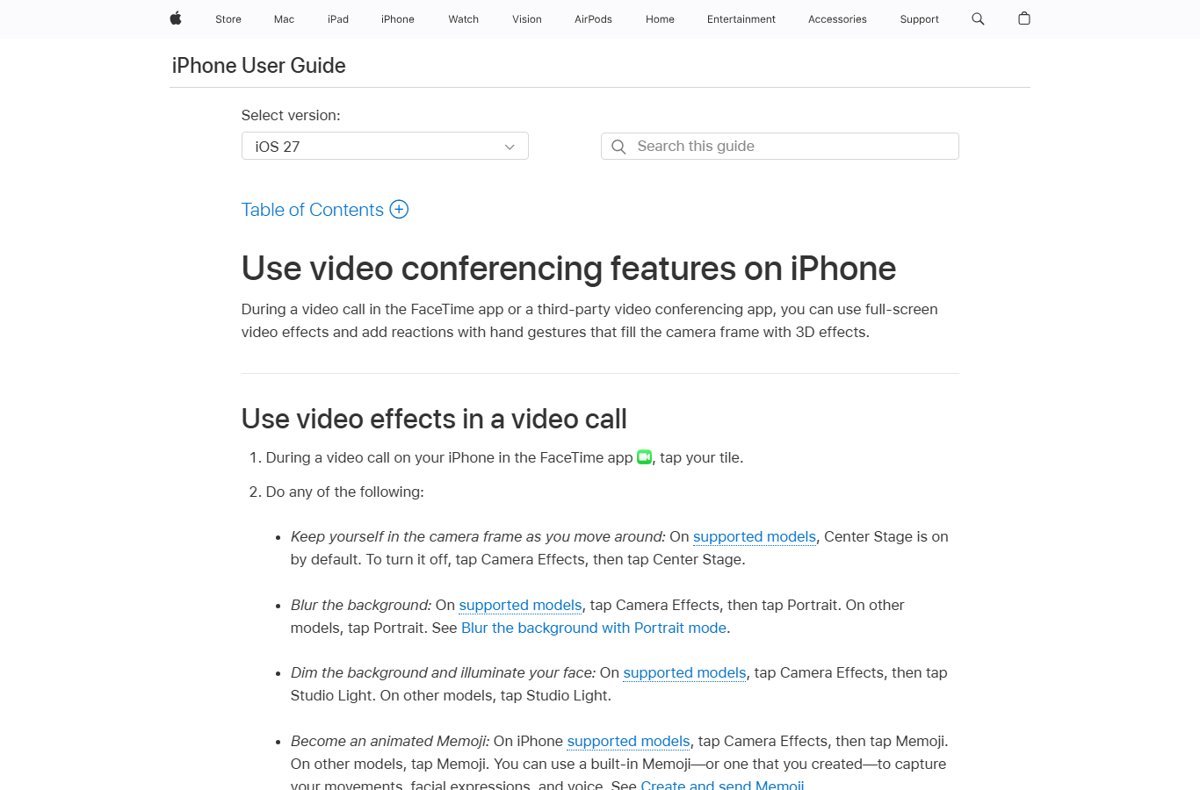
Center Stage for photos is separate from Center Stage for video calls. When you first use it, Auto Zoom is on and Auto Rotate is off.
- Open Camera on your iPhone.
- Tap the switch-camera button to use the front-facing camera.
- Tap the Center Stage button to show its options.
- Turn off Auto Zoom so the frame stops widening when a face reaches the edge.
- Turn off Auto Rotate so the frame stays in portrait for group selfies.
- Take the selfie with the Shutter button, a volume button or the Camera Control.
Your choices are saved for the next selfie. Tapping the zoom or rotate button by hand also turns these Center Stage settings off.
Turn off other video effects in WhatsApp calls on iPhone
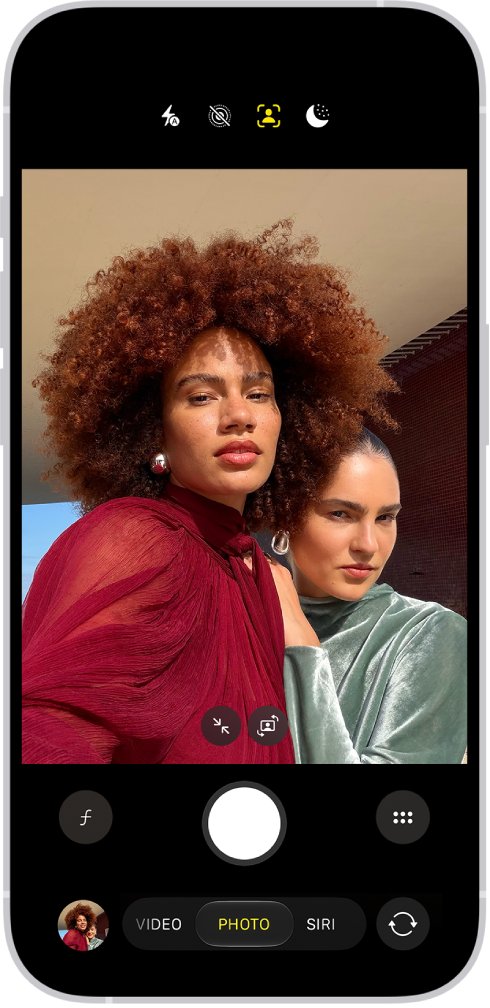
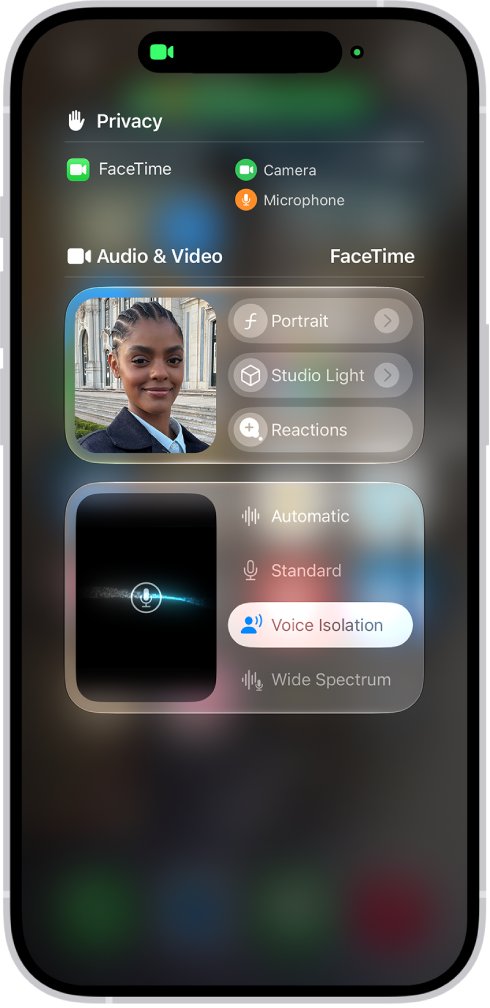
If the image still looks processed after Center Stage is off, another effect from the same Control Center panel is probably on. Memoji are not available in third-party apps, so only these appear for WhatsApp.
- During the WhatsApp video call, open Control Center.
- Tap the WhatsApp button at the top.
- Tap Portrait to stop blurring the background.
- Tap Studio Light to stop dimming the background and brightening your face.
- Tap Reactions to stop hand gestures from adding hearts, balloons and other 3D effects.
- Close Control Center and check your preview.
To keep Portrait or Studio Light but make them subtler, tap the effect name in the same panel and drag its slider.
Check that the iPhone 17 front camera stopped following your face
- Keep the WhatsApp video call open on the front camera.
- Lean slowly to one side of the frame.
- Confirm your preview stays still and you can move partly out of the shot.
- Open Control Center, tap WhatsApp, and confirm Center Stage is not highlighted.
- Repeat the test on your next call to make sure the setting held.
iPhone 17 Center Stage problems in WhatsApp: fixes
Control Center will not open during the WhatsApp call
Control Center access inside apps is turned off.
- Open the Settings app.
- Tap Control Center.
- Turn on Access Within Apps.
- Return to the call and swipe down from the top-right corner again.
No WhatsApp button or Center Stage option in Control Center
The video effects panel only appears while an app is using the camera.
- Start the WhatsApp video call first, with your camera turned on.
- Switch to the front camera if the rear camera is active.
- Open Control Center again and look for the WhatsApp button at the top.
iPhone 17 camera keeps tracking you on every new call
Center Stage is back on for the app.
- Turn Center Stage off again from Control Center as soon as the call starts.
- Update WhatsApp from the App Store to get the latest WhatsApp call features.
- Update your iPhone in Settings > General > Software Update.
Front camera not working in WhatsApp or shows a black screen
A case or film blocks the lens, or the camera needs a restart.
- Remove any case, screen film or accessory near the front camera.
- Clean the lens with a microfiber cloth.
- Restart your iPhone.
- Open Camera, switch to the front camera and take a test photo.
- If the front camera still fails in the Camera app, contact Apple for service.
iPhone 17 front camera and Center Stage FAQ
Does the iPhone 17 camera move?
No. The front camera hardware is fixed. Center Stage zooms and reframes the image in software so you stay in the shot, which makes it look like the camera is moving. Turn Center Stage off in Control Center during a call to stop it.
Does the iPhone 17 Pro Max move the camera?
No. iPhone 17 Pro Max has the same 18MP Center Stage front camera as iPhone 17 and iPhone Air. The tracking is a software frame adjustment, and you can turn it off per call in Control Center or in FaceTime under Camera Effects.
How is the iPhone 17 front camera different?
It is an 18MP Center Stage camera with Center Stage for photos and video calls, ultra-stabilized video, and Dual Capture for using both cameras. The same front camera is on iPhone 17, iPhone 17 Pro, iPhone 17 Pro Max and iPhone Air.
Why won't my front camera work on iPhone?
A case, film or dirty lens can block it, or the camera may need a restart. Remove accessories, clean the lens, restart the iPhone and update iOS. If the front camera still fails in the Camera app, the iPhone may need service.
Where is the front camera on iPhone 17?
The front camera sits at the top center of the screen, inside the Dynamic Island cutout. Keep that area free of thick screen film or case lips so Center Stage and Face ID can see you clearly.
How do I use the camera on iPhone 17?
Open Camera from the Home Screen, or click the Camera Control on the side. Tap the switch-camera button for selfies, then take the shot with the Shutter button, a volume button or the Camera Control.
Does iPhone 17 have a camera button?
Yes. iPhone 17, iPhone 17 Pro, iPhone 17 Pro Max and iPhone Air all have the Camera Control. Click it to open Camera, click again to take a photo, or click and hold to record video.
What is Camera Control on iPhone 17?
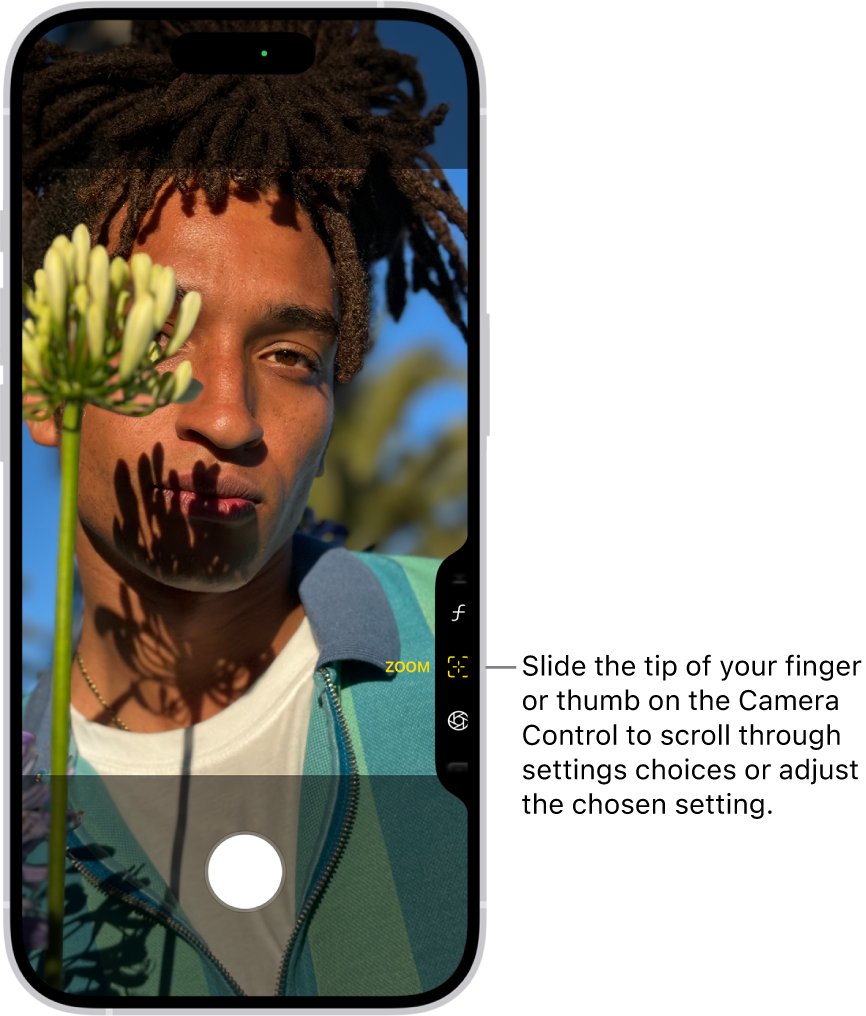
Camera Control is a side button that opens Camera and adjusts settings. Lightly press it twice to show settings such as Exposure, Depth, Zoom, Cameras, Styles and Tone, then slide your finger on it to change the selected one.
How do I use the camera button on iPhone 17?
Click the Camera Control once to open Camera, click again to take a photo, and click and hold to record. To require two clicks to open Camera, go to Settings > Camera > Camera Control and choose Double Click.
Bottom line: stopping iPhone 17 face tracking in WhatsApp
Open Control Center during the WhatsApp video call, tap WhatsApp, and turn off Center Stage; use Camera Effects for FaceTime and the Auto Zoom switch for selfies. Center Stage has a separate switch in each place, so turning it off in one app leaves FaceTime and the Camera app unchanged.

![HDMI port not working in Windows 11 [Easy fixing]](https://techdows.com/wp-content/uploads/2026/10/HDMI-Port-Not-Working-in-Windows-11-Easy-Fixing-600x338.jpg)