Fix incorrect permissions on Windows Search directories in Windows 11 by rebuilding the search index, and if that fails, by letting Windows recreate the Search data folder under C:\ProgramData\Microsoft\Search\Data.
This guide covers the rebuild, the folder reset, the Windows Search service settings, system file repair, and fixes for a blank Start search and related Windows Search errors.
Fastest fix for Windows Search directory permissions: rebuild the index
A rebuild throws away the existing index database and writes a new one, which clears most permission and corruption problems the indexer reports.
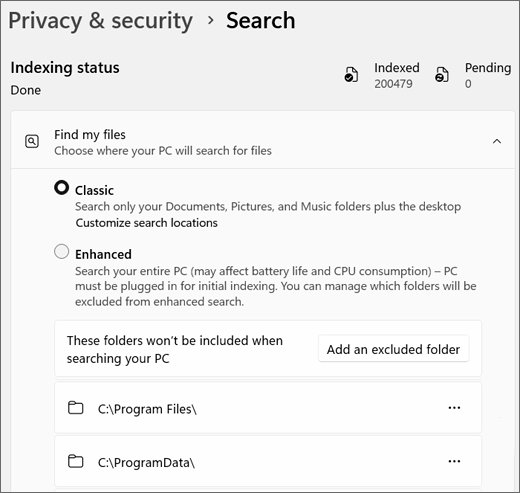
- Open Settings and select Privacy & security.
- Select Searching Windows (labelled Search on newer Windows 11 builds).
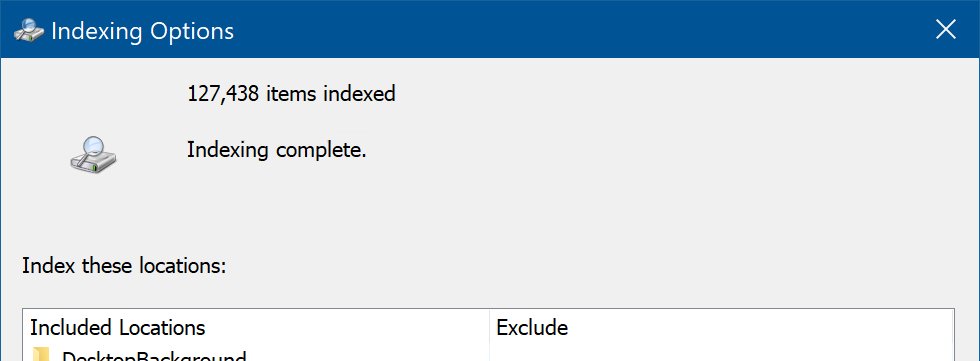
- Select Advanced indexing options (or Customize search locations on newer builds) to open Indexing Options.
- Select Advanced, then select Rebuild.
- Select OK to confirm, and leave the PC on and plugged in while indexing runs.
Microsoft advises letting the indexer run for up to 24 hours to rebuild the database on a PC with many files.
Which Windows Search permissions fix should you try first?
| What you see | Try this | Why |
|---|---|---|
| Troubleshooter reports incorrect permissions, search still opens | Rebuild the index | A new database is written with fresh files |
| Rebuild fails or the error returns | Reset the Search data folder | Windows recreates the folder and its contents |
| Indexing status says Indexing is not running | Fix the Windows Search service | The service must be running with Automatic (Delayed Start) |
| Searching Windows page is greyed out with no status | Reset the Search data folder | Microsoft links this state to corrupted indexer data |
| Errors keep coming back after every reset | Run DISM and SFC | Damaged system files can break the indexer |
| Start search opens blank | Restart Windows Search and Windows Explorer | The search interface and service both need to respond |
Incorrect permissions on Windows Search directories in Windows 11
The message comes from the Search and Indexing troubleshooter. It means the indexer cannot read or write the folders that hold its database, so new files stop appearing in search results.
Those folders sit under ProgramData, which stays out of sight until you show hidden files and folders. Changing their owner or permission entries by hand, a cleanup tool, or an interrupted upgrade are the usual ways they end up wrong.
| Item | Location or value |
|---|---|
| Search data folder | C:\ProgramData\Microsoft\Search\Data |
| Index database folder | C:\ProgramData\Microsoft\Search\Data\Applications\Windows |
| Index database file, Windows 11 | Windows.db |
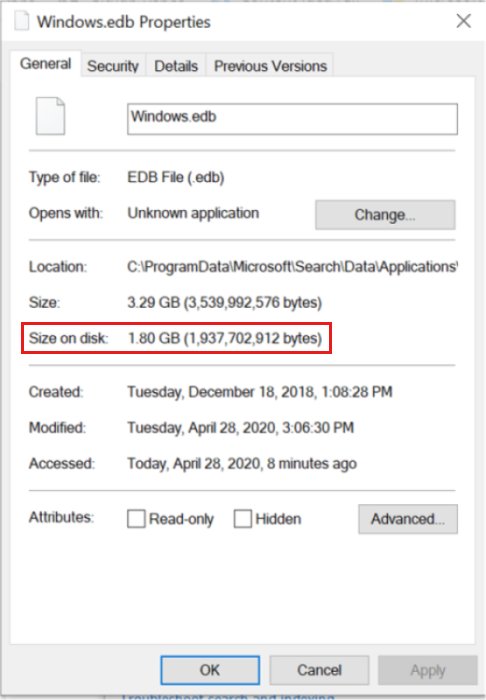
| Index database file, Windows 10 | Windows.edb |
| Service name | Windows Search (wsearch) |
| Expected service state | Running, Startup type Automatic (Delayed Start) |
Microsoft removed the legacy Search and Indexing troubleshooter from newer Windows 11 releases as part of retiring the MSDT troubleshooters, and it has no Get Help replacement. On those builds, go straight to the fixes below.
Reset the Windows Search data folder so Windows recreates it
When a rebuild cannot fix the folder, empty it with the service stopped. Windows writes a new index into it when the service starts again. Sign in with an administrator account first.
- Type cmd in the taskbar search box, right-click Command Prompt and select Run as administrator.
- Run
sc config wsearch start=disabledso the service cannot restart during the reset. - Run
net stop wsearchto stop Windows Search. - Open File Explorer, paste
C:\ProgramData\Microsoft\Search\Datainto the address bar and press Enter. - Select everything inside the Data folder and delete it. Keep the Data folder itself.
- Back in Command Prompt, run
sc config wsearch start=delayed-auto. - Run
net start wsearch, then restart the PC and let indexing finish.
Search results stay incomplete until the new index finishes, which can take a couple of hours on a typical PC.
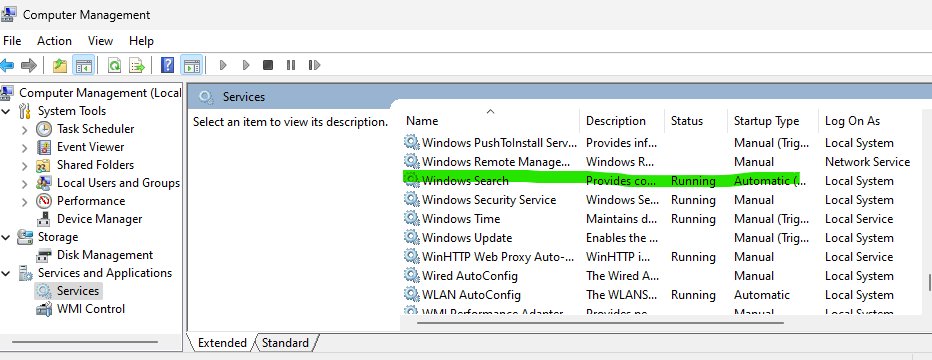
Check the Windows Search service startup type in Services
A disabled or stopped service produces the same symptoms as a permissions fault. Some antivirus and PC optimiser apps switch it off.
- Press Win + R, type
services.mscand press Enter. - Scroll to Windows Search, right-click it and select Properties.
- Set Startup type to Automatic (Delayed Start).
- Select Start if Service status shows Stopped.
- Select Apply, then OK.
Repair system files with DISM and SFC for Windows Search errors
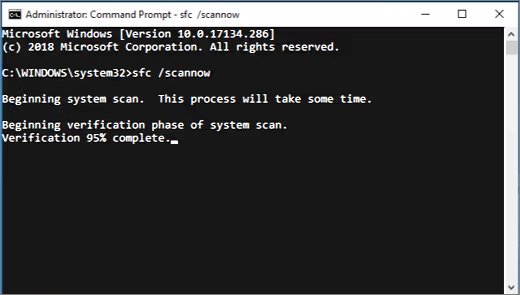
Run this from an elevated Command Prompt when the permissions error survives a rebuild and a folder reset. Run DISM first, then SFC.
DISM.exe /Online /Cleanup-image /Restorehealth
sfc /scannow
DISM repairs the Windows component store that SFC uses as its source. SFC then checks protected system files and replaces damaged copies. Do not close the window until verification reaches 100%.
You should see: Windows Resource Protection did not find any integrity violations, or Windows Resource Protection found corrupt files and successfully repaired them.
Restart the PC after a repair, then rebuild the index once more.
How to confirm Windows Search indexing works again
- Open Settings > Privacy & security > Searching Windows.
- Check that the Indexed count is rising or stable and that the status reads Indexing complete.
- Open Indexing Options and confirm the same Indexing complete message.
- Create a new text file on the desktop with an unusual name, wait a minute, and search for that name from Start.
A status such as Indexing in progress is normal after a rebuild. Leave the PC on and connected to power until it changes.
Windows Start Search not displaying results; shows blank
Start search opens but shows a blank panel
The search interface or the Windows Search service has stopped responding.
- Press Ctrl + Shift + Esc to open Task Manager.
- On the Processes page, right-click Windows Explorer and select Restart.
- Open the Services page, right-click WSearch and select Restart.
- Try a search from Start again.
Search finds apps but not your files
The folders holding the files are not in the index, or the index is still building.
- Open Settings > Privacy & security > Searching Windows.
- Select Enhanced under Find my files to index the whole PC, or select Customize search locations and add folders with Modify.
- Wait for the status to reach Indexing complete.
Searching Windows page is greyed out and shows no status
Microsoft attributes this to corrupted indexer registry keys or database.
- Reset the Windows Search data folder with the steps above.
- If the page stays greyed out, reinstall Windows with Reset this PC under Settings > System > Recovery and choose Keep my files.
Enumerating user sessions to generate filter pools failed
This Windows Search error appears in the Windows Event Viewer logs when the indexer fails to set up the filter processes it uses to read file contents. It usually travels with the permissions message.
Event Viewer logs "Enumerating user sessions to generate filter pools failed"
The Windows Search service started in a bad state or cannot use its data folder.
- Restart the Windows Search service from Services.
- Rebuild the index from Indexing Options > Advanced > Rebuild.
- If the error returns after a restart, reset the Search data folder.
- Run DISM and SFC if it still comes back.
Indexing status says Indexing is not running
The Windows Search service is disabled, or it paused during a Windows upgrade.
- Wait five minutes after an upgrade for the service to start on its own.
- Open
services.mscand set Windows Search to Automatic (Delayed Start). - Start the service and check the indexing status again.
Insufficient disk space to continue indexing
The indexer stops before the system drive fills up.
- Free more than 1 GB on the system drive, for example by emptying the Temp folder.
- Exclude large folders from the index with Add an excluded folder on the Searching Windows page.
- Rebuild the index.
Windows Search directory permissions FAQ
Why does the troubleshooter say incorrect permissions on Windows Search directories?
The indexer cannot read or write the folders under C:\ProgramData\Microsoft\Search\Data. Manual permission changes, cleanup tools or an interrupted upgrade usually cause it. Rebuilding the index or emptying the Data folder with the service stopped lets Windows recreate the files.
Where is the Windows Search index stored in Windows 11?
The index database is Windows.db in C:\ProgramData\Microsoft\Search\Data\Applications\Windows. Windows 10 uses Windows.edb in the same folder. ProgramData is hidden, so paste the path into the File Explorer address bar to open it.
Is it safe to delete the Windows Search Data folder contents?
Yes, as long as the Windows Search service is stopped first. The folder holds only the index, not your files. Windows rebuilds the index when the service starts again, and search results are incomplete until that finishes.
How long does rebuilding the Windows Search index take?
A typical PC finishes in a couple of hours. Microsoft advises allowing up to 24 hours on a PC with a large number of files or a big Outlook mailbox. Keep the PC on and plugged in during the rebuild.
Where is the Search and Indexing troubleshooter in Windows 11?
Newer Windows 11 releases no longer include it. Microsoft retired the legacy MSDT troubleshooters, and Search and Indexing has no Get Help replacement. Rebuild the index and check the Windows Search service instead.
How do I fix folder permissions for Windows Search?
Let Windows recreate the folder rather than editing its permission entries. Stop the Windows Search service, delete the contents of C:\ProgramData\Microsoft\Search\Data, then start the service again so it writes a fresh index with the correct access.
What does "The search service has detected corrupted data files in the index" mean?
The index database is damaged and Windows Search cannot trust it. Rebuild the index from Indexing Options. If the message returns, stop the service, empty the Search Data folder and start the service again.
What startup type should the Windows Search service use?
Windows Search should be Running with the startup type Automatic (Delayed Start). Set it in services.msc by right-clicking Windows Search and selecting Properties. A disabled service stops indexing completely.
Bottom line: fixing Windows Search directory permissions in Windows 11
Rebuild the index first, and if the error returns, empty the Search Data folder with the Windows Search service stopped. Both routes let Windows write new index files with the access it expects, which is safer than editing permission entries on a system folder by hand.

![HDMI port not working in Windows 11 [Easy fixing]](https://techdows.com/wp-content/uploads/2026/10/HDMI-Port-Not-Working-in-Windows-11-Easy-Fixing-600x338.jpg)