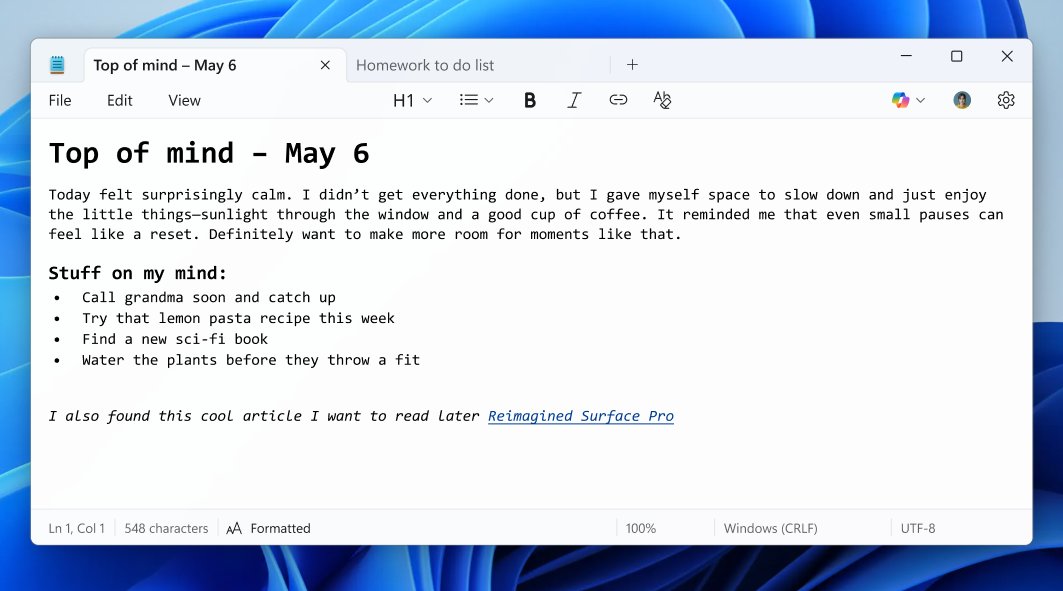
Notepad in Windows 11 now has tabs, automatic session restore, spellcheck, Markdown formatting with tables, and the AI tools Write, Rewrite and Summarize.
This guide lists each new Notepad feature with the version that added it, shows how to use it, and covers word wrap, settings, updates and high CPU fixes.
Notepad new features in Windows 11
Notepad is still included with Windows 11, but it now updates through the Microsoft Store instead of with Windows itself.
These are the features that changed how the app works, from the 2021 redesign to the 2026 releases.
| Feature | What it does | How to use it |
|---|---|---|
| Dark mode | Follows your Windows theme by default | Switch Notepad to dark mode on the Notepad settings page |
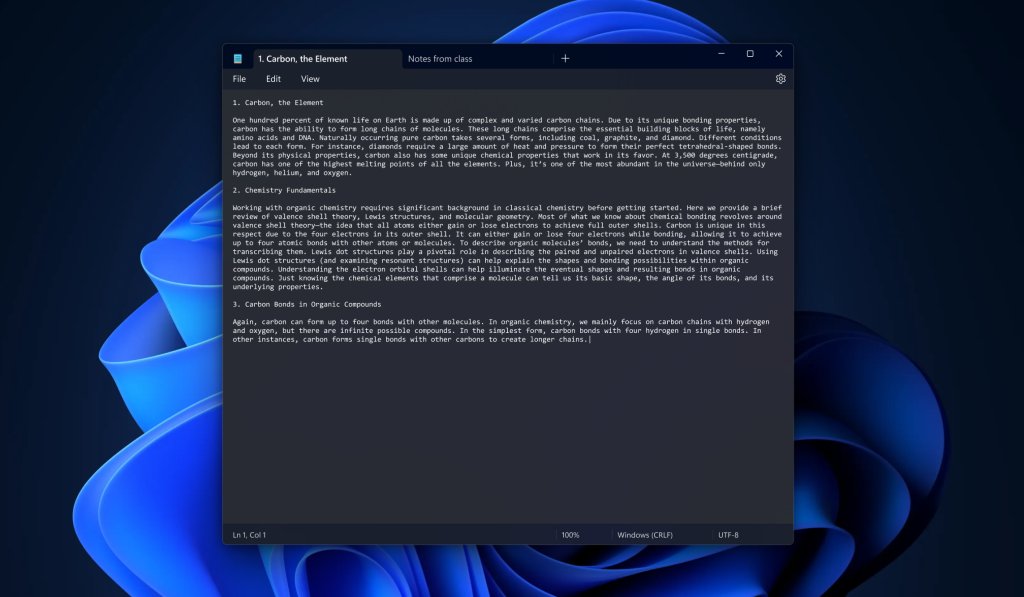
| Tabs | Keeps several files in one window | Press Ctrl + N for a new tab, or drag a tab out into its own window |
| Session restore | Reopens your tabs and unsaved text after you close Notepad | Close Notepad without saving; your tabs return on the next launch |
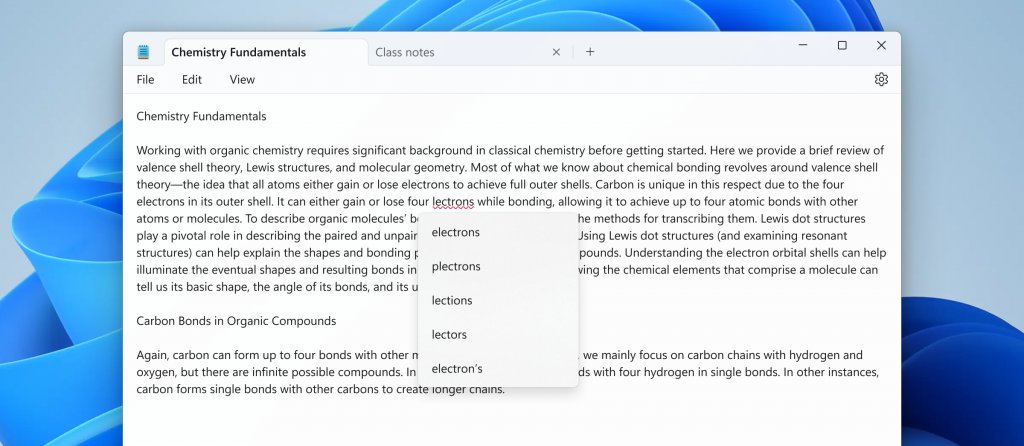
| Spellcheck and autocorrect | Underlines misspelled words in red and fixes common typos | Select the underlined word, or press Shift + F10, to see suggestions |
| Formatting and Markdown | Adds bold, italic, links, lists, headings, strikethrough and tables | Use the formatting toolbar or type Markdown syntax |
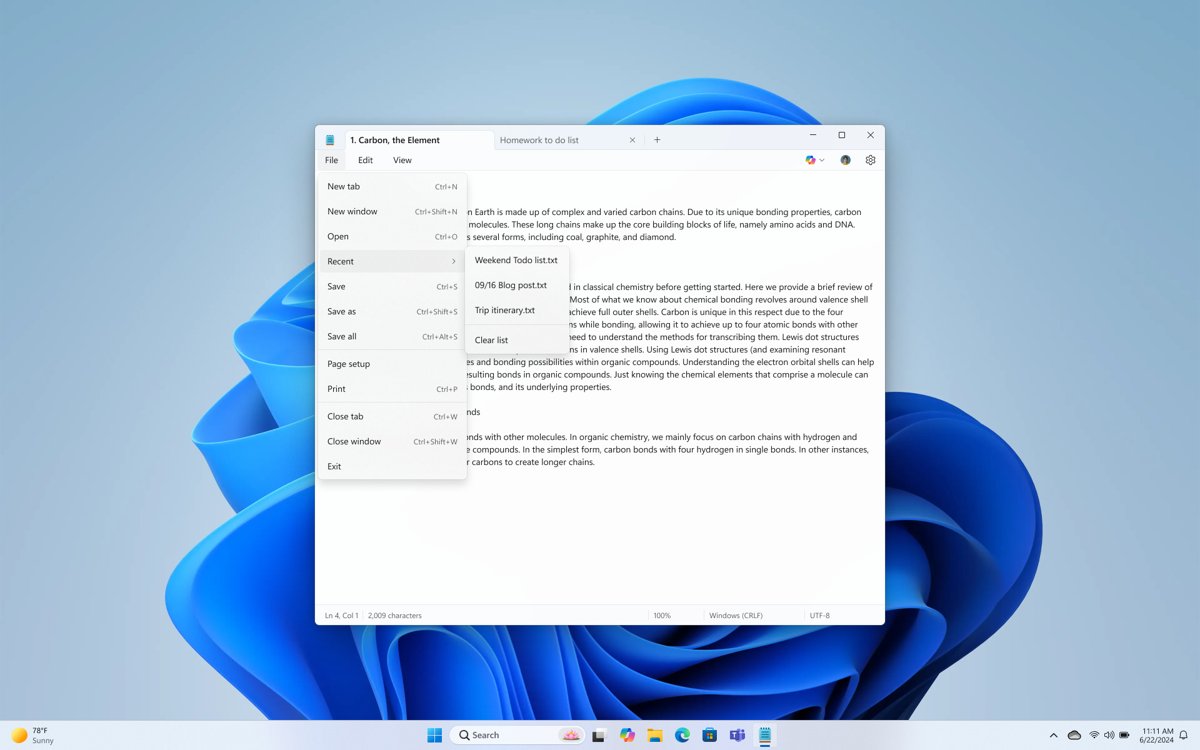
| Recent files | Lists files you opened earlier | Open File and go to Recent |
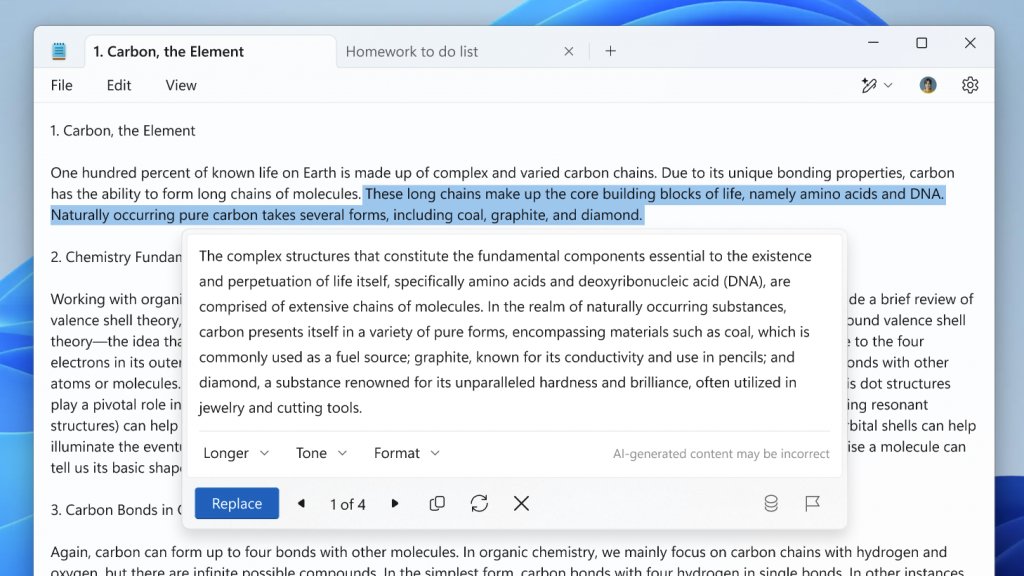
| Write, Rewrite, Summarize | Drafts, rephrases or condenses text with AI | Ctrl + Q, Ctrl + D or Ctrl + M on selected text |
| Redesigned find and replace | Searches with wrap-around and shows an end-of-document notice | Open it from the Edit menu |
| Multi-level undo | Steps back through several edits instead of one | Use Undo in the Edit menu more than once |
Notepad version history: which update added each feature
Microsoft ships Notepad features to Windows Insiders first, then to everyone through the Microsoft Store.
The version numbers below tell you whether your copy should already have a feature.
| Notepad version | Announced | What it added |
|---|---|---|
| Windows 11 redesign | December 2021 | Dark mode, new settings page with font options, new find and replace, multi-level undo |
| 11.2204 and 11.2205 | June 2022 | Native ARM64 build, faster scrolling and replace in very large files, better screen reader support |
| 11.2212.33.0 | January 2023 | Tabs, tear-off tab windows, choice of new tab or new window for opened files |
| 11.2307.22.0 | August 2023 | Session state autosave that restores tabs and unsaved edits |
| 11.2401.25.0 | February 2024 | Explain with Copilot (Ctrl + E) for selected text |
| 11.2402.18.0 | March 2024 | Spellcheck and autocorrect |
| 11.2410.15.0 | November 2024 | Rewrite preview and launch times more than 35% faster for most users |
| 11.2501.29.0 | March 2025 | Summarize and the Recent files list |
| 11.2504.46.0 | May 2025 | Write, which drafts new text from a prompt |
| 11.2504.50.0 | May 2025 | Lightweight formatting and Markdown support |
| 11.2508.28.0 | September 2025 | On-device Write, Rewrite and Summarize on Copilot+ PCs, no subscription needed |
| 11.2510.6.0 | November 2025 | Tables and streaming AI results |
| 11.2512.10.0 | January 2026 | Strikethrough, nested lists and a What's New dialog |
| 11.2605.29.0 and 11.2606.15.0 | June and July 2026 | Faster launch, Find and Replace fixes, formatting for .markdown files |
How to use tabs and session restore in Notepad
Tabs and session restore work together. Notepad saves its session state separately, so closing the app never changes the files on disk.
- Open Start, type Notepad and select Notepad from the results.
- Press Ctrl + N or select the Add tab (+) button to open a new tab.
- Drag a tab out of the tab row to give it a separate window.
- Type in an unsaved tab; Notepad names the tab from its first words.
- Close Notepad with the window's X button; no save prompt appears.
- Open Notepad again to find the same tabs and unsaved text restored.
- Close a single tab to get the Save or Don't save choice for that file.
Session restore can be turned off on the Notepad settings page if you prefer a blank window at every launch.
How to use text formatting, Markdown and tables in Notepad
Formatting in Notepad is Markdown underneath, so a formatted file stays readable as plain text in any other editor.
- Select the text you want to format.
- Choose Bold, Italic, a heading, a list or a link on the formatting toolbar.
- Select Table on the formatting toolbar to insert a table.
- Right-click inside the table to add or remove rows and columns.
- Use the Increase indent command inside a list to make a nested list.
- Switch to raw Markdown syntax from the View menu or the toggle in the status bar.
- Select the clear formatting option on the toolbar or in the Edit menu to return the text to plain text.
If you never want formatting, turn formatting support off entirely on the Notepad settings page.
How to use spellcheck and autocorrect in Notepad
Spellcheck is on by default for ordinary text files and off by default for log files and code files, so configuration files do not fill with red lines.
- Type in a Notepad tab; misspelled words get a red underline.
- Select the underlined word, or put the cursor on it and press Shift + F10.
- Pick a suggestion to replace the word at once.
- Choose to ignore the word for this document or add it to the dictionary.
- Right-click in the document to turn spellcheck off for the current file only.
- Open the Notepad settings page to switch spellcheck on or off globally or per file type.
How to use Write, Rewrite and Summarize in Notepad
Write drafts new text, Rewrite gives three reworded versions, and Summarize condenses a selection to a short, medium or long summary.
Cloud generation needs a Microsoft account; Microsoft 365 Personal and Family plans include 60 AI credits a month. On a Copilot+ PC, the local model works without a subscription or sign-in, in English only.
- Sign in to Notepad with your Microsoft account if you are not on a Copilot+ PC.
- Select the text you want to change, or place the cursor where new text should go.
- Press Ctrl + D for Rewrite, Ctrl + M for Summarize, or Ctrl + Q for Write.
- For Write, describe what you want in the prompt box and select Send.
- Review the result as it streams in, and regenerate if it misses the point.
- Select Keep text or apply the version you want; choose Discard to throw it away.
The AI tools are not offered in China, Macao or Russia, and they can be switched off on the Notepad settings page.
How to enable and use word wrap in Notepad
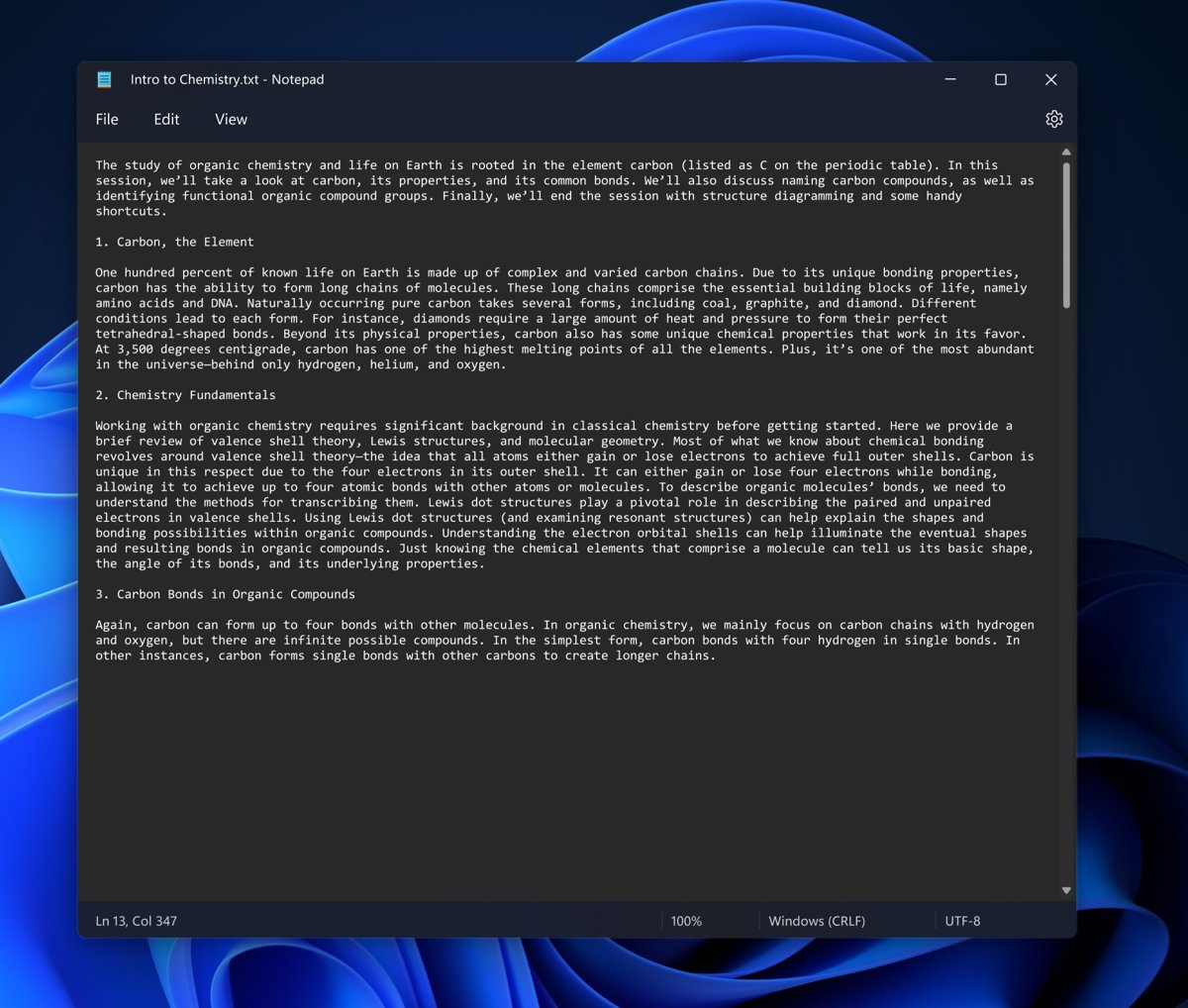
Word wrap fits long lines to the window width so you do not scroll sideways. It changes only the display, not the line breaks saved in the file.
- Open the file in Notepad.
- Select View on the menu bar.
- Select Word wrap to turn it on; select it again to turn it off.
- Check the status bar at the bottom, which still shows the real line and column numbers while wrap is on.
- Turn the status bar back on from the View menu if it is hidden.
Notepad tips and tricks for Windows users
These older Notepad features still work in the Windows 11 app and save real time.
| Trick | How to do it | Result |
|---|---|---|
| Time-stamped log file | Type .LOG on the first line, press Enter, then save the file |
Notepad adds the current date and time each time you reopen it |
| Zoom text | Press Ctrl + Plus or Ctrl + Minus, or use Ctrl + mouse wheel | The zoom level shows in the status bar; Ctrl + 0 resets it |
| Delete a whole word | Press Ctrl + Backspace | Removes the word before the cursor |
| Custom print header | Open File > Page Setup and type codes such as &f or &d in Header |
Prints the file name, date, time or page number |
| Page numbers in the footer | Type Page &p in the Footer box |
Each printed page is numbered |
| Reopen a recent file | Open File > Recent | Lists files you opened earlier; the list can be cleared |
Header and footer codes are not saved, so type them again before each print job.
How to change Notepad theme, font and AI settings
Every Notepad preference lives on one settings page inside the app, including the toggles for the newer features.
- Open Notepad and go to its Settings page.
- Change the app theme if you do not want it to follow the Windows theme.
- Change the font under the font options.
- Choose whether files open in a new tab or a new window.
- Turn off session restore, Recent files, spellcheck or formatting if you do not use them.
- Turn off the AI features if you want Notepad without Write, Rewrite and Summarize.
How to update or reinstall Notepad in Windows 11
Notepad updates arrive through the Microsoft Store, so a stale Store copy is the usual reason a new feature is missing, and updating Store apps manually pulls the latest release. You can also download Windows Notepad again if the app was removed.
- Open Microsoft Store from the Start menu.
- Select Library.
- Select Get updates to install any pending Notepad update.
- If Notepad is missing, find Windows Notepad in Library and select Install.
- Open Notepad from Start once the install finishes.
How to check the new Notepad features are on your PC
- Open Notepad and look for the tab row at the top; tabs mean version 11.2212 or later.
- Look for the formatting toolbar; it arrived with version 11.2504.50.0.
- Select the megaphone icon in the top-right corner to open the What's New dialog.
- Select some text and right-click to see Write, Rewrite and Summarize in the menu.
- Open Microsoft Store > Library and select Get updates if any of these are missing.
Notepad high CPU and memory usage in Windows 11 [fix]
Notepad uses high CPU or memory with a large file
Very large files, many restored tabs and live spellcheck all add work for the editor.
- Close tabs you no longer need; session restore reloads every open tab at launch.
- Turn off spellcheck for the current file from the right-click menu.
- Turn off formatting on the settings page if you open huge plain-text or log files.
- Open Microsoft Store > Library > Get updates; recent releases improve large-file and launch performance.
Notepad freezes, crashes or opens slowly
A damaged app install or corrupted app data.
- Open Start > Settings > Apps > Installed apps.
- Find Notepad and select its More (three dots) icon.
- Select Advanced options.
- Select Repair and test Notepad again.
- Select Reset if Repair does not help.
Windows 11 doesn't have Notepad
The Store app was uninstalled or failed to update.
- Open Microsoft Store and select Library.
- Find Windows Notepad and select Install.
- Search Notepad from Start to confirm it opens.
A new Notepad feature does not show up
Features reach Windows Insiders first and then roll out gradually.
- Run Get updates in Microsoft Store > Library.
- Compare your Notepad version with the version history table above.
- Sign in with a Microsoft account if only the AI tools are missing.
Notepad in Windows 11 FAQ
Is Notepad included in Windows 11?
Yes. Notepad comes preinstalled on Windows 11 as the Windows Notepad app. It now updates through the Microsoft Store, which is how it gains features such as tabs, spellcheck and Markdown formatting between Windows releases.
Where is Notepad in Windows 11?
Open Start, type Notepad and select Notepad from the results. If the search finds nothing, the app has been removed; reinstall Windows Notepad from Microsoft Store > Library and it appears in Start again.
How do I add Notepad in Windows 11?
Open Microsoft Store, select Library, find Windows Notepad and select Install. The app is free, keeps its settings in the app, and receives new features through Get updates in the same Library page.
How do I use Microsoft Notepad in Windows 11?
Open it from Start, type in a tab and save it from the File menu. Use Ctrl + N for another tab, the formatting toolbar for headings and lists, and File > Recent to reopen earlier files.
How does Notepad work in Windows 11?
Notepad edits plain text files and saves Markdown when you use formatting. It autosaves your session separately from your files, so unsaved tabs come back after you close the app without changing anything on disk.
Do I need Notepad in Windows 11?
Most people keep it. Notepad opens configuration files, logs and scripts that Word or WordPad cannot handle cleanly, and Windows tasks such as editing the hosts file still assume a plain-text editor like Notepad is available.
Can I turn off the AI features in Notepad?
Yes. Open the Notepad settings page and switch the AI features off. Write, Rewrite and Summarize then disappear from the menus, and Notepad works as a plain editor without any Microsoft account sign-in.
Bottom line: should you use the new Notepad or switch editors?
Keep the built-in Notepad updated and use it for notes, logs and Markdown; install Notepad++ only if you need syntax highlighting, plugins or macros. Tabs, autosave, spellcheck and formatting now cover everyday text work, and the AI tools can be switched off. Many of these changes are part of the wider Windows 10 vs Windows 11 differences, but a code editor still does more for programming.