Sound settings in Windows 11 and Windows 10 are in Start > Settings > System > Sound, where you pick the speakers or headphones under Output and the microphone under Input; the classic Sound control panel opens from More sound settings or mmsys.cpl.
Quick answers come first, then devices, volume, microphone, drivers, Bluetooth, spatial sound, recording and fixes.
Where are sound settings in Windows 11 and 10?
Open Start > Settings > System > Sound, or type ms-settings:sound in Win + R. These are the five jobs most readers arrive with, and you can manage sound settings on Windows 11 from that one page.
| You want to | Do this |
|---|---|
| Change the output device (speakers, headphones, HDMI) | Select the Speakers icon on the taskbar, then the arrow next to the volume slider, and pick the device. In Settings, choosing a device under Output also makes it the default, so you can change the default sound output device in one click. |
| Change the input device (microphone) | In Settings > System > Sound > Input, pick the mic under Choose a device for speaking or recording. You can also change the default sound input device and keep a separate one for calls. |
| Fix no sound | Work through the six-step checklist below, from mute to the troubleshooter. |
| Test and fix the microphone | Select the mic under Input, choose Start test, speak, then Stop test and Play. If nothing records, turn on Microphone access in Privacy & security > Microphone. |
| Update or reinstall audio drivers | Run Windows Update first. Then use Device Manager > Sound, video and game controllers > Update driver, or Uninstall device and restart to reinstall it. |
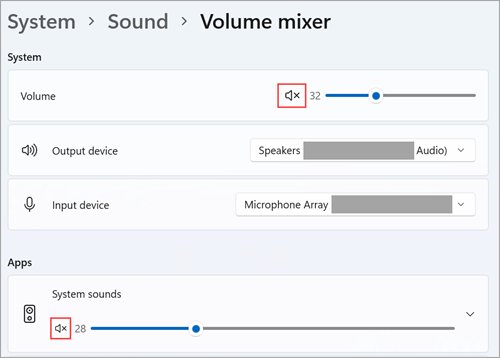
| Adjust volume per app | Open Settings > System > Sound > Volume mixer and move each app's slider; you can adjust volume for individual programs and send each one to a different output device. |
Where each sound setting lives in Windows 11 vs Windows 10
Labels and the route to the classic control panel differ between versions.
| Setting | Windows 11 | Windows 10 |
|---|---|---|
| Main sound settings | Settings > System > Sound (ms-settings:sound) |
Settings > System > Sound |
| Output device | Output section; selecting a device sets it as default | Choose your output device under Output |
| Input device (microphone) | Input > Choose a device for speaking or recording | Input > Choose your input device |
| Classic Sound control panel (Playback, Recording, Sounds, Communications) | Advanced > More sound settings, or Win + R > control mmsys.cpl |
Control Panel > Hardware and Sound > Sound, or control mmsys.cpl |
| Volume mixer (per-app volume) | Sound > Volume mixer (ms-settings:apps-volume), or More mixer settings in quick settings |
Right-click the Speakers icon > Open Volume mixer |
| Microphone privacy | Privacy & security > Microphone (ms-settings:privacy-microphone) |
Privacy > Microphone |
| Audio enhancements | Select the output device > Audio enhancements set to Off | Sound control panel > device Properties > Enhancements tab |
| Audio troubleshooter | System > Troubleshoot > Other troubleshooters > Audio, or Get Help | Update & security > Troubleshoot > Playing audio |
| Microphone levels and boost | Mic properties > Input volume slider | Device Properties > Levels tab: Microphone and Microphone Boost |
| Default format (sample rate, bit depth) | Output device > Advanced > Default format | Device Properties > Advanced > Default Format |
The Sound control panel is still the place for the Recording tab, the Communications tab and system sounds. You can open the old Sound settings five ways, including control /name Microsoft.Sound.
Confirm Windows is sending sound to the right place
Check your speaker output first: when several devices are connected, Windows can play to a monitor, a dock or a headset you are not using. A monitor without built-in speakers set as the default output gives no audio at all.
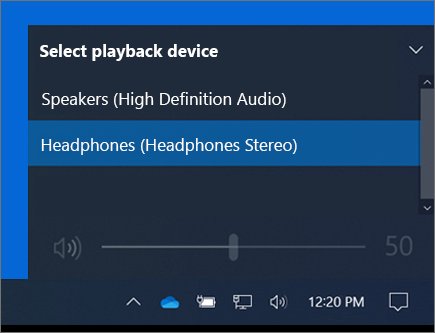
- Select Start > Settings > System > Sound.
- Under Output, select the speakers or headphones you want.
- Make sure the volume slider is turned up and not muted.
- To set the default playback device in the classic panel, select More sound settings > Playback, right-click the device and choose Set as default.
- Play a sound and check the green level bar moves next to the device in Playback.
If a device is greyed out or missing, it may be switched off: you can enable or disable a sound output device from Settings, the control panel or Device Manager. Wired headsets that never appear need the steps to troubleshoot headphone detection.
Adjust volume, mute and audio balance in Windows 11 and 10
Some speakers and apps have their own volume controls, so check every level.
| Control | Where | Notes |
|---|---|---|
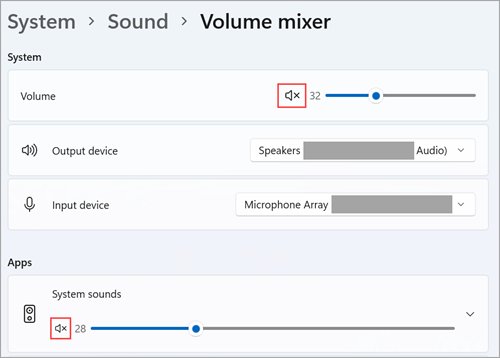
| Master volume and mute | Speakers icon on the taskbar, or the keyboard volume keys | An "x" on the speaker icon means muted. You can mute or unmute sound volume from the taskbar, keyboard or Volume mixer. |
| Keyboard volume keys | Volume keys on the keyboard | If the keys do nothing, you may need to activate volume control from your keyboard first. |
| Per-app volume | Volume mixer > Apps | App volume can override system volume; check the app is not muted. |
| Left and right balance | Sound > select the output device > Output settings > Volume: Left and Right | Keep both channels at the same level, usually 100. You can change audio balance levels per device, and the same left and right balance in Windows 10 works from the device properties. |
| Mono audio | Sound > Output > Mono audio | Mixes stereo into one channel so a single earbud hears everything; turn it off for stereo. |
| Volume above 100% | Device and app sliders at maximum, then the speaker's own gain | Max every slider first; you can boost volume beyond 100% safely with device-level options. |
Set your microphone as the default recording device
Choose the correct Windows input before anything else: a webcam mic or a disconnected headset is often still the default input device.
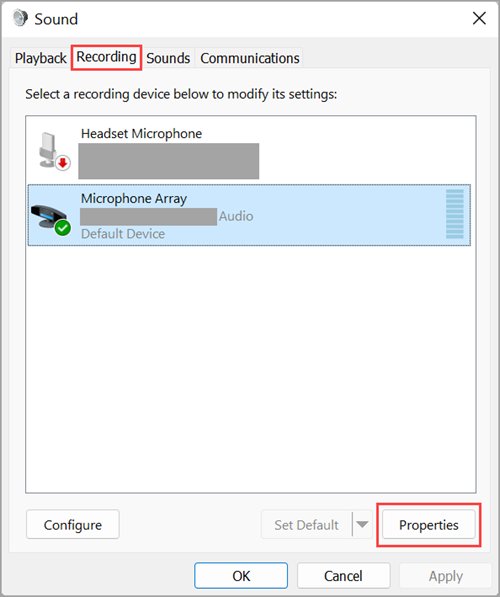
- Connect the microphone or headset, and pair it first if it is Bluetooth.
- Select Start > Settings > System > Sound.
- Under Input, go to Choose a device for speaking or recording and select the microphone.
- Select > next to the device to open its properties.
- Under Input settings, select Start test, speak normally, then Stop test and Play to hear the sample.
- Adjust the Input volume slider if the sample is too quiet.
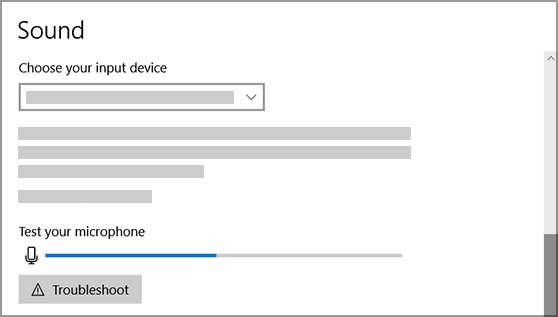
On Windows 10, pick the mic in Choose your input device and watch the Test your microphone line move as you speak. A Bluetooth mic that is not listed yet can be added with Add device on the same page.
Check Windows 11 microphone privacy settings
Turn on microphone access when apps record silence or the mic is "not detected" after an update. Desktop apps have one switch for all of them and are not listed one by one.
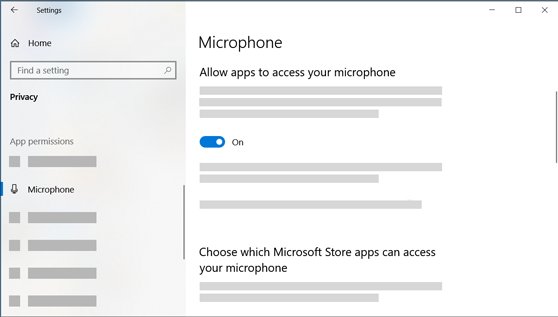
- Select Start > Settings > Privacy & security > Microphone.
- Turn on Microphone access.
- Turn on Let apps access your microphone, then the toggle for the app you use.
- Turn on Let desktop apps access your microphone for apps such as Zoom or Discord installed from the web.
- If your camera has the microphone built in, also turn on access in Privacy & security > Camera.
On Windows 10 the same switches are under Settings > Privacy > Microphone, starting with Change for device-wide access. You can allow apps to access your microphone per app and per browser site too. To allow the mic in your browser, in Chrome open Settings > Privacy and security > Site settings > Microphone and allow the site.
Adjust microphone levels and boost settings
- Open Settings > System > Sound and select the mic under Input.
- Under Input settings, raise Input volume and run Start test again.
- On Windows 10, select Device Properties, then the Levels tab.
- Raise the Microphone slider, then Microphone Boost only if the voice is still faint, and select OK.
- Position the mic correctly and test again; boost also raises background noise.
If your voice level swings up and down on calls, check whether the app or driver applies automatic gain control on the microphone before you change the sliders again.
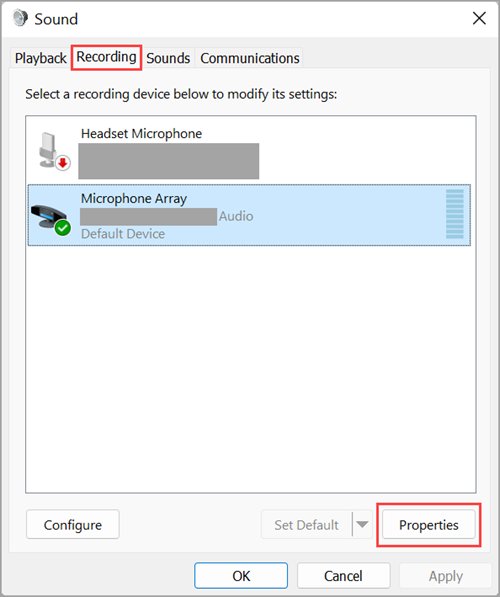
How to fix a microphone in Windows 11: symptom and fix table
Match what you see to a row. Start with the mic hardware: a headset Mute button, a loose plug or the pink jack versus the green output jack causes more failures than Windows does.
| Symptom | Likely cause | Fix |
|---|---|---|
| Windows does not detect the microphone at all | Driver missing, device disabled, or bad connection | Reseat the plug or try another USB port, then reinstall the audio driver and select Action > Scan for hardware changes. Ten more checks help when the computer is not detecting the microphone. |
| Mic test bar moves, but others cannot hear you | The app uses a different input, or the call app lacks permission | Confirm the app's internal microphone setting matches the Windows input, and turn on app access in Privacy & security > Microphone. |
| Headset works but not its mic | Headset is the output but the input is still the laptop mic, or a single combined jack | Select the headset under Input, not only under Output. |
| Mic too quiet | Low input volume or far from the mouth | Raise Input volume, then Microphone Boost on the Levels tab. |
| Others hear an echo of themselves | Speakers feed back into your mic | Use headphones and lower speaker volume; these steps also fix mic echo on Windows. |
| Voice level keeps changing on its own | Automatic gain control in the app or driver | Turn off the app's automatic mic adjustment and set a fixed level. |
| Mic works in one app only | That app is blocked or set to another device | Fix the app that cannot hear you: check its audio settings and its toggle under Let apps access your microphone. |
| Mic silent in a browser call | Site blocked | Allow the site in the browser's Microphone site settings. |
Run the Windows audio troubleshooter
Let the built-in audio troubleshooter do the work before changing drivers. On Windows 11 it runs in Get Help and covers playback and recording.
- Select Start > Settings > System.
- Select Troubleshoot > Other troubleshooters.
- Next to Audio, select Run and follow the prompts in Get Help.
- For a microphone, open System > Sound, and under Troubleshoot common sound problems choose Input devices to run the Recording Audio troubleshooter.
- On Windows 10, open Settings > Update & security > Troubleshoot, select Playing audio and run the troubleshooter.
Update or reinstall your audio drivers
Microsoft recommends Windows Update as the source for audio drivers; they often arrive as optional updates. Use Device Manager or the manufacturer's site when Windows has nothing newer.
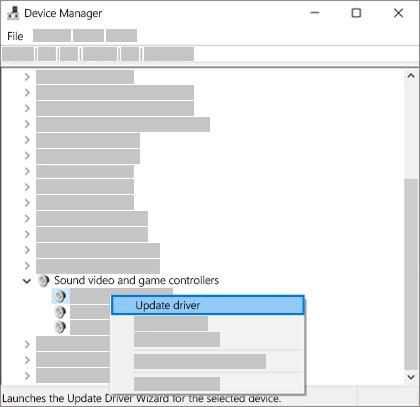
| Situation | Do this | Why |
|---|---|---|
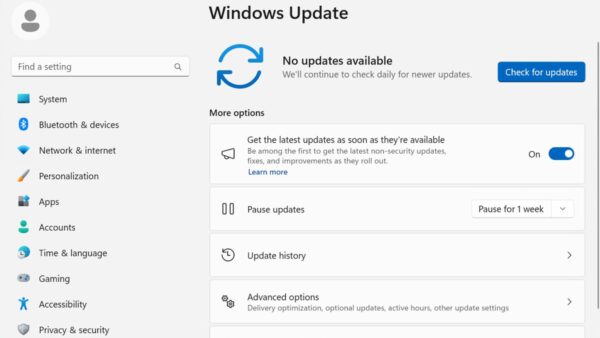
| Routine update | Update audio drivers using Windows Update: Settings > Windows Update > Check for updates, install audio driver updates, restart | Recommended route; drivers are matched to your PC |
| Windows Update has none | Use Device Manager to update sound drivers: Sound, video and game controllers, right-click the device > Update driver > Search automatically for drivers | Finds a newer driver Windows already has |
| Updating does not help | Reinstall the audio driver from scratch: right-click > Uninstall device, tick Attempt to remove the driver for this device, Uninstall, restart | Windows reinstalls the driver on restart, clearing a corrupted install |
| Sound broke after an update | Right-click > Properties > Driver > Roll Back Driver | Available only if a previous driver version exists |
| Maker's driver misbehaves | Update driver > Browse my computer for drivers > Let me pick from a list of available drivers on my computer > High Definition Audio Device | Swaps in the generic driver that comes with Windows |
| Nothing newer in Windows | Get the latest audio driver from the device manufacturer: download it from the PC maker's support website for your model and Windows version | Some audio drivers come only from the PC or sound card maker |
The Device Manager steps are the same on Windows 10, where you can reinstall audio drivers and roll them back the same way. Never use a third-party driver updater.
How do I fix my Realtek mic not working? Realtek audio driver options
On PCs with Realtek audio, the driver comes from Windows Update or your PC or motherboard maker. A Realtek microphone or speaker fault is fixed with the same driver routes, applied to the Realtek device.
| Method | Steps | Use when |
|---|---|---|
| Method 1: Update the Realtek audio driver via Device Manager | Expand Sound, video and game controllers, right-click the Realtek audio device > Update driver > Search automatically for drivers | First try after a fault |
| Method 2: Download and install the Realtek audio driver from your device manufacturer | Search your model on the PC or motherboard maker's support site and install its Windows 11 or 10 audio driver | Windows has no newer driver, or audio stopped after an upgrade |
| Method 3: Update the Realtek audio driver automatically | Windows Update > Check for updates, including optional driver updates | You want the tested driver without hunting for files |
| Roll back or reinstall | Roll Back Driver, or Uninstall device and restart | Sound or the mic broke after an update |
For build-specific faults, the Realtek driver fixes for 26H2 cover crackling and missing devices. If the Realtek control app vanished after a driver change, you can reinstall Realtek HD Audio Manager or install the newer Realtek Audio Console that pairs with modern drivers. Once it is back, you can use Realtek HD Audio Manager for its equalizer and speaker setup.
Download the latest audio driver from the manufacturer: HP laptops and desktops
HP publishes audio drivers per model on HP Software and Drivers. Try Windows Update first, then the HP page if sound or the mic still fails.
- Open HP Software and Drivers at support.hp.com and select Laptop or Desktop.
- Identify your product on the page.
- Choose your Windows version and download the audio driver listed for your model.
- Install the driver and restart the PC.
- Check that the device shows under Sound, video and game controllers in Device Manager.
Other routes for HP audio drivers on Windows 11 include reinstalling the driver in Device Manager.
Connect and fix Bluetooth headphones and speakers in Windows 11
The device must support A2DP for high-quality stereo.

- Put the headphones in pairing mode, select the Bluetooth quick setting's Manage Bluetooth devices arrow, and select them under New devices.
- Select them under Output in Settings > System > Sound.
- For poor sound, open Settings > Bluetooth & devices > Devices, select the device > Advanced sound properties, and set Format to 2 channels, 16 bit, 48000 Hz (DVD Quality).
- If sound plays in one ear only, check Left and Right under the device's Volume and turn off Mono audio.
- If nothing helps, select More options (…) > Remove device, then Add device to pair again.
- Update the Bluetooth adapter driver in Device Manager > Bluetooth.
You can connect Bluetooth headphones from quick settings or Settings, and fix the case where AirPods connect but play no sound. Earbuds stuck in mono hands-free audio usually need you to re-pair them for stereo sound, and older PCs have their own Bluetooth audio fixes for Windows 10.
Turn on spatial sound with Windows Sonic
Windows Sonic is the spatial sound option built into Windows for movies and games on headphones. Dolby Atmos and DTS options come from the Dolby Access and DTS Sound Unbound apps in Microsoft Store.
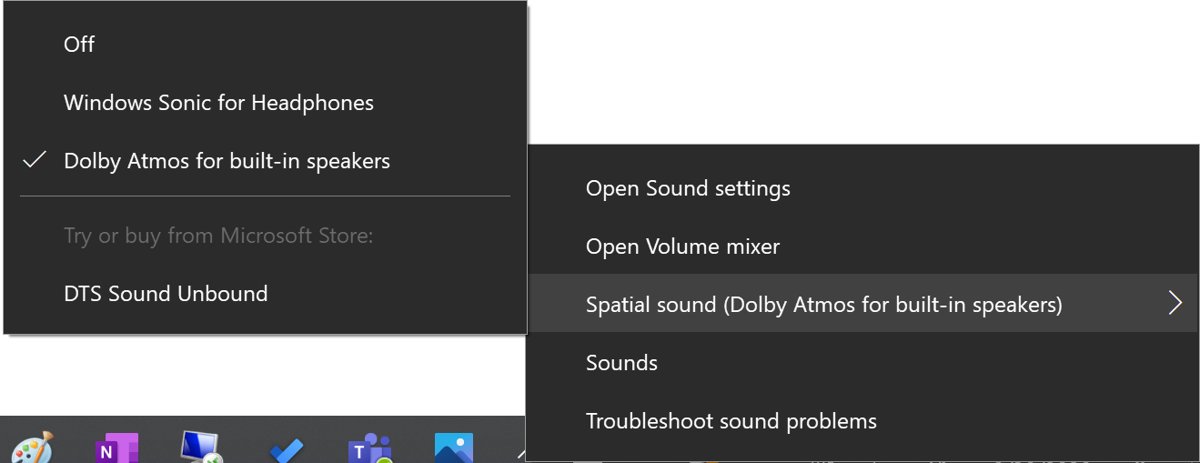
- Select Start > Settings > System > Sound.
- Select your playback device under Output.
- Open the device properties and choose Windows Sonic for Headphones under Spatial sound.
- Select Apply if it appears, then play a game or film to compare.
You can enable Windows Sonic surround sound for 7.1 virtual surround too.
Turn off audio enhancements
Disable audio enhancements that may cause conflicts: they can lower volume, distort output or make a mic crackle on some devices.
- Select Start > Settings > System > Sound.
- Under Output, select the device you use.
- Under Advanced settings, set Audio enhancements to Off.
- Repeat for the microphone under Input if it sounds distorted.
- On Windows 10, open Control Panel > Hardware and Sound > Sound, right-click the device > Properties, and on Enhancements tick Disable all enhancements or Disable all sound effects.
Record audio with Sound Recorder in Windows 11
Sound Recorder records up to three hours per file and keeps the recordings inside the app, so uninstalling it deletes them.
- Open Start and select Sound Recorder.
- Allow microphone access on first run, or turn it on in Privacy & security > Microphone.
- Select Start recording or press Ctrl + R.
- Press Space to pause and Esc to stop and save.
- Right-click a recording to Rename, Share or Delete it.
Sound Recorder records from your input device. To capture what the PC itself plays, configure Sound Recorder for internal PC sound with a loopback input.
How to fix no sound on a Windows computer: checklist in order
Why can't you hear anything on a Windows 11 laptop? It is almost always one of six things, so work down this list and test sound after each row.
| Order | Check | Fix |
|---|---|---|
| 1 | Mute and volume | Unmute the Speakers icon, raise volume and the speaker's own knob, and check the headset's mute switch. |
| 2 | Output device | Pick the right device under Output; unplug headphones if the speakers stay silent, and avoid a monitor without speakers. |
| 3 | App volume | In Volume mixer > Apps, unmute the app, raise its slider and check its Output device. |
| 4 | Driver | Update driver in Device Manager, roll it back after an update, or reinstall; a USB headset showing Code 10 after an update has its own USB audio Code 10 fix. |
| 5 | Audio service | In services.msc, restart Windows Audio and Windows Audio Endpoint Builder. |
| 6 | Troubleshooter | System > Troubleshoot > Other troubleshooters > Audio > Run. |
Fix audio not working on Windows 11
If you want a clean slate first, reset audio settings piece by piece.
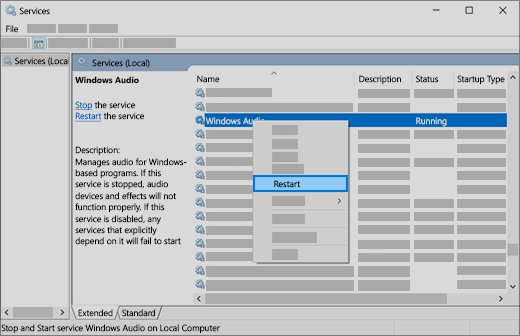
Why is there no sound after a Windows 11 update?
An incompatible or partially installed audio driver stops the audio services.
- Install the latest Windows updates: Settings > Windows Update > Check for updates, then restart.
- Roll back the driver if sound broke after an update: Device Manager > device Properties > Driver > Roll Back Driver.
- Update or reinstall the audio driver.
- If there is still no sound after the Windows update, restore from the system restore point Windows created before the update.
Restart the Windows audio services
The audio services did not start correctly, often after sleep or an update.
- Select Start, type
services.mscand press Enter. - Right-click Windows Audio and select Restart.
- Right-click Windows Audio Endpoint Builder and select Restart.
- Test the sound again.
"No audio output device is installed" or sound settings greyed out
The audio driver is missing, disabled or not loading.
- Open Device Manager and expand Sound, video and game controllers.
- Right-click the device and select Enable device if offered.
- To get a missing output device to reappear, select View > Show hidden devices, then Action > Scan for hardware changes.
- Install the latest audio driver from the PC maker and restart.
Sound is quiet, distorted or crackling
Enhancements or an unsupported default format.
- Turn Audio enhancements off for the output device.
- Under the device's Advanced > Default format, pick another format and test.
- Update or reinstall the driver.
No sound from an HDMI monitor or TV
The monitor is not the default output, or has no speakers.
- Select the display under Output if it has speakers.
- If it has none, switch the output back to your speakers or headphones.
- On the Playback tab, check the HDMI device shows Use this device (enable) under Device usage.
System sounds play but one app is silent
The app is muted or sent to another output in Volume mixer.
- Open Volume mixer and unmute the app.
- Set the app's Output device to the one you are listening on.
- Restart the app.
Fixing microphone problems in Windows 11
Causes of a Windows 11 microphone not working that the table above does not settle.
Mic stopped working after a Windows update
Privacy access was reset or the driver changed.
- Check Microphone access and the app toggles in Privacy & security > Microphone.
- Check for Windows 11 updates and known issues in Windows Update, and install official PC updates.
- Roll back or reinstall the audio driver.
Bluetooth headset mic not working
The headset is paired but the mic or Bluetooth driver is not working.
- Select the headset under Input.
- Repair audio and Bluetooth drivers: update both in Device Manager.
- Remove the device and pair it again.
Mic not working in Remote Desktop or blocked by security apps
The remote PC blocks audio recording redirection, or a security app blocks mic access.
- Ask the admin to enable the Allow audio recording redirection policy on the remote PC; the most restrictive setting wins.
- Check your security app's privacy or webcam-and-mic protection list and allow the app you use.
Mic fails only with certain apps running
Background software conflicts; a clean boot is safer than registry edits.
- Sign in as an administrator, type
msconfigin Search and open System Configuration. - On Services, select Hide all Microsoft services, then Disable all.
- On Startup, select Open Task Manager and disable each startup app.
- Restart and test the mic, then re-enable items to find the conflict.
When to replace your microphone or seek professional help
The mic fails on a second PC too, or another mic works on yours.
- Test the mic on another PC, and another mic on your PC.
- If the fault follows the mic, replace it or use the maker's warranty.
- If it stays with the PC after a driver reinstall, contact the PC maker's support.
Quick diagnostics: how to test if your microphone and speakers really work
Test quickly and confirm the signal after any fix, so you know which side failed.
- Under Output, play any sound and watch the level bar on the device's Playback entry in More sound settings.
- Under Input, select the mic, choose Start test, speak, then Stop test and Play.
- On Windows 10, speak and watch the Test your microphone line move left to right.
- Make a test call in the app you actually use, since app settings can differ from Windows.
Windows sound settings FAQ
Where are sound settings in Windows 11?
Open Start > Settings > System > Sound. The page holds Output for speakers and headphones, Input for microphones, Volume mixer for per-app volume, and More sound settings for the classic Playback and Recording tabs.
How do I get to sound settings in Windows 11 quickly?
Press Win + R and type ms-settings:sound, or open Start > Settings > System > Sound. For the classic control panel, run control mmsys.cpl instead.
How do I change sound settings in Windows 11?
In Settings > System > Sound, pick the output and input devices, then select a device to change its volume, balance, format, spatial sound and audio enhancements. Per-app volume is under Volume mixer.
How do I enable sound settings in Windows 11?
If sound options are greyed out or missing, the audio device is disabled or has no driver. Enable it in Device Manager under Sound, video and game controllers, or reinstall the audio driver and restart.
How do I reset sound settings in Windows 11?
Reset the parts that matter: choose the right output and input devices, set app sliders back in Volume mixer, turn audio enhancements off, restart the Windows Audio services and reinstall the audio driver from Device Manager.
How do I fix no sound after a Windows 11 update?
Install any remaining updates and restart, then roll back the audio driver in Device Manager if the option exists. Restart Windows Audio and Windows Audio Endpoint Builder, or reinstall the driver from your PC maker.
Why is there no sound on my laptop in Windows 11?
The usual causes are mute, the wrong output device such as a monitor or disconnected headset, a muted app in Volume mixer, audio enhancements, or a driver fault. Work through them in that order.
How do I find Settings in Windows 11?
Select Start and choose Settings. Sound is under System, and microphone permissions are under Privacy & security > Microphone.