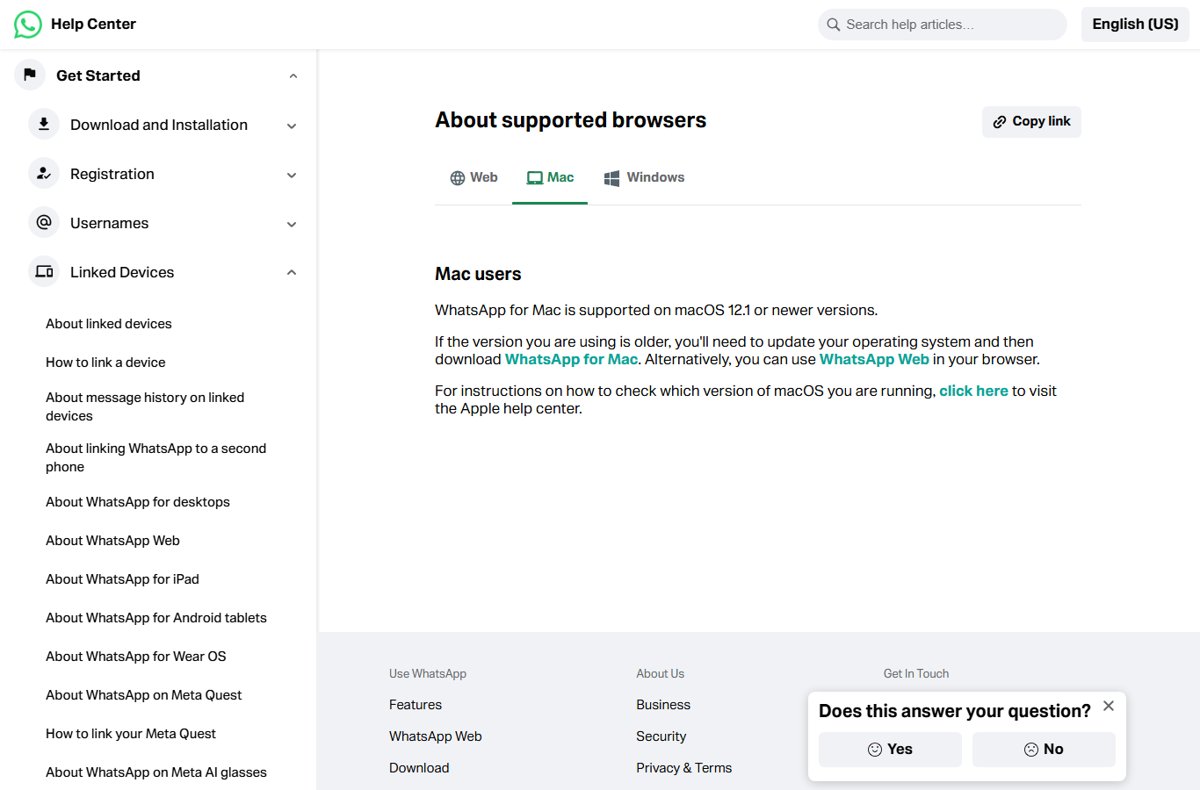
WhatsApp Desktop does not run on macOS 10.15.7 Catalina, because WhatsApp for Mac needs macOS 12.1 or newer according to the WhatsApp Help Center.
This guide shows how to check your Mac, upgrade macOS if your model allows it, and use WhatsApp Web in a supported browser when it does not.
Use WhatsApp on macOS 10.15.7 Catalina with WhatsApp Web
The quickest working route on Catalina is WhatsApp Web in a current Firefox, which still supports macOS 10.15. WhatsApp Web needs Firefox 115 or later.
- Install or update Firefox from mozilla.org on your Mac.
- Open Firefox and go to
web.whatsapp.com. - On your iPhone, open WhatsApp and tap Settings or your profile picture.
- Tap Linked devices > Link device, then unlock with Face ID, Touch ID or your PIN.
- Point the phone at the Mac screen and scan the QR code.
- Wait for your chats to load in the browser.
On Android, the same Linked devices > Link device option is in the WhatsApp menu, and the same list lets you sign out of WhatsApp Web on a computer later.
WhatsApp Desktop system requirements for Mac and Windows
The WhatsApp Help Center gives two Mac figures on different pages: macOS 12.1 or newer on its supported-platforms page, and macOS 11 or later on its download page. Plan for 12.1, the stricter one. Either way, Catalina 10.15.7 falls short.
| Platform | WhatsApp Desktop requirement | Where to get it |
|---|---|---|
| Mac | macOS 12.1 or newer (supported-platforms page); macOS 11 or later (download page) | WhatsApp download page or the Mac App Store |
| Windows | Windows 10 64-bit, version 1903 or later | Microsoft Store |
| Any other system | Not supported by the desktop app | WhatsApp Web in a supported browser |
| macOS 10.15.7 Catalina | Below the minimum on both pages | WhatsApp Web only |
Check which macOS version your Mac is running
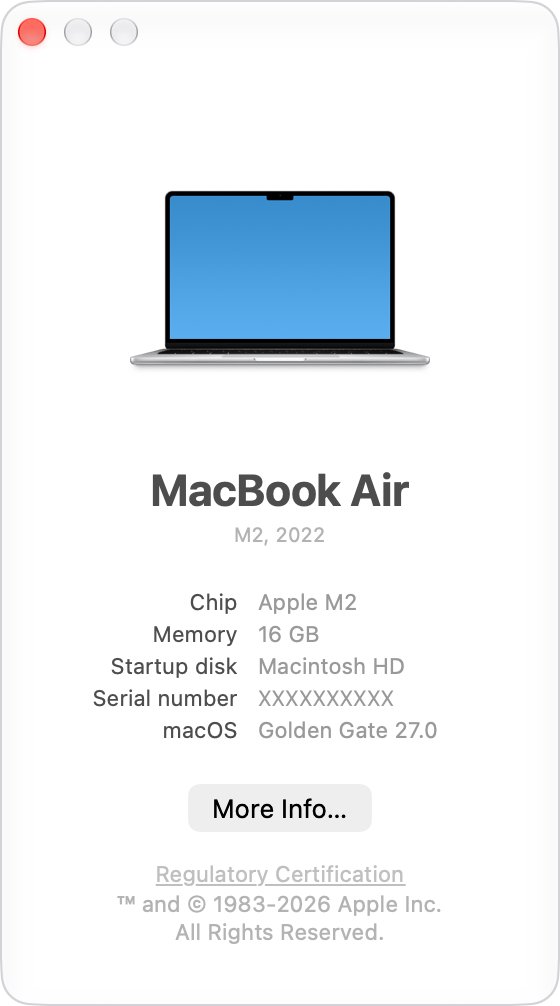
Confirm the exact version and your Mac model before you decide between upgrading and using the browser.
- Click the Apple menu in the upper-left corner of the screen.
- Choose About This Mac.
- Read the macOS name and version number, such as macOS Catalina 10.15.7.
- Click the version number if you also need the build number.
- Note the model name and year shown in the same window, such as MacBook Pro (13-inch, 2017).
Which Macs on Catalina can upgrade for WhatsApp Desktop
Your model decides whether you can reach the macOS version WhatsApp needs. These rows come from Apple's macOS Monterey 12 and Big Sur 11 compatibility lists.
| Your Mac | Newest WhatsApp-ready macOS | What to do |
|---|---|---|
| MacBook Pro 2015 or later, MacBook Air Early 2015 or later, iMac Late 2015 or later | macOS Monterey 12 or later | Upgrade, then install WhatsApp Desktop |
| 12-inch MacBook Early 2016 or 2017, Mac mini Late 2014 or later, Mac Pro Late 2013 or 2019, iMac Pro 2017 | macOS Monterey 12 or later | Upgrade, then install WhatsApp Desktop |
| MacBook Pro Late 2013 or Mid 2014, MacBook Air 2013 or 2014, 12-inch MacBook Early 2015, iMac Mid 2014, Late 2014 or Mid 2015 | macOS Big Sur 11 only | Big Sur meets only the download page's macOS 11 figure; use WhatsApp Web if the app refuses to install |
| Any Mac not on the Big Sur list | None | Stay on Catalina and use WhatsApp Web |
Upgrade from macOS Catalina with Software Update
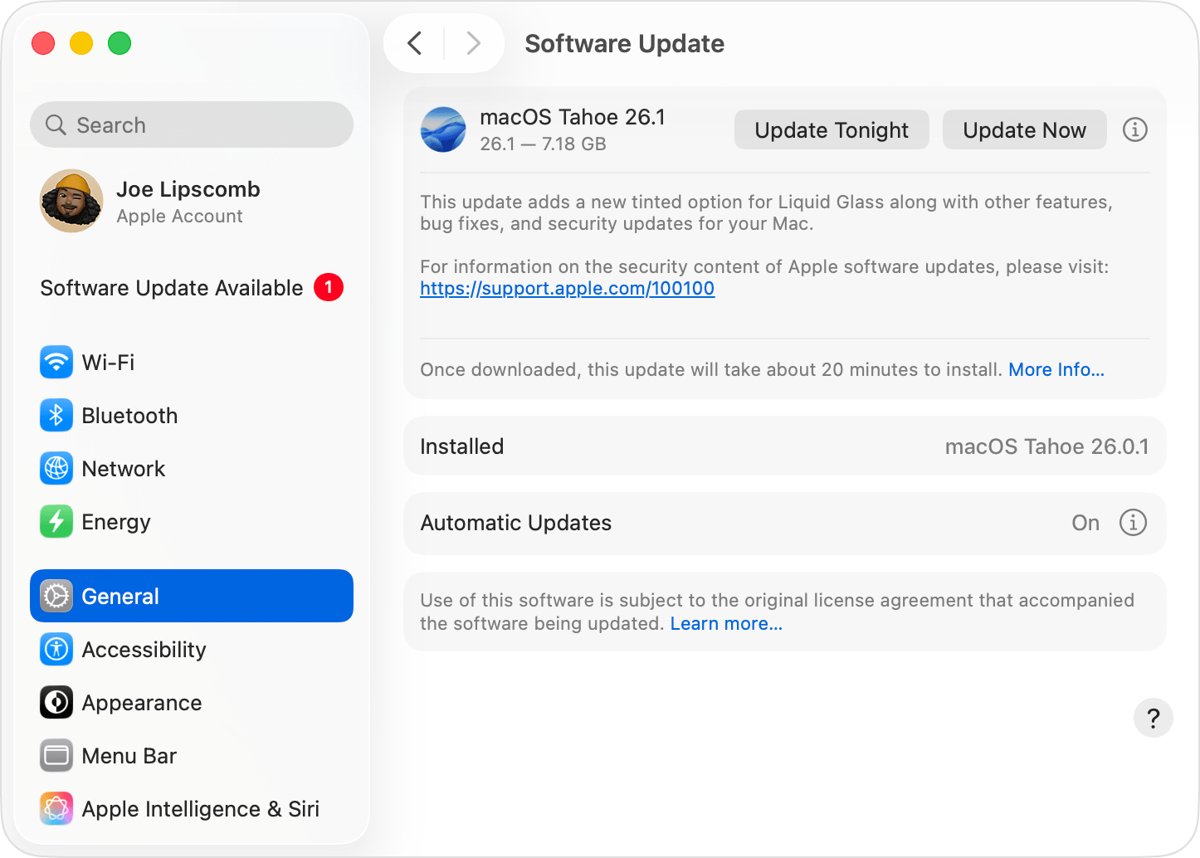
Software Update is the standard way to update macOS on a Mac, and it shows only versions compatible with your Mac. Back up your Mac first, for example with Time Machine.
- Press Command + Space to open Spotlight, type
Software Updateand press Return. - Wait while Software Update checks for new software for your Mac model.
- Click the button to upgrade if a newer macOS is offered.
- Enter your administrator password, the one you use to log in.
- Keep the Mac awake and plugged in until installation completes; it may restart several times.
If Software Update says your Mac is up to date on Catalina, your model cannot run a newer macOS. Use WhatsApp Web instead.
List macOS installers available for your Mac in Terminal
Terminal shows exactly which full macOS installers Apple offers your model, which settles the upgrade question in one command. It works on macOS Catalina 10.15 or later.
softwareupdate --list-full-installersLists the full macOS installers currently available for your Mac model. To download one, run softwareupdate --fetch-full-installer --full-installer-version [number] with a version number from the list.
You should see: A list of versions appears. If only Catalina versions are listed, your Mac cannot upgrade to a WhatsApp-ready macOS.
Install WhatsApp Desktop on Mac after upgrading macOS
- Open the App Store on your Mac and search for WhatsApp.
- Click Get or the download button and follow the prompts.
- Or go to the WhatsApp download page in your browser and download the Mac file, then open it and follow the prompts.
- Open WhatsApp on the Mac to show the QR code.
- On your phone, go to Linked devices > Link device and scan the code.
Check that WhatsApp is linked to your Mac
- On your phone, open WhatsApp and go to Linked devices.
- Confirm your Mac or browser appears in the list.
- Send a test message from the Mac and check that it appears on your phone.
- Tap any device you do not recognise and choose Log out.
Fix WhatsApp Desktop and WhatsApp Web problems on an older Mac
The WhatsApp app will not install or open on macOS 10.15.7
Catalina is below the minimum macOS version for WhatsApp for Mac.
- Check whether your model can upgrade with About This Mac and Apple's compatibility lists.
- Upgrade macOS if your Mac supports it.
- Otherwise, open
web.whatsapp.comin a current Firefox.
WhatsApp Web does not load or calls fail in your browser
The browser is older than WhatsApp Web's minimum version.
- Check your browser version against the minimums: Chrome 100, Edge 100, Firefox 115, Safari 15 or Opera 86.
- Update the browser, or switch to Firefox, which still supports macOS 10.15.
- Reload
web.whatsapp.comand scan the QR code again.
Chrome will not update on macOS Catalina
Current Chrome needs macOS 13 Ventura or later.
- Install Firefox, which supports macOS 10.15 or later.
- Open WhatsApp Web in Firefox instead of Chrome.
WhatsApp on the Mac logs out by itself
Linked devices log out if the primary phone is not used for more than 14 days, or after 30 days of inactivity on the linked device.
- Open WhatsApp on your phone at least once every 14 days.
- Link the Mac again from Linked devices > Link device if it was logged out.
Avoid unofficial WhatsApp apps for old macOS versions
Use only WhatsApp Web or the official WhatsApp Desktop app, never a third-party WhatsApp client offered for Catalina. WhatsApp says linking an account to an unofficial app or website can lead to a temporary or permanent ban, and such apps can hijack the account to send spam and scams.
WhatsApp Desktop on macOS Catalina FAQ
Does WhatsApp have a desktop version?
Yes. WhatsApp offers a desktop app for Mac and Windows, plus WhatsApp Web in a browser. The desktop apps link to your phone and support chats, voice and video calls, and screen sharing on a bigger screen.
Can I install WhatsApp Desktop on macOS 10.15.7?
No. WhatsApp for Mac needs macOS 12.1 or newer on its supported-platforms page and macOS 11 or later on its download page. Catalina 10.15.7 is below both, so use WhatsApp Web or upgrade macOS.
Does WhatsApp Web work on macOS Catalina?
Yes, in a supported browser. WhatsApp Web needs Firefox 115 or later, and current Firefox still supports macOS 10.15. Current Chrome needs macOS 13, so it is not an option for updates on Catalina.
Can WhatsApp run on Windows 10?
Yes. WhatsApp Desktop runs on 64-bit Windows 10, version 1903 or later, and installs from the Microsoft Store. Older or 32-bit Windows versions can use WhatsApp Web in a supported browser instead.
How do I check if my Mac can upgrade past Catalina?
Choose Apple menu > About This Mac to see your model and year, then compare it with Apple's macOS Monterey 12 compatibility list. You can also run softwareupdate --list-full-installers in Terminal to see offered versions.
Can I use WhatsApp on my Mac when my phone is off?
Yes. Linked devices, including the Mac app and WhatsApp Web, work while your phone is off. They log out if the phone is not used for more than 14 days, so open WhatsApp on the phone regularly.
How many devices can I link to one WhatsApp account?
Up to four devices at a time. A Mac, a Windows PC, a browser and an iPad can all be linked to your primary phone, which you still need to register the account and link new devices.

![HDMI port not working in Windows 11 [Easy fixing]](https://techdows.com/wp-content/uploads/2026/10/HDMI-Port-Not-Working-in-Windows-11-Easy-Fixing-600x338.jpg)