The best music players for Windows 11 are Spotify for streaming, MusicBee and foobar2000 for managing a local library, and VLC for playing almost any audio file with no ads.
This list covers eight players, what each costs, which Windows versions and processors each supports, and how to choose between a streaming app and a local player.
1. Spotify
Spotify is the easiest pick if you want a huge streaming catalogue and podcasts on your PC. The free tier plays songs, albums, playlists and podcasts with ads, and Premium adds offline downloads, high-quality audio, unlimited skips and ad-free listening.
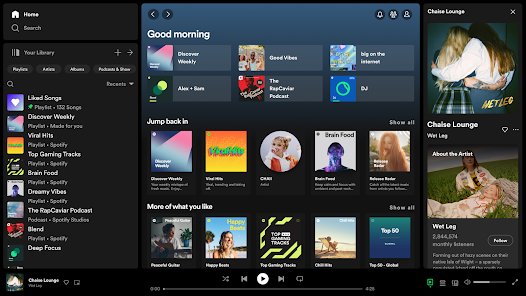
The Microsoft Store app runs on Windows 10 version 14393.351 or later, on x86, x64 and Arm64 PCs, so it also suits Arm-based Copilot+ laptops.
- Open the Microsoft Store and search for Spotify – Music and Podcasts.
- Select Get or Install on the listing published by Spotify AB.
- Open Spotify and sign in or create a free account.
- Search for an artist, album or podcast and press play.
- Press Win + G to open Game Bar if you want Spotify controls while you play a game.
Spotify Free includes your weekly Discover Weekly playlist and collaborative playlists. Downloading music for offline listening needs Premium.
List of best music players for Windows 11
| Player | Best for | Price | Processors (Microsoft Store build) |
|---|---|---|---|
| Spotify | Streaming music and podcasts | Free with ads; Premium subscription | x86, x64, Arm64 |
| iTunes / Apple Music app | An existing iTunes library and Apple Music subscribers | Free app; Apple Music subscription | iTunes x86, x64; Apple Music x64, Arm64 |
| VLC Media Player | Playing almost any audio or video file | Free, open source, no ads | x64, Arm64 |
| Media Player (Microsoft) | A simple library for files in your Music folder | Free | x86, x64, Arm, Arm64 |
| MusicBee | Organising and tagging a large local library | Free | x86 |
| foobar2000 | Lightweight, customisable playback | Free | x86, x64, Arm64 |
| AIMP | Equaliser, effects and internet radio | Free | x86 |
| Amazon Music | Prime members and Amazon MP3 purchases | Free with ads; Prime or Unlimited | x86 |
x86 builds still run on Arm-based Windows 11 PCs through emulation, but a native Arm64 build is the better choice on those machines.
Quick picks: MusicBee for a local library, Spotify for streaming, VLC for files other players reject, and foobar2000 for a lightweight player you can shape around your own workflow.
2. iTunes
iTunes still exists for Windows, but Apple now splits it into dedicated apps. The Apple Music app plays and manages your iTunes library, including iTunes Store purchases, while iTunes remains the place for podcasts and audiobooks on a PC.
The Apple Music app for Windows needs Windows 10 version 19045 or later on an x64 or Arm64 PC. Streaming the catalogue needs an Apple Music subscription, and new subscribers get one month free.
- Open the Microsoft Store and search for Apple Music.
- Install the app published by Apple Inc.
- Open it and sign in with your Apple Account to see your library and purchases.
- Install iTunes from the Store as well only if you manage podcasts or audiobooks on the PC.
- Install the Apple Devices app if you sync music to an iPhone or iPad.
Apple Music adds real-time lyrics, lyric search, music videos and live radio stations. Availability and features vary by country or region.
![8 best music players for Windows 11 [2026 updated]](https://techdows.com/wp-content/uploads/2026/10/8-best-music-players-for-Windows-11-2026-updated.jpg)
3. VLC Media Player
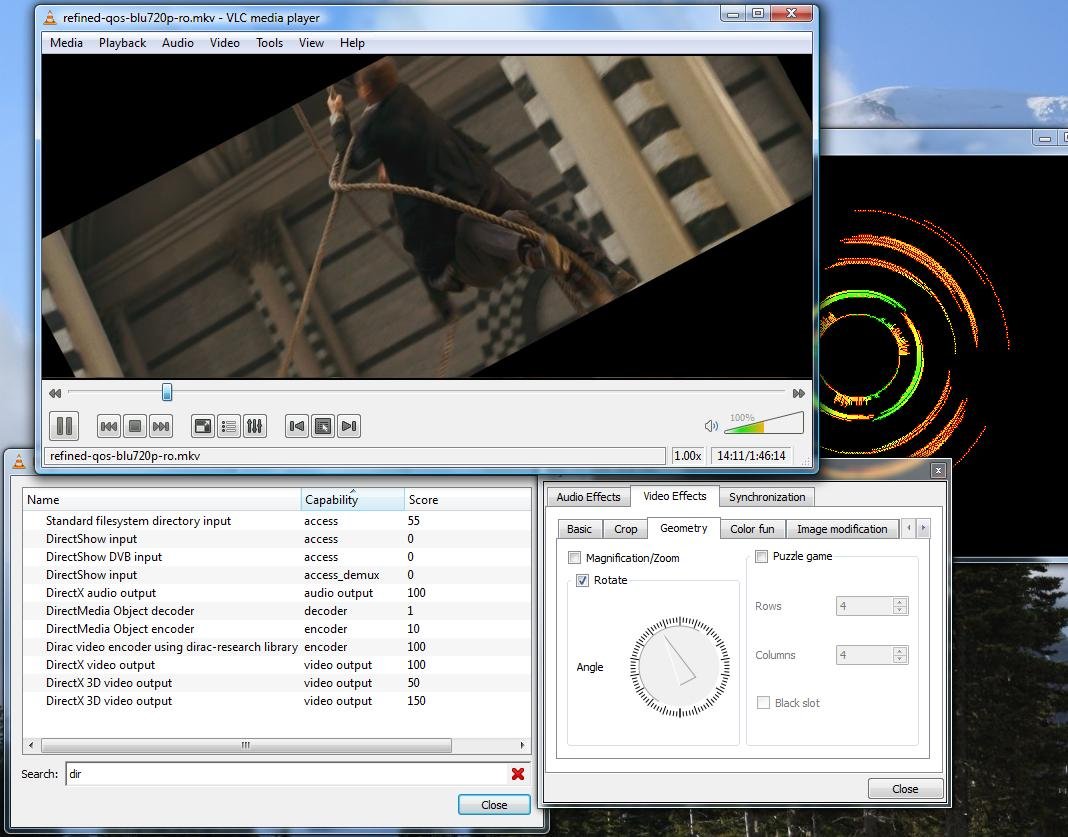
VLC is a free, open-source player from the non-profit VideoLAN project, with no spyware, no ads and no user tracking. It is the safest bet when a file refuses to play anywhere else.
VideoLAN says VLC runs on every version of Windows from XP SP3 to the latest Windows 11. The current Windows release is version 3.0.24, a 44 MB 64-bit download.
| Strength | Limit |
|---|---|
| Plays MP3, AAC, FLAC, ALAC, Vorbis, APE, WavPack, Musepack, WMA and MIDI | Library tools are basic compared with MusicBee or foobar2000 |
| Plays audio CDs, DVDs and network streams | No streaming catalogue of its own |
| Hardware decoding and audio filters | Interface is built around video as much as music |
| Reads ID3, APEv2 and Vorbis comment tags | Tag editing is limited |
Download VLC only from videolan.org or the VLC listing by VideoLAN in the Microsoft Store.
4. Media Player from Microsoft
Microsoft's Media Player is the no-install-hassle option. It builds a music library from the music and video folders on your PC automatically, so files you drop into Music show up without any setup.
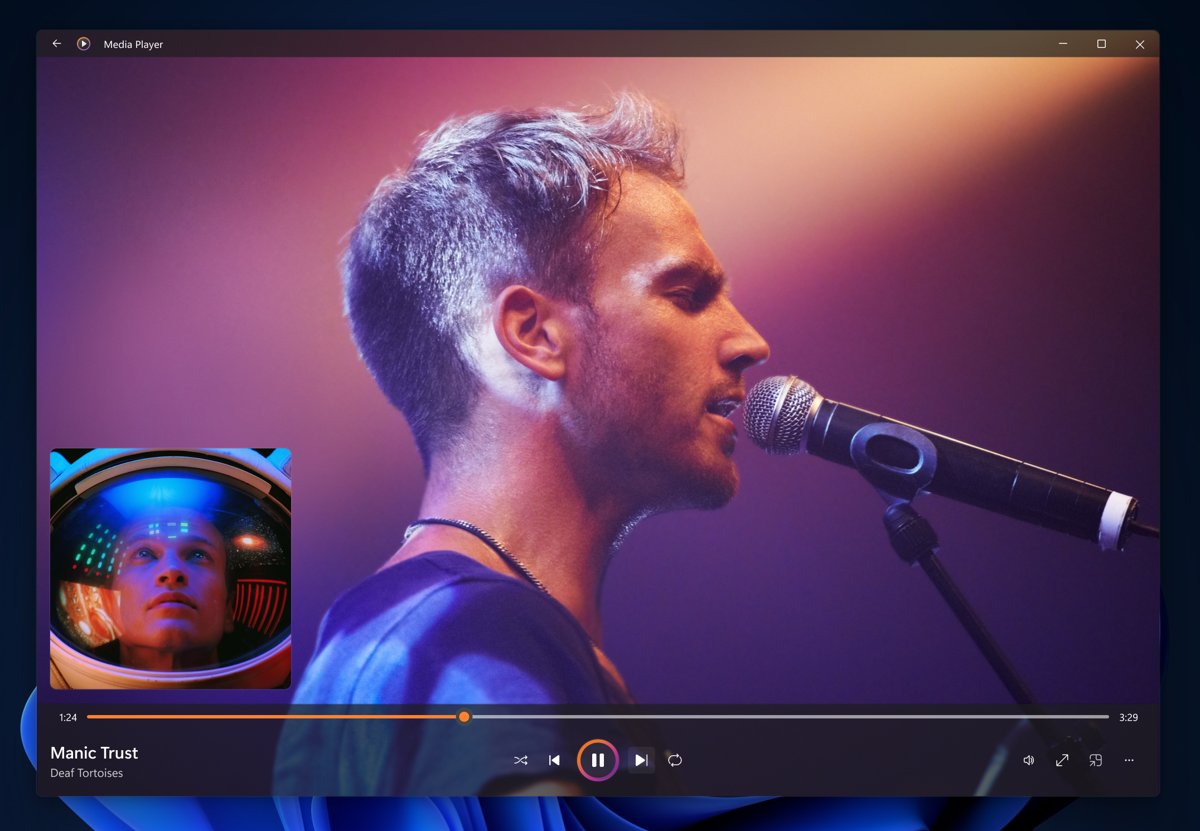
- Press Start, type Media Player and open it. If it is missing, install Windows Media Player by Microsoft Corporation from the Microsoft Store.
- Copy your music files into your Music folder so they appear in the library.
- Browse by album, artist or song and select a track to play.
- Create a playlist and add tracks to it.
- Switch to the always-on-top mini player to keep controls visible while you work.
The playback view shows album art and artist imagery in both full-screen and mini player modes.
5. MusicBee
MusicBee is a free music manager and player built for people with big local collections. It cleans up tags automatically, fetches missing album art and artist photos, and syncs playlists and tracks to Android devices.
| Feature | Why it matters |
|---|---|
| Formats: MP3, M4A, FLAC, Musepack, WavPack, Ogg, Opus, TAK | Covers lossy and lossless libraries |
| WASAPI and ASIO output | Sends audio straight to high-end sound cards and DACs |
| Gapless playback and ReplayGain | Live albums play without gaps at an even volume |
| Support for many Winamp plugins | Lets former Winamp users keep favourite plugins |
| Automatic file organisation and auto playlists | Keeps folders and playlists tidy as the library grows |
The Microsoft Store build is x86 and needs Windows 10 version 14393 or later.
6. foobar2000
foobar2000 is an advanced freeware audio player for Windows that starts small and grows through customisation. The Microsoft Store listing runs natively on x86, x64 and Arm64 PCs, and a separate foobar2000 classic listing is also available from the same publisher.
| Feature | Detail |
|---|---|
| Formats | MP3, MP4/M4A, CD Audio, WMA, Vorbis, Opus, FLAC, WavPack, WAV, AIFF, Musepack |
| Playback | Gapless playback with ReplayGain |
| Tagging | Advanced tagging capabilities |
| Control | Customisable keyboard shortcuts |
7. AIMP
AIMP suits listeners who want sound controls and radio in one free player. It adds an 18-band equaliser, built-in sound effects and internet radio on top of a music library with smart playlists.
| Feature | Detail |
|---|---|
| Output | DirectSound, ASIO, WASAPI and WASAPI Exclusive |
| Internet radio | Plays OGG, WAV, MP3, AAC and AAC+ stations and can record streams |
| Sound | 18-band equaliser, effects, peak or ReplayGain volume normalisation |
| Library | Music organiser with listened marks and playback statistics |
| Tools | CUE sheet support, audio converter and tag editor |
The Store build of AIMP is x86 and needs Windows 10 version 14393 or later.
8. Amazon Music
Amazon Music for PC is the streaming pick for Prime members. Anyone can listen free with ads, without a credit card, while Prime adds ad-free shuffle play and Amazon Music Unlimited unlocks any song on demand and offline listening.
| Tier | What you get |
|---|---|
| Free | Thousands of stations and top playlists, with ads |
| Included with Prime | All the music ad-free, with shuffle play of any artist, album or playlist |
| Amazon Music Unlimited | 100 million songs on demand, ad-free, offline and with unlimited skips |
| My Music | MP3s and AutoRip CDs or vinyl bought from Amazon, stored free in the Amazon cloud |
Amazon Music can also import playlists from other music services.
Factors to consider when choosing a music player for Windows 11
| Factor | What to check | Players that fit |
|---|---|---|
| Local files or streaming | Whether your music lives on the PC or in a subscription catalogue | Local: MusicBee, foobar2000, AIMP, VLC, Media Player. Streaming: Spotify, Apple Music, Amazon Music |
| Offline playback | Whether the player works without an internet connection | Local players play stored files offline; Spotify needs Premium and Amazon Music needs Unlimited to download for offline listening |
| Formats | FLAC, ALAC, Opus or other formats in your library | VLC covers the widest range; MusicBee and foobar2000 cover the common lossless formats |
| Audio output | WASAPI or ASIO support for an external DAC | MusicBee, AIMP |
| Library tools | Auto-tagging, artwork download, automatic organisation | MusicBee, foobar2000, AIMP |
| Processor | A native Arm64 build on a Snapdragon PC | Spotify, VLC, foobar2000, Apple Music, Media Player |
| Cost and ads | Free with ads, free without ads, or a subscription | No ads: VLC; subscriptions: Spotify Premium, Apple Music, Amazon Music Unlimited |
WASAPI and ASIO output also depend on your sound hardware, so update your audio drivers before you judge a player's sound quality.
MediaMonkey, Winamp and Dopamine on Windows 11
MediaMonkey, Winamp and Dopamine are other Windows music players that did not make this list; none of them appears in a Microsoft Store search, so install them only from each developer's own website if you choose one. Every player in the list above has a Microsoft Store listing that installs and updates automatically. If you want Winamp's plugin ecosystem without Winamp, MusicBee supports many Winamp plugins.
Audacious, another lightweight player readers ask about, has no Microsoft Store listing either. For a light player that installs and updates through the Store, foobar2000 is the closest fit.
Free music players for Windows 11 with no ads or subscription
| Player | Ads | Subscription needed | Plays your own files |
|---|---|---|---|
| VLC Media Player | None | No | Yes |
| Media Player (Microsoft) | No in-app purchases listed | No | Yes, from Music and Videos folders |
| MusicBee | No in-app purchases listed | No | Yes |
| foobar2000 | No in-app purchases listed | No | Yes |
| AIMP | No in-app purchases listed | No | Yes |
| Spotify Free | Yes | Only for Premium features | Streaming catalogue |
| Amazon Music free tier | Yes | Only for Prime or Unlimited | Streaming plus Amazon purchases |
How to set a default music player in Windows 11
The most practical setup advice for any new player is to make it the default for your audio files, so double-clicking an MP3 or FLAC opens it instead of the previous app.
- Open Settings and select Apps > Default apps.
- To change one file type, type its extension, such as .mp3 or .flac, in the search box and select the result.
- Choose your music player from the list of apps.
- To change several types at once, select the player under Set defaults for applications instead.
- Select each audio file type you want it to open, such as .mp3, .m4a or .flac, and choose the player.
Repeat the search for each format in your library, because Windows assigns defaults per file type.
Windows 11 music player FAQs
What is the best free music player for Windows 11?
MusicBee is the best free player for a large local library thanks to auto-tagging, artwork download and WASAPI or ASIO output. VLC is the best free choice for playing unusual formats, and Spotify Free is the best free option for streaming.
How can I play music for free on Windows 11?
Play your own files free with VLC, MusicBee, foobar2000, AIMP or Microsoft's Media Player. To stream for free, use Spotify Free or the Amazon Music free tier, both of which play ads.
Which free music player has no ads?
VLC states that it has no ads, no spyware and no user tracking. MusicBee, foobar2000, AIMP and Microsoft's Media Player are free in the Microsoft Store with no in-app purchases listed.
Which music player works offline?
Any local player, including VLC, MusicBee, foobar2000, AIMP and Media Player, plays files stored on your PC without an internet connection. Spotify needs Premium and Amazon Music needs Unlimited for offline listening.
Do these music players work on Windows 10?
Yes. The Store builds of Spotify, MusicBee, foobar2000, AIMP and Amazon Music need Windows 10 version 14393 or later, iTunes needs version 16299, and the Apple Music app needs version 19045.
Is Spotify a good free music player for PC?
Yes, for streaming. Spotify Free plays songs, albums, playlists and podcasts on Windows, with ads. Offline downloads, high-quality audio, unlimited skips and ad-free listening need Premium.
Is iTunes still available for Windows 11?
Yes. iTunes is free in the Microsoft Store and still manages podcasts and audiobooks. Apple recommends the separate Apple Music app for listening to and managing your music library on Windows.
Which music player is best for Arm-based Windows 11 PCs?
Pick a player with a native Arm64 build: Spotify, VLC, foobar2000, the Apple Music app or Microsoft's Media Player. x86-only apps such as MusicBee and AIMP run through emulation.
Bottom line: the best music player for Windows 11
Install MusicBee if your music is on your PC, Spotify if you stream, and keep VLC as the fallback for any file the others will not open. MusicBee has the strongest library tools of the free local players, Spotify has a free tier and a native Arm64 build, and VLC plays the broadest range of formats with no ads.