To update PHP in Laragon, add the patched build with Menu > Tools > Quick add (or extract the php.net Windows zip into bin\php), then select it under Menu > PHP > Version; in WampServer, add the new PHP version and switch to it before restarting Apache.
This guide covers both local stacks on Windows 11 and Windows 10, which build to pick, how to confirm the switch, and what to do when Apache refuses to start afterwards.
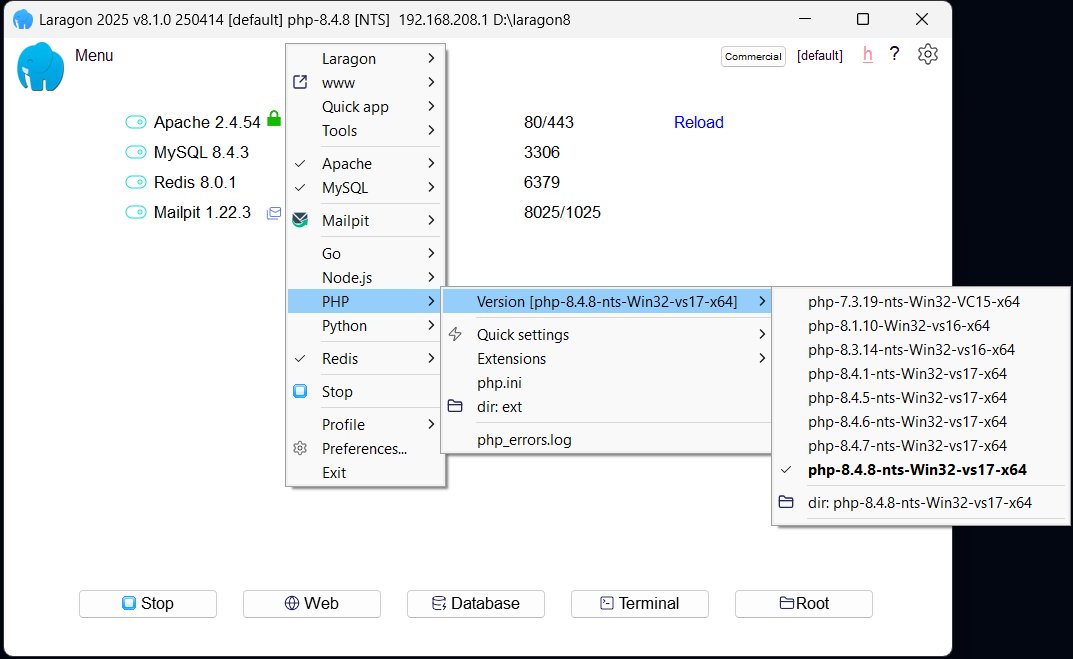
Fastest way to update PHP in Laragon to 8.5.12, 8.4.27 or 8.3.36
PHP 8.5.12, 8.4.27, 8.3.36 and 8.2.35 fix two critical remote code execution flaws, CVE-2026-109618 and CVE-2026-109619, so any local stack on an older build of those branches needs the update. The PHP guide hub lists every release and advisory in this cluster.
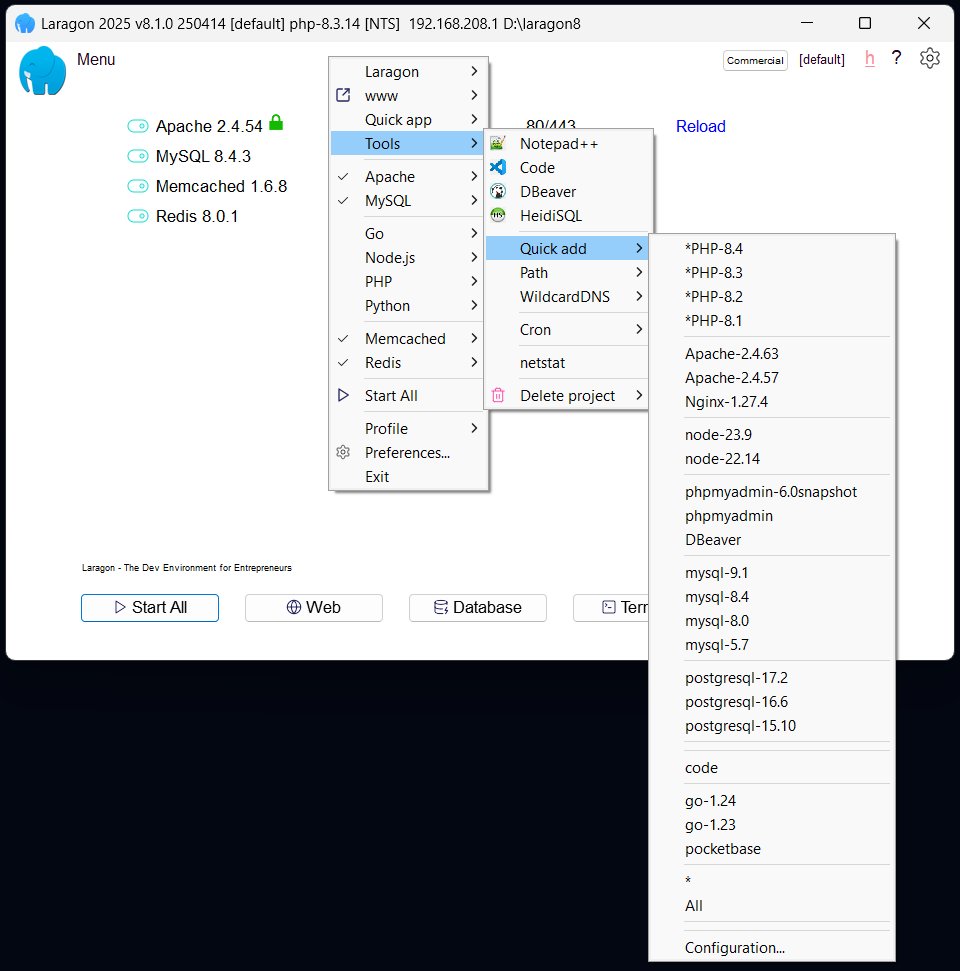
Laragon's own docs describe one route for adding and switching PHP versions.
- Open Laragon and click Menu.
- Go to Tools > Quick add and pick the PHP version you want to add.
- Wait for Laragon to download and integrate the package.
- Click Menu > PHP > Version and select the new version.
- Restart the running services so Apache or Nginx loads the new PHP.
If the patched version is not offered under Quick add yet, use the manual zip route in the next sections.
Laragon Quick add vs php.net zip vs WampServer addon
| Your situation | Use this | Why |
|---|---|---|
| Laragon, patched version listed in Quick add | Menu > Tools > Quick add > [PHP Version] | Laragon downloads and integrates it for you |
| Laragon, patched version not listed yet | Extract the php.net Windows zip into bin\php | Laragon's docs say versions dropped into bin\php can be toggled from the menu |
| Laragon on Apache | Thread Safe (TS) x64 zip | php.net requires TS builds when PHP is loaded as an Apache module |
| Laragon on Nginx | Non Thread Safe (NTS) x64 zip | php.net says NTS builds suit FastCGI and the CLI |
| WampServer | The PHP addon for the new version from the WampServer site | WampServer bundles its own Apache and PHP pairing |
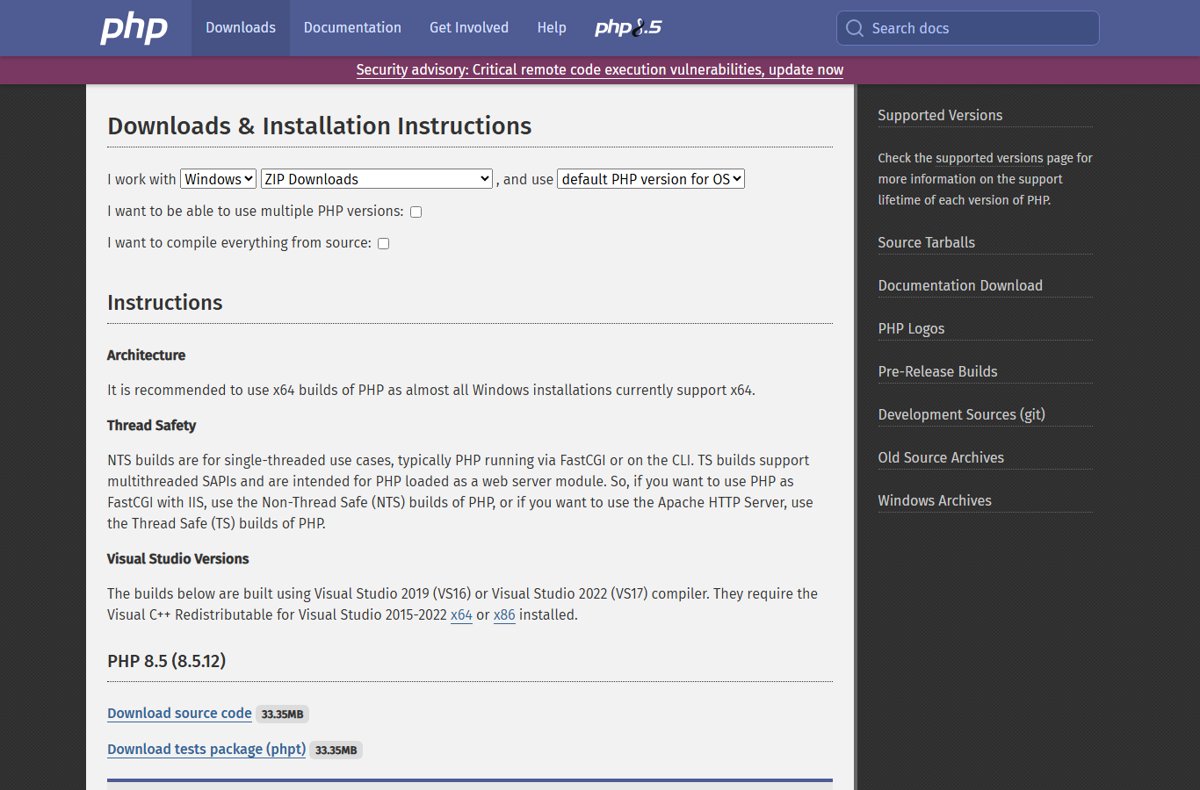
Check the PHP version in Laragon
Check before and after the update so you know which build your sites actually run.
- Click Menu > PHP > Version and note which version is ticked.
- Open the Laragon Terminal, its built-in command line.
- Type
php -vand press Enter. - Confirm the first line shows 8.5.12, 8.4.27, 8.3.36 or 8.2.35.
- For the web server's view, save a file containing
<?php phpinfo();inC:\laragon\www, openhttp://localhost/followed by the file name, and read the PHP Version line. - Delete the phpinfo file when you are done.
A version lower than the fixed releases on the same branch means the site is still exposed. You can also check your PHP version against CVE-2026-109618 on any other server you run.
Add a new PHP version to Laragon
Use this route when Quick add does not offer the patched release. Laragon's docs state that you can download and extract PHP versions into the bin\php directory and toggle between them from the menu.
- Open the official Windows downloads page at
https://windows.php.net/download/(it redirects to php.net's Windows downloads). - Pick the branch you use, for example PHP 8.5 (8.5.12).
- Download the VS17 x64 Thread Safe zip for Apache, or VS17 x64 Non Thread Safe for Nginx.
- Install the Visual C++ Redistributable for Visual Studio 2015-2022 if it is not already on the PC, because php.net says these builds require it.
- Create a new folder inside
C:\laragon\bin\phpnamed after the version, for examplephp-8.5.12-Win32-vs17-x64. - Extract the zip contents into that folder.
- Leave the old version's folder in place, so you can switch back if a project breaks.
Laragon is installed at C:\laragon by default, but the folder is portable, so use your own path if you moved it. The PHP 8.5.12 download and changes page lists what else changed in this release.
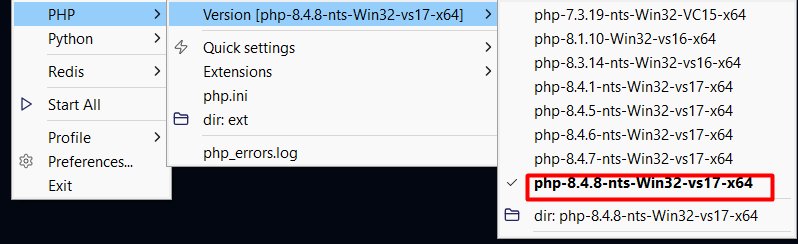
Switch PHP versions in Laragon
- Click Menu in the Laragon window.
- Go to PHP > Version.
- Select the folder for the patched version.
- Restart the services so the web server picks up the change.
- Run
php -vin the Laragon Terminal to confirm the switch.
Your projects in www\ and your settings in usr\ stay in place, because Laragon keeps user data separate from the binaries in bin\. If you changed php.ini in the old version, copy those settings into the new version's configuration.
Add a PHP version to WampServer
WampServer adds PHP versions as separate addon installers published on its own site. Pick the addon that matches the patched release and your WampServer build (32-bit or 64-bit).
- Open the official WampServer site at
https://www.wampserver.com/. - Find the PHP addon for 8.5.12, 8.4.27, 8.3.36 or 8.2.35.
- Check that the addon matches your WampServer build, 32-bit or 64-bit.
- Install it following the instructions published with the addon.
- Restart WampServer so it lists the new version.
If no addon exists yet for the patched release, wait for one rather than mixing in a build of unknown origin. The general PHP 8.5.12, 8.4.27, 8.3.36 and 8.2.35 update steps cover standalone PHP installs.
Switch PHP version in WampServer
WampServer keeps each installed PHP version side by side, so switching back and forth is the same action.
- Open the WampServer menu from its icon in the notification area.
- Open the PHP version list in that menu.
- Select the patched version and let WampServer restart its services.
- Open a phpinfo page from your
wwwfolder and confirm the PHP Version line.
To undo the update on either stack, select the old version again from the same menu. Remove the old version only after every project runs on the new one.
Fix Apache not starting after a PHP change
Apache will not start after switching to a manually added PHP version
A Non Thread Safe build was used; php.net states the Apache handler (apache2handler) needs the Thread Safe build.
- Download the Thread Safe zip for the same version from the php.net Windows downloads page.
- Delete the contents of the Non Thread Safe folder in
bin\php. - Extract the Thread Safe zip into that folder.
- Confirm the folder contains
php8apache2_4.dll, the module php.net names for PHP 8 under Apache 2.4. - Select the version again and start the services.
Apache or php.exe fails with a missing DLL error
The Visual C++ Redistributable for Visual Studio 2015-2022 that php.net lists as a requirement is missing.
- Install the x64 Visual C++ Redistributable for Visual Studio 2015-2022 from Microsoft.
- Restart Laragon or WampServer.
- Run
php -vto confirm PHP loads.
Apache config error about paths after editing httpd.conf by hand
Windows backslashes or curly quotes in Apache path directives break the config.
- Open the Apache
httpd.confyou edited. - Change every backslash in
LoadModuleandPHPIniDirpaths to a forward slash, for examplec:/php/php8apache2_4.dll. - Replace any curly quotes with straight quotes.
- Save the file and start Apache again.
Laragon and WampServer PHP update FAQ
How do I update PHP in Laragon?
Add the new version with Menu > Tools > Quick add, or extract the php.net Windows zip into Laragon's bin\php folder. Then select it under Menu > PHP > Version and restart the services. Laragon keeps older versions, so you can switch back.
Does Laragon support PHP 8?
Yes. Laragon runs multiple PHP versions side by side, including the PHP 8 branches. The patched releases are 8.5.12, 8.4.27, 8.3.36 and 8.2.35, and any of them can sit in bin\php next to older builds.
Which PHP build should I download for Laragon?
Use the x64 Thread Safe build if Laragon runs Apache, because php.net requires Thread Safe builds for PHP loaded as an Apache module. Use Non Thread Safe for Nginx, which runs PHP through FastCGI.
How do I update WampServer to PHP 8.3?
Install the WampServer PHP addon for 8.3.36 from the official WampServer site, then select it from the PHP version list in the WampServer menu. 8.3.36 is the release that fixes CVE-2026-109618 and CVE-2026-109619 on the 8.3 branch.
Do I lose my projects when I switch PHP versions?
No. Switching PHP only changes which binary the web server loads. In Laragon, projects stay in www\ and settings stay in usr\. Copy any custom php.ini values into the new version's configuration.
Is a local Laragon or WampServer install at risk from the PHP RCE flaws?
php.net says all PHP installations serving web requests are at risk, with the highest risk for Apache mod_php. A local stack reachable from other machines on the network is exposed, so update it like a server.
Does Laragon update PHP automatically?
Laragon's FAQ says it can auto-update PHP, and its docs say it detects and integrates the latest PHP versions. Still check Menu > PHP > Version and php -v to confirm you run a patched release.
Bottom line: update PHP in Laragon and WampServer today
Add the patched PHP build to Laragon or WampServer now, switch to it, and confirm the version before you remove the old one. The October releases close two unauthenticated remote code execution flaws, and both stacks let you switch back in seconds if a project breaks. If you can't patch yet, apply the PHP mitigations for CVE-2026-109618 in the meantime.