You cannot track a lost phone with its serial number or IMEI yourself; Apple and Google locate phones through Find My and Find Hub, which use the account signed in on the phone.
This guide covers locating a lost iPhone or Android phone, marking it as lost, finding the serial number and IMEI without the phone, and who needs those numbers once the phone is gone.
Track a lost iPhone with Find My at icloud.com/find
A serial number identifies the phone, but no Apple or Google page offers a lookup that shows where it is. The location comes from the account signed in on the phone, so start there.
- On any computer or phone, go to icloud.com/find and sign in with the Apple Account used on the lost iPhone.
- Select Find Devices if you are asked for a verification code; Find Devices does not need one.
- Open All Devices and select the lost iPhone to see it on the map.
- Select Play Sound if the map shows the phone nearby.
- Select Mark As Lost to lock it with your passcode and show a phone number and message on its screen.
- Keep the page open or check back later; an offline phone appears once it connects to Wi-Fi or cellular.
If Find My was not turned on before the iPhone was lost, it does not appear at icloud.com/find, and it cannot be marked as lost or erased remotely.
Serial number, IMEI or phone number: what can track a lost phone?
| What you have | Can you track the phone with it? | What it is good for |
|---|---|---|
| Apple Account signed in on the iPhone | Yes, with Find My | Map location, sound, Lost Mode, remote erase |
| Google Account signed in on the Android phone | Yes, with Find Hub | Map location, sound, Mark as lost, factory reset |
| Serial number | No | Police report, AppleCare+ claim, proof the phone is yours |
| IMEI number | No, not by you | Carrier report and police report; the carrier can act on the line and device |
| Your phone number | No | Calling the phone, and the contact number shown in Lost Mode |
Sites that promise to locate a phone from an IMEI or serial number are not run by Apple, Google or a carrier. Never type your Apple Account or Google Account password into them.
Track a lost Android phone with Google Find Hub
Find Hub, formerly Find My Device, turns on automatically when a Google Account is added to an Android phone. The phone needs power, a mobile data or Wi-Fi connection, and Find Hub turned on for remote actions.
- Open the Find Hub app on another Android device, or go to google.com/android/find in a browser.
- Tap Continue as with your name, or Sign in as guest on a friend's phone.
- Select the lost phone from the list of devices.
- Enter the lost phone's screen lock PIN if you are asked for it.
- Check the location on the map, and tap Get directions to go there.
- Tap Find nearby when you are within about 10 meters of the phone.
- Tap Play sound to ring it at full volume for 5 minutes, even on silent.
If the current location cannot be found, Find Hub may show the last known location instead. If the lost phone was your only sign-in device, you can still recover your Google Account without the old phone.
Track a lost iPhone from a family member's iPhone
If you are in a Family Sharing group, your devices appear in Find My on your family members' devices. Any other trusted Apple device signed in with your Apple Account works the same way.
- Open the Find My app on the other iPhone, iPad or Mac.
- Go to the Devices tab.
- Scroll down and select the missing iPhone; on a family member's device it appears beneath their own devices.
- Check the location on the map, or play a sound to locate it nearby.
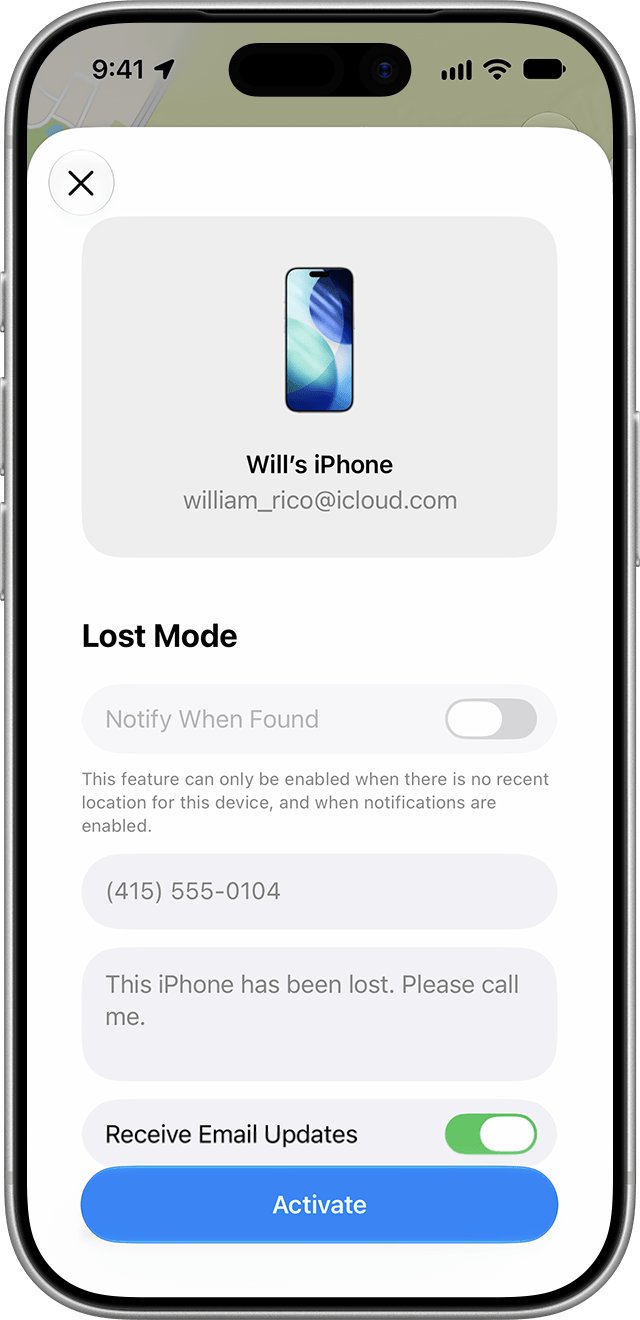
- Tap the More button, scroll to Lost iPhone and turn on Lost Mode.
- Follow the onscreen steps to show your contact information, then tap Activate.
Lost Mode locks the iPhone with its passcode and suspends Apple Pay cards and passes. With Stolen Device Protection on, Face ID or Touch ID is required to turn Lost Mode off.
Mark a lost Android phone as lost in Find Hub
Marking the phone as lost locks it and puts your message on the lock screen, so an honest finder can reach you.
- Open Find Hub or google.com/android/find and select the lost phone.
- Tap Mark as lost.
- Tap Next.
- Add a contact number and a message to show on the lock screen.
- Tap Mark as lost again to confirm.
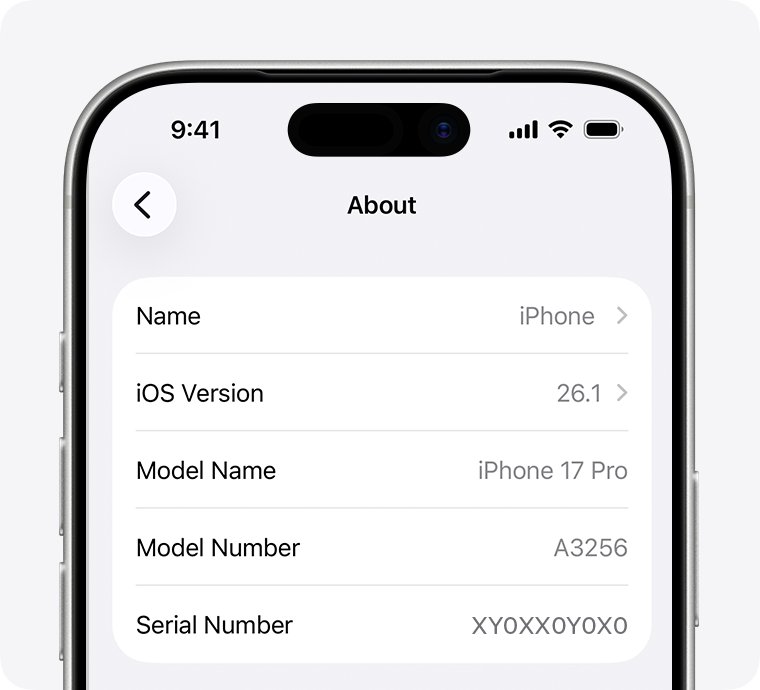
Find your phone's serial number and IMEI without the phone
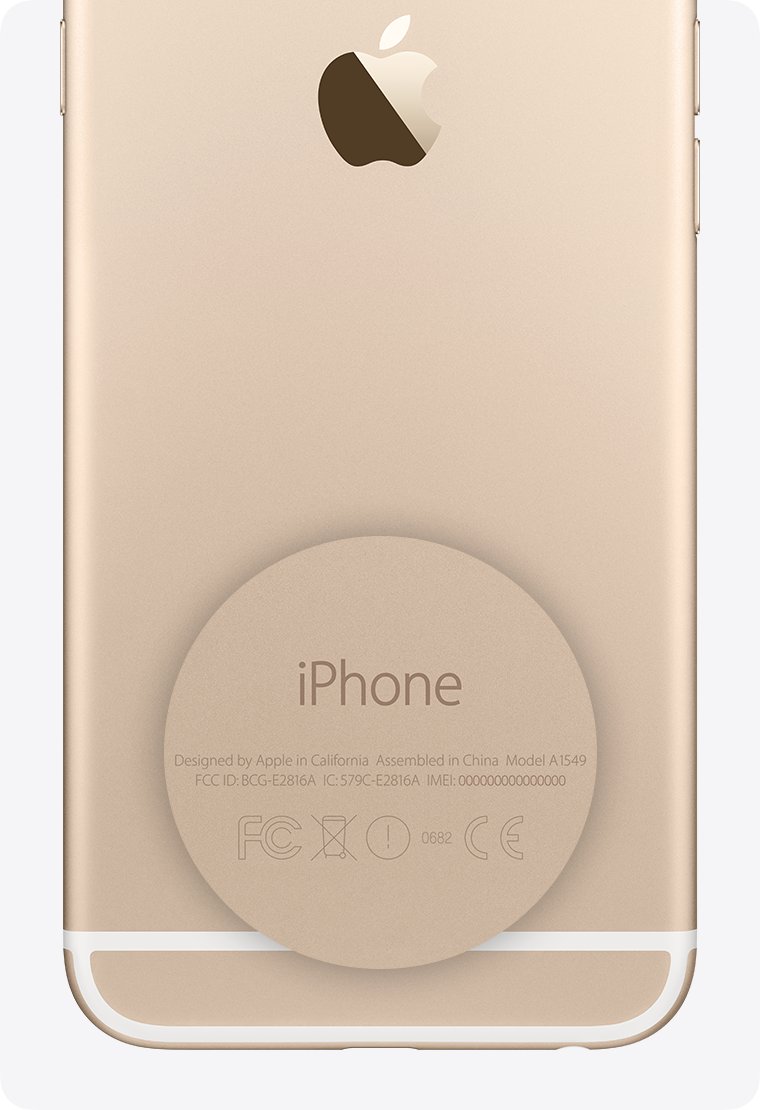
Police, your carrier and AppleCare+ ask for these numbers, and you can get them even when the phone is gone.
| Phone | Where to look | What it shows |
|---|---|---|
| iPhone | Sign in at account.apple.com, open Devices and select the iPhone | Serial number, IMEI/MEID, EID |
| iPhone | On another device signed in to the same Apple Account: Settings > your name > the device in the list | Serial number and IMEI |
| iPhone | The barcode label on the original box | Serial number, IMEI/MEID, EID |
| iPhone | A computer the iPhone synced with: Finder, the Apple Devices app or iTunes, then the model name | Serial number; select Phone Number for IMEI/MEID and ICCID |
| Android phone | Find Hub app: select the phone, then the Settings icon | IMEI number |
| Android phone | android.com/find: the Settings icon next to the phone | IMEI number |
Some devices, such as the Google Pixel Tablet, have no IMEI number.
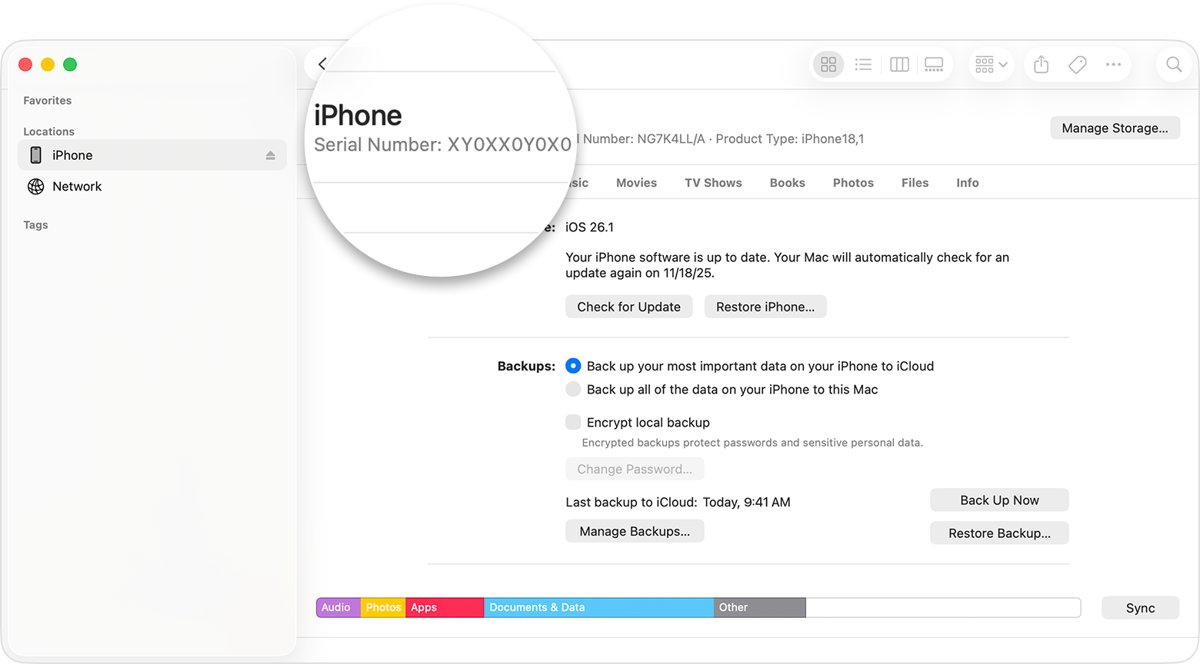
Report a lost or stolen phone with the serial number and IMEI
When the map shows nothing useful, the numbers you collected become the paperwork that protects you.
- Report the phone to local law enforcement and give them the serial number they ask for.
- Call your wireless carrier to report the phone missing and ask them to disable your account.
- File a claim with the carrier if the phone is covered under your plan.
- On an iPhone with AppleCare+ with Theft and Loss, file a replacement claim with Apple.
- Keep the iPhone in Find My and on your Apple Account until an AppleCare+ claim is fully approved.
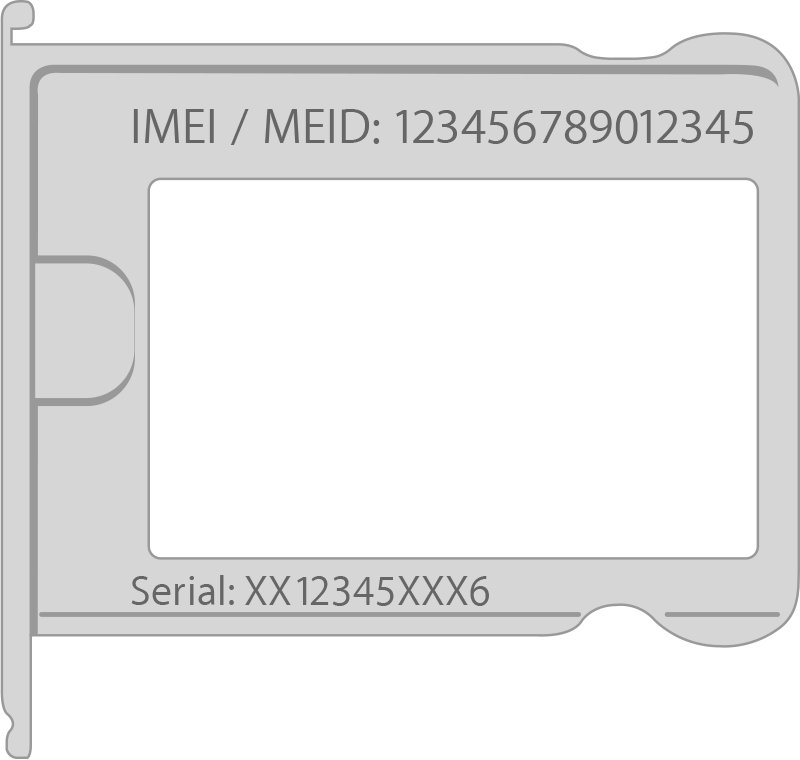
Erase a lost phone remotely if you cannot get it back
Erasing cannot be undone, so try every other step first. Both Apple and Google need the phone to come online before the erase runs.
| Phone | How to erase it | What happens after |
|---|---|---|
| iPhone | icloud.com/find or the Find My app: select the iPhone, then Erase This Device | Activation Lock stays on, so the thief cannot set it up without your Apple Account password |
| Android phone | Find Hub or google.com/android/find: select the phone, open Settings, tap Factory reset | All data is deleted, though an SD card may not be; the phone leaves Find Hub and needs your Google Account password to be used again |
Do not remove an erased iPhone from Find My. Removing it turns off Activation Lock and makes the phone easier to resell.
Check that the lost phone is locked and reported
- Reopen icloud.com/find or Find Hub and confirm the phone shows as lost.
- Confirm you received Apple's or Google's confirmation email about the action.
- On iPhone, open account.apple.com and review Sign-In & Security for changes you did not make.
- Change your Apple Account password or Google Account password if anything looks wrong.
- Keep the police report number and the carrier's reference with the serial number and IMEI.
Fix lost phone tracking when the phone does not show up
The lost iPhone is not listed in Find My
Find My was not turned on for the iPhone before it was lost.
- Confirm you signed in to icloud.com/find with the same Apple Account used on the phone.
- If it still does not appear, report it to the police and your carrier with the serial number and IMEI.
- Review your Apple Account at account.apple.com for suspicious sign-in alerts and change the password.
The phone shows as offline or no location is found
The phone is off, has no battery, or has no Wi-Fi or cellular connection.
- Mark it as lost anyway; Lost Mode or Mark as lost takes effect when the phone comes online.
- Check Find Hub for the last known location if the current one is unavailable.
- Check again later instead of erasing straight away, because an erased phone can be harder to find.
icloud.com asks for a verification code sent to the lost iPhone
Two-factor authentication sends the code to your trusted device, which is the one you lost.
- Select Find Devices on the sign-in page instead.
- Sign in with your Apple Account and password; Find Devices does not need a verification code.
Someone contacts you saying Apple found your phone
Apple never contacts owners to say a lost iPhone has been found.
- Do not share your passcode, passwords or verification codes with the caller or sender.
- Do not click the link in the message.
- Check the phone's status yourself at icloud.com/find.
Tracking a lost phone by serial number FAQ
Can I track my lost phone with my serial number?
No. Apple and Google do not offer a serial number lookup that shows a phone's location. Use Find My at icloud.com/find for an iPhone or Find Hub at google.com/android/find for Android. Keep the serial number for the police report and any insurance claim.
Can I track my lost phone with the IMEI number?
Not on your own. Apple and Google locate phones through the signed-in account, not the IMEI. Give the IMEI to your wireless carrier and the police when you report the phone, because the carrier can act on the device and the line.
How do I track my lost phone using my phone number?
A phone number alone cannot show where the phone is. Sign in to Find My or Find Hub with the account used on the phone instead. Your number is still useful as the contact number shown on the lost phone's lock screen.
How can I track my lost phone for free?
Find My on iPhone and Find Hub on Android are both free. Sign in at icloud.com/find or google.com/android/find from any browser, select the phone and check the map. Neither service needs a subscription or an extra app on the lost phone.
How do I track my lost Android phone?
Open the Find Hub app on another Android device, or go to google.com/android/find, and sign in with the Google Account on the lost phone. Select the phone to see its location, play a sound, mark it as lost or factory reset it.
Can I track my lost phone if it is turned off?
The current location is not available while the phone is off or offline. Find Hub may show the last known location, and Lost Mode on an iPhone starts once the phone is back on Wi-Fi or cellular. Mark it as lost so the lock applies as soon as it connects.
How do I find my lost iPhone's serial number without the phone?
Sign in at account.apple.com, open Devices and select the iPhone to see the serial number and IMEI. You can also check Settings > your name on another device signed in to the same Apple Account, or the barcode label on the original box.
Should I remove my lost iPhone from Find My?
No. Removing the iPhone from Find My turns off Activation Lock, which makes it easier for a thief to unlock and resell. Keep it listed even after a remote erase, and until any AppleCare+ with Theft and Loss claim is fully approved.
Bottom line: tracking a lost phone without the serial number
Track the phone with Find My or Find Hub, mark it as lost, and give the serial number and IMEI to the police and your carrier. Only the account signed in on the phone can locate it; the serial number and IMEI prove ownership and let the carrier and police act.