To clear app cache data in Windows 11, open Settings > Apps > Installed apps, select the … button next to the app, choose Advanced options and select Reset.
This guide covers that route plus WSReset for the Microsoft Store, Disk Cleanup, Storage Sense, manual AppData cleanup, PowerShell, and a DNS flush, with what each one deletes.
The fastest way to clear one app's cache in Windows 11
Reset clears everything the app stored locally, including its cache. It works for Microsoft Store apps and some desktop apps that show Advanced options.
- Close the app you want to clear.
- Select Start > Settings > Apps > Installed apps.
- Type the app name in the search box.
- Select the … (More options) button next to the app and choose Advanced options.
- In the Reset section, select Reset, then select Reset again in the confirmation prompt.
- Open the app and sign in again if it asks.
Reset permanently deletes the app's local data, so preferences and sign-in details go with the cache. Try Repair first if you only want to fix a fault.
Which method should you use? Quick comparison
| Your situation | Use this method | What it clears |
|---|---|---|
| One Store app misbehaves or shows stale content | Method 1: Settings Reset | That app's local data, cache included |
| Microsoft Store will not load, update or download | Method 2: WSReset | The Microsoft Store cache only |
| The C: drive is filling up with leftovers | Method 3: Disk Cleanup | Temp files, thumbnails, setup leftovers, Recycle Bin |
| You want cleanup to happen on its own | Method 4: Storage Sense | Temporary files on a schedule, plus Recycle Bin and Downloads if you set them |
| A desktop app like classic Teams has no Reset button | Method 5: AppData folder | The app's cache folder, nothing else |
| You manage several PCs or want a script | Method 6: PowerShell | Your user Temp folder, or a named app's data |
| Apps fail to sync or connect after a network change | Bonus: ipconfig /flushdns | The DNS client resolver cache |
What is app cache data and why does it build up in Windows 11?
Cache is data an app saves so it can load faster next time: thumbnails, downloaded images, web content and temporary working files. Apps are meant to tidy it up, but many keep adding to it for as long as they are installed.
| Type of cache | Where it lives | Why it grows |
|---|---|---|
| Store app local data | %LocalAppData%\Packages\<app package> | Each app keeps its own LocalCache and settings that survive updates |
| Desktop app cache | %AppData% or %LocalAppData% under the app's name | Chat, mail and browser-based apps store media and web content |
| Temporary files | %TEMP% (your user Temp folder) | Programs that crash or close badly leave their temp files behind |
| Thumbnails | Managed by Windows | File Explorer saves a preview of every picture and video you browse |
| Microsoft Store cache | Managed by the Store | Listings, images and download data for the Store itself |
| DNS cache | Windows DNS Client service | Every site and service an app contacts is remembered for reuse |
What information does a cache store? Copies of things the app can fetch or rebuild again, not your originals. Deleting app cache never removes documents, photos or files you saved yourself, which is why it needs to be cleared only when it grows too large or goes stale and starts causing errors.
Method 1: Clear app cache through Windows 11 Settings (best for individual apps)
Windows 11 offers two buttons here. Repair keeps the app's data and reloads the app. Reset permanently deletes the app's data and reinstalls it fresh, which is what clears the cache.
- Select Start > Settings > Apps > Installed apps.
- Select the … icon next to the app you want to fix.
- Select Advanced options. Some apps do not have this option.
- Select Repair first if the app is crashing and you want to keep its data.
- If Repair is missing or does not help, select Reset and confirm.
- Reopen the app. It starts like a fresh install and rebuilds its cache.
For classic desktop programs, the repair route is Control Panel > Programs > Programs and Features: right-click the program and select Repair, or Change if Repair is not listed.
Clear app cache vs clear app data in Windows 11
Windows 11 has no separate Clear cache button for each app, so how to clear app cache and data depends on the tool. Some remove only cached files; Reset removes the app's data as well. Check this table before you start.
| Tool | Removes cache | Removes app data (settings, sign-in) | Keeps your documents |
|---|---|---|---|
| Repair in Advanced options | No, it reloads the app | No | Yes |
| Reset in Advanced options | Yes | Yes, permanently, including preferences and sign-in details | Yes |
| WSReset | Microsoft Store cache only | No | Yes |
| Disk Cleanup and Storage Sense | Temporary files and thumbnails | No | Yes, unless you tick Downloads or the Recycle Bin |
| Deleting a cache folder in AppData | That app's cache only | Only if you delete the wrong folder | Yes |
Clear cache first and keep Reset for an app that still misbehaves, because after a Reset you sign in and set the app up again.
Method 2: Clear Microsoft Store cache using WSReset
WSReset clears the Microsoft Store cache and reopens the Store. Microsoft lists it as the first fix when the Store will not open.
- Close the Microsoft Store if it is open.
- Press Windows logo key + R to open the Run dialog box.
- Type
wsreset.exeand select OK. - Wait while a blank Command Prompt window runs. It closes after about ten seconds.
- Let the Microsoft Store open automatically, then retry the download or update.
If the Store still fails, reset the Microsoft Store app from its Advanced options page, which clears more than WSReset does.
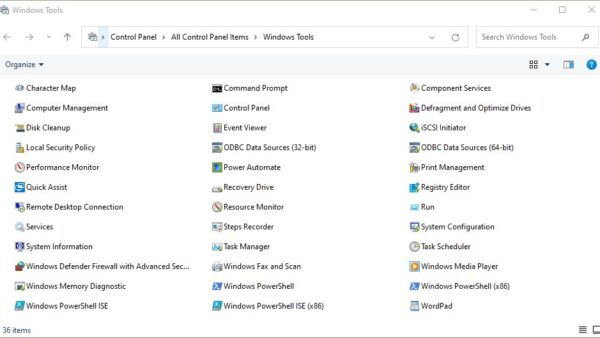
Method 3: Clear system-wide cache using Disk Cleanup
Disk Cleanup clears temporary files, Temporary Internet Files, thumbnails, setup leftovers and the Recycle Bin across the drive. It does not touch each app's private data.
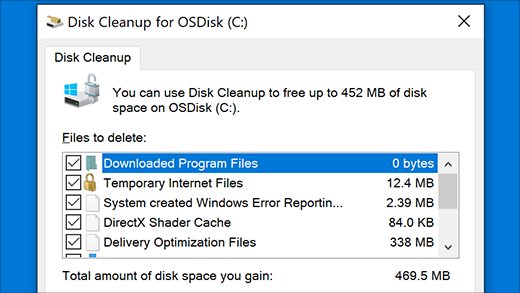
- Type disk cleanup in the taskbar search box and open Disk Cleanup.
- Choose the C: drive and select OK.
- Tick Temporary files, Thumbnails and any other cache entries you want gone.
- Clear the tick next to any category you want to keep, such as Downloaded Program Files.
- Select Clean up system files for more categories, then choose the drive again.
- Select OK, then Delete files to confirm.
If Windows was upgraded within the last 10 days, Previous Windows installation(s) appears in the list. Deleting it removes the option to roll back.
Method 4: Clear cache automatically using Storage Sense
Storage Sense deletes unnecessary temporary files from the system drive on a schedule. It touches the Recycle Bin and Downloads folder only if you configure those options.
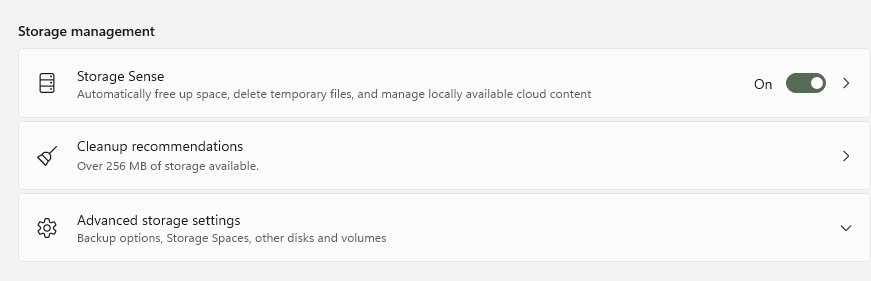
- Open Settings > System > Storage.
- Turn Storage Sense to On.
- Select Storage Sense to open its options.
- Under Run Storage Sense, choose how often it runs.
- Set how long files stay in the Recycle Bin before deletion.
- Leave the Downloads folder option off unless you want unopened downloads removed.
To clean up right away instead of waiting for the schedule, open Settings > System > Storage > Cleanup recommendations, tick Temporary files and select Clean up.
Method 5: Manually clear app cache from AppData folders (for desktop apps)
Some desktop apps have no Reset button, so their cache must be deleted by hand. Microsoft Teams is the clearest documented example, and Microsoft gives the exact folder for each version.
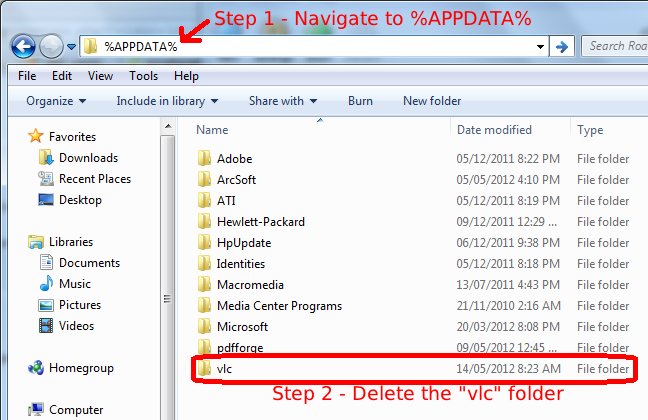
Close the app completely first, including its icon in the notification area, or Windows will refuse to delete files in use.
- Right-click the Teams icon on the taskbar and select Quit.
- Press Windows logo key + R to open Run.
- For new Teams, enter
%userprofile%\appdata\local\Packages\MSTeams_8wekyb3d8bbwe\LocalCache\Microsoft\MSTeamsand select OK. - For classic Teams, enter
%appdata%\Microsoft\Teamsinstead. - Delete all files and folders in that directory.
- Restart Teams. The first start takes longer while the cache rebuilds.
Microsoft does not recommend clearing the Teams cache for missing messages, chat history that will not load, or wrong unread counts. It does not fix those issues and deletes the logs needed to diagnose them.
To clear leftover temp files from every program, type %temp% in Run, press Enter, and delete the contents of that folder. Skip any file Windows says is in use.
Method 6: Bulk-clear cache with PowerShell (for power users)
PowerShell can empty your Temp folder in one line, which is handy in a script or scheduled task. Close open programs first so fewer files are locked.
Remove-Item -Path "$env:TEMP\*" -Recurse -Force -ErrorAction SilentlyContinue-Path with the * wildcard targets everything inside your user Temp folder. -Recurse includes subfolders, -Force removes hidden and read-only files, and -ErrorAction SilentlyContinue skips files that are still in use instead of stopping.
You should see: The prompt returns with no output. Open %temp% in File Explorer and only files held by running programs remain.
To reset a single Store app from PowerShell, pipe it to Reset-AppxPackage, for example Get-AppxPackage -Name "Microsoft.WindowsCalculator" | Reset-AppxPackage. This deletes that app's data, the same as the Reset button in Settings.
Bonus: Flush DNS cache to fix app sync and connection issues
When apps fail to connect after a network or DNS settings change, stale entries in the DNS client cache may be the cause. Flushing it discards those entries so Windows looks names up again.
ipconfig /flushdnsFlushes and resets the contents of the DNS client resolver cache, including negative entries left by failed lookups. Run it in Command Prompt or Windows Terminal.
You should see: Command Prompt confirms the resolver cache was flushed, and the app's next connection uses fresh lookups.
What to expect after clearing app cache
- Open the app and expect the first launch to take longer while it rebuilds its cache.
- Sign in again if you used Reset, because Reset removes sign-in details.
- Check that the app's settings are back to defaults after a Reset, and set them again.
- Open Settings > System > Storage and compare the used space with what it showed before.
- Confirm the original problem, such as stale content or a failed Store download, is gone.
How often should you clear app cache in Windows 11?
There is no need for a fixed routine. Clear cache when there is a reason, and let Storage Sense handle temporary files in the background.
| Situation | How often | Method |
|---|---|---|
| Everyday use with no problems | Never by hand; let Storage Sense run | Method 4 |
| Drive space is running low | When free space gets tight | Method 3 or Cleanup recommendations |
| One app shows old content or crashes | Once, when the problem appears | Method 1, Repair before Reset |
| Store downloads fail | Once, when downloads fail | Method 2 |
| Shared or managed PCs | On a schedule you set | Method 6 in a scheduled task |
Additional tips to manage app cache efficiently and avoid clutter: set Run Storage Sense to a schedule rather than only when disk space is low, leave the Downloads option off unless you want old downloads removed, uninstall apps you no longer use, and after an uninstall delete only AppData folders whose name you recognise.
Benefits of clearing app cache regularly
| Benefit | When you see it | Limit |
|---|---|---|
| Recovers drive space | Large temp folders, thumbnails and chat app caches | Caches grow back as you use apps |
| Fixes stale or corrupt content | An app keeps showing old data or images | Does not fix server-side problems |
| Clears Store download errors | WSReset after a stuck download | Only affects the Store cache |
| Removes leftovers from removed apps | Folders left in AppData after uninstalling | Delete only folders you recognise |
| Resolves connection errors | DNS flush after a network change | Does not fix a down service |
Clearing cache does not speed up a healthy PC; apps are often slower on the first launch afterwards. Memory is a separate topic: a RAM cache on Windows works differently from app cache on disk.
So why should you clear the app cache at all? For the cases in the table: a full drive, an app stuck on stale content, or a Store or connection error. That is where clearing it improves how the device performs.
Why not use a third-party app cache cleaner on Windows 11?
Windows 11 already includes a tool for every job a cache cleaner advertises, and the built-in tools know which files are safe to remove. A third-party cleaner adds another program to update and trust with your files, without clearing anything these tools cannot.
| What a cleaner offers | Built-in Windows 11 tool |
|---|---|
| Scheduled automatic cleanup | Storage Sense (Method 4) |
| One-click junk file removal | Settings > System > Storage > Cleanup recommendations |
| Temporary files, thumbnails and update leftovers | Disk Cleanup with Clean up system files (Method 3) |
| Cache for a single misbehaving app | Reset in Advanced options (Method 1) |
| Microsoft Store cache | WSReset (Method 2) |
| Network and DNS cache | ipconfig /flushdns |
Fix app cache problems in Windows 11
Advanced options is missing for an app
Only some apps offer Repair and Reset; most classic desktop programs do not.
- Open Control Panel > Programs > Programs and Features.
- Right-click the program and select Repair or Change if offered.
- Otherwise clear the app's cache folder by hand as in Method 5.
App is still slow after clearing its cache
The cache was not the cause, or the app is rebuilding its cache on first launch.
- Use the app for a while so the cache rebuilds.
- Try Repair, then Reset, from Advanced options.
- Uninstall and reinstall the app if neither helps.
App will not sync after clearing cache
The app needs you to sign in again, or old DNS entries block its server.
- Sign out of the app and sign back in.
- Run
ipconfig /flushdnsin Command Prompt. - Restart the app and check its sync status.
Windows says a file is in use and will not delete it
The app or a background process still has the file open.
- Quit the app from its notification area icon.
- Restart the PC and delete the files before opening the app.
- Skip files that stay locked; they are in active use.
WSReset opens a window that never closes
The Microsoft Store app itself is damaged.
- Close the window.
- Go to Settings > Apps > Installed apps > Microsoft Store > Advanced options.
- Select Repair, then Reset if Repair does not help.
Clear app cache in Windows 11: frequently asked questions
How do I clear app cache on Windows 11?
Open Settings > Apps > Installed apps, select the … button next to the app, choose Advanced options and select Reset. For the Microsoft Store run wsreset.exe, and for system-wide temp files use Disk Cleanup or Storage Sense.
Does clearing app cache delete data?
It depends on the method. Disk Cleanup, WSReset and deleting a cache folder remove only cached files. Reset in Advanced options permanently deletes the app's local data, including preferences and sign-in details, but not your documents.
How do I clear app cache on a PC or laptop?
On a Windows 11 PC or laptop, the steps are the same: use Settings Reset for one app, wsreset.exe for the Store, and Disk Cleanup or Storage Sense for temporary files across the drive.
Can you clear cache on an app without resetting it?
Yes, for many desktop apps. Close the app and delete the contents of its cache folder in AppData, as Microsoft documents for Teams. Store apps without their own clear-cache option only offer Reset.
Why is Advanced options missing for some apps in Windows 11?
Not every app supports Repair or Reset. Most classic desktop programs do not show Advanced options; try Repair or Change in Control Panel > Programs and Features, or clear their cache folder by hand.
What is the difference between Repair and Reset for apps in Windows 11?
Repair reloads the app and keeps its data. Reset permanently deletes the app's data and reinstalls it fresh, so the app loses preferences and sign-in details. Try Repair first.
Is it safe to delete all temporary files using Disk Cleanup?
Yes for temporary files: Microsoft notes you can safely delete temp files not modified within the last week. Be careful with Previous Windows installation(s), which removes the rollback option, and with Recycle Bin contents you may still want.
How do I clear the cache for Chrome, Firefox or Edge on Windows 11?
Browsers keep their own cache, separate from Windows app cache. Clear it from the browser's own clear browsing data settings; for Chrome, you can clear the Chrome cache on Windows 11 from its privacy settings.
How do I clear the Teams app cache?
Quit Teams, open Run, enter %userprofile%\appdata\local\Packages\MSTeams_8wekyb3d8bbwe\LocalCache\Microsoft\MSTeams for new Teams, delete everything in the folder and restart Teams. You can also Reset new Teams from Advanced options.
Will clearing cache fix app crashes in Windows 11?
Sometimes. A corrupt cache can make an app crash, and Reset clears it. If crashes continue after Repair and Reset, reinstall the app and check for Windows updates.