To enable OneDrive Files On-Demand in Windows 11, open OneDrive Settings, go to Sync and back up, expand Advanced settings and turn on Files On-Demand; to get the old always-downloaded behaviour, select Download all files in the same place.
This guide covers the settings route, the file states and icons, keeping files offline, Group Policy and registry control, blocking apps from downloading online-only files, and fixes when the option is missing.
Turn on OneDrive Files On-Demand in Windows 11 settings
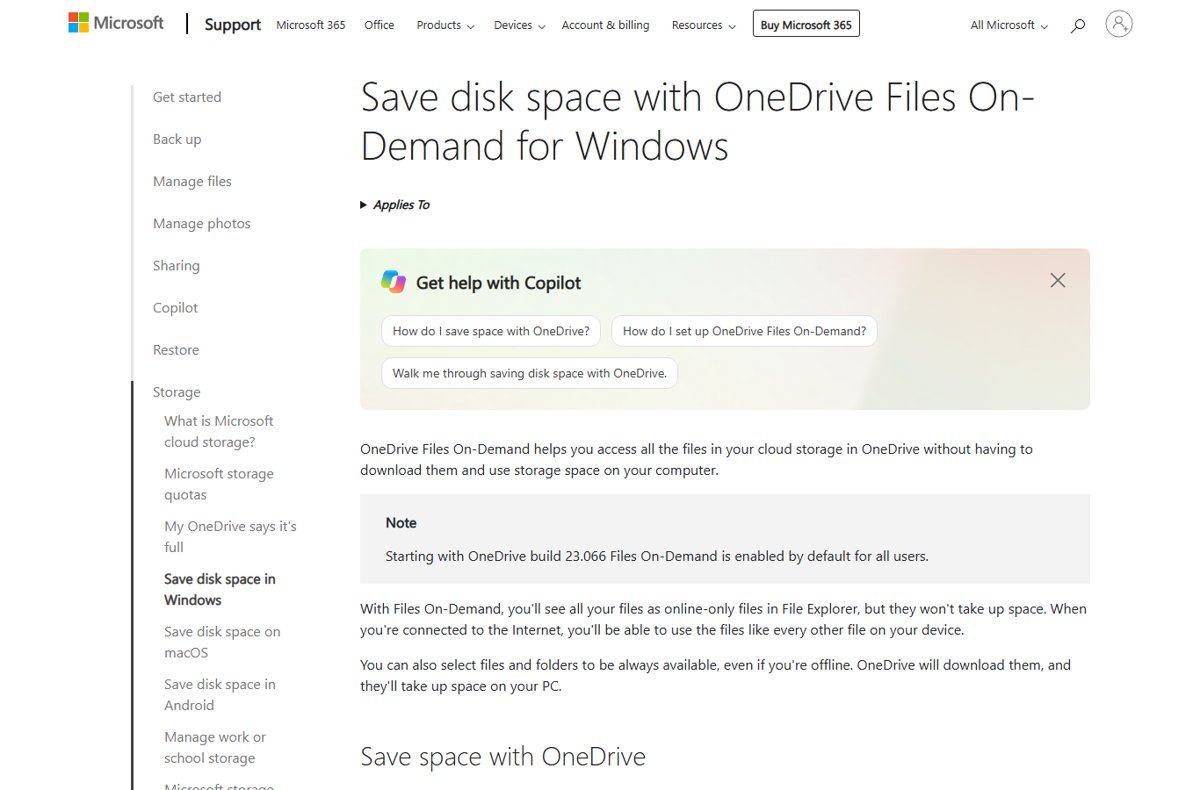
Starting with OneDrive build 23.066, Files On-Demand is on by default for all users, so most Windows 11 PCs already have it. Use these steps if it was switched off or never came on.
- Make sure you are signed in to OneDrive on the PC.
- Select the OneDrive cloud icon in the notification area at the right end of the taskbar.
- Select the OneDrive Help and Settings icon, then select Settings.
- Open the Sync and back up tab.
- Expand Advanced settings.
- Turn on Files On-Demand.
New files that arrive from the cloud now show as online-only and take no disk space until you open them.
Free up disk space or download all files: which OneDrive setting to pick
Microsoft changed the advanced settings for anyone who already has Files On-Demand on. Instead of a single off switch, you see two buttons, and Download all files replaces the old "turn off Files On-Demand" option.
| Your situation | Choose | What happens |
|---|---|---|
| Small SSD, reliable internet | Free up disk space | Cloud files stay online-only until you open them; files you create on the PC stay offline |
| You work offline often, such as on flights | Download all files | Every OneDrive file downloads and is kept on the device, like marking the whole folder Always keep on this device |
| You only need a few folders offline | Free up disk space, then mark those folders Always keep on this device | Only the marked folders use disk space |
| Your PC is managed by work or school | Whatever the admin policy sets | The Use OneDrive Files On-Demand policy can force the feature on or off |
Free up disk space is the default and the setting Microsoft recommends.
OneDrive Files On-Demand requirements
| Requirement | Detail |
|---|---|
| Windows version | Windows 10 version 1709 or later, Windows 11, or Windows Server 2019 |
| OneDrive build | Build 23.066 or later turns Files On-Demand on by default |
| Account | Signed in with a personal Microsoft account or a work or school account |
| Windows Information Protection (WIP) | Files On-Demand is not supported while WIP is enabled |
| Antivirus | Microsoft notes that some third-party antivirus products might not be compatible |
| What it syncs | Personal and work OneDrive files, SharePoint in Microsoft 365 and SharePoint Server 2019 team sites |
Windows 10 version 2004 had its own Files On-Demand bug, which Microsoft handled with a Files On-Demand troubleshooter for Windows 10.
What is OneDrive's Files On-Demand feature?
Files On-Demand shows every file in your OneDrive in File Explorer without downloading them all. Each file sits in one of three states, and the icon in the Status column tells you which.
| State | Icon in File Explorer | Uses disk space? | Opens offline? |
|---|---|---|---|
| Online-only | Blue cloud | No | No; it downloads when you open it while connected |
| Locally available | The cloud icon is replaced once the file downloads | Yes | Yes; Storage Sense can turn it back into online-only later |
| Always available | Green circle with a white check mark | Yes | Yes; Storage Sense never touches it |
Online-only files still show thumbnails for over 300 file types, and Windows search finds them by name. It cannot search inside them because their contents are not on the PC.
Keep OneDrive files on this device or free up space
This is the per-file control that makes Files On-Demand useful. It works on single files and whole folders.
- Open File Explorer and select OneDrive in the left pane.
- Right-click the file or folder you want to change.
- Select Always keep on this device to download it and keep it available offline.
- Or select Free up space to remove the local copy and make it online-only again.
- Watch the Status column change to the green circle or the blue cloud.
Mark a folder Always keep on this device and new files added to it download automatically. Inside an online-only folder you can still mark single files as always available.
Set Files On-Demand states with the attrib command
Each Files On-Demand state maps to a file attribute, so you can query and change states from Command Prompt. Replace the placeholder with the full path of a file or folder inside your OneDrive folder, in quotes.
attrib +u "<path to a file or folder in OneDrive>"attrib <path> shows the current state. attrib +p <path> pins the item (always available), attrib -p <path> clears the pin (locally available), and attrib +u <path> unpins it (online-only).
You should see: Run attrib on the same path again: a U in the attribute list means online-only, a P means always available, and the File Explorer icon changes to match.
To make an online-only item locally available, set it to always available with +p first, then clear the pin with -p.
Enable or disable Files On-Demand with Group Policy or the registry
Admins control the feature with the Use OneDrive Files On-Demand policy (FilesOnDemandEnabled) from the OneDrive administrative templates. The .admx and .adml files install with OneDrive under %localappdata%\Microsoft\OneDrive\<BuildNumber>\adm\; copy them to %windir%\PolicyDefinitions for local policy or to the domain Central Store.
| Policy setting | Effect | Registry value |
|---|---|---|
| Enabled | New users who set up OneDrive see online-only files by default | HKLM\SOFTWARE\Policies\Microsoft\OneDrive > FilesOnDemandEnabled = DWORD 1 |
| Disabled | Users get full-download sync and cannot turn Files On-Demand on | HKLM\SOFTWARE\Policies\Microsoft\OneDrive > FilesOnDemandEnabled = DWORD 0 |
| Not configured | Users can turn the option on or off themselves | No value |
| Convert synced team site files to online-only files | Syncing SharePoint team site files become online-only (needs Files On-Demand on) | HKLM\SOFTWARE\Policies\Microsoft\OneDrive > DehydrateSyncedTeamSites = DWORD 1 |
The policy lives under Computer Configuration > Policies > Administrative Templates > OneDrive in the Group Policy Editor. Once you set it, keep it at Enabled or Disabled: switching back to Not configured leaves the registry value in place, so the change does not take effect.
Let Storage Sense turn unused OneDrive files online-only
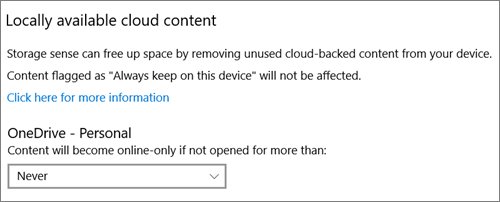
Storage Sense can free space for you by turning locally available OneDrive files you have not opened in a while back into online-only files. Files marked Always keep on this device are never affected.
- Press Win + R, type
ms-settings:storagepoliciesand press Enter to open the Storage Sense page. - Turn on Storage Sense if it is off.
- Choose how often Storage Sense runs from the run drop-down.
- Under Locally available cloud content, pick how many days a file can go unopened before it becomes online-only.
- Close Settings; Storage Sense applies the rule on its next run.
With the default behaviour, files unused for 30 days can go online-only only when the device runs low on disk space.
Turn off OneDrive Files On-Demand and download all files
On current OneDrive builds the off switch is the Download all files button. It is the equivalent of the legacy "turn off Files On-Demand" option, with updated icons.
- Select the OneDrive cloud icon in the notification area.
- Select OneDrive Help and Settings > Settings.
- Open Sync and back up and expand Advanced settings.
- Select Download all files.
- Leave the PC online until every file shows the green circle with a white check mark.
Check free disk space first: every file in your OneDrive downloads. If you want OneDrive gone rather than fully downloaded, turn off OneDrive in Windows 11 instead.
Block or allow apps that download OneDrive online-only files
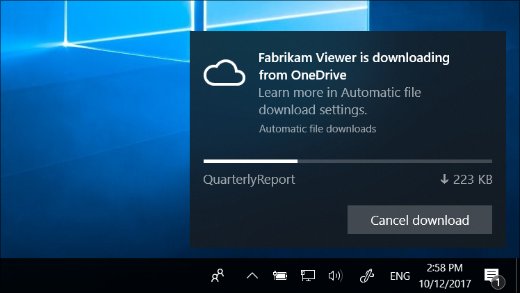
Some Windows apps open online-only files automatically, such as a music player fetching your library. Windows shows a notification with the source, the file count and progress, and lets you block the app.
- When the automatic download notification appears, select Cancel download.
- Select Block app to stop that app from downloading online-only files in future.
- To undo a block later, press Win + R, type
ms-settings:privacy-automaticfiledownloadsand press Enter. - Allow the blocked app again on the Automatic file downloads page.
- To silence the notifications instead, open
ms-settings:notificationsand turn off Automatic file downloads in the senders list.
Microsoft warns that blocking an app can make it unstable. Leave trusted apps that open your OneDrive files often unblocked.
Check that Files On-Demand is on in File Explorer
- Open File Explorer and select OneDrive.
- Switch to Details view if the Status column is hidden.
- Look for blue cloud icons: they mean Files On-Demand is working and those files are online-only.
- Right-click a file and confirm Always keep on this device and Free up space appear in the menu.
- Open an online-only file while connected; the blue cloud icon should disappear once it downloads.
Fix OneDrive Files On-Demand when the setting is missing
Files On-Demand option missing in OneDrive settings
WIP is enabled, the OneDrive build is too old, or the Windows Cloud Files Filter Driver does not start automatically.
- Ask your IT team whether Windows Information Protection (WIP) is configured; Files On-Demand does not work while it is on.
- Update OneDrive to the latest build and restart the PC.
- Search Start for OneDrive, open the app and sign in again.
- Admins: check that
HKLM\SYSTEM\CurrentControlSet\Services\CldFlthasStartset to DWORD2(automatic start).
No option to disable Files On-Demand
Microsoft replaced the off switch with the Free up disk space and Download all files buttons for users who have the feature on.
- Open OneDrive Settings > Sync and back up > Advanced settings.
- Select Download all files to get the full-download behaviour.
- On a work or school PC, ask your admin whether the Use OneDrive Files On-Demand policy controls the setting.
Online-only files will not open
Online-only files need an internet connection to download.
- Connect to the internet and open the file again.
- Before going offline, right-click the files you need and select Always keep on this device.
- If an app was blocked from downloading, allow it again on the Automatic file downloads settings page.
OneDrive Files On-Demand FAQ
What is OneDrive Files On-Demand?
OneDrive Files On-Demand lets you see every file in your OneDrive in File Explorer without downloading it. Files stay online-only until you open them, so they use no disk space, and you can mark any file or folder to stay on the device for offline use.
How do I turn on OneDrive Files On-Demand?
Select the OneDrive cloud icon in the notification area, then the OneDrive Help and Settings icon > Settings. Open the Sync and back up tab, expand Advanced settings and turn on Files On-Demand. Make sure you are signed in to OneDrive first, or the option will not appear.
Is OneDrive Files On-Demand on by default in Windows 11?
Yes. Starting with OneDrive build 23.066, Files On-Demand is enabled by default for all users. New cloud files appear online-only, while files you create on the PC stay available offline unless you free up space on them.
How do I disable Files On-Demand in OneDrive?
On current builds, open OneDrive Settings > Sync and back up > Advanced settings and select Download all files. That downloads every file and matches the old option of turning Files On-Demand off. On managed PCs, an admin can disable it with the Use OneDrive Files On-Demand policy.
Does Free up space delete the file from OneDrive?
No. Free up space only removes the local copy, so the file becomes online-only and stops using disk space. It stays in your OneDrive and still shows in File Explorer, the OneDrive mobile apps and OneDrive on the web.
What happens if I delete an online-only file?
Deleting an online-only file removes it from OneDrive on every device and online. You can restore it from the OneDrive recycle bin on the web for up to 30 days with a personal account, or up to 93 days with a work or school account.
Can I move online-only files without downloading them?
Yes, within the same OneDrive folder. Moving an online-only file outside that OneDrive folder downloads it to the new location and removes it from your OneDrive.