To change scroll direction on Windows 11, open Settings > Bluetooth & devices > Mouse or Touchpad and switch the Scrolling direction drop-down to the other option.
This guide covers the mouse and touchpad settings, the PowerShell and Command Prompt shortcuts to them, what to know about registry edits, hardware-specific tips and fixes when the change does not stick.
The fastest way to reverse mouse scroll direction in Windows 11
- Select Start > Settings > Bluetooth & devices > Mouse.
- Find the Scrolling section.
- Open the drop-down next to Scrolling direction.
- Select Down motion scrolls up to reverse the wheel, or Down motion scrolls down for the standard Windows behaviour.
- Scroll a web page or document to test the new direction; the change applies at once.
Using a laptop touchpad instead of a mouse? Method 1 below covers the separate touchpad setting.
Understanding scroll direction and its significance
Scroll direction decides whether content follows your finger or moves the opposite way. Windows and macOS start with different defaults, which is why switching between them feels wrong at first.
| Setting | What happens when you roll or swipe down | Common name |
|---|---|---|
| Down motion scrolls down | The page moves toward the bottom, like dragging a scroll bar down | Traditional or standard scrolling |
| Down motion scrolls up | The page moves toward the top, like pushing paper with your finger | Reverse or natural scrolling |
| Mac Natural scrolling on | Content moves in the same direction as your fingers | Natural scrolling |
Methods to change scroll direction on Windows 11
Mouse and touchpad directions are separate settings, so you can reverse one and leave the other alone.
| Your device or situation | Use this | Why |
|---|---|---|
| Laptop touchpad | Method 1: Touchpad settings | Touchpad has its own Scrolling direction option |
| External mouse with a wheel | Method 2: Mouse settings | Changes only the wheel, not the touchpad |
| You were told to edit the registry | Method 3: Registry Editor notes | Settings now does the job without editing keys |
| You want to jump straight to the page | Method 4: PowerShell or Command Prompt | One command opens the right Settings page |
| Gaming or vendor mouse | Manufacturer software | Vendor tools can override Windows wheel settings |
| Mac computer | Natural scrolling in System Settings | macOS uses a single switch instead of a drop-down |
Who can benefit from changing scroll direction?
| Who | Why reversing helps |
|---|---|
| People who also use a Mac, iPhone or iPad | Matches the natural scrolling their hands already expect |
| Touchpad users | Content follows two-finger swipes like a touchscreen |
| Switchers from macOS to Windows | Keeps muscle memory instead of relearning |
| Users of mice from other platforms | Restores the direction the mouse felt right with before |
| Shared PC households | Lets each person pick a mouse or touchpad direction to suit them |
Method 1: Changing scroll direction via Windows Settings (touchpads)
This setting affects two-finger scrolling on a laptop touchpad only. A connected mouse keeps its own direction. If the touchpad does not respond at all, first turn the touchpad back on.
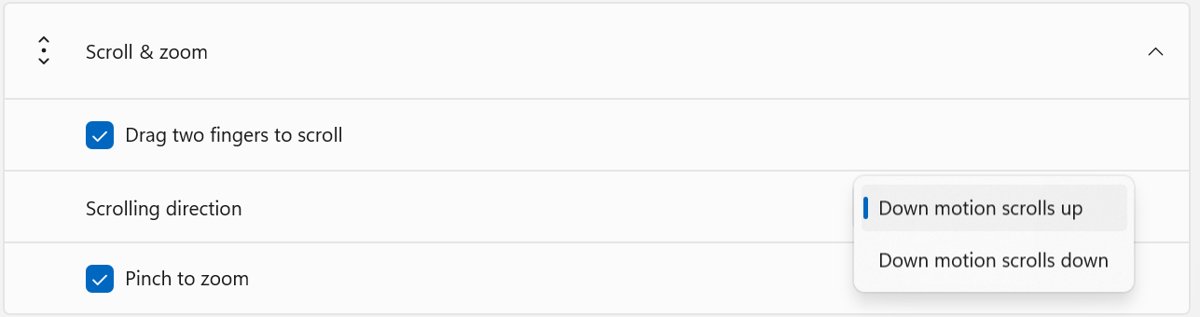
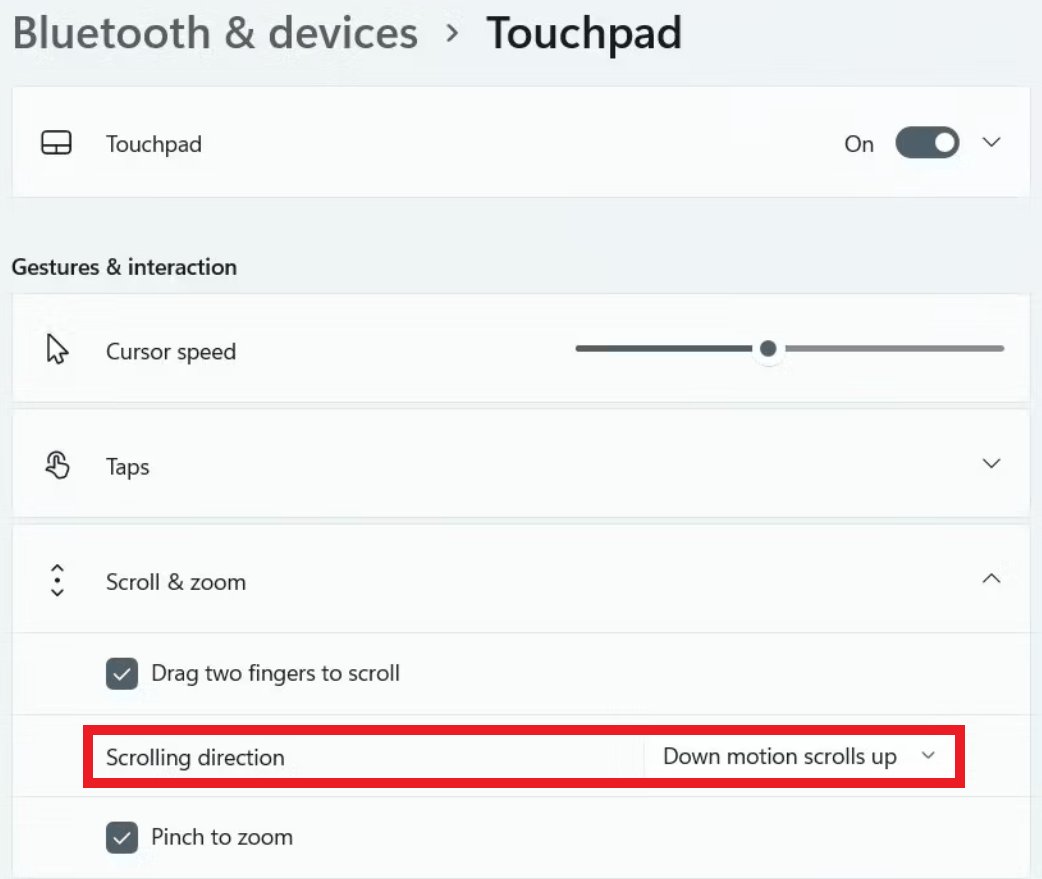
- Select Start > Settings > Bluetooth & devices > Touchpad.
- Expand the scrolling section of the Touchpad page.
- Open the drop-down next to Scrolling direction.
- Select the other option to reverse how content moves when you swipe with two fingers.
- Swipe two fingers down on a long page to confirm the new direction.
On Windows 10, the same option sits under Start > Settings > Devices > Touchpad.
Method 2: Changing scroll direction via mouse settings
The mouse page also holds the related wheel options, so you can set direction and speed in one visit. If scrolling feels slow after the change, the same page lets you change mouse speed and lines per notch.
- Select Start > Settings > Bluetooth & devices > Mouse.
- Under Scrolling, open the drop-down next to Scrolling direction.
- Choose Down motion scrolls up or Down motion scrolls down.
- Optionally set Roll the mouse wheel to scroll to Multiple lines at a time or One screen at a time.
- Use the Lines to scroll at a time slider to set how far each wheel notch moves.
- Turn Scroll inactive windows when hovering over them on or off to suit how you work.
Method 3: Changing scroll direction by Registry Editor
Many older guides reverse the wheel with a registry edit. Microsoft documents the Settings drop-down for this, not a registry value, so use Method 2 first.
If a support technician or vendor gives you a registry change, back up the key before you touch it.
- Select Start, type
regedit.exe, and press Enter. - Approve the administrator prompt if Windows asks.
- Select the registry key you have been told to change.
- Select File > Export.
- Choose a location, type a file name, and select Save.
- Make the change, then restart the PC.
- To undo it, open Registry Editor, select File > Import, and pick the backup file.
Method 4: Using PowerShell or Command Prompt
Windows has a documented ms-settings: address for the mouse and touchpad page. Launching it from a Command Prompt window takes you straight to the Scrolling direction option, which helps when the Settings search is slow or you are walking someone through it remotely.
In PowerShell, run Start-Process "ms-settings:mousetouchpad" instead. For the touchpad page alone, use ms-settings:devices-touchpad, which is available only when touchpad hardware is present.
start ms-settings:mousetouchpadRun in Command Prompt. The start command hands the ms-settings: address to Windows, which opens the Mouse settings page. No administrator rights are needed.
You should see: The Settings app opens on Bluetooth & devices > Mouse, with Scrolling direction under the Scrolling section.
How to check the new scroll direction works
- Open a long web page or document.
- Roll the mouse wheel toward you, or swipe two fingers down on the touchpad.
- Confirm the page moves the way you chose: down for standard, up for reversed.
- Repeat the test in a second app, such as File Explorer, to confirm it applies system-wide.
- Sign out and back in, then test again to confirm the setting persisted.
Additional tips for specific hardware
| Hardware | What to know |
|---|---|
| Precision touchpads | Support the full set of Windows touchpad gestures; scroll direction is under Bluetooth & devices > Touchpad |
| Non-precision touchpads | Some gesture options only work with precision touchpads; use the laptop maker's touchpad software if Windows options are missing |
| Touchscreen devices | Touch settings hold gesture switches but no scroll direction option; content follows your fingers |
| Gaming and advanced mice | Vendor software can remap the wheel; check it if Windows settings seem ignored |
| Mice with a tilt wheel | Set horizontal scroll distance in Additional mouse settings > Wheel tab > Horizontal Scrolling |
| Surface devices | The Surface app adds device-specific touchpad options alongside Windows Settings |
| Surface Pro keyboards and Type Covers | Attach the keyboard or Type Cover first; its touchpad then appears under Bluetooth & devices > Touchpad, where you can reverse the scrolling direction |
| Mac computers | Turn Natural scrolling off or on in Apple menu > System Settings > Trackpad > Scroll & Zoom |
Troubleshooting common issues
Mouse scroll direction won't change
Vendor mouse software or an outdated driver overrides the Windows setting.
- Open your mouse maker's app, if installed, and check its wheel or scroll settings.
- Select Start > Settings > Windows Update > Check for updates and install driver updates.
- Open Device Manager, find the device under Mice and other pointing devices or Human Interface Devices, and update or reinstall its driver.
- Set Scrolling direction again and test.
No Scrolling direction option for the mouse
The Mouse page on your current Windows 11 build does not list the option yet.
- Select Start > Settings > Windows Update > Check for updates.
- Install all available updates and restart.
- Reopen Bluetooth & devices > Mouse and look under Scrolling.
Touchpad scroll direction option is missing
The touchpad is not a precision touchpad or its driver is missing, which can also leave the touchpad not working at all.
- Check Bluetooth & devices > Touchpad for the scrolling options.
- Update or reinstall the touchpad driver through Windows Update or Device Manager.
- Use the laptop maker's touchpad utility if Windows still shows no option.
Mouse scrolling horizontally
The wheel is being tilted sideways, or horizontal scrolling is set very high.
- Open Settings > Bluetooth & devices > Mouse > Additional mouse settings.
- Select the Wheel tab.
- Lower the number under Horizontal Scrolling and select OK.
Mouse scrolls windows without clicking them
Scroll inactive windows when hovering over them is on.
- Open Settings > Bluetooth & devices > Mouse.
- Turn Scroll inactive windows when hovering over them Off.
- Click a window before scrolling it.
Inconsistent behaviour between mouse and touchpad
Mouse and touchpad directions are stored separately, and both stay active when you leave the touchpad on with a mouse connected.
- Set Scrolling direction on the Mouse page.
- Set the matching option on the Touchpad page.
- Test both devices on the same page.
Mouse scroll direction FAQ
How do I change mouse scroll direction in Windows?
Open Settings > Bluetooth & devices > Mouse and use the Scrolling direction drop-down under Scrolling. Choose Down motion scrolls up to reverse the wheel, or Down motion scrolls down for the standard behaviour. The change applies immediately without a restart.
How do I switch mouse scroll direction back to normal?
Return to Settings > Bluetooth & devices > Mouse and set Scrolling direction to Down motion scrolls down. That is the standard Windows direction, where rolling the wheel toward you moves the page down.
How do I change mouse pad scroll direction?
For a laptop touchpad, open Settings > Bluetooth & devices > Touchpad and change Scrolling direction in the scrolling section. It is separate from the mouse setting, so changing one does not affect the other.
How do I change mouse scroll direction on a Mac?
macOS calls reverse scrolling Natural scrolling. For a trackpad, choose Apple menu > System Settings > Trackpad, then turn Natural scrolling on or off under Scroll & Zoom. Mouse options are in System Settings > Mouse when a mouse is connected.
Why does my mouse scroll in the wrong direction?
Scrolling direction is set to Down motion scrolls up, or vendor mouse software reverses the wheel. Check Settings > Bluetooth & devices > Mouse first, then any mouse utility you have installed.
Why is my mouse scrolling horizontally?
Most often the wheel is being tilted sideways, which many mice treat as horizontal scrolling. Lower the Horizontal Scrolling value on the Wheel tab of Additional mouse settings, and check that the wheel is not stuck at an angle.
Why does my mouse scroll by itself?
If windows scroll just because the pointer is over them, Scroll inactive windows when hovering over them is on; turn it off in Settings > Bluetooth & devices > Mouse. If the page keeps moving untouched, update the mouse driver and test another mouse to rule out a faulty wheel.
Can I set different scroll directions for my mouse and touchpad?
Yes. Windows 11 stores the mouse and touchpad directions separately, so you can use natural scrolling on the touchpad and standard scrolling on the mouse wheel.
Bottom line: the best way to change scroll direction on Windows 11
Use the Scrolling direction drop-down in Settings > Bluetooth & devices > Mouse or Touchpad, and skip registry edits. It is the method Microsoft documents, it applies immediately, it can be reversed in one click, and it lets you set the mouse and touchpad independently.