To set or change sign-in options in Windows 11, open Settings > Accounts > Sign-in options, pick the method under Ways to sign in, and select Set up or Change.
This guide covers changing your password and PIN, picture password, face and fingerprint sign-in, security keys, passwordless sign-in, Dynamic lock and the account lockout policy.
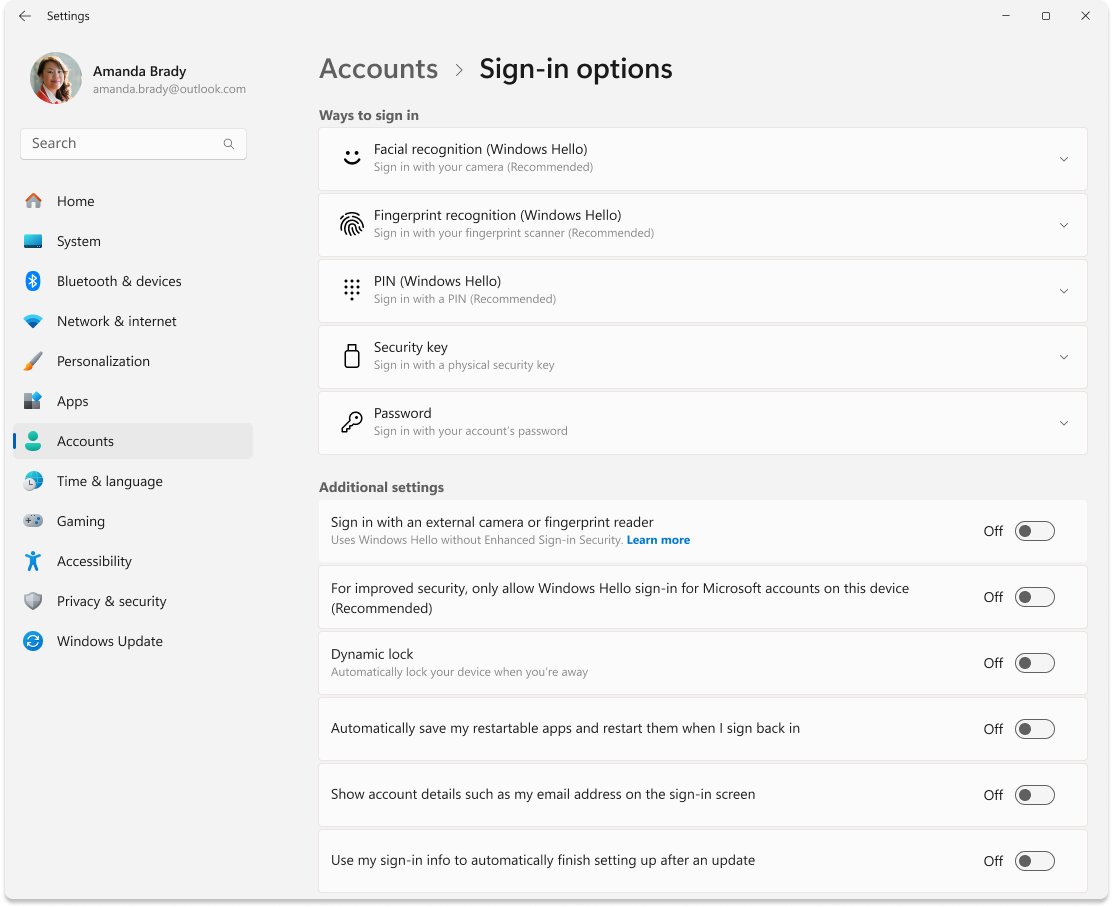
How to change sign-in options in Windows 11 Settings
Every Windows 11 sign-in method is managed from one Settings page. The same page exists in Windows 10.
- Press Win + I to open Settings.
- Select Accounts, then select Sign-in options. You can also press Win + R, type
ms-settings:signinoptionsand press Enter. - Under Ways to sign in, select the method you want: Facial recognition (Windows Hello), Fingerprint recognition (Windows Hello), PIN (Windows Hello), Security key or Password.
- Select Set up to add the method, or Change to update a PIN or password.
- Follow the on-screen prompts. Windows asks for your current PIN or password before it accepts a new one.
- Lock the PC with Win + L and sign in with the new method to confirm it works.
The options you see depend on your hardware and account type. Facial recognition needs a Windows Hello compatible infrared camera, and fingerprint sign-in needs a fingerprint reader.
Sign in options in Windows 11/10
Windows 11 sign-in options at a glance: each method, the hardware it needs, and where to set it up or change it.
| Sign-in option | What you need | Where to change it |
|---|---|---|
| Password | A Microsoft account or local account password | Password > Change |
| PIN (Windows Hello) | Nothing extra; works on any PC | PIN (Windows Hello) > Change PIN |
| Facial recognition (Windows Hello) | A Windows Hello compatible infrared camera, built in or external | Facial recognition (Windows Hello) > Set up |
| Fingerprint recognition (Windows Hello) | A fingerprint reader | Fingerprint recognition (Windows Hello) > Set up |
| Security key | A physical security key | Security key |
| Picture password | Not listed in Microsoft's current Windows 11 sign-in documentation | See the picture password section below |
The PIN you use on the device is different from your Microsoft account password. The PIN is tied to that one PC.
Difference between a PIN and a password in Windows 11
Why change password sign-in options at all? A password someone learns works from any device, while a Windows Hello PIN only unlocks the one PC it was set up on.
| Question | PIN (Windows Hello) | Password |
|---|---|---|
| Where does it work? | Only on the device where you set it up | A Microsoft account password works from any device |
| Is it sent over the network? | No. The PIN stays on the device and is not stored on a server | Yes. An online password is sent to the server when you sign in |
| Is it protected by hardware? | Yes, by the TPM chip, which locks the device after too many wrong guesses | Windows does not link local passwords to the TPM |
| What if someone learns it? | They also need your physical PC to use it | They can sign in to your account from anywhere |
| Does changing one change the other? | No | No |
Because of the device binding and TPM protection, Microsoft treats a PIN as more secure than a local password, even when the PIN is short. Set up a PIN on each PC you use; it does not roam between devices.
Change Windows password in Windows 11
The same Settings route changes a Microsoft account password and a local account password. You must know the current password to set a new one.
- Open Settings > Accounts > Sign-in options.
- Select Password, then select Change.
- Enter your current password when asked.
- Type the new password, confirm it and finish the prompts.
- If you do not know the current password, select Forgot my current password (Microsoft account) or I forgot my password (local account) and verify your identity.
A Microsoft account password change also applies to Outlook.com, OneDrive and other Microsoft services. If you are locked out entirely, reset the Windows password from the sign-in screen instead.
Changing PIN in Windows 11/10
To set up a Windows Hello PIN in Windows 11 for the first time, open Settings > Accounts > Sign-in options, select PIN (Windows Hello), select Set up and follow the instructions. Your PIN is associated with that one device and backed up for recovery with your Microsoft account. To change an existing PIN, use these steps.
- Open Settings > Accounts > Sign-in options.
- Select PIN (Windows Hello), then select Change PIN.
- Enter your old PIN.
- Type and confirm the new PIN, then select OK.
- If you forgot the PIN, select I forgot my PIN instead and follow the steps to verify your account and create a new one.
You need the old PIN to change the PIN on Windows 11; without it, use the I forgot my PIN route.
To remove the Windows Hello PIN instead, follow the steps for removing a sign-in option further down.
Change picture password on Windows 11
Picture password let you sign in by drawing gestures on a photo. Microsoft's current Windows 11 sign-in options page lists face, fingerprint, PIN, security key and password, and no longer documents picture password setup.
- Open Settings > Accounts > Sign-in options.
- Check the Ways to sign in list for a picture password entry. If it is not there, your PC does not offer it.
- If it is not offered, set up a PIN (Windows Hello) instead; it is the closest quick alternative and works on any PC.
- On a work PC, ask IT: admins can block picture password for domain users with the Turn off picture password sign-in policy under Computer Configuration > Administrative Templates > System > Logon.
Set up face or fingerprint sign-in with Windows Hello
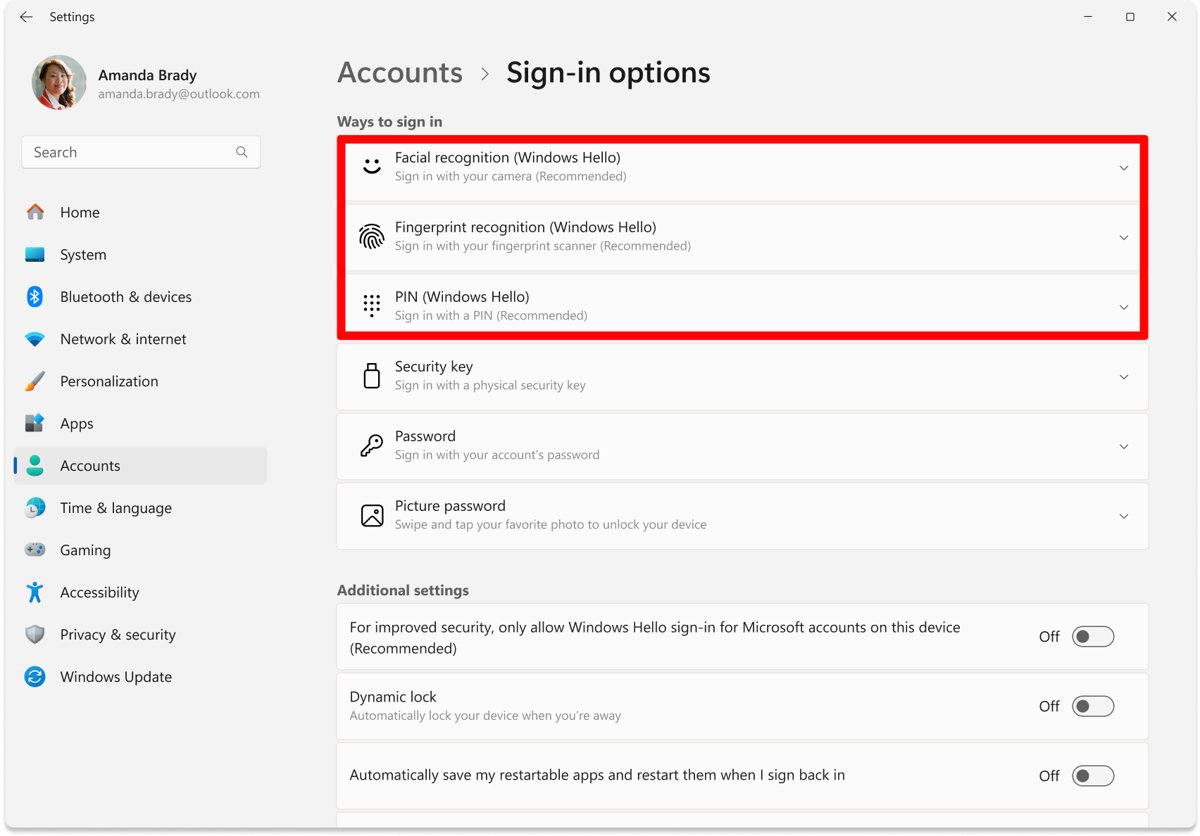
Once you set up Windows Hello with a PIN, you can add face or fingerprint sign-in on supported hardware.
- Open Settings > Accounts > Sign-in options.
- Select Facial recognition (Windows Hello) or Fingerprint recognition (Windows Hello).
- Select Set up.
- Follow the prompts to scan your face or finger.
- Lock the PC and look at the camera or touch the reader to sign in.
Turning on Sign in with an external camera or fingerprint reader under Additional settings disables Enhanced Sign-in Security on supported hardware.
Use passkeys and physical security keys in Windows 11
A passkey replaces a website or app password with your Windows Hello PIN, face or fingerprint. Each passkey is unique to one site and resists phishing. Windows 11 version 22H2 with KB5030310 and later include built-in passkey management.
- When a website or app shows Create a passkey? during sign-in, accept it and confirm with your Windows Hello PIN, face or fingerprint.
- To see passkeys saved on the PC, open Settings > Accounts > Passkeys.
- To delete a passkey stored on this device, open the menu next to the passkey name and select Delete passkey.
- To choose where passkeys are saved, open Settings > Accounts > Passkeys > Advanced options and turn on Save passkeys to this Windows device, or turn on a third-party passkey manager.
- If an app cannot use your passkeys, open Settings > Privacy & security > Passkey access and turn the switch on for that app.
- To sign in with a physical security key instead, open Settings > Accounts > Sign-in options and select Security key.
A passkey saved only on this PC does not follow you to other devices. Create passkeys on your phone or laptop as well, or save them in a synced manager such as Microsoft Password Manager. You can also sign in on a nearby device by scanning a QR code with the phone that holds the passkey.
How to set up a security key (FIDO2) in Windows 11
A FIDO2 security key is a physical USB or NFC device that you unlock with its own PIN. You need both the key and the PIN to sign in, which makes it stronger than a username and password.
- Open Settings > Accounts > Sign-in options.
- Select Security Key, then select Manage.
- Insert the security key into a USB port or tap it on your NFC reader to verify your identity.
- In the Security Key PIN area, select Add, type and confirm a new security key PIN, then select OK. To replace an existing PIN later, select Change in the same area.
- Select Close to close the Manage screen.
To wipe a key back to factory defaults, open the same Manage screen and follow the reset instructions for your key's manufacturer. A reset deletes every credential stored on the key.
Since the November 11, 2025 security update (KB5068861) for Windows 11, Windows can ask you to create a security key PIN at sign-in if the key has none and the website prefers user verification.
How to remove or change a sign-in option in Windows 11
- Open Settings > Accounts > Sign-in options.
- Under Ways to sign in, select the method you want to change or remove.
- To replace a password or PIN, select Change and follow the prompts.
- To delete face or fingerprint sign-in, select Remove. Windows unenrolls the method and deletes the stored biometric data for it.
- To remove the Windows Hello PIN, select PIN (Windows Hello) and select Remove, then follow the confirmation prompts.
- If Remove is dimmed, turn off For improved security, only allow Windows Hello sign-in for Microsoft accounts on this device under Additional settings first. While that switch is on, Windows Hello is the only way to sign in.
Keep at least one method you can use before you remove another, and on a work or school PC expect some options to be locked by your organization.
Change sign-in settings: passwordless, Dynamic lock and account details
The Additional settings area of the same page changes how sign-in behaves once your methods are set up.
| Setting | What it does | Note |
|---|---|---|
| For improved security, only allow Windows Hello sign-in for Microsoft accounts on this device | Removes the password option; you sign in only with face, fingerprint or PIN | Microsoft accounts only. In Windows 10 it is called Require Windows Hello sign-in for Microsoft accounts |
| Dynamic lock | Locks the PC about a minute after your paired Bluetooth phone goes out of range | Pair your phone with the PC first |
| Sign in with an external camera or fingerprint reader | Allows external Windows Hello devices | Disables Enhanced Sign-in Security when turned on |
| Show account details on the sign-in screen | Shows your account email address on the sign-in screen | Turn off if others can see your screen |
To remove passwords as a sign-in option, turn on only allow Windows Hello sign-in for Microsoft accounts on this device. To add the password option back, turn the same switch off. Enable Windows Hello-only sign-in carefully: set up a PIN first, because the PIN becomes your fallback method.
Enhanced Sign-in Security protects face and fingerprint data with specialized hardware and software, and it is available only on compatible devices. Leave external Windows Hello devices off unless you need an external camera or reader.
Dynamic lock is the built-in way to control when Windows locks and asks you to sign in again after you step away from the PC.
Change login password policy & account lockout policy in Windows 11
Password Policy and Account Lockout Policy are set in Local Security Policy. Account Lockout Policy is supported on Windows 11 Pro, Enterprise and Education, and you need administrator rights.
- Select Start, type
secpol.mscand press Enter. - Under Security Settings, expand Account Policies.
- Select Password Policy to edit settings such as Minimum password length, Maximum password age, Enforce password history and Password must meet complexity requirements.
- Select Account Lockout Policy and double-click Account lockout threshold.
- Enter a number from 1 to 999 failed sign-in attempts, or 0 so the account never locks, then select OK.
- Set Account lockout duration and Reset account lockout counter after. The duration must be equal to or greater than the reset counter value.
Windows security baselines suggest a threshold of 10 failed attempts as a starting point. A dimmed setting means a Group Policy Object controls it, and some changes need a restart.
How to check your new sign-in option works
- Press Win + L to lock the PC.
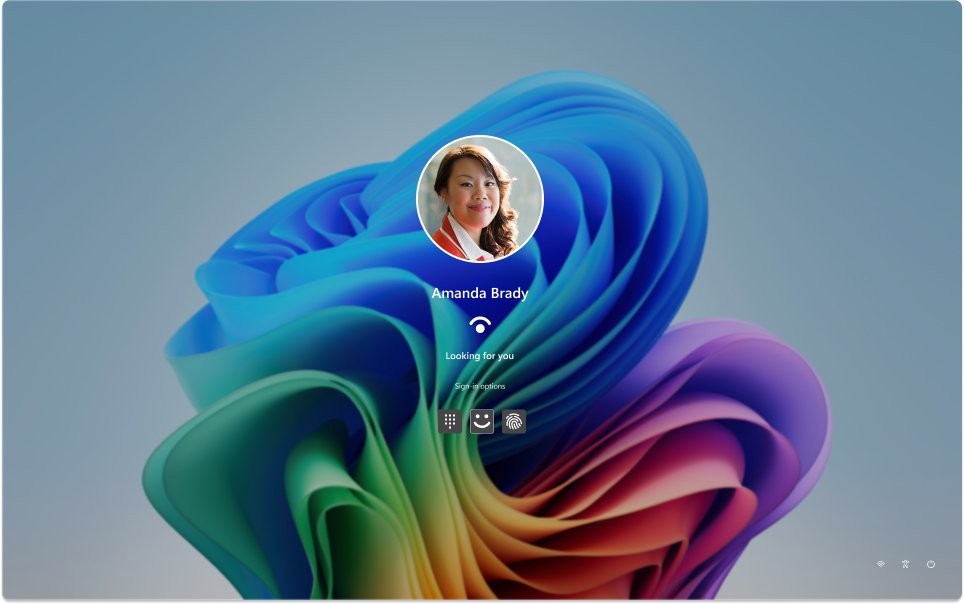
- On the sign-in screen, select Sign-in options under the sign-in box to see every method now available.
- Sign in with the method you just changed, such as the new PIN or password.
- Return to Settings > Accounts > Sign-in options and confirm the method shows as set up.
A practical Windows sign-in checklist after any change: a PIN is set up, at least one recovery route works (password, I forgot my PIN, or Microsoft account recovery), face or fingerprint signs you in, and Dynamic lock is on if you often leave the PC unattended.
Fix Windows 11 sign-in option problems
The most common Windows Hello problems are a forgotten PIN or password, missing options, and an external camera or reader that Windows ignores. Find your symptom below.
I forgot my PIN
The PIN can be reset, but the I forgot my PIN link works only for Microsoft accounts.
- On the sign-in screen, select I forgot my PIN below the PIN box and follow the instructions.
- If the link is missing, select Sign-in options, choose the password option and sign in with your password.
- Open Settings > Accounts > Sign-in options > PIN (Windows Hello) and set a new PIN.
I forgot my Microsoft account password
The password is stored with your Microsoft account, so it is reset online.
- On the sign-in screen, select I forgot my password.
- Or select Sign-in options > Web sign-in, sign in, and select Forgot my password.
- Or reset it from any browser on Microsoft's account recovery page.
I forgot my local account password
Local accounts are reset with the security questions set when the account was created.
- Lock the PC, then select the arrow next to the password box and select OK.
- Select Reset password.
- Answer your security questions, or select Use a password reset disk if you made one.
Sign-in options are missing or dimmed
Your hardware lacks a camera or reader, or your organization manages the device.
- Check that your PC has a Windows Hello compatible infrared camera or fingerprint reader.
- If the password option is gone, turn off only allow Windows Hello sign-in for Microsoft accounts on this device under Additional settings.
- On a work or school PC, contact your IT administrator.
External camera or fingerprint reader does not work with Windows Hello
External Windows Hello devices are blocked while Enhanced Sign-in Security is on.
- Open Settings > Accounts > Sign-in options > Additional settings.
- Turn on Sign in with an external camera or fingerprint reader. This disables Enhanced Sign-in Security.
- Return to Ways to sign in and select Set up under Facial recognition (Windows Hello) or Fingerprint recognition (Windows Hello).
Windows 11 sign-in options FAQ
Where are my sign-in options in Windows 11?
Sign-in options are in Settings > Accounts > Sign-in options. You can also press Win + R and run ms-settings:signinoptions to open the page directly. The same page lists your password, PIN, face, fingerprint and security key methods.
How do I change the sign-in options on my computer?
Open Settings > Accounts > Sign-in options, select a method under Ways to sign in, and choose Set up or Change. Windows asks for your current PIN or password before it saves a new method.
How do I change sign-in options for my Microsoft account?
On the PC, use Settings > Accounts > Sign-in options and select Password > Change. To remove the password from sign-in entirely, turn on only allow Windows Hello sign-in for Microsoft accounts on this device, which leaves face, fingerprint or PIN.
How do I change the default sign-in option in Windows 11?
At the sign-in screen, select Sign-in options below the sign-in box and pick the method you want. To make Windows Hello the only method for a Microsoft account, turn on the passwordless setting under Additional settings in Sign-in options.
How do I change sign-in settings such as Dynamic lock?
Open Settings > Accounts > Sign-in options and scroll to Additional settings. There you can turn on Dynamic lock, allow an external camera or fingerprint reader, go passwordless, and show or hide account details on the sign-in screen.
How do I disable sign-in on Windows 11?
Microsoft does not offer a Settings switch that removes sign-in for a Microsoft account. You can make sign-in faster by using a PIN, face or fingerprint, and you can remove the password option by turning on Windows Hello only sign-in.
How do I change Windows sign-in options in Windows 10?
Windows 10 uses the same path: Settings > Accounts > Sign-in options. The passwordless setting is named Require Windows Hello sign-in for Microsoft accounts in Windows 10 instead of the longer Windows 11 label.
Is my Windows PIN the same as my Microsoft account password?
No. The PIN you use to unlock your device is separate from your Microsoft account password and only works on that PC. Changing one does not change the other.

![How to open graphics settings Windows 11 [2026]](https://techdows.com/wp-content/uploads/2026/10/How-to-open-graphics-settings-Windows-11-2026-600x338.jpg)