To update Edge browser to the latest version, open Settings and more (the three dots) > Help and feedback > About Microsoft Edge, let Edge check and download the update, then select Restart.
This guide covers all six ways to update Microsoft Edge on Windows 11, Windows 10 and macOS, how to check your version, and what to do when Edge won't update.
Method 1: Update Edge using built-in update option (recommended)
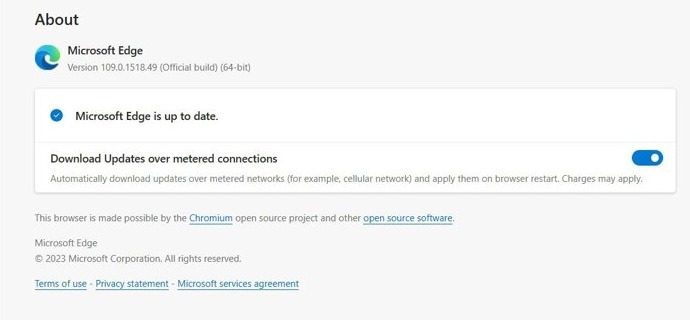
The About page inside Edge is the fastest way to update the Microsoft Edge browser. Opening it starts an update check straight away, on Windows and on Mac.
- Open Microsoft Edge.
- Select Settings and more (…) in the upper-right corner.
- Select Help and feedback, then select About Microsoft Edge.
- Wait while Edge checks for updates. If it shows An update is available, select Download and install.
- When the download finishes, select Restart to apply the new version.
- Confirm the page now says Microsoft Edge is up to date.
Edge reopens your tabs after the restart. If the page already says Microsoft Edge is up to date, you have the latest version and nothing else is needed.
This is the way to update Microsoft Edge through browser settings; Method 2 reaches the same page by its address.
Tutorial – how to update Edge manually: Which method to use
| Your situation | Use this method | Why |
|---|---|---|
| Edge opens normally | Method 1: About Microsoft Edge | Checks, downloads and installs in one place |
| You want the shortest route | Method 2: type edge://settings/help | Skips the menus and lands on the same update page |
| Edge will not open or you are updating Windows anyway | Method 3: Windows Update | Windows Update can also deliver Edge updates |
| Updates keep failing or Edge files are damaged | Method 4: download from microsoft.com/edge | A fresh install repairs the browser and keeps your data |
| You manage apps from a terminal | Method 5: winget in Command Prompt | Updates Edge alongside other apps with one command |
| You use a Mac | Method 6: Edge on macOS | Edge 113 and later update through EdgeUpdater |
Method 2: Update Edge from Edge settings (direct URL)
Edge has an internal address that opens the update page directly. It works the same on Windows 11, Windows 10 and macOS.
- Click the Edge address bar.
- Type
edge://settings/helpand press Enter. - Let the page check for updates. Select Download and install if an update is listed.
- Select Restart when the button appears.
If you are on a metered connection, Edge may wait for you to start the download yourself, because an update can be a large data transfer.
Method 3: Update Edge via Windows Update
On Windows 11 and Windows 10, Microsoft can also deliver Edge updates through Windows Update. This route helps when Edge itself crashes before you reach the About page.
- Select Start > Settings > Windows Update.
- Select Check for updates.
- Install everything listed, including any Microsoft Edge update.
- Restart your PC if Windows asks you to.
- Open Edge and go to
edge://settings/helpto confirm it now says Microsoft Edge is up to date.
If Windows Update itself is stuck, run the Windows Update troubleshooter first, then check again.
Method 4: Manually download and update Microsoft Edge
Microsoft's own download page installs the current version over the top of your existing copy. Use it when the built-in updater reports an error you cannot clear.
- Open any working browser and go to
https://www.microsoft.com/edge. - Select Download and save the installer.
- Run the installer. When Windows asks Do you want to allow this app to make changes to your device?, select Yes, then follow the on-screen instructions.
- Open Edge when setup finishes and check
edge://settings/help.
Download Edge only from microsoft.com. Copies from download portals are not needed and can bundle unwanted software.
Other download options sit on the same page: Edge for macOS, iOS and Android, and a Linux .deb package. To check whether Edge is already installed before you download and install Microsoft Edge, select Start and search for Microsoft Edge.
Method 5: Update Edge using Command Prompt (advanced users)
Windows Package Manager (winget) can upgrade Edge from Command Prompt or PowerShell. Run winget upgrade on its own first to list every app with an available update.
winget upgrade "Microsoft Edge"Searches installed apps for the name Microsoft Edge and installs the newest version available. If more than one app matches, winget asks you to narrow the query; add –exact or use –id with the ID shown by winget upgrade.
You should see: winget reports that the installer completed successfully, or that no newer version is available because Edge has already updated itself.
Open Command Prompt as administrator if the upgrade fails with an access error. Then confirm the version on edge://settings/help.
Method 6: Update Edge on macOS
From Edge 113, Microsoft Edge for macOS updates itself with EdgeUpdater instead of Microsoft AutoUpdate (MAU). You no longer need to open MAU to get a browser update.
- Open Microsoft Edge on your Mac.
- Select Settings and more (…) > Help and feedback > About Microsoft Edge, or type
edge://settings/helpin the address bar. - Wait for the update check, then select Download and install if offered.
- Select Restart to finish.
- If the page shows an error, quit Edge completely with Command + Q, reopen it and check again.
Edge needs macOS 10.12 Sierra or later. If your Mac is behind on system updates, update macOS as well.
How to check Microsoft Edge version
The About page shows your exact version number and update status in one place.
- Type
edge://settings/helpin the address bar and press Enter. - Read the version number under About Microsoft Edge, for example Version 155.0.4283.45.
- Check the status line. Microsoft Edge is up to date means you are on the latest version for your channel.
- Compare the first number with the current Stable release on Microsoft's Edge release schedule if you want to be certain.
A status of To finish updating, restart Microsoft Edge means the update is downloaded but not applied. Select Restart.
Latest Microsoft Edge version: Stable and Extended Stable releases
Microsoft's Stable channel release notes list every recent Edge version. As of October 16, 2026, the latest Stable version is 155.0.4283.62 and the latest Extended Stable version is 152.0.4191.137.
| Version | Release date | Channel | Release type and what's new |
|---|---|---|---|
| 155.0.4283.62 | October 16, 2026 | Stable | Update 2: bug, performance and security fixes |
| 155.0.4283.60 | October 15, 2026 | Stable | Update 1: sleeping tabs timer default and security update alerts for admins |
| 155.0.4283.45 | October 08, 2026 | Stable | Main release: tab organization suggestions, real-time video translation retired, address bar search fix |
| 152.0.4191.137 | October 16, 2026 | Extended Stable | Update 11: bug and performance fixes |
| 152.0.4191.135 | October 15, 2026 | Extended Stable | Update 10: bug and performance fixes |
| 152.0.4191.122 | October 08, 2026 | Extended Stable | Update 9: bug and performance fixes |
| 152.0.4191.119 | October 05, 2026 | Extended Stable | Update 8: bug and performance fixes |
| 152.0.4191.111 | October 01, 2026 | Extended Stable | Update 7: bug and performance fixes |
| 152.0.4191.100 | September 25, 2026 | Extended Stable | Update 6: bug and performance fixes |
| 152.0.4191.96 | September 21, 2026 | Extended Stable | Update 5: bug and performance fixes |
| 152.0.4191.88 | September 17, 2026 | Extended Stable | Update 4: bug and performance fixes |
| 152.0.4191.77 | September 10, 2026 | Extended Stable | Update 3: bug and performance fixes |
| 152.0.4191.66 | September 04, 2026 | Stable | Update 2: bug, performance and security fixes |
| 152.0.4191.62 | September 02, 2026 | Stable | Update 1: bug, performance and security fixes |
| 152.0.4191.53 | August 27, 2026 | Stable | Main release: 2-week release cadence, Apple account sign-in, saved password details, Drop retired |
What's new in Edge changes with each main release, so compare your version with the top Stable row. Extended Stable is only for managed organizations that update every 8 weeks; home users get the Stable channel.
Download preview builds of Microsoft Edge: Beta, Dev and Canary
Microsoft Edge Insider channels get new features before the Stable release. Installing a preview channel does not uninstall your released version of Edge, and you can run more than one channel side by side.
| Insider channel | How often it updates | Stability |
|---|---|---|
| Beta | Semimonthly | Most stable preview; includes improvements from Dev and Canary |
| Dev | Weekly | More stable than Canary; shows the past week's improvements |
| Canary | Daily | Least stable channel |
Preview channels run on supported versions of Windows, Windows Server, macOS, mobile and Linux. On iOS, Edge Insider offers Beta and Dev through TestFlight; on Android, only Beta.
Why you should update Microsoft Edge regularly
| Reason | What it means for you |
|---|---|
| Security fixes | Updates close browser vulnerabilities; staying current is the main protection against attacks through web pages |
| New features | Major versions add and change browser features, such as reading tools and tab management |
| Faster release cycle | From Stable version 152, Edge moved to a major release roughly every two weeks |
| Compatibility | Websites and extensions target current browser versions, so an old version can break sites |
| Performance and reliability | Updates include bug fixes that improve stability |
New releases also bring reading tools; you can use Immersive Reader in Edge once you are up to date.
Tips for how to update Edge successfully
Edge updates automatically by default and applies the update when you restart the browser. These settings make sure updates are not held back.
- Go to
edge://settings/help. - Turn on Download and install updates automatically if your device shows this toggle.
- Turn on Download updates over metered connections if you want updates on a data-limited network. Mobile data charges may apply.
- Turn on Restart to update on idle so Edge relaunches and applies pending updates while you are away. In versions before Edge 156, this toggle is called Instant update.
- Close and reopen Edge at least once every few days, since a pending update is applied on restart.
Restart to update on idle does not work in InPrivate windows, and unsaved work in a web form can be lost when Edge relaunches.
Fix Edge not updating – common solutions
Match the symptom to the fix. Error codes appear on the edge://settings/help page.
Why won't Microsoft Edge update? The update toggles are dimmed or missing
Your organization manages Edge with update policies.
- Check whether Download and install updates automatically is greyed out on the edge://settings/help page.
- Contact your IT administrator, who controls when updates are applied.
Why can't my computer update Microsoft Edge? Error 0x80040154
The Microsoft Edge Update Service is missing or disabled.
- Press Win + R, type
services.mscand press Enter. - Find Microsoft Edge Update Service, right-click it and select Properties.
- Set Startup type to Automatic and select OK.
- Go to
edge://settings/helpand check for updates again.
Error 0x80072EE7 or 0x8024001E: Edge can't reach the update servers
A DNS or connection problem is blocking the download.
- Restart your router or switch to a different network.
- Disconnect from your VPN while you update; a VPN can block the download with a 403 error.
- Open Command Prompt and run
ipconfig /flushdns. - On a managed network, ask the admin to allow
msedge.api.cdp.microsoft.comand*.dl.delivery.mp.microsoft.com.
Error 0x80072F8F
Your PC's date and time are wrong.
- Open Settings > Time & language > Date & time.
- Turn on Set time automatically.
- Select Sync now, then retry the update.
Error 0x80240016: another update is in progress
Windows is installing another update at the same time.
- Open Settings > Windows Update and finish any pending updates.
- Select Start > Power > Restart, then update Edge.
What if I don't have administrator privileges on my device?
Fully upgrading to the new Microsoft Edge needs a signed-in administrator account.
- Sign in to Windows with an administrator account, then run the update or installer again.
- If you don't have that access, ask your IT administrator to grant it, or have someone with an administrator account complete the upgrade.
Error 0x80070005 (access denied) or 0x8004xxxx (missing or corrupt files)
Permissions or damaged update files stop the installer.
- Select Start, type Microsoft Edge, right-click it and select Run as administrator, then check for updates.
- If the error stays, download and reinstall Edge from
https://www.microsoft.com/edge(Method 4). - On Windows 11, open Settings > System > Troubleshoot > Other troubleshooters and run Program Compatibility Troubleshooter.
If Edge crashes or will not open at all, work through the fixes for Edge not working before you retry the update.
Does updating Edge delete data?
No. Updating Microsoft Edge keeps your favorites, passwords and settings, and that applies to a reinstall from microsoft.com too. Updates replace the browser program files, not your profile. The only loss risk is unsaved text in an open web form when Edge restarts to apply an update, so save your work before you select Restart.
How to update Microsoft Edge browser: FAQs
How do I update Microsoft Edge on Windows 11?
Open Edge, select Settings and more > Help and feedback > About Microsoft Edge, then select Restart when the update downloads. You can also run Check for updates in Settings > Windows Update, which can deliver Edge updates on Windows 11.
How do I update Microsoft Edge on Windows 10?
The steps match Windows 11. Type edge://settings/help in the address bar, let Edge download the update, and select Restart. If Edge will not open, install pending updates from Settings > Update & Security > Windows Update or reinstall Edge from microsoft.com/edge.
Does Microsoft Edge update automatically?
Yes. Edge downloads updates automatically by default and applies them the next time you restart the browser. On a metered connection, or when your organization manages Edge, automatic downloads can be paused until you start them on the About page.
Why does Microsoft Edge update so often?
From Stable version 152, Microsoft releases a major Edge version about every two weeks, and security fixes can arrive between them. Frequent updates close vulnerabilities faster. Organizations can choose an 8-week Extended Stable option, but it is only available in managed environments.
Why does Microsoft Edge keep updating?
Edge checks for updates in the background and applies each one on restart, so a browser left open for days collects several pending updates. Turning on Restart to update on idle lets Edge apply them while you are away instead of during your work.
Should I update Microsoft Edge?
Yes. Microsoft recommends always staying up to date to keep the browser secure and working properly. Updates fix security holes, improve stability and keep websites and extensions compatible, and they keep your favorites, passwords and settings.
Is Microsoft Edge update free?
Yes. Microsoft Edge and its updates cost nothing. The only possible charge is mobile data: if you download an update over a cellular or metered connection, your carrier may bill for the data used.
Is Microsoft Edge update a virus?
No. The Microsoft Edge Update Service is the legitimate component that downloads browser updates. To confirm it is genuine, check that Edge's About page reports updates normally and run a Microsoft Defender scan if a file outside Edge's normal folders claims to be an Edge updater.
Why did Microsoft Edge update?
Edge applies downloaded updates when the browser restarts, so you may notice a new version after closing Edge or restarting your PC. With Restart to update on idle turned on, Edge also relaunches itself while you are away and restores your tabs.
Can I stop Edge updates?
Home users cannot turn off Edge updates from settings, and Microsoft recommends letting Edge update itself. Organizations can control updates with the Update policy override default policy, but disabling updates leaves the browser without security fixes.
Bottom line: the best way to update Edge browser
Open edge://settings/help, restart when prompted, and turn on Restart to update on idle so future updates apply without you. It is the method Microsoft documents first, it works on Windows and Mac, and it shows your version and any error code. Use Windows Update or a reinstall from microsoft.com/edge only when that page fails.