To create Avery 5160 labels on a Mac, open Word for Mac, go to Mailings > Labels > Options, pick an Avery entry under Label products and choose 5160 under Product number.
If you do not have Microsoft Word on your Mac, the Contacts app that ships with macOS prints address labels on Avery Standard sheets, and both routes are covered below with mail merge, return addresses, test prints and fixes.
How to make Avery 5160 labels in Word for Mac
This route prints a full sheet with the same text on every label, such as a return address. You only need the product number printed on the Avery package.
- Open a blank document in Word for Mac.
- Select the Mailings tab, then select Labels.
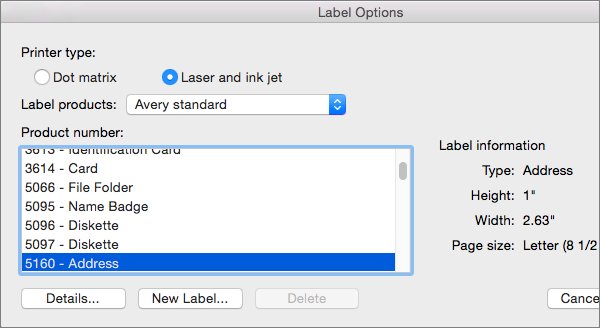
- Select Options, then choose the kind of printer you use under Printer type.
- In the Label products list, select one of the Avery options.
- In the Product number list, select 5160 and then select OK.
- Type the address or text in the Delivery Address box.
- Select Full page of the same label.
- Select Print to print now, or New Document to edit and save the sheet first.
Choose New Document when you want to change fonts or check the layout before you load a label sheet.
Best way to print Avery 5160 labels on a Mac
| Your situation | Use this | Why |
|---|---|---|
| Same address on all 30 spots, Word installed | Word for Mac: Mailings > Labels, Full page of the same label | Fastest; one dialog and you print |
| Different text on each label, typed by hand | Word for Mac: Labels > New Document | Word builds a table that matches the 5160 grid |
| Addresses already in an Excel sheet | Word for Mac mail merge | Pulls each row into its own label |
| Addresses already in Contacts, no Word | Contacts app: File > Print > Mailing Labels | Built into macOS, no extra software |
| Holiday card list or group mailing | Contacts app with a contact list selected | Prints one label per card that has an address |
| Only one label needed | Word for Mac: Single label | Lets you print a single position on the sheet |
Apple's Pages user guide covers envelopes and mail merge but has no label-sheet topic, so Word or Contacts is the simpler choice for a 5160 sheet.
Print Avery 5160 address labels from Contacts on Mac
Contacts prints mailing labels straight from your address book. Only contact cards that contain an address are printed.
- Open the Contacts app on your Mac.
- Select one or more contacts, or select a list of contacts in the sidebar.
- Choose File > Print.
- Click the Style pop-up menu and choose Mailing Labels.
- Click Layout and choose Avery Standard as the page type, then pick the 5160 entry in the list beside it.
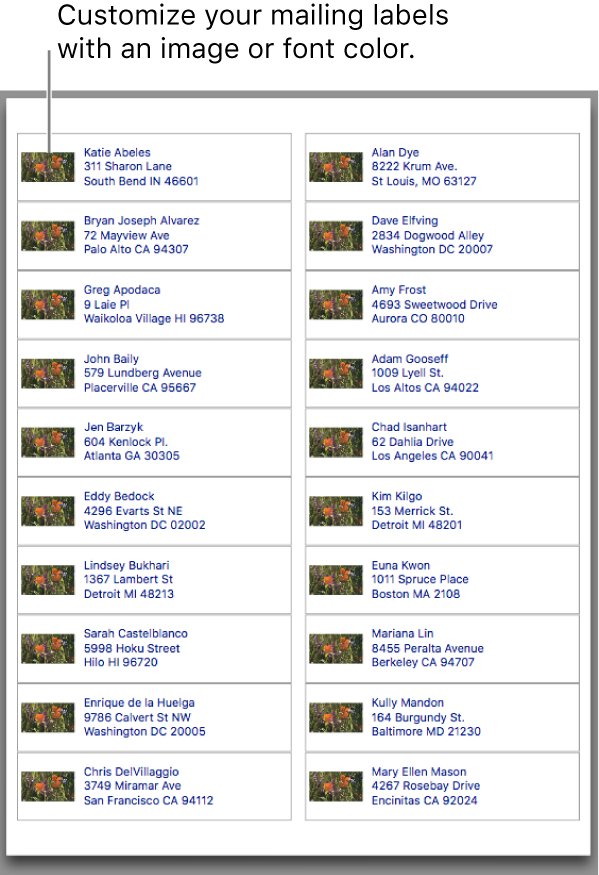
- Click Label to set the sort order, include the company name or country, add an image or change the font.
- Load the 5160 sheet in your printer and click Print.
If the Style pop-up menu is not visible, click the details arrow next to Contacts in the print dialog to expand it.
To swap the order of first and last names on the labels, change Show First Name in Contacts General settings.
Create a sheet of different Avery 5160 labels in Word for Mac
Use this when each label carries different text, such as name tags or file labels, and you want to type them yourself.
- Go to Mailings > Labels.
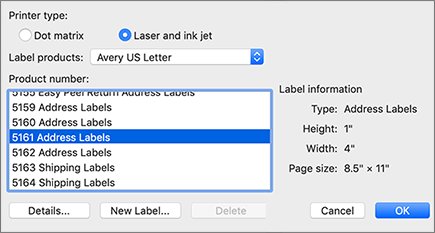
- Select Options, choose your printer type, select an Avery option under Label products and pick 5160 under Product number.
- Select OK, then select OK in the Labels dialog to open a new label document.
- If you cannot see the label outlines, go to Layout > Align > View Gridlines.
- Click inside each cell and type the text for that label.
- Go to File > Print to print the sheet.
- Save the document so you can reuse the layout later.
Each table cell is one label. Keep text inside its cell; pressing Return too many times pushes lines onto the next label.
Mail merge Avery 5160 labels from Excel on a Mac
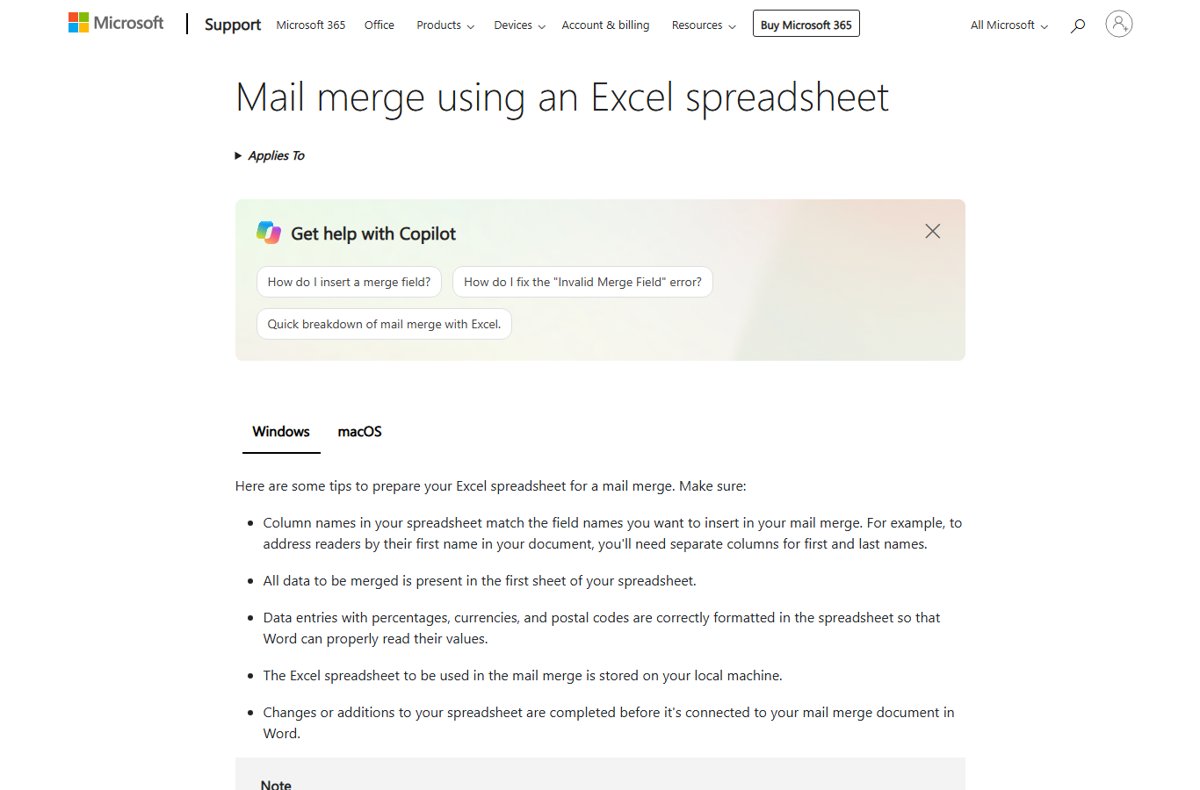
A Word mail merge turns an Excel address list into a sheet of labels, one row per label. Check the spreadsheet first: consistent column headings and no typos make the merge clean.
Word for Mac can also merge from an Outlook contact list or a Word data file.
- In Word for Mac, go to Mailings > Start Mail Merge > Labels.
- In Label Options, pick an Avery option in Label products, select 5160 in Product number and select OK.
- If the label outlines are hidden, select View Gridlines under Table Layout, then save the file with File > Save.
- Go to Mailings > Select Recipients, choose your Excel workbook and select OK.
- Go to Mailings > Insert Merge Field and add the name and address fields to the first label.
- Format the first label the way you want every label to look.
- Go to Mailings > Update Labels to copy that layout to the rest of the sheet.
- Select Preview Results to see real names and addresses in each label.
- Go to Finish & Merge > Print Documents, or choose Edit Individual Documents to review the labels first.
Word for the web cannot run a mail merge, so use the Word desktop app on your Mac for this method.
Print Avery 5160 return address labels on a Mac
Return address labels repeat your own address 30 times. Both apps can do it, and if you would rather skip labels, Word can also print envelopes with the address on them.
| App | Steps | Result |
|---|---|---|
| Word for Mac | Mailings > Labels > Options > Avery, 5160; type your address in Delivery Address; choose Full page of the same label | A full sheet with your address in every spot |
| Contacts | Create a list, paste your own card into it as many times as you need labels, select the list, then File > Print > Mailing Labels | One label per pasted copy of your card |
| Contacts, one label | Select only your own contact card, then print with Mailing Labels | A single return address label |
Add a picture or change the font on Avery 5160 labels
| What you want | Word for Mac | Contacts |
|---|---|---|
| Change the font | Select the label text in the label document and pick a font on the Home tab | File > Print > Label, then change the font |
| Change the font color | Select the text and use the font color control on the Home tab | Label settings include font color |
| Add an image | Open the sheet with New Document, click in a label and insert the picture | Label settings include an image option |
| Sort the labels | Sort the Excel rows before you merge | Label settings sort alphabetically or by postal code |
| Add company or country | Insert those merge fields in the first label | Label settings include company name and country or region |
Keep pictures small. A 5160 label is narrow, and a large image pushes the address lines out of the label.
Test print Avery 5160 labels on plain paper
A test print costs one sheet of plain paper and saves a sheet of labels.
- Print the label document on a plain sheet of US Letter paper.
- Hold the printed page over a 5160 label sheet against a window or bright light.
- Check that every block of text sits inside a label outline, including the bottom row.
- If the text drifts, confirm 5160 is still selected under Product number and that nothing in the print dialog scales the page.
- Load the label sheet the way your printer's manual shows for printing on the front of the page, then print.
Fix Avery 5160 labels on Mac when they do not print right
5160 is not in the Product number list
A different vendor entry is selected under Label products.
- Open Mailings > Labels > Options.
- Switch to another Avery option in Label products and look for 5160 again.
- If your sheet is still missing, select the closest product number, select New Label, match the measurements to your sheet and select OK.
Label outlines do not show in Word
Table gridlines are turned off, so the empty cells look like a blank page.
- Click inside the label table.
- Go to Layout > Align > View Gridlines, or Table Layout > View Gridlines in a mail merge document.
Some contacts are missing from the printed labels
Contacts prints only cards that contain an address.
- Open each missing contact and select Edit.
- Add a mailing address and click Done.
- Print the labels again from File > Print.
No Style menu in the Contacts print dialog
The print dialog is collapsed.
- Choose File > Print in Contacts.
- Click the details arrow next to Contacts to expand the dialog.
- Choose Mailing Labels from the Style pop-up menu.
Merged labels show only the first record
The layout of the first label was not copied to the others.
- Go to Mailings > Update Labels.
- Select Preview Results to confirm each label shows a different address.
Avery 5160 labels on Mac FAQ
How do I create Avery 5160 labels in Word?
Go to Mailings > Labels > Options, choose an Avery entry under Label products and select 5160 under Product number. Type your text in the Delivery Address box, choose Full page of the same label or Single label, then select Print or New Document.
How do I create Avery labels without Word on a Mac?
Use the Contacts app. Select the contacts or a list, choose File > Print, pick Mailing Labels in the Style menu and choose Avery Standard under Layout. Only contact cards that contain an address are printed.
How do I create Avery 8160 labels in Word?
Follow the same steps as for 5160 and select 8160 in the Product number list instead. Word reads the size and spacing from the product number, so picking the number printed on your package is all the setup it needs.
How do I create Avery 8167 labels in Word?
Open Mailings > Labels > Options, choose an Avery entry in Label products and select 8167 under Product number. If the number is not listed, choose the closest one, select New Label and enter the measurements from your sheet.
How do I make Avery labels from Excel?
Excel itself does not lay out labels. Keep the addresses in an Excel sheet, then in Word use Mailings > Start Mail Merge > Labels, select 5160, connect the workbook with Select Recipients and add fields with Insert Merge Field.
How do I use Avery labels in my printer?
Print a test page on plain paper first and hold it over the label sheet to check alignment. Then load the label sheet so the printer prints on the label side, as your printer's manual describes, and print one sheet at a time.
Can I create Avery labels online?
Word for the web cannot build labels from the Labels dialog. Open a label template from More templates in Word for the web, fill in one label, then copy and paste it into the rest. Mail merge also needs the Word desktop app.
How do I print one Avery label instead of a full sheet?
In Word for Mac, open Mailings > Labels, type the text and choose Single label instead of Full page of the same label. In Contacts, select only the one contact card before you print with the Mailing Labels style.
Can I add a design or logo to Avery labels on a Mac?
Yes. In Word, choose New Document from the Labels dialog and insert a picture in a label. In Contacts, open File > Print and use the Label options to add an image and change the font and font color.
Word or Contacts for Avery 5160 labels on a Mac?
Use Word for Mac when you need full control over each label or a mail merge from Excel, and use Contacts when the addresses already live in your address book. Word stores 5160 under its Avery product numbers and handles typed, merged and single labels, while Contacts prints Avery Standard sheets with no extra software.

![How to install or update a printer driver in Windows 11? [Full guide]](https://techdows.com/wp-content/uploads/2026/10/How-to-Install-or-Update-a-Printer-Driver-in-Windows-11-600x338.jpg)