To mute or unmute sound in Windows 11, select the Speakers icon on the taskbar and select the speaker symbol beside the volume slider, or press the mute key on your keyboard.
This guide covers every built-in way to silence and restore audio, muting a single app or the microphone, turning off system and notification sounds, and fixes for sound that stays muted.
Mute or unmute sound volume in Windows 11/10
Quick settings on the taskbar is the fastest route on any Windows 11 PC, with or without a keyboard.
- Select the Speakers icon on the right side of the taskbar. If it is missing, select Show hidden icons to look in the overflow area.
- Select the speaker symbol at the left end of the volume slider to mute. An x appears next to the symbol.
- Select the same symbol again (Unmute speakers) to restore sound, or drag the slider to the level you want.
On Windows 10 the same Speakers icon sits in the notification area, and the volume flyout works the same way.
Which way to mute Windows 11 sound should you use?
| Your situation | Use this | Why |
|---|---|---|
| You want silence right now | Keyboard mute key or the taskbar Speakers icon | One press or one click, no menus |
| Only one app is too loud | Volume mixer under Apps | Mutes that app while everything else keeps playing |
| You are in a full-screen game | Windows + G and the Game Bar Audio widget | Works as an overlay without leaving the game |
| You want to stop pop-up and alert sounds | Settings > System > Notifications | Silences notification chimes but keeps media audio |
| You are on a call | Windows + Alt + K | Mutes the microphone in supported apps, not your speakers |
| A device should never play sound | Sound control panel > Device usage | Disables the device until you turn it back on |
Mute and unmute sound volume using keyboard shortcuts
Most laptop and many desktop keyboards have dedicated volume-down, volume-up and mute keys. On laptops the mute key is often shared with a function key, so you may need to hold Fn while pressing it.
| Press this | What it does |
|---|---|
| Mute key (speaker with a line or an x) | Mutes or unmutes system volume; press again to restore |
| Volume-up key | Raises the volume and unmutes |
| Windows + Ctrl + V | Opens the sound output page of Quick settings with output device, spatial sound and volume mixer |
| Windows + A | Opens Quick settings, where the volume slider and its mute symbol sit |
| Windows + Alt + K | Mutes or unmutes the microphone in supported apps |
| M in the YouTube player | Mutes or unmutes only the video you are watching |
The keyboard mute key and the taskbar slider control the same system volume, so muting with one shows as muted in the other.
Mute or unmute volume from Windows 11 Settings
- Press Windows + I to open Settings.
- Select System, then Sound.
- Under Output, confirm the speakers or headphones you use are selected.
- Check that the volume is not muted and that the slider is turned up.
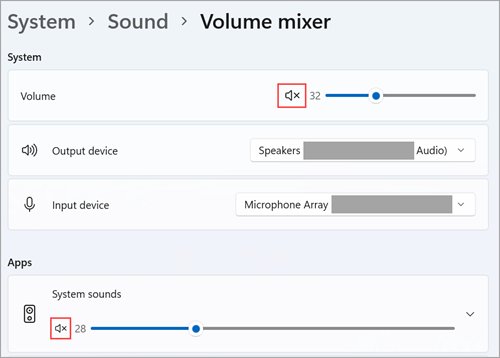
- For finer control, select Volume mixer and use the speaker symbol beside the System slider to mute or unmute.
Picking a device under Output also makes it the default, which matters when sound seems muted but is really going to a monitor with no speakers.
Mute one app with Volume mixer in Windows 11
App volume in Volume mixer overrides system volume, so one app can stay silent while others play. You can also adjust volume for individual programs here instead of muting them outright.
- Open Settings > System > Sound > Volume mixer. From the taskbar, you can also select the Speakers icon and then the settings icon next to the slider (More mixer settings).
- Under Apps, find the app you want to silence. The app must be open to appear in the list.
- Select the speaker symbol next to its slider to mute it.
- Select the symbol again, or drag the slider up, to unmute it.
- If the app still plays nothing after unmuting, check its Output device list points to the speakers you use.
Browsers can also silence a single tab without touching Windows; Chrome can mute and unmute individual sites from the tab itself.
Mute sound in games with the Xbox Game Bar audio widget
If Windows + G does nothing, enable Xbox Game Bar in Settings first, then use its audio controls over any game.
- Press Windows + G to open Game Bar over the game or app.
- Open the Audio widget from the Game Bar top bar.
- On the Mix tab, use the controls for the output device and each running app to silence or restore sound.
- Press Windows + G again, or select an empty area of the screen, to close Game Bar and return to the game.
Disable a sound device in the classic Sound control panel
Disabling a device is a harder mute: Windows stops sending any audio to it until you turn it back on. It suits a monitor or headset that keeps taking over as the output.
- Open Settings > System > Sound and select More sound settings.
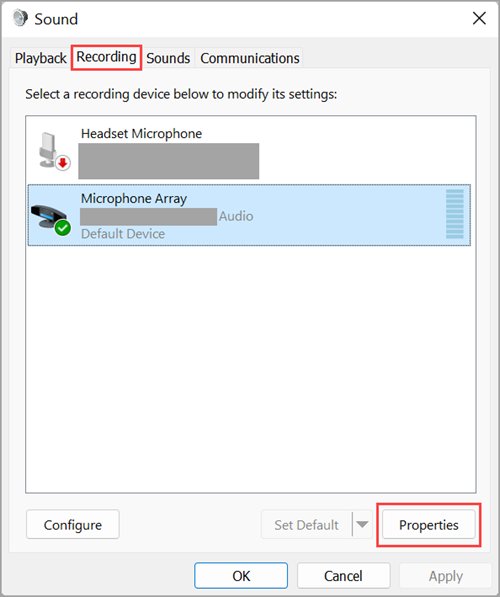
- Select the Playback tab for speakers, or Recording for microphones.
- Select the device, then select Properties.
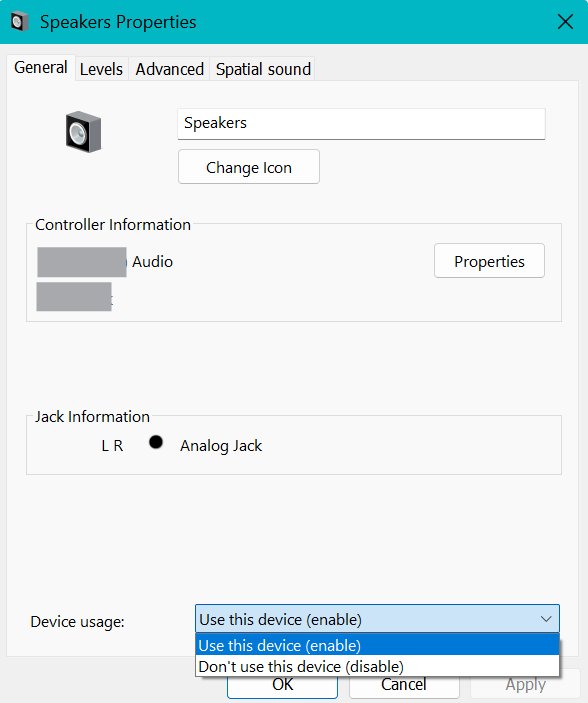
- Next to Device usage, choose Don't use this device (disable) and select OK.
- To bring it back, repeat the steps and choose Use this device (enable).
There are several other ways to open the old Sound settings if you use this panel often.
Mute and unmute the microphone in Windows 11
- During a call in a supported app, press Windows + Alt + K to mute or unmute the microphone.
- For a system-wide change, open Settings > System > Sound > More sound settings and select the Recording tab.
- Select your microphone, select Properties and open the Levels tab.
- Use the Microphone slider to set its level, then select OK.
- To block apps from the microphone completely, open Settings > Privacy & security > Microphone and turn off Microphone access.
How to mute system sounds and notification sounds in Windows 11
System sounds are the chimes for events and notifications. You can silence them without muting music, videos or calls.
| Sound to silence | Where to change it | What to do |
|---|---|---|
| Every notification for a while | Notification center (Windows + N) | Select the bell icon with zZ to turn on Do not disturb until you turn it off |
| Notifications at set times or while gaming | Settings > System > Notifications | Expand Turn on do not disturb automatically and pick the conditions |
| One app's notification chime | Settings > System > Notifications | Select the app under Notifications from apps and other senders and turn off Play a sound |
| A system event sound, such as Calendar Reminder | Settings > System > Sound > More sound settings > Sounds tab | Select the event under Program Events, change the sound under Sounds, then select Apply and OK |
| Alerts you still need to notice | Settings > Accessibility > Audio | Use Flash my screen during audio notifications for a visual cue instead |
How to tell if Windows 11 sound is muted
- Look at the Speakers icon on the taskbar. A muted output shows an x next to the speaker.
- Open Volume mixer and check that no slider under System or Apps shows the muted symbol.
- Play a video or song and watch the app's level bar move in Volume mixer while it plays.
- Confirm the sound comes from the device selected under Output, not a monitor or disconnected headset.
Why will my sound not unmute in Windows 11?
Start with the automated audio troubleshooter in the Get Help app, or open Settings > System > Troubleshoot > Other troubleshooters and select Run next to Audio. If that does not help, reset the audio settings to their defaults before working through the fixes below.
Sound is unmuted but still nothing plays
Audio is going to a different output device, or audio enhancements interfere.
- Select the Speakers icon, then the arrow beside the slider (Select a sound output), and pick the right device.
- Check cables and power, and turn up the volume on the speakers or headset themselves.
- Open Settings > System > Sound, select the output device and set Audio enhancements to Off under Advanced settings.
System sounds play but one app stays silent
The app is muted or set to another output device in Volume mixer.
- Open Settings > System > Sound > Volume mixer.
- Under Apps, unmute the app and raise its slider.
- Set the app's Output device to the speakers you are using, then check the app's own volume control.
Sound comes back but is very quiet
App levels, enhancements or the speaker's own control keep output low.
- Raise both the System slider and the app's slider in Volume mixer.
- Turn off Audio enhancements on the output device.
- If 100% is still too quiet, try these ways to boost volume beyond 100%.
No speakers or headphones are plugged in on Windows 11 [Fix]
This message, or "No audio output device is installed", means Windows cannot see an output device, so there is nothing to unmute. The cause is usually a disabled device or a missing or broken driver.
Speakers or headphones are missing under Output
The device is disabled or Windows has not detected it.
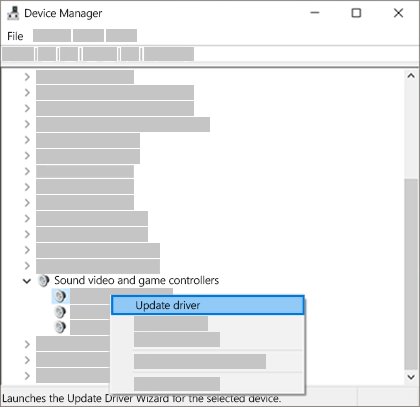
- Select Start, type Device Manager and open it.
- Expand Sound, video and game controllers.
- If the device is listed, right-click it and select Enable device if that option appears.
- If it is not listed, select View > Show hidden devices, then Action > Scan for hardware changes.
Device was disabled in the Sound control panel
Device usage is set to disable on the Playback tab.
- Open Settings > System > Sound > More sound settings > Playback.
- Select the device, then Properties.
- Set Device usage to Use this device (enable) and select OK.
Sound settings are grayed out after a driver change
The audio driver is missing, outdated or corrupted.
- In Device Manager, right-click the audio device, select Update driver, then Search automatically for drivers.
- If Windows finds nothing, install the latest audio driver from the PC or sound card maker's support site.
- Restart the PC with Start > Power > Restart and check Output again.
Windows Audio Service stuck on Stopping
When the audio service hangs, volume controls stop responding and sound cannot be unmuted. Restarting the services clears most temporary faults.
Volume icon does not respond and no app plays sound
The Windows Audio service or one of its dependencies has stopped responding.
- Select Start, type
services.mscand press Enter. - Right-click Windows Audio and select Restart, then select Yes if asked.
- Restart Windows Audio Endpoint Builder the same way.
- Test audio in the app you were using.
The service stays on Stopping and will not restart
The service is stuck in the middle of shutting down.
- Save your work and close open apps.
- Select Start > Power > Restart to restart Windows, which starts the audio services fresh.
- If the problem returns, update or roll back the audio driver in Device Manager.
Audio stopped after a Windows update
The new audio driver does not suit the hardware.
- Open Device Manager and expand Sound, video and game controllers.
- Right-click the audio device, select Properties and open the Driver tab.
- Select Roll Back Driver and follow the prompts, then restart the PC.
Windows 11 mute and unmute sound FAQ
How do I unmute sound in Windows 11?
Select the Speakers icon on the taskbar and select the speaker symbol beside the volume slider, or press the keyboard mute or volume-up key. If an x stays on the icon, open Settings > System > Sound > Volume mixer and unmute System and the app.
How do I mute sound on my computer quickly?
Press the mute key on your keyboard, often shared with a function key on laptops. Without one, select the Speakers icon on the taskbar and select the speaker symbol next to the slider. Both mute the same system volume.
How do I take sound off mute if the volume icon shows an x?
The x means the output is muted. Select the Speakers icon, then select Unmute speakers next to the slider, or drag the slider up. If sound is still missing, check that the right device is chosen under Select a sound output.
How do I mute and unmute the microphone in Windows 11?
Press Windows + Alt + K to mute or unmute the microphone in supported apps. To block it for all apps, turn off Microphone access under Settings > Privacy & security > Microphone, and turn it back on to unmute.
How do I mute system sounds in Windows 11?
Turn on Do not disturb from the notification center with Windows + N, or turn off Play a sound for each app under Settings > System > Notifications. Event sounds are changed on the Sounds tab under More sound settings.
How do I permanently mute system sounds?
Turn off Play a sound for each app in Settings > System > Notifications and set Turn on do not disturb automatically for the times you want silence. Change individual event sounds on the Sounds tab in the classic Sound control panel.
Why will my sound not unmute?
Usually audio is going to another output device, the app is muted in Volume mixer, or the audio service has stopped. Select the correct output from the Speakers icon, unmute the app in Volume mixer, then restart the Windows Audio service if needed.
How do I unmute sound on YouTube?
Press M while the video player is selected to mute or unmute the video. If YouTube is still silent, check that Windows is not muted and that your browser is unmuted under Apps in Volume mixer.
What is the difference between mute and unmute?
Mute silences audio without changing the volume level you set, and unmute restores sound at that same level. Turning the slider to zero lowers volume instead, so you have to raise it again manually afterwards.
Bottom line: the quickest way to mute Windows 11 sound
Use the keyboard mute key or the taskbar Speakers icon for everyday muting, and Volume mixer when only one app should go quiet. Both control the same system volume in one step, while Volume mixer is the only built-in way to silence one app without muting everything else.