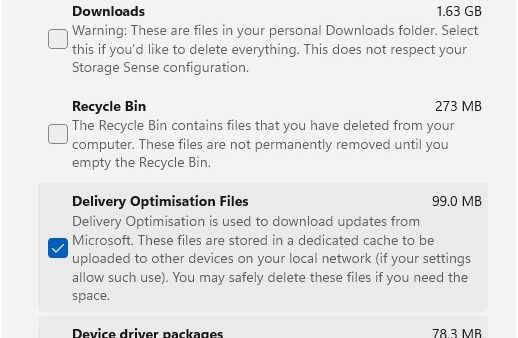
An ASD file is a Microsoft Word AutoRecover file, and you open it from inside Word with File > Open > Browse, setting the file type to All Files.
This guide explains where Word keeps ASD files, three ways to open them, how to turn one back into a normal document, and what to do when no ASD file exists.
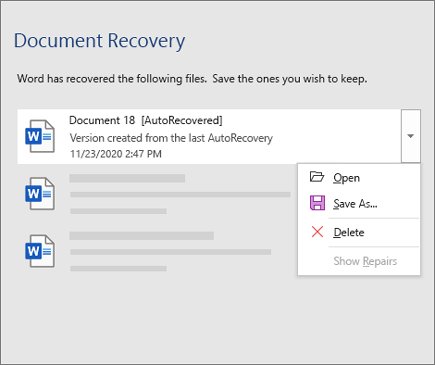
Open ASD file in Word (.asd format file)
Windows does not open an ASD file on a double-click, so load it from Word itself. If Word is not installed, download Microsoft Word for PC first.
- Select Start, type
.asdand press Enter to find any AutoRecover files. Note the folder each one is in. - Open Word and go to File > Open > Browse.
- Go to the folder that holds the ASD file.
- In the file type list to the right of File name, select All Files.
- Right-click the ASD file and select Open.
- Go to File > Save As and save the document as a Word Document (.docx).
The saved .docx is now an ordinary document. The ASD file itself is temporary and Word may remove it later.
What is an ASD file?
Word writes an ASD file while you edit a document stored on your PC or a network folder. If Word closes before you save, that file holds the changes since your last save.
| Detail | What it means |
|---|---|
| Extension | .asd, the extension Word gives AutoRecover files |
| Created by | Word's AutoRecover feature, at the interval set in File > Options > Save |
| When it exists | While a document is open with unsaved changes, and after Word closes unexpectedly |
| Opens in | Microsoft Word only, through File > Open or Document Recovery |
| Not used for | Files on OneDrive or SharePoint with AutoSave on; those save to the cloud copy |
| Related files | .wbk backup copies and .tmp or ~ temporary files |
| Removed when | You choose Don't Save when closing the document |
Outside Word, "ASD" has unrelated meanings. In medicine it stands for autism spectrum disorder, which has nothing to do with this file type.
Where Word saves ASD AutoRecover files
| Platform | Folder or route |
|---|---|
| Windows, Microsoft 365 | C:\Users\<UserName>\AppData\Roaming\Microsoft\Word |
| Windows, unsaved new documents | C:\Users\<UserName>\AppData\Local\Microsoft\Office\UnsavedFiles |
| Windows, custom location | File > Options > Save > AutoRecover file location |
| Mac | /Users/<username>/Library/Containers/com.Microsoft/Data/Library/Preferences/AutoRecovery |
| Mac, custom location | Word > Preferences > File Locations > AutoRecover files |
Replace <UserName> with your Windows user name. The AppData folder is hidden, so paste the path into the File Explorer address bar rather than browsing to it. On a Mac, use Go > Go to Folder (Shift + Command + G) in Finder.
How to open ASD files in Word
Word's own recovery list is the quickest route when you do not know the file's name or folder.
- Open Microsoft Word.
- Select File > Info.
- Select Manage Document, then Recover Unsaved Documents.
- Pick the file that matches the time you last worked on the document, then select Open.
- Select Save As and save it as a .docx file under a new name.
Recover an ASD file with Word Document Recovery
Word checks for AutoRecover files every time it starts, so closing and reopening Word often brings the document back without any searching.
- Close every Word window, then open Word again.
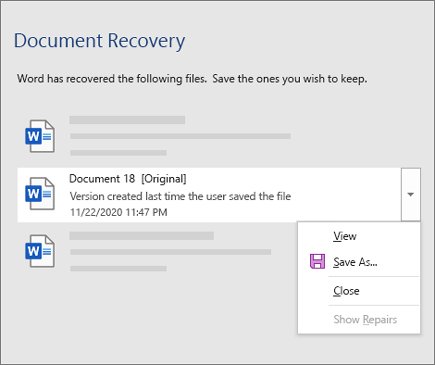
- In the Document Recovery pane, look for entries marked [Original] or [Recovered] and check the time under each name.
- Double-click the most recent version to open it.
- Go to File > Save As and save it as a .docx file.
- On Microsoft 365, if Word shows a message bar instead of the pane, select Save.
- When finished, select Close and choose Yes, I want to view these files later (safest option) if you are unsure.
Convert an ASD file to Word: which method to use
| Your situation | Use this | Why |
|---|---|---|
| Word just crashed | Reopen Word and use Document Recovery | Word finds the ASD file for you on start |
| You never saved the document | File > Info > Manage Document > Recover Unsaved Documents | Lists files from the UnsavedFiles folder |
| You found an .asd file in File Explorer | File > Open > Browse with All Files | Opens a specific file directly |
| No .asd file anywhere | Search for .wbk, then .tmp and ~ files |
Backup and temporary files may hold the text |
| You deleted the document | Check the Recycle Bin, then OneDrive or SharePoint recycle bins | Deleted files are kept there for a time |
Renaming an .asd file to .docx is not the route. Open it in Word and use Save As, which writes a real Word document.
Check the recovered ASD document saved correctly
- Close Word completely.
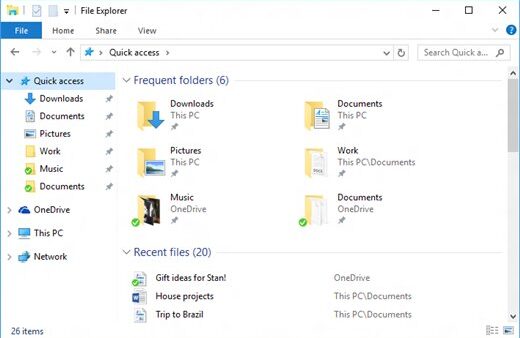
- Open File Explorer and go to the folder where you saved the new .docx file.
- Double-click the file and confirm it opens in Word without a recovery prompt.
- Scroll to the end and confirm your latest changes are present.
Fix ASD file recovery in Word when it fails
No .asd file shows up in Windows search
AutoRecover had not saved yet, the document was closed with Don't Save, or it lived on OneDrive with AutoSave.
- Open both AutoRecover folders from the table above directly in File Explorer.
- Select Start, type
.wbkand look for a file named Backup of followed by your document name. - Search for
.tmp, then for~, and look for files dated when you last edited the document. - In Word, open a found .tmp file through File > Open with All Files selected.
Word will not show the ASD file in the Open dialog
The Open dialog lists only Word documents by default.
- In File > Open > Browse, change the file type list next to File name to All Files.
- Right-click the file and select Open.
The recovered ASD document is blank or damaged
The AutoRecover file was only partly written when Word closed.
- Open the other versions in the Document Recovery pane, starting with the newest.
- Use the down arrow next to a file and select Show Repairs to see what Word fixed.
- Try the matching
.wbkbackup or.tmpfile instead.
Recover asd file Word lost after a deletion
The document was deleted rather than left unsaved.
- Open the Recycle Bin, find the .doc or .docx file, right-click it and select Restore.
- For files on OneDrive or SharePoint, restore them from that service's recycle bin.
- On Windows 10 version 2004 or later, the Windows File Recovery tool from the Microsoft Store can find permanently deleted files.
If a recovered document opens with nothing on the page, the fixes for a Word document opening blank also apply.
Cannot enable disabled add-ins in Word after a crash
Repeated crashes are what leave ASD files behind, and Word switches off any add-in it blames for a crash.
An add-in was turned off after Word closed unexpectedly
Word disables add-ins automatically when they cause it to crash.
- Save any recovered document first.
- Remove or update the add-in from the My Add-ins tab if it keeps crashing Word.
- Turn it back on only after updating it, then watch whether Word stays stable.
Add-ins stay disabled and cannot be turned on
A Trust Center setting or your organization blocks them.
- Go to File > Options > Trust Center > Trust Center Settings > Add-ins.
- Clear Disable all Application Add-ins (may impair functionality) if it is selected.
- If Require Application Add-ins to be signed by Trusted Publisher is selected, unsigned add-ins will not load.
- Restart Word for the change to take effect.
- If the options are greyed out, ask your IT administrator; your organization manages them.
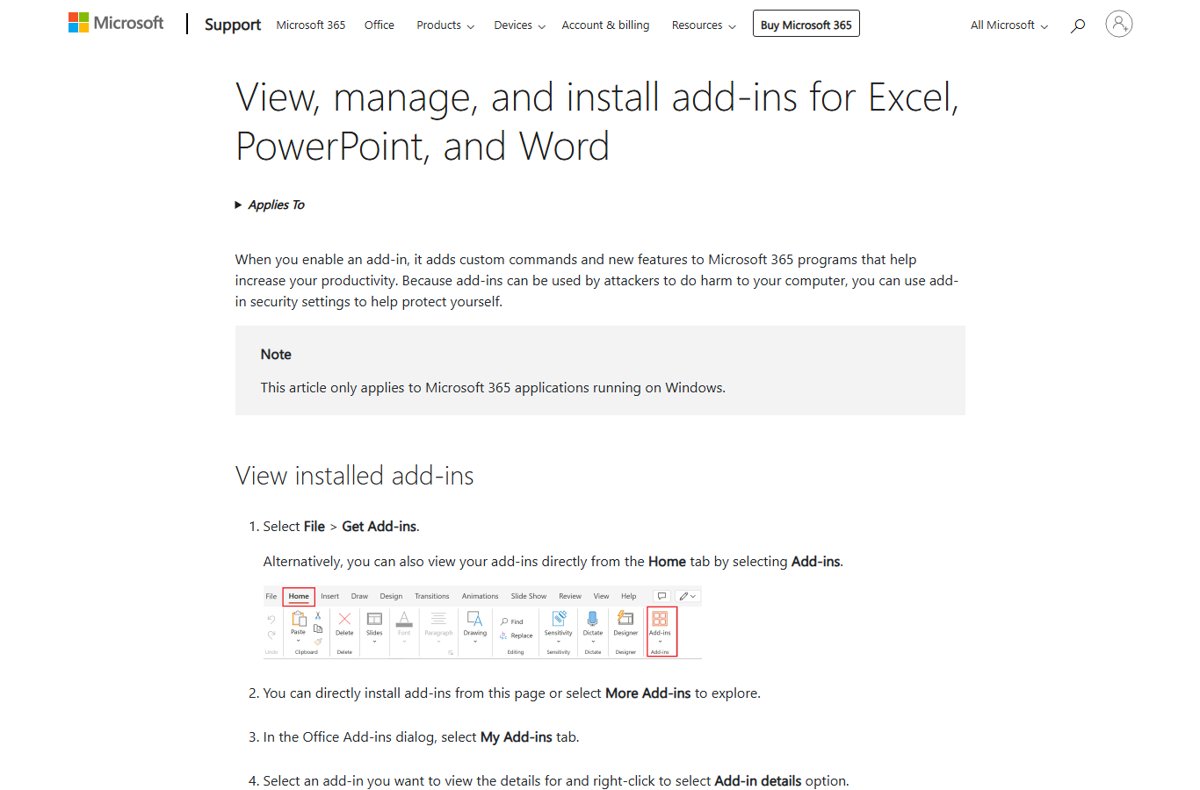
Change how often Word saves ASD AutoRecover files
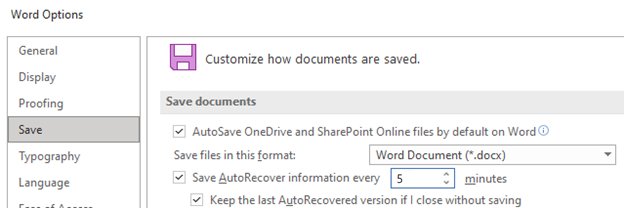
- In Word, go to File > Options > Save.
- Under Save documents, make sure AutoRecover is on.
- Set Save AutoRecover information every to 5 minutes or less.
- Optionally change AutoRecover file location to a folder you can find easily.
- Select OK.
Storing documents on OneDrive with AutoSave on removes the need for ASD files, because every change saves to the cloud copy. You can set up OneDrive sync to keep Word files there.
ASD file in Microsoft Word FAQ
How do I open an ASD file in Word?
Open Word, go to File > Open > Browse, set the file type to All Files, then right-click the .asd file and select Open. Save it immediately with Save As as a .docx file.
How do I convert an ASD file to a Word document?
Open the ASD file in Word, then use File > Save As and choose Word Document (.docx). Renaming the extension does not convert it; saving from Word does.
Where are ASD files stored in Windows?
Microsoft 365 keeps them in C:\Users\<UserName>\AppData\Roaming\Microsoft\Word and AppData\Local\Microsoft\Office\UnsavedFiles. File > Options > Save shows the AutoRecover file location your copy of Word uses.
Can I open an ASD file without Word?
No. An ASD file is a Word AutoRecover file and Microsoft documents opening it only from Word, through File > Open or the Document Recovery pane.
Can I open an ASD file in Word 2007?
Microsoft's recovery steps cover Word 2010 through Microsoft 365, and Word 2007 is long out of support. Open the file in a current version of Word with File > Open and All Files selected.
Why is there no ASD file for my lost document?
AutoRecover may not have saved yet, you may have chosen Don't Save when closing, or the file was on OneDrive with AutoSave. Search for .wbk backups and .tmp files next.
Is ASD the same as autism spectrum disorder?
Only by abbreviation. In Word, .asd is the AutoRecover file extension; in medicine, ASD is the full form of autism spectrum disorder. The two are unrelated.



![Adjusting volume balance settings in Windows 11 and 10 [Easy steps]](https://techdows.com/wp-content/uploads/2026/10/Adjusting-Volume-Balance-Settings-in-Windows-11-and-10-500x338.jpg)