When the Brightness slider is missing from System Settings > Displays, change brightness from Control Center or the brightness keys, and select the right display in Displays settings, because a non-Apple monitor often has no slider at all.
This guide covers every macOS brightness control, why the slider disappears on built-in and external displays, and the reset steps that bring it back.
Change Mac brightness when the Displays slider is missing
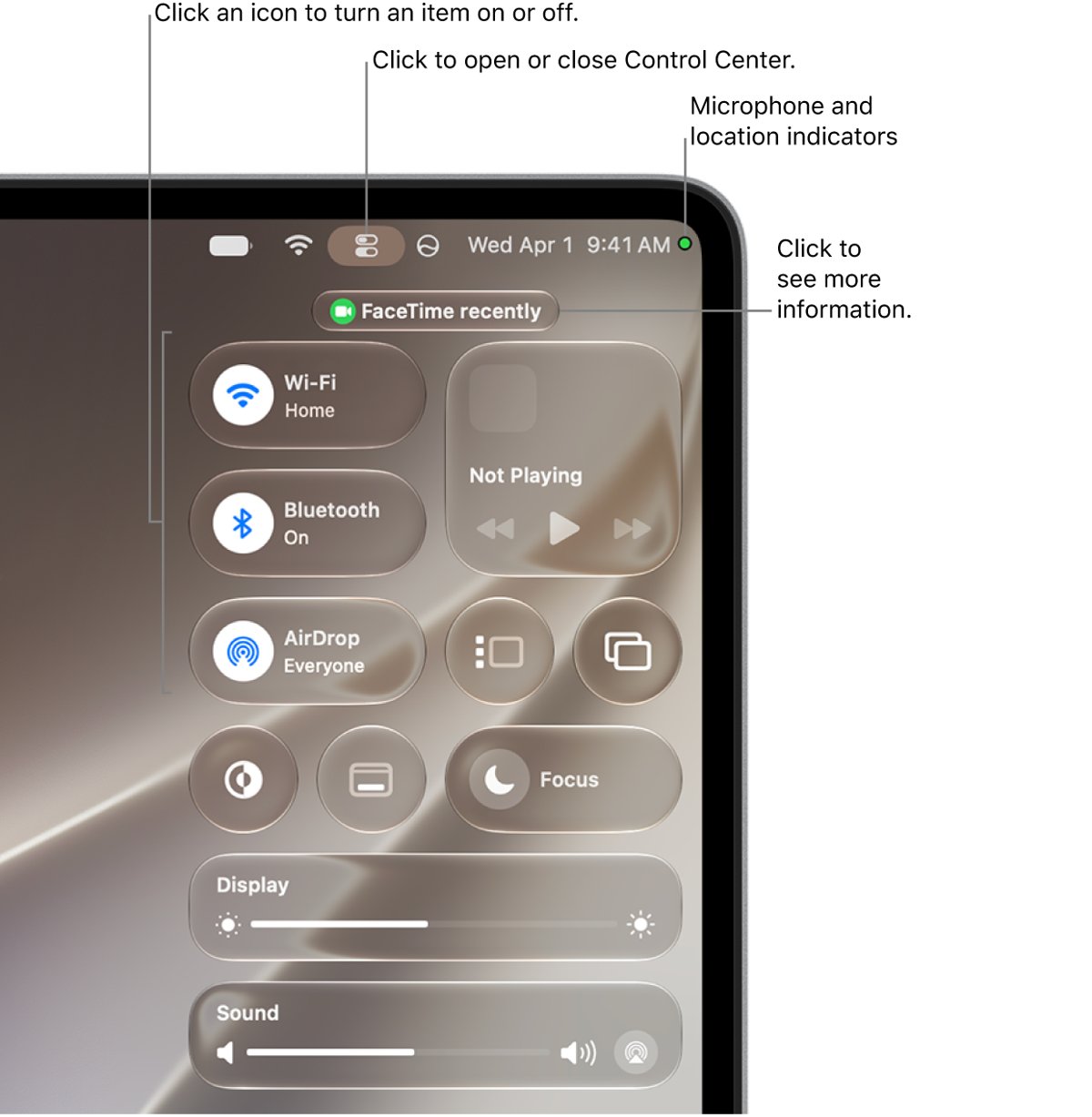
Control Center has a Brightness slider that works on any Mac, so it is the fastest way around a missing slider in Displays settings.
- Click Control Center in the menu bar at the top right of the screen.
- Drag the Brightness slider left or right.
- Or press the brightness keys in the top row of your Mac keyboard or Magic Keyboard.
- On a MacBook Pro with Touch Bar, swipe left or right on the brightness button in the Control Strip.
- If none of these change the screen, work through the fixes further down.
Which Mac brightness fix matches your screen?
| Your situation | What to do | Why |
|---|---|---|
| Slider missing for a non-Apple external monitor | Use the monitor's own buttons and on-screen menu | macOS often cannot control brightness on third-party displays |
| Slider missing for the built-in MacBook screen | Select the built-in display in Displays, then restart | Settings may be showing the external display's options |
| Automatically adjust brightness is missing | Adjust brightness by hand | The option appears only on Macs with an ambient light sensor |
| Brightness keys do nothing | Hold Fn while pressing the key | The keyboard may be set to standard function keys |
| Touch Bar shows no brightness button | Expand the Control Strip | Brightness sits in the expanded strip on some layouts |
| Every control fails after an update | Update macOS, then reset NVRAM or SMC on Intel Macs | Stored display settings can stop working as expected |
Why brightness adjustment is not available on a Mac
| Cause | What you notice | Applies to |
|---|---|---|
| Third-party external display | No Brightness slider for that monitor in Displays | Non-Apple monitors and TVs |
| Wrong display selected | Displays settings show options for another screen | Mac laptops with a monitor attached |
| No ambient light sensor | No Automatically adjust brightness or Ambient light compensation option | Macs and displays without the sensor |
| Function keys set as standard keys | Brightness keys act as F1 and F2 | Any Apple keyboard |
| Settings stored in NVRAM misbehaving | Display options act oddly after a restart | Intel-based Macs only |
| Sensor or power controller issue | Auto-brightness or controls behave erratically | Intel-based Macs (SMC) |
The Contrast slider is also display-dependent. Its presence on one monitor and absence on another is normal.
Adjust brightness from Mac Displays settings
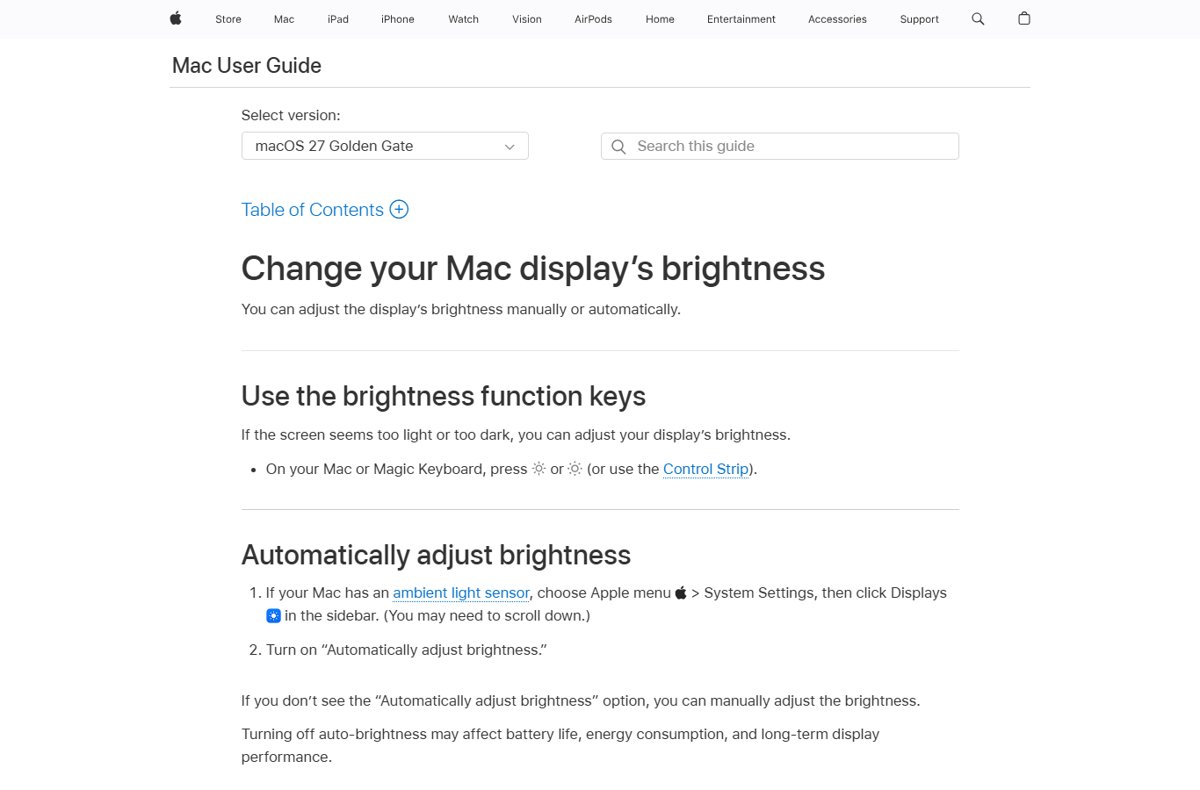
- Choose Apple menu > System Settings. On older macOS versions, choose System Preferences.
- Click Displays in the sidebar; you may need to scroll down.
- If more than one display is connected, select the one you want to change at the top of the window.
- Drag the Brightness slider.
- To open this page faster, hold Option and press a brightness key.
Turning off Automatically adjust brightness gives you full manual control, though Apple notes it may affect battery life and long-term display performance.
Adjust brightness with the Touch Bar Control Strip on MacBook Pro
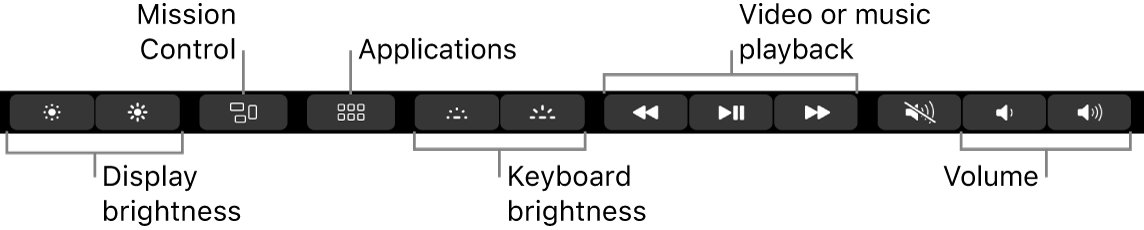
The Control Strip sits at the right end of the Touch Bar and holds the brightness control on MacBook Pro models that have one.
- Look at the right end of the Touch Bar for the Control Strip.
- Swipe left or right on the brightness button to change the level.
- Or touch and hold the brightness button, then slide your finger.
- If the button is hidden, tap the expand arrow to open the full Control Strip.
- Depending on your Touch Bar settings, press and hold Fn or the Globe key to expand it.
Change brightness on a non-Apple external monitor
A third-party monitor usually needs its own controls for brightness. That is why its Displays page can show resolution and arrangement but no Brightness slider.
- Press the menu button on the monitor itself, usually on the front edge, side or back.
- Open the picture or brightness section of the monitor's on-screen menu.
- Raise or lower Brightness and exit the menu.
- Check the monitor's manual or the manufacturer's site for the latest firmware.
- If you use an Apple display with an Apple keyboard, press the brightness keys or use the slider in Displays instead.
Setting up a dual monitor setup on MacBook Pro gives each screen its own Displays entry, and each one shows only the controls its hardware supports.
Check that Mac brightness control is back
- Press the decrease brightness key and watch the on-screen brightness indicator drop.
- Open Control Center and confirm the Brightness slider moves with the keys.
- Open System Settings > Displays, select the built-in display, and confirm the Brightness slider is shown.
- Restart the Mac and confirm the level you set is kept.
Fix Mac brightness when it is not changing
Why can't I find my brightness adjustment in Displays?
The selected display is a third-party monitor, or macOS has not loaded the built-in display's controls.
- In System Settings > Displays, select the built-in display rather than the external one.
- Hold Option to reveal Detect Displays, then click it.
- Disconnect the external monitor, then check whether the slider returns for the built-in screen.
- Choose Apple menu > Restart.
Why won't my brightness adjust with the keys?
The top row is set to act as standard function keys.
- Hold Fn and press the brightness key.
- If that works, use Control Center or keep using Fn for brightness.
- On a Touch Bar MacBook Pro, use the Control Strip brightness button instead.
Why is my automatic brightness not adjusting?
The Mac or display has no ambient light sensor, or the option is turned off.
- Open System Settings > Displays.
- Turn on Automatically adjust brightness or Ambient light compensation if either is listed.
- If neither appears, your hardware has no sensor; set brightness by hand.
- On an Intel Mac, reset the SMC, which manages the ambient light sensor.
Brightness on the external screen is not adjusting
Non-Apple displays often accept brightness changes only from their own controls.
- Use the monitor's buttons and on-screen menu.
- Update the monitor's firmware from the manufacturer.
- Install the latest macOS updates, which carry firmware for Apple displays.
Brightness cannot be adjusted by any control
A startup item, outdated software or a stored setting is interfering.
- Go to System Settings > General > Software Update and install any update.
- Start up in safe mode and test the brightness keys; on Apple silicon hold the power button, select the volume, then hold Shift and click Continue in Safe Mode.
- On an Intel Mac, shut down, turn it on and hold Option + Command + P + R for about 20 seconds to reset NVRAM.
- On an Intel laptop with a T2 chip, shut down, hold left Control, left Option and right Shift for 7 seconds, add the power button for 7 more seconds, then release and start up.
- On Apple silicon, a normal restart resets the SMC; no key combination is needed.
If the volume and other top-row keys also do nothing, fix the Mac keyboard first, since the brightness keys depend on it.
If brightness works in safe mode but not in a normal startup, remove recently added login items or display utilities one at a time. You can also update macOS on your MacBook before trying the resets.

Mac brightness adjustment not available FAQ
Why can't I find my brightness adjustment on Mac?
The Brightness slider is hidden when Displays settings show a third-party monitor, or when macOS has not loaded the built-in display's controls. Select the built-in display, or use Control Center, which has a Brightness slider on any Mac.
Why is my brightness not changing on my MacBook?
Your keyboard may be set to standard function keys, so the brightness keys act as F1 and F2. Hold Fn while pressing the key, or drag the Brightness slider in Control Center.
Why can't I adjust brightness on my external monitor from my Mac?
Many non-Apple monitors only change brightness from their own buttons and on-screen menu. Apple's Displays settings show a Brightness slider for Apple displays and the built-in screen.
Why is my automatic brightness not adjusting?
Automatically adjust brightness appears only on Macs with an ambient light sensor. If the option is listed, turn it on in System Settings > Displays; if it is missing, adjust brightness manually.
Why won't my brightness adjust after a macOS update?
A stored setting or startup software may be interfering. Install any further update, test in safe mode, and on an Intel Mac reset NVRAM or the SMC. Apple silicon Macs reset the SMC on a normal restart.
Why can I not adjust brightness with the Touch Bar?
The brightness button may be in the collapsed part of the Control Strip. Tap the expand arrow, or press and hold Fn or the Globe key, then swipe on the brightness button.
Is there a Mac keyboard shortcut to open brightness settings?
Yes. Hold Option and press either brightness key on an Apple keyboard to open Displays settings directly in System Settings.