To change the date, time, region, locale or language in Windows 10, open Start > Settings > Time & Language and pick Date & time, Region or Language.
This guide covers each of those pages, the Control Panel format options, the system locale for older programs, the tzutil and PowerShell commands, and what to do when the time zone will not change.
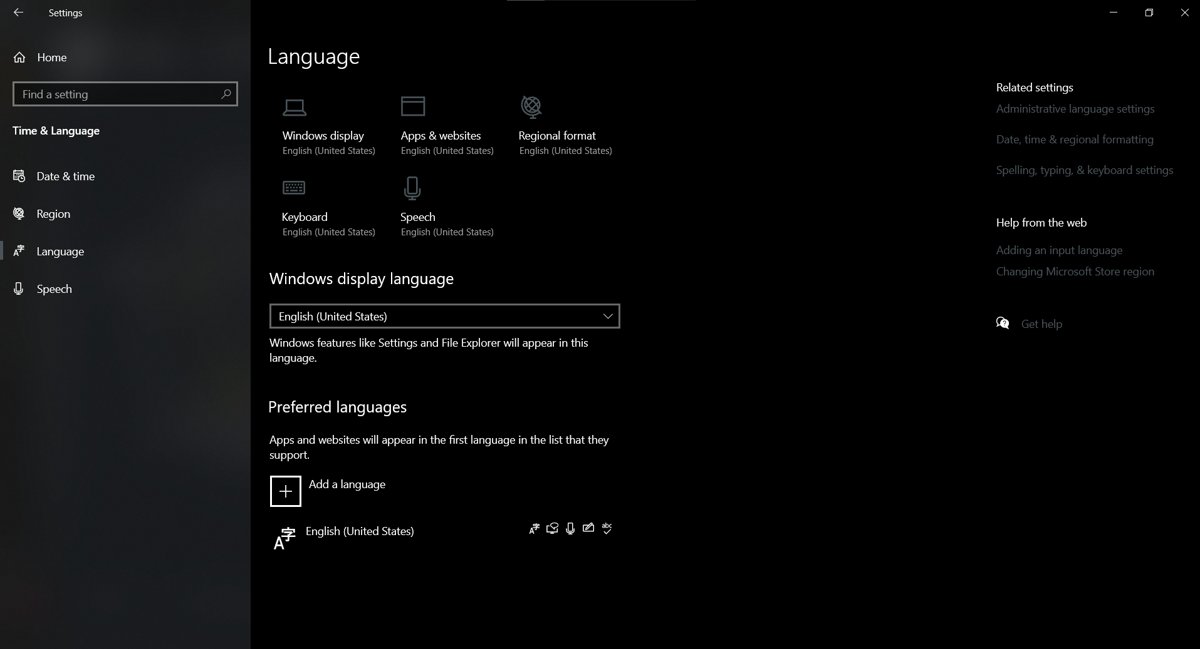
Change date, time, region, locale, language in Windows 10
Every setting in the title sits under one Settings category. Press Windows key + I, select Time & Language, then use this table to find the page you need.
| What you want to change | Page in Time & Language | Control to use |
|---|---|---|
| Date and time | Date & time | Set time automatically, or Change under Set the date and time manually |
| Time zone and daylight saving time | Date & time | Set time zone automatically, Time zone drop-down, Adjust for daylight saving time automatically |
| Country or region | Region | Country or region drop-down |
| Date, time, number and currency formats | Region | Regional format drop-down, or Additional date, time, & regional settings |
| System locale for non-Unicode programs | Language | Administrative language settings > Change system locale |
| Windows display language | Language | Windows display language drop-down |
| Keyboard layout and speech | Language | Select a language > Options > Keyboards or Speech |
Microsoft ended support for Windows 10 on October 14, 2025. The settings below still work, but the device no longer receives security updates.
Date and time: change the clock in Windows 10
Windows 10 syncs the clock automatically by default. To set it by hand, turn automatic time off first, or the Change button stays unavailable.
- Select Start > Settings > Time & Language > Date & time.
- Turn off Set time automatically.
- Under Set the date and time manually, select Change.
- In the Change date and time window, set the Date and Time fields.
- Select Change to apply the new date and time.
To go back to the network clock, turn Set time automatically on again. Changing the clock needs the Change the system time user right, which Windows gives to Administrators by default.
Change the time zone and daylight saving time in Windows 10
A wrong time zone makes the clock look hours off even when it is synced correctly. Set the correct time zone rather than changing the time.
- Select Start > Settings > Time & Language > Date & time.
- To let Windows pick the zone from your location, turn on Set time zone automatically.
- To choose it yourself, turn off Set time zone automatically.
- Open the Time zone drop-down and select your local time zone.
- Turn Adjust for daylight saving time automatically on or off to match your area.
When Set time zone automatically is on, Windows handles daylight saving time itself. The daylight saving toggle only matters when you set the zone manually.
Region: change country and regional format in Windows 10
The Region page holds two separate settings. Country or region tells apps and the Microsoft Store where you are, and Regional format controls how dates, times, numbers and currency look.
- Select Start > Settings > Time & Language > Region.
- Under Country or region, select your new country or region.
- Under Regional format, select the language and country whose date, time and number style you want.
- Check the sample date and time shown under the format to confirm the change.
Changing the country also changes your Microsoft Store region. Store purchases, Xbox subscriptions and your Microsoft account balance may not move with you, and Microsoft can block another region change within three months.
Additional date, time & regional settings in Control Panel
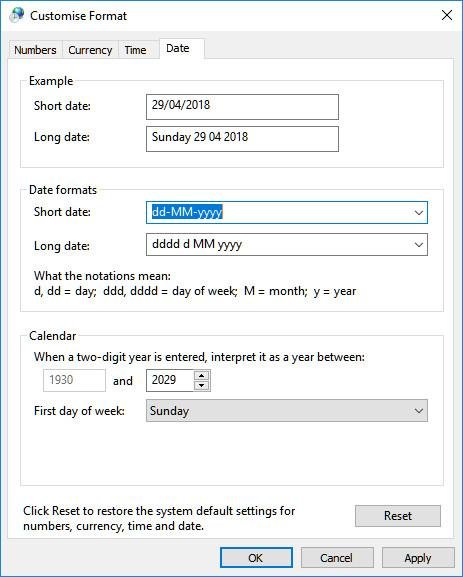
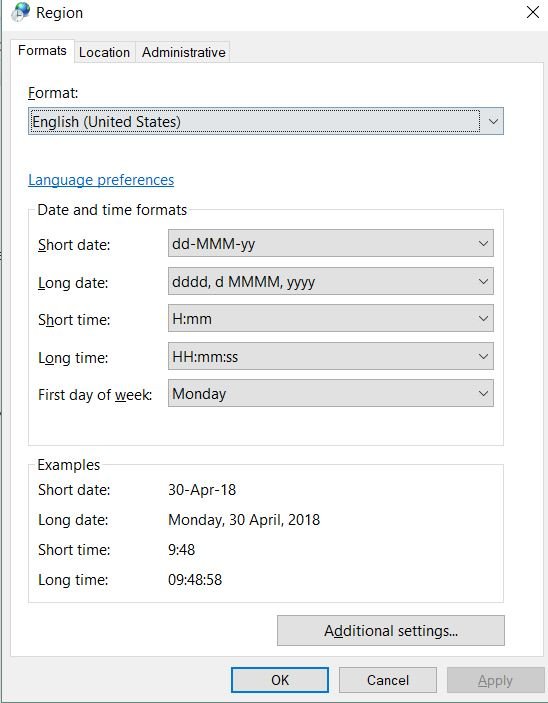
Use the classic Region dialog when a preset regional format is close but not exact, for example a 24-hour clock with US-style dates.
- Select Start > Settings > Time & Language > Region.
- Under Related settings, select Additional date, time, & regional settings.
- On the Clock and Region page, select Change date, time, or number formats.
- On the Formats tab of the Region dialog, select Additional settings.
- In Customize Format, open the Numbers, Currency, Time or Date tab and change the separators, symbols or order.
- Select OK to close Customize Format, then OK to close Region.
To open the Region dialog directly, press Windows key + R, type intl.cpl and press Enter. Restart open apps such as Excel or Access so they read the new formats.
Change the system locale (language for non-Unicode programs) in Windows 10
The system locale is not the same as the regional format. It decides which code page older, non-Unicode programs use, and a wrong value shows up as garbled characters in those programs.
- Select Start > Settings > Time & Language > Language.
- Under Related settings, select Administrative language settings.
- On the Administrative tab, under Language for non-Unicode programs, select Change system locale.
- Choose the locale that matches the program's language and select OK.
- Restart the computer when Windows asks.
Only an administrator can change the system locale, and it takes effect after a restart. Microsoft recommends matching the display language to the system locale so legacy programs render correctly. The beta UTF-8 worldwide language support check box on the same dialog breaks some apps, including parts of Outlook, so leave it cleared unless an app needs it.
Language: change the Windows display language in Windows 10
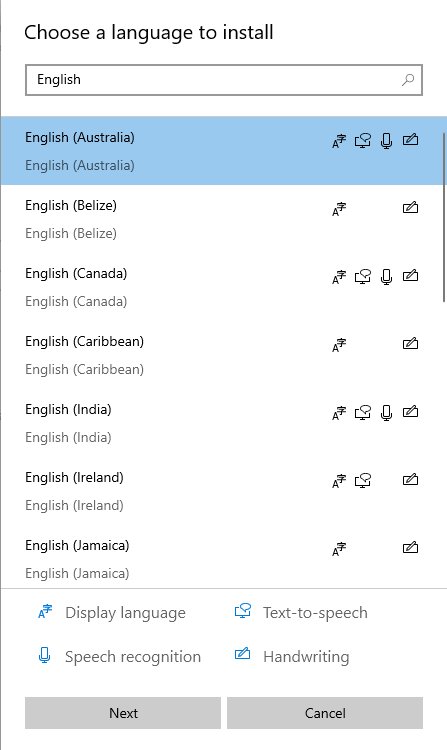
The display language controls menus, dialogs and Settings text. You need to install the language pack before the language appears in the list.
- Save your work and connect to the internet.
- Select Start > Settings > Time & Language > Language.
- If the language is missing, select Add a language under Preferred languages, choose it and select Next.
- Keep Install language pack selected, tick Set as my Windows display language and select Install.
- If the language is already installed, choose it from the Windows display language drop-down instead.
- Select Yes, sign out now, then sign back in.
Some Windows 10 editions allow only one display language and show an Only one language pack allowed message. The keyboard layout at the sign-in screen can change with the language, so check it before you type your password. Windows 11 uses a similar flow to change display language preferences.
Change the keyboard layout and input language in Windows 10
Keyboard layouts belong to a language. Add the layout under the language it matches.
- Select Start > Settings > Time & Language > Language.
- Under Preferred languages, select the language and choose Options.
- Under Keyboards, select Add a keyboard and pick the layout.
- Press Windows logo key + Spacebar to switch between installed layouts.
- To remove a layout, return to Keyboards, select it and choose Remove.
Moving a language to the top of Preferred languages with the up arrow sets the language Store apps and websites use, without changing the display language.
Speech: install speech features for a language in Windows 10
Speech recognition and text-to-speech need the language's speech pack, which installs separately from the language pack.
- Connect to the internet and set the language as your Windows display language.
- Select Start > Settings > Time & Language > Language.
- Under Preferred languages, select the display language and choose Options.
- Under Speech, select Download.
A Settings link in place of Download means speech is already installed. If there is no Speech section at all, that language has no speech features.
Change the time zone from Command Prompt with tzutil
The tzutil tool sets the time zone without opening Settings, which helps on several PCs or in a script. Run tzutil /l first to list every valid time zone ID, and tzutil /g to show the current one.
tzutil /s "Pacific Standard Time"/s sets the time zone to the quoted ID. Add _dstoff to the ID, for example "Pacific Standard Time_dstoff", to turn off daylight saving adjustments for that zone.
You should see: The command returns no message and exits with code 0. Run tzutil /g to confirm the new ID.
Change the time zone and system locale with PowerShell
PowerShell offers the same change through Set-TimeZone. Use Get-TimeZone -ListAvailable to see the IDs it accepts.
Set-TimeZone -Id "UTC"-Id sets the time zone by its ID. Use -Name instead to match the zone's standard name, and add -PassThru to print the new time zone.
You should see: With -PassThru, PowerShell lists the Id, DisplayName and BaseUtcOffset of the zone you set.
To set the system locale from an elevated PowerShell window, run Set-WinSystemLocale -SystemLocale ja-JP, replacing ja-JP with the locale tag you need, then restart.
Where date, time and region settings are in Windows 10 and Windows 11
| Setting | Windows 10 path | Windows 11 path |
|---|---|---|
| Date, time and time zone | Settings > Time & Language > Date & time | Settings > Time & language > Date & time |
| Country or region | Settings > Time & Language > Region | Settings > Time & language > Language & region |
| Regional format | Settings > Time & Language > Region | Settings > Time & language > Language & region |
| Classic Region dialog | Region > Additional date, time, & regional settings | Language & region > Administrative language settings |
| Display language and keyboards | Settings > Time & Language > Language | Settings > Time & language > Language & region |
The intl.cpl shortcut opens the classic Region dialog on both versions.
How to check the new date, time and region settings
- Look at the clock in the taskbar and confirm the time and date format match your choice.
- Open a Command Prompt and run
tzutil /gto confirm the time zone ID. - Open Settings > Time & Language > Region and check the sample date, time and currency under Regional format.
- Sign in again after a display language change and confirm Start and Settings show the new language.
- After a system locale change and restart, open the legacy program and check that its text is readable.
Unable to change the time zone in Windows 10
Time zone drop-down is greyed out
Set time zone automatically is on, so Windows controls the zone.
- Open Settings > Time & Language > Date & time.
- Turn off Set time zone automatically.
- Choose your zone from the Time zone drop-down.
Time zone keeps changing back to the wrong zone
Automatic time zone is using a location Windows reads incorrectly.
- Turn off Set time zone automatically.
- Select the correct zone by hand.
- Set Adjust for daylight saving time automatically to match your area.
Time zone cannot be changed on a work or school PC
The Change the time zone user right is assigned by policy and your account is not on it.
- Ask your IT administrator to change the zone or grant the right.
- On a PC you manage, open Local Security Policy and go to Computer Configuration\Windows Settings\Security Settings\Local Policies\User Rights Assignment.
- Open Change the time zone and confirm Administrators and Users are listed; a greyed-out setting means a Group Policy Object controls it.
- Sign out and back in so the new right takes effect.
Settings will not save the zone
The Settings page fails, but the time zone service itself still works.
- Open Command Prompt and run
tzutil /lto find the correct zone ID. - Run
tzutil /swith that ID in quotes. - Run
tzutil /gto confirm the change.
Fix date, region and language settings that will not change in Windows 10
Change button for date and time is unavailable
Set time automatically is on, or the account lacks the Change the system time right.
- Turn off Set time automatically on the Date & time page.
- Select Change under Set the date and time manually.
- If it is still unavailable, sign in with an administrator account.
Remove is greyed out for a language
That language is the current display language.
- Choose another language in the Windows display language drop-down.
- Sign out and back in.
- Select the old language under Preferred languages and choose Remove.
Change system locale asks for administrator rights
The system locale is a computer-wide setting.
- Sign in with an administrator account.
- Open Administrative language settings and select Change system locale.
- Restart the PC after you select the locale.
Country or region change is refused
The Microsoft account changed region in the last three months, is suspended, or has a minor status that differs between regions.
- Wait three months from the last region change.
- Keep Regional format set as you like in the meantime; it does not depend on the account region.
Windows 10 date, time and region settings FAQ
Where do I change the date and time in Windows 10?
Go to Start > Settings > Time & Language > Date & time. Turn off Set time automatically, select Change under Set the date and time manually, enter the new date and time, and select Change.
Where do I change the time zone in Windows 10?
Use the Time zone drop-down on Settings > Time & Language > Date & time. Turn off Set time zone automatically first, otherwise the drop-down stays greyed out and Windows keeps choosing the zone itself.
How do I change the time zone in regedit?
Use tzutil instead of editing the registry. Run tzutil /s "Time Zone ID" in Command Prompt, with an ID from tzutil /l. It applies the same change safely and needs no registry edits or restart.
Where are the additional date, time and regional settings?
Open Settings > Time & Language > Region and select Additional date, time, & regional settings under Related settings. This opens Clock and Region in Control Panel, where Change date, time, or number formats opens the Region dialog.
How do I change the time to my local time zone automatically?
Turn on Set time zone automatically and Set time automatically on the Date & time page. Windows then picks the zone from your location, syncs the clock and handles daylight saving time for you.
When does the time change for daylight saving time in Windows 10?
Windows changes the clock on the date your selected time zone switches. It does this automatically when Set time zone automatically or Adjust for daylight saving time automatically is on. A wrong zone makes it change on the wrong date.
What is the difference between region, regional format and system locale?
Country or region sets your location for apps and the Store. Regional format sets how dates, times, numbers and currency look. The system locale sets the code page that non-Unicode programs use, and it needs administrator rights and a restart.
Does changing the Windows display language change my apps?
It changes Windows menus and apps that follow the display language. Store apps and websites follow the top entry in Preferred languages, and web services keep their own setting, so you change the Google Maps language inside Maps itself.
Bottom line: best way to change Windows 10 date, time and region
Leave Set time automatically and Set time zone automatically on, pick your Regional format in Settings, and use Control Panel or the system locale only when a preset or an older program needs it. Automatic time and zone keep the clock and daylight saving correct without upkeep, while the classic Region dialog and system locale exist for custom formats and legacy software.

![How to see clipboard history in Windows 11/10[Complete guide]](https://techdows.com/wp-content/uploads/2026/10/How-to-See-Clipboard-History-in-Windows-1110Complete-Guide-600x338.jpg)