When Safari says it cannot connect to the server, load the same page on a different network first: if it opens on cellular data or another Wi-Fi network, the problem is your current network, and if it fails everywhere, the problem is the website or your device settings.
This guide covers the fixes Apple lists for iPhone, iPad and Mac, including website data, JavaScript, iCloud Private Relay, VPN profiles, DNS, the date and time, and a network reset.
Quick fix for the cannot connect to server error in Safari
These four checks settle most cases in under five minutes. Stop as soon as the page loads.
- Reload the page. On a Mac, choose View > Reload Page or press Command-R. On iPhone or iPad, tap the reload button in the address bar.
- Open a site you know is up, such as www.apple.com. If it loads, the original website is the likely problem.
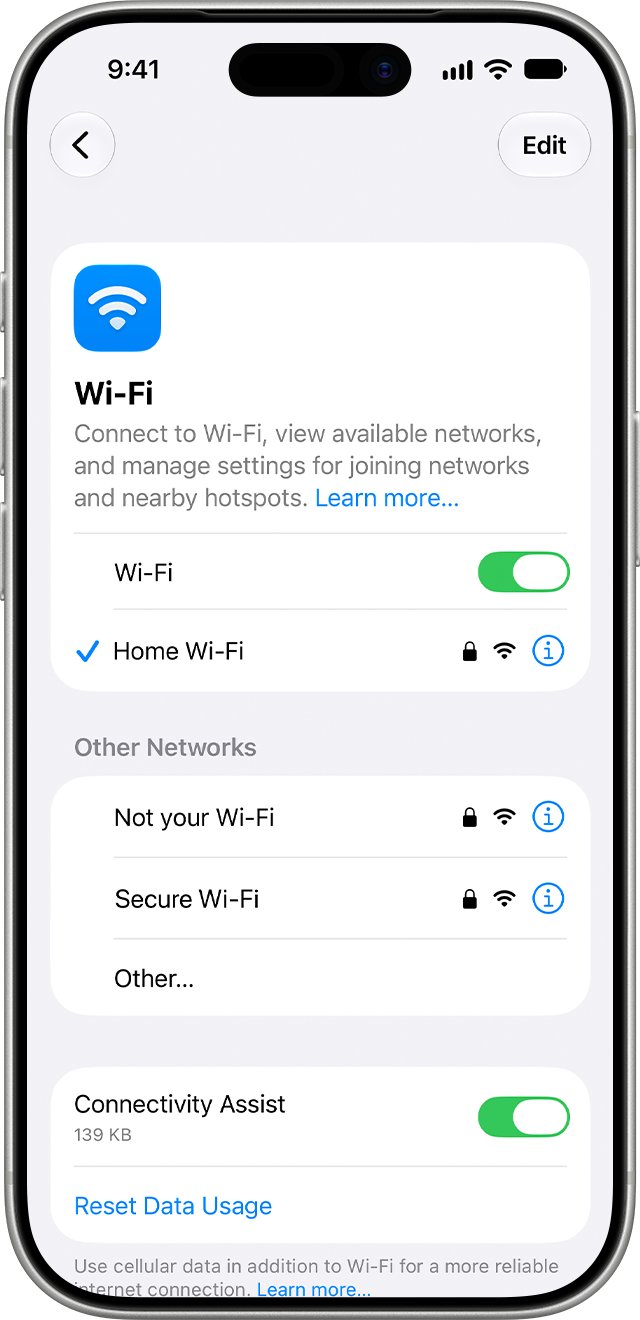
- Switch networks. On iPhone, turn off Wi-Fi and try the page on cellular data, or join a different Wi-Fi network.
- Restart your iPhone, iPad or Mac, then open the page again.
- If the page still fails on every network, work through the device fixes below in order.
Cannot connect to server causes and which fix to try
Match what you see to a row. The first column is the test that tells the causes apart.
| What you see | Likely cause | Fix to try first |
|---|---|---|
| Page fails on Wi-Fi but loads on cellular data | Router, Wi-Fi network or DNS on that network | Restart the router and modem, then check DNS |
| Only one website fails, others load | Stored website data, Private Relay or the website itself | Clear that site's data, then reload without Private Relay |
| Page loads in a Private window but not a normal one | Cookies or cached data for that site | Remove the site's data in Safari |
| Every site fails on every network | VPN, configuration profile, security software or wrong date and time | Check VPN and profiles, then set the time automatically |
| Same page fails in other browsers and on other devices | The website or its server is down | Wait, or contact the website owner |
| Pages load but parts of them are blank or broken | JavaScript turned off or an extension blocking content | Turn on JavaScript, then test with extensions off |
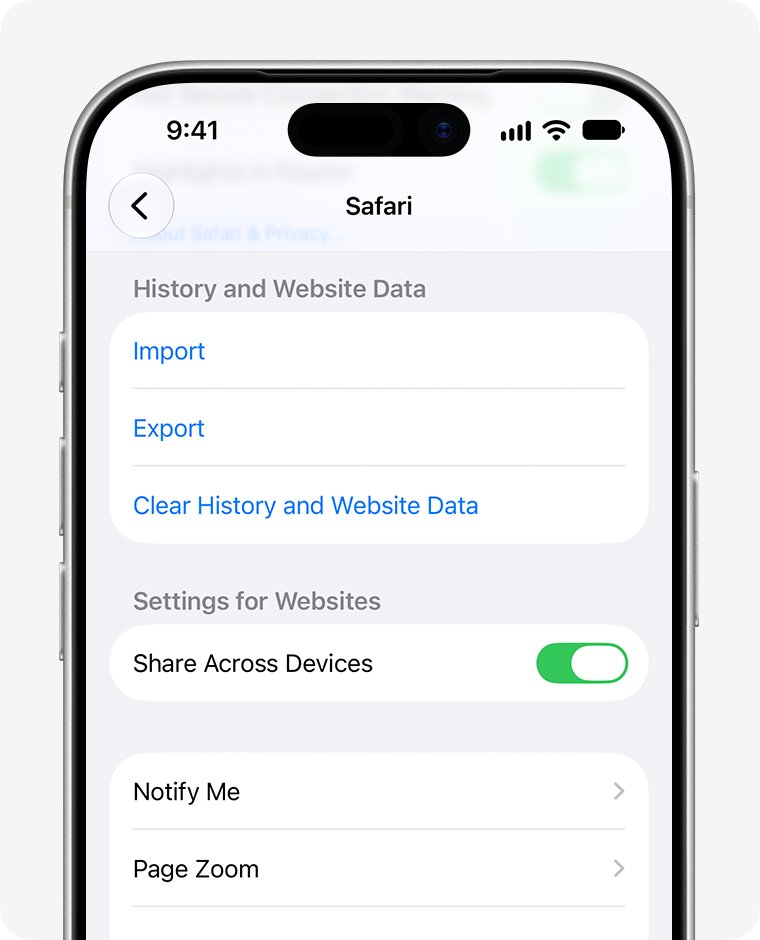
Clear Safari history and website data on iPhone and iPad
Damaged cookies or cached files can stop Safari reaching a server it reached yesterday. Clearing them signs you out of websites, so have your passwords ready.
- Open Settings and tap Apps.
- Tap Safari.
- Tap Clear History and Website Data.
- Tap Clear History to confirm.
- Open Safari and load the page again.
Turn on JavaScript in Safari on iPhone
Many sites will not load their content without JavaScript, and Apple lists it as a standard Safari fix on iPhone and iPad.
- Open Settings and tap Apps.
- Tap Safari.
- Tap Advanced.
- Turn on JavaScript.
- Return to Safari and reload the page.
Turn off iCloud Private Relay for a website or network
iCloud+ Private Relay hides your IP address, and some websites and networks refuse connections they cannot identify. Apple notes that some sites need extra steps to sign in or show content when Private Relay is on.
Try the one-site option first, because it leaves Private Relay on everywhere else.
| Where | What to do | Effect |
|---|---|---|
| Safari on iPhone or iPad, one site | Tap the Page Menu button, then tap Show IP Address | Reloads that site without hiding your IP address |
| Safari on Mac, one site | Choose View > Reload and Show IP Address | Reloads that page without Private Relay |
| iPhone or iPad, one Wi-Fi network | Settings > Wi-Fi > More Info button next to the network > turn off Limit IP Address Tracking | Private Relay is off on that network only |
| iPhone, cellular data | Settings > Cellular > your primary number under SIMs > turn off Limit IP Address Tracking | Private Relay is off on cellular only |
| Mac, one network | Apple menu > System Settings > Network > the network service > Details > turn off Limit IP address tracking | Private Relay is off on that network only |
If the menu item is missing, update to the latest iOS, iPadOS or macOS. In iOS 18 or earlier, the cellular option sits under Cellular Data Options.

Check VPN apps and configuration profiles on iPhone and Mac
A VPN, content filter or security app that monitors network traffic can block the connection Safari needs. Configuration profiles can change network behaviour too.
- On iPhone or iPad, look on the Home Screen for apps with names such as VPN or Security.
- Open Settings, swipe down to show the search field, and search for VPN. Turn off any VPN that is connected.
- In the same search field, search for profile. Tap any profile you did not install on purpose and delete it.
- On a Mac, check the Applications folder for VPN or security apps, then choose Apple menu > System Settings and search for VPN.
- On the Mac, select any unwanted profile and click the Remove (-) button.
- Restart the device and load the page again.
If removing the VPN fixes the error but you need it, contact the VPN or security software provider. Settings managed by a school or employer may not be changeable.
Fix cannot connect to server in Safari on Mac
Safari on macOS has a few extra controls that iPhone does not: extensions, per-site cookie and data removal and a private browsing window test.
- Quit Safari and open it again. If it will not quit, press Option-Command-Esc and force it to quit.
- Choose File > New Private Window (Shift-Command-N) and open the page there.
- If it loads in the private window, choose Safari > Settings > Privacy > Manage Website Data, select the site, click Remove, then click Done.
- If it still fails, choose Safari > Settings > Extensions and deselect each extension to turn it off.
- Reload the page. If it now works, turn extensions back on one at a time to find the one blocking it, and update that extension.
- Install any macOS update, since the latest Safari version arrives with macOS, then restart the Mac.
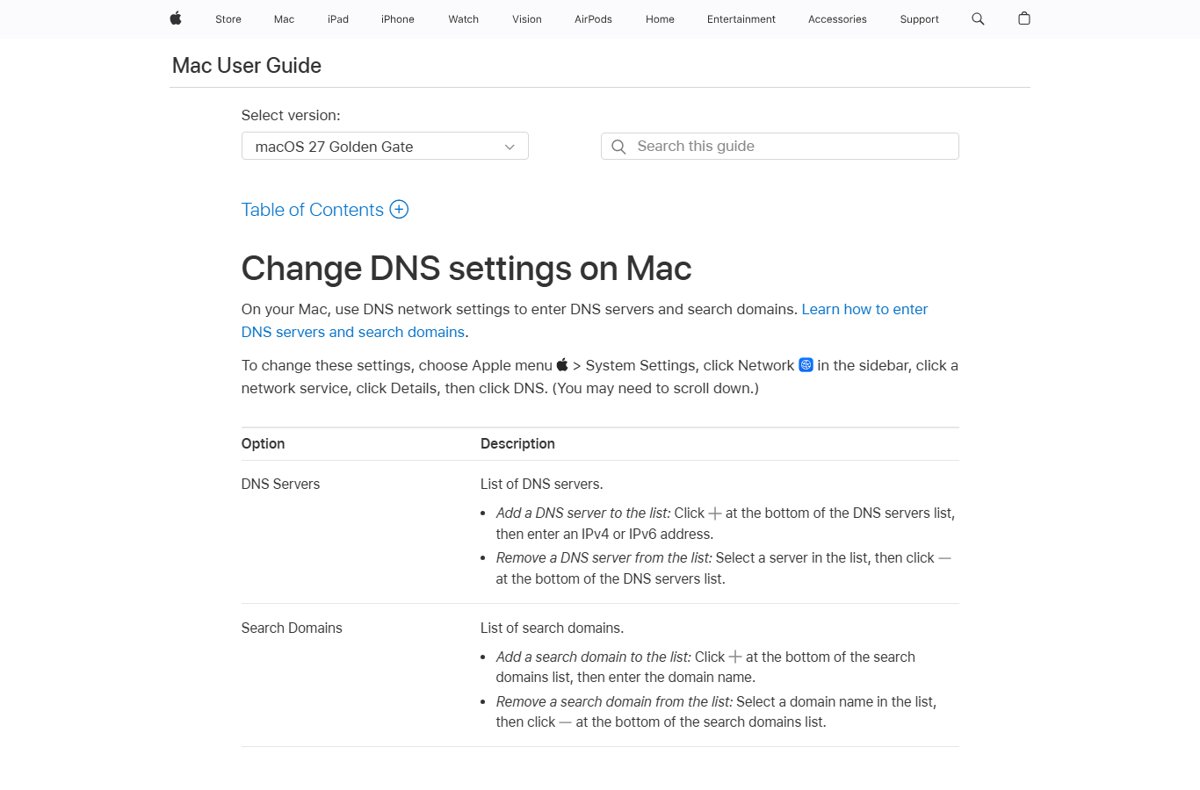
Change DNS settings on Mac
A custom DNS server that is down or misconfigured makes Safari unable to find the server at all. Removing a stale entry, or adding a working one, fixes it.
- Choose Apple menu > System Settings.
- Click Network in the sidebar, then click your network service, such as Wi-Fi.
- Click Details.
- Click DNS. Scroll down if you do not see it.
- Select a DNS server you no longer use and click the Remove button, or click the Add button and enter a working IPv4 or IPv6 address.
- Click OK and reload the page in Safari.
Custom proxy settings in the same Details window can cause the same error. If you did not set a proxy, it should be off.
Set the date and time automatically on iPhone
Secure websites check your device clock, and Apple lists the date, time and time zone among the first things to check when connections fail.
- Open the Settings app.
- Tap General, then tap Date & Time.
- Turn on Set Time Automatically.
- Turn on Set Time Zone Automatically if it is off. It needs Location Services and a network connection.
- Open Safari and reload the page.
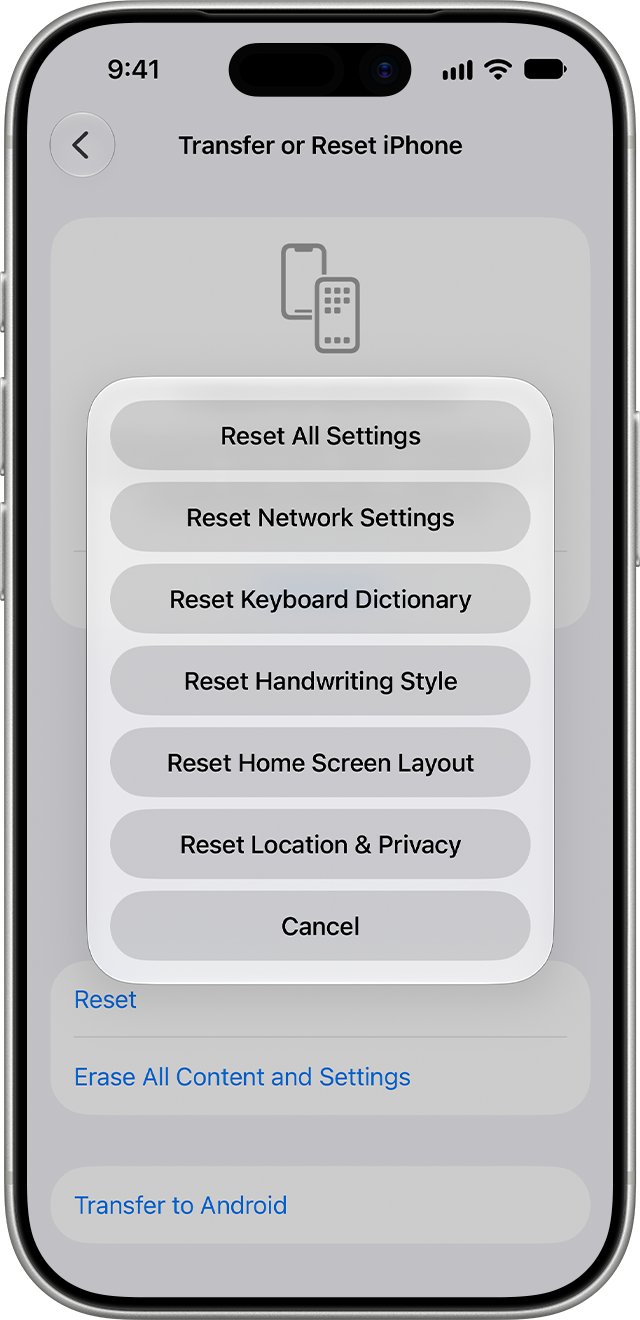
Reset network settings on iPhone or iPad
This is the last resort on iPhone. It removes saved Wi-Fi networks and passwords, cellular settings, and VPN and APN settings, so you will rejoin Wi-Fi afterwards.
- Open Settings and tap General.
- Tap Transfer or Reset iPhone (or Transfer or Reset iPad).
- Tap Reset.
- Tap Reset Network Settings and confirm.
- Rejoin your Wi-Fi network and enter its password.
- Load the page in Safari again.
If a school or business manages your network, ask its administrator before resetting. On a Mac, the equivalent is creating a new network location in Network settings.
Check Safari can reach the server again
- Open the page that failed in a normal Safari window, not a private one.
- Confirm it loads fully, including images and sign-in forms.
- Turn Wi-Fi off and on, or move between Wi-Fi and cellular, and load it again.
- If you turned off Private Relay for one network, decide whether to turn Limit IP Address Tracking back on now that the cause is known.
- If you removed extensions or a VPN, add back only the ones you need and test after each.
Cannot connect to server errors that keep coming back
Safari on iPhone cannot connect to server on Wi-Fi only
The router, modem or the Wi-Fi network's DNS is failing while cellular works.
- Check whether other devices on the same Wi-Fi can load the page.
- Unplug the router and modem, wait, then plug them back in.
- If the router offers a 5 GHz band, join it instead of 2.4 GHz.
- Update the router firmware or contact its manufacturer if the problem stays.
Cannot connect to server for one website only
The site's server is down, blocks Private Relay, or its stored data on your device is damaged.
- Open the site in another browser or on another device on the same network.
- If it fails there too, the website is the problem. Wait or contact the site owner.
- If it works elsewhere, reload with Show IP Address (iPhone) or Reload and Show IP Address (Mac).
- Clear that site's data, then sign in again.
Unable to connect to server on every site and every network
A VPN, profile, security app, custom DNS or proxy, or a wrong clock is blocking all connections.
- Remove or turn off the VPN and any unknown profile.
- Set the date and time to update automatically.
- Remove custom DNS servers and proxies you did not set.
- Reset network settings on iPhone, or create a new network location on Mac.
Website issue that persists after every fix
The server itself is refusing or failing the request.
- In Safari 26 or later on Mac, reload the page, click the Page Menu button in the Smart Search field, and choose Report a Website Issue.
- Describe the problem and click Report.
- Contact the website owner or developer directly.
A page that loads but shows a 500 internal server error is a different fault: Safari reached the server, and the server failed.
Safari cannot connect to server FAQ
What does cannot connect to server mean?
It means Safari sent a request but got no usable answer from the website's server. The cause is either your connection, such as Wi-Fi, DNS, a VPN or Private Relay, or the website itself being down or refusing the connection.
How do I fix the can't connect to server error on iPhone?
Try the page on cellular data or another Wi-Fi network, restart the iPhone, then clear Safari data in Settings > Apps > Safari > Clear History and Website Data. If that fails, check VPN apps and profiles, then reset network settings.
Why does Safari say it cannot connect to the server when other apps work?
Other apps may use different servers that are still up, while the website you opened is not. It can also be site data stored in Safari, a Safari extension on Mac, or Private Relay, which affects Safari traffic specifically.
Can iCloud Private Relay cause cannot connect to server errors?
Yes. Some websites and networks do not work with Private Relay because they cannot see your IP address. Reload the page with Show IP Address on iPhone, or Reload and Show IP Address on Mac, to test without it.
Does a VPN cause the error connecting to server?
It can. Apple notes that a VPN or security software that monitors network connections may block some content or all internet access. Turn the VPN off, restart, and test the page again before removing the app.
Will resetting network settings delete my data?
No. Reset Network Settings removes only network configuration: saved Wi-Fi networks and passwords, cellular settings, and VPN and APN settings. Photos, apps, messages and other data stay on the iPhone or iPad.
How do I know if the website server is down?
Open the same page in another browser and on another device using the same network, then on a different network. If it fails everywhere while other sites load, the website's server is the problem and only its owner can fix it.
Can a wrong date and time stop Safari connecting to a server?
Yes. Secure connections depend on the device clock, and Apple lists date, time and time zone as a basic check for connection problems. Turn on Set Time Automatically in Settings > General > Date & Time.
Bottom line: fixing cannot connect to server in Safari
Test the page on a second network before changing any settings, then clear the site's data and reload without Private Relay. The network test tells you in one step whether the fault is your Wi-Fi, your device or the website, and the two data and Private Relay fixes clear most single-site failures without a network reset.