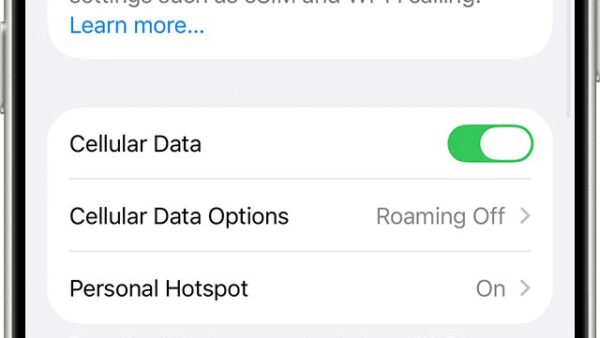
"Your device couldn't connect to the server. There may be a problem with the server or network" means your iPhone could not reach iCloud Drive, so check Apple System Status first and then the connection on your side: cellular data access, Low Data Mode, Private Relay, VPN apps and the iCloud sign-in.
This guide covers the fastest fix, why the error appears mostly on cellular data, how to test each cause, and how to reach your files on iCloud.com while you troubleshoot.
Fix the iPhone error "your device couldn't connect to the server"
Retry the file in the Files app after each step. Stop as soon as it opens.
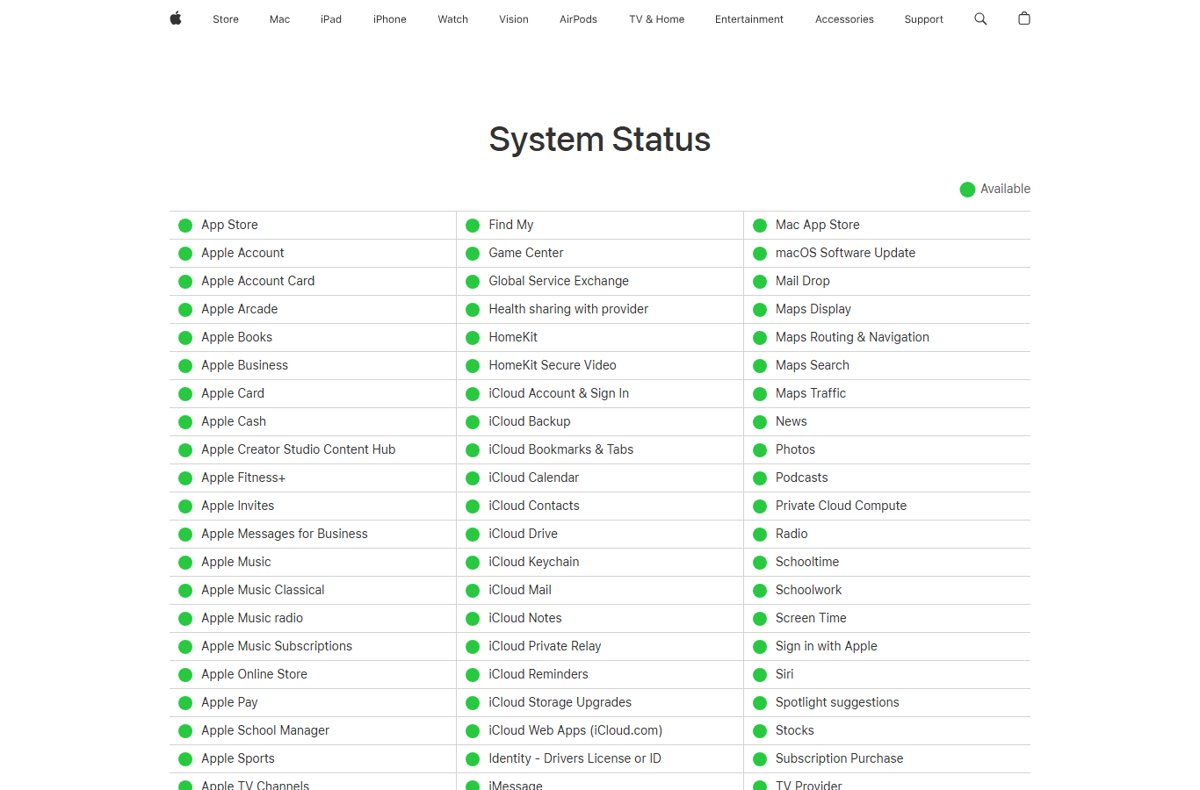
- Open apple.com/support/systemstatus and check that iCloud Drive and iCloud Account & Sign In show a green circle.
- Switch networks: join Wi-Fi if you are on cellular, or turn Wi-Fi off if the Wi-Fi network is the problem.
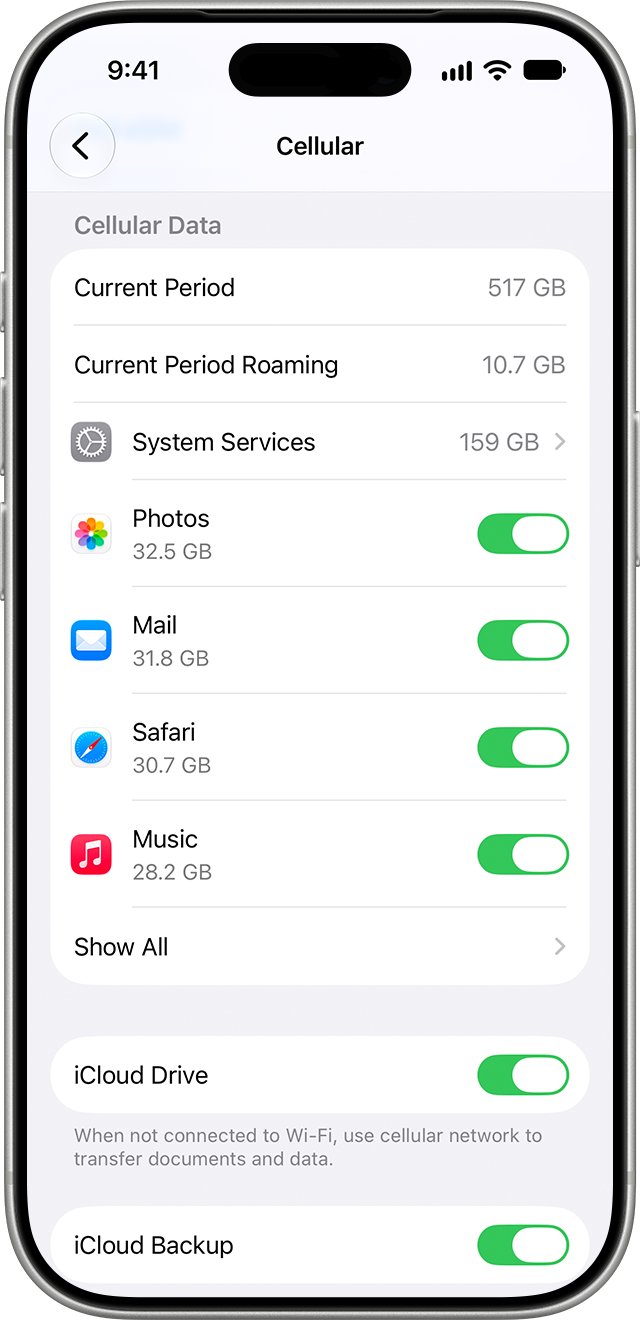
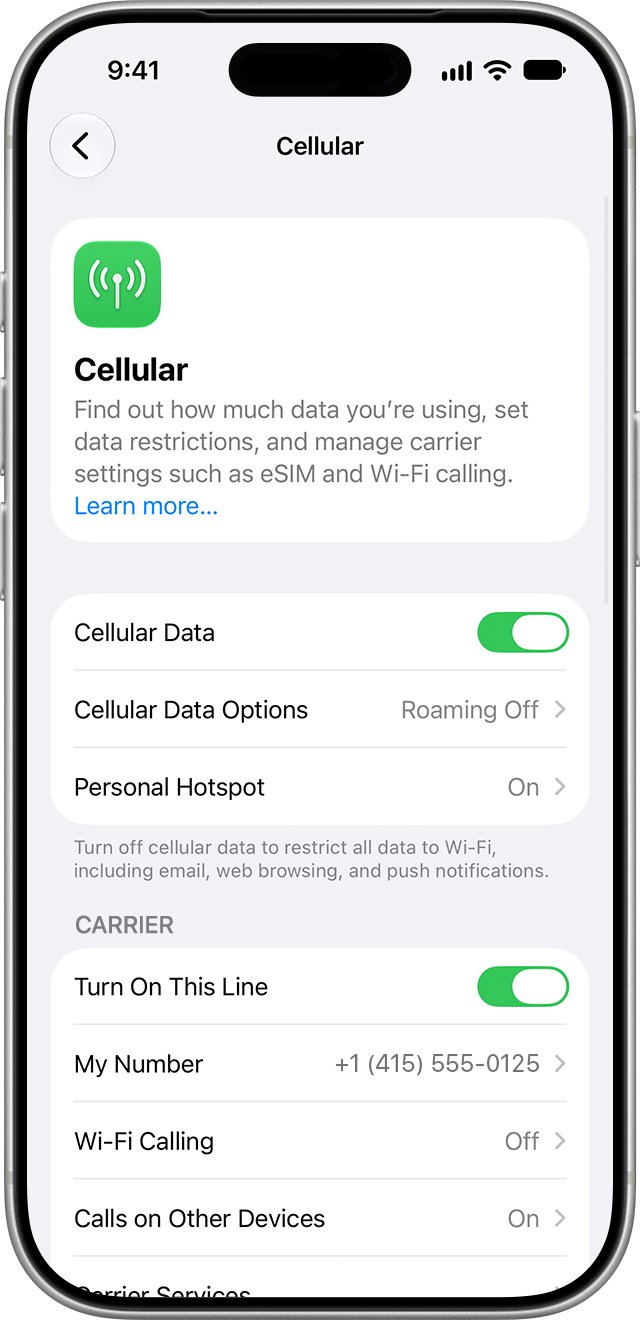
- Open Settings > Cellular, make sure Cellular Data is on, then scroll down and make sure the app you are using is switched on.
- In Settings > Cellular > Cellular Data Options, turn off Low Data Mode while you test.
- Turn off any VPN or content-blocker app, then retry.
- Restart your iPhone.
- Go to Settings > General > Software Update and install any update shown.
Which iCloud Drive server error fix matches your situation?
| When the error appears | Likely cause | Fix to try first |
|---|---|---|
| Only on cellular data, Wi-Fi works | Cellular Data off for the app, Low Data Mode, or Private Relay on that cellular network | Cellular settings for the app, then Low Data Mode, then Limit IP Address Tracking |
| Only on one Wi-Fi network | Router, network filtering, or Private Relay not compatible with that network | Another network, restart the router, Limit IP Address Tracking for that Wi-Fi |
| On every network | VPN, security app, profile, outdated iOS or sign-in problem | Remove VPN and profiles, update iOS, check iCloud sign-in |
| On every device and on iCloud.com | Apple service outage or maintenance | Wait and watch Apple System Status |
| After changing your Apple Account password | Services still using the old sign-in | Update the sign-in for iCloud on the iPhone |
iCloud Drive requirements on iPhone
| Requirement | Where to check |
|---|---|
| Latest iOS | Settings > General > Software Update |
| Same Apple Account on every device | Settings > [your name] |
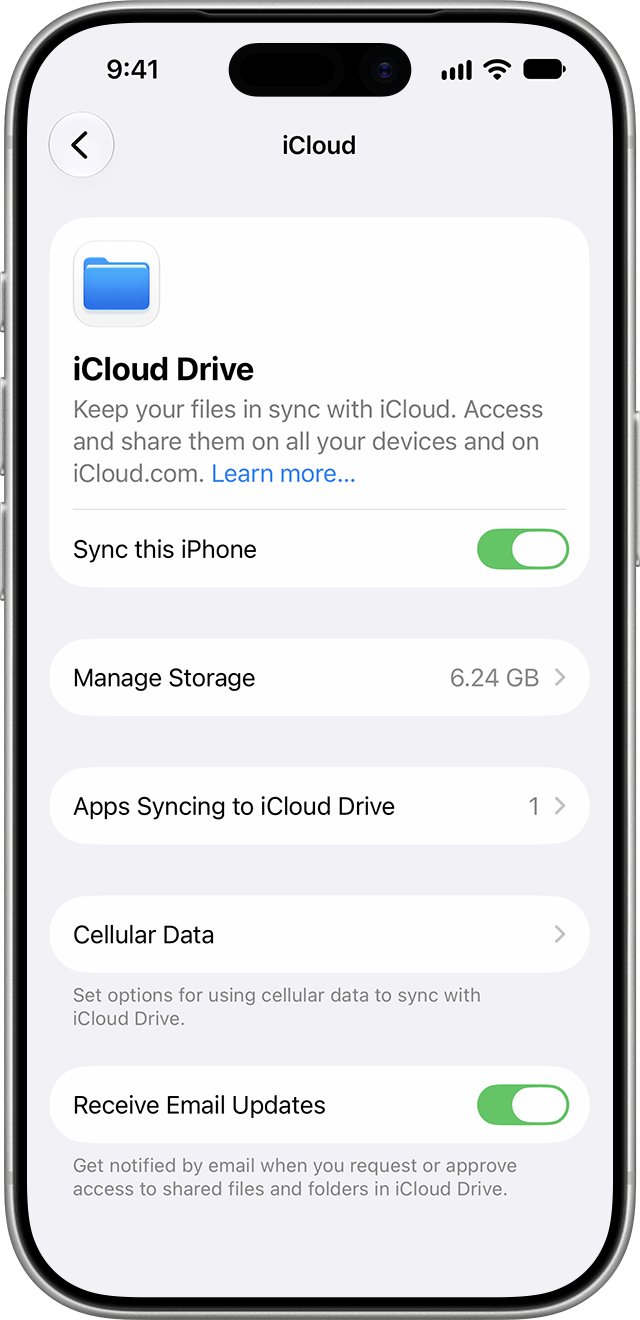
| iCloud Drive turned on | Settings > [your name] > iCloud > Drive > Sync this iPhone |
| A working internet connection | Safari loads a page on the same network |
| Cellular Data on, when away from Wi-Fi | Settings > Cellular |
| Apple services running | Apple System Status page |
Apple notes that with Cellular Data turned off, you might not be able to reach your Apple Account and iCloud when you are not on Wi-Fi.
Check Apple System Status for iCloud Drive outages
- Open Safari and go to apple.com/support/systemstatus.
- Find iCloud Drive and iCloud Account & Sign In in the list.
- A green circle means Available; any other marker means an outage or maintenance.
- If a service is affected, wait and reload the page later instead of changing settings.
- If everything shows as available, continue with the checks on your iPhone.
Allow iCloud Drive to use cellular data on iPhone
The error most often appears on cellular data because the app, or iCloud itself, is not allowed to use it. Apps switched off in Cellular settings use only Wi-Fi.
- Open the Settings app and tap Cellular.
- Turn on the slider next to Cellular Data.
- Scroll down to the list of apps and switch on Files and the app you opened the document in, such as Numbers or Pages.
- Tap Cellular Data Options (or your line on a Dual SIM iPhone) and turn off Low Data Mode.
- Go back and open the file from Files > iCloud Drive again.
Low Data Mode pauses iCloud updates and automatic backups, so iCloud content can stall while it is on. The same setting exists per Wi-Fi network: tap the Info button next to the network in Settings > Wi-Fi.
Turn off iCloud Private Relay for one network on iPhone
Apple says some networks and services are not compatible with Private Relay and lets you turn it off for one network only. This applies only if you have iCloud+.
- For a cellular network, open Settings > Cellular and select your primary number under SIMs (in iOS 18 or earlier, tap Cellular Data Options).
- Turn off Limit IP Address Tracking.
- For a Wi-Fi network, open Settings > Wi-Fi and tap the More Info button next to the network.
- Scroll down and turn off Limit IP Address Tracking.
- Retry the file, and turn the setting back on if it made no difference.
With Private Relay off for that network, your network provider and websites can see your Safari activity on it. The setting follows the network to all your devices.
Remove VPN, profiles and filter apps blocking iCloud on iPhone
- Look on the Home Screen for VPN, firewall, antivirus, parental-control and content-blocker apps.
- Open each one, turn off its features, and retry the file.
- Open Settings, swipe down to show the search field, and search for VPN, profile, firewall and filter.
- Delete any configuration profile you do not need by tapping it and confirming.
- Check that the date, time and time zone on the iPhone are correct.
- Restart the iPhone and retry.
Apple lists "can't connect to the internet" and "can't back up to iCloud" among the symptoms these apps cause. On a work or school iPhone, ask the administrator before removing a profile.
Check your iCloud sign-in and iCloud Drive setting
- Open Settings and tap your name.
- Confirm it shows the same Apple Account you use on your other devices.
- Tap iCloud, then Drive, and make sure Sync this iPhone is on.
- If you changed your Apple Account password recently, enter the new password wherever iCloud asks for it.
- Open the Files app and go to iCloud Drive to retry the file.
Reset network settings on iPhone to clear the server error
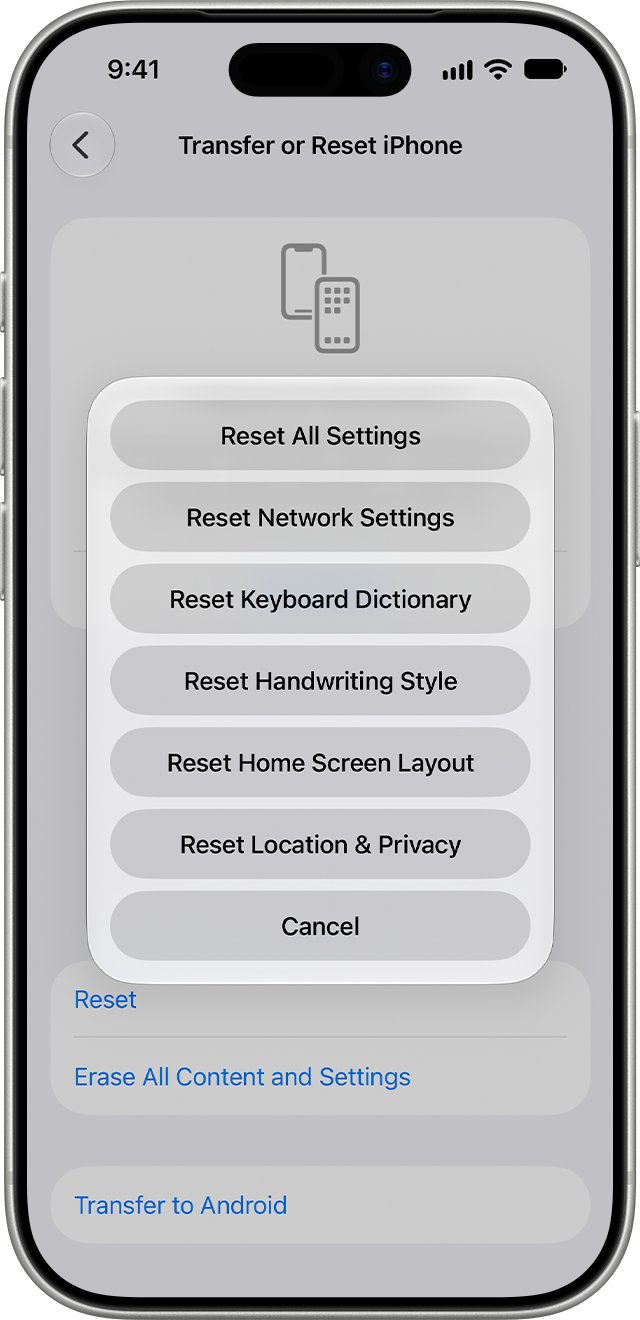
Use this when the error appears on every network and nothing above worked. It removes all saved Wi-Fi networks and passwords, cellular settings, and VPN and APN settings.
- Open the Settings app and tap General.
- Tap Transfer or Reset iPhone, then tap Reset.
- Tap Reset Network Settings.
- Rejoin your Wi-Fi network after the iPhone restarts.
- Open the file in Files > iCloud Drive again.
How to confirm iCloud Drive connects again
- Open the Files app and tap iCloud Drive.
- Open a document that showed the error; it should load without the alert.
- Create a test folder in iCloud Drive.
- Sign in at icloud.com/iclouddrive on another device and confirm the test folder appears.
- Repeat the test on cellular data with Wi-Fi off, then delete the test folder.
What the iCloud Drive "couldn't connect to the server" error means
| Part of the message | What it points to |
|---|---|
| "Your device couldn't connect to the server" | The iPhone did not get a response from iCloud Drive |
| "problem with the server" | An Apple outage or maintenance, shown on Apple System Status |
| "or network" | Your Wi-Fi or cellular connection, or something filtering it, such as a VPN, profile, Private Relay or Low Data Mode |
| Appears mainly on cellular | Cellular Data blocked for the app or iCloud, Low Data Mode, or Private Relay on that cellular network |
Your files stay in iCloud while the error shows. Signing in at icloud.com/iclouddrive from any browser, or opening the iCloud Drive folder in iCloud for Windows on a PC, opens them.
Why won't my iPhone connect to iCloud Drive? Symptom fixes
Why is my device not connecting on cellular data only?
Cellular Data is off for the app or Low Data Mode is pausing iCloud.
- Open Settings > Cellular and switch on the app in the list.
- Turn off Low Data Mode in Cellular Data Options.
- Turn off Limit IP Address Tracking for the cellular line as a test.
Can't connect on a work, school or public Wi-Fi network
The network filters or audits traffic, which Apple says can conflict with Private Relay.
- Switch to cellular data and retry.
- Turn off Limit IP Address Tracking for that Wi-Fi network.
- Ask the network administrator whether iCloud traffic is blocked.
Your device is not connected to the internet at all
The Wi-Fi or cellular data connection itself is down.
- Open Settings > Wi-Fi and look for the blue checkmark next to your network.
- Make sure Airplane Mode is off.
- Restart the router and modem, or contact your internet provider if no device can get online.
Repeated Apple Account password prompts with the error
A recent password change or an unfinished iCloud restore.
- Enter the updated Apple Account password when asked.
- If you just restored from iCloud Backup, stay on Wi-Fi and power until the restore finishes.
- Retry the file afterwards.
iCloud Drive server connection error FAQ
Why won't my device connect to the iCloud server?
Either Apple's iCloud Drive service is down or your connection is blocked. Check Apple System Status first; if iCloud Drive shows a green circle, look at Cellular Data, Low Data Mode, Private Relay and any VPN or filter app on the iPhone.
Why is my device not connecting to iCloud Drive on cellular data?
The app you are using, or iCloud, may be switched off in Settings > Cellular, or Low Data Mode may be pausing iCloud. Switch the app on, turn off Low Data Mode, and retry.
Why is my phone not connecting to iCloud when Wi-Fi works?
If iCloud fails only on cellular, the cellular settings are the cause, not iCloud. Check per-app cellular access, Low Data Mode, and Limit IP Address Tracking for the cellular line.
Can't connect to iCloud on one network but other networks work?
That network is filtering traffic or is not compatible with Private Relay. Turn off Limit IP Address Tracking for that network, restart the router, or ask the network administrator about blocked services.
Why can't you connect to the server when your internet works?
Safari can load pages while a VPN, profile or content blocker still blocks iCloud. Turn those off, check the date and time, and confirm iCloud Drive shows as available on Apple System Status.
Is "your device couldn't connect to the server" an Apple outage?
Sometimes. Apple System Status lists iCloud Drive and iCloud Account & Sign In; a green circle means available. If both are green, the problem is on your device or network.
Can I open my iCloud Drive files while the error shows?
Yes. Go to icloud.com/iclouddrive in any browser, sign in with your Apple Account, and open the files there. They stay stored in iCloud while the iPhone cannot connect.
Will Reset Network Settings delete my iCloud Drive files?
No. It only removes saved Wi-Fi networks and passwords, cellular settings, and VPN and APN settings. Files in iCloud Drive are not affected.
Bottom line: iCloud outage or iPhone network problem?
Check Apple System Status first, then fix the iPhone's cellular access, Low Data Mode and Private Relay before resetting anything. The message names both the server and the network; System Status rules out the server in seconds, and the error appearing mainly on cellular points to settings that block iCloud on that connection.